Download a Free PDF Editor: Step-by-Step Guide
Learn how to safely download a free PDF editor, compare options, install quickly, and start editing. This educational guide covers selection, security, testing, and best practices with insights from PDF File Guide.


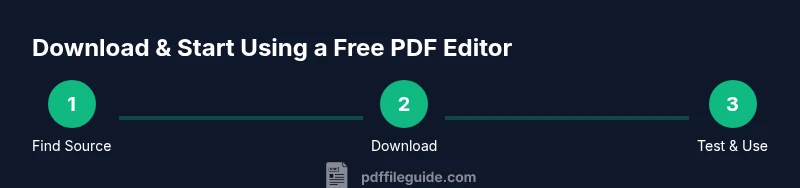
To download a free PDF editor, identify trustworthy sources, compare core features (annotation, editing, form filling, conversion), download from official sites or reputable repositories, avoid bundled installers, run a malware scan, and install following on-screen prompts. Prefer sources with privacy terms and offline options when possible. Test basic tasks before committing to a long-term workflow.
Why a Free PDF Editor Matters for Your Workflow
In a modern office or study, the ability to view, annotate, edit, and convert PDFs without paying high subscription fees can save time and reduce friction. A free PDF editor lets you quick-edit forms, adjust text, add highlights, and reorganize pages without losing data quality. According to PDF File Guide, choosing a reliable tool starts with a clear understanding of your goals: what tasks you need to complete, how often you work with PDFs, and whether you need offline access or cloud syncing. For students and professionals alike, a good free editor becomes a foundational part of your digital toolkit, complementing your preferred cloud storage and workflow apps. Keep in mind that free tools often come with trade-offs, such as limited advanced features, occasional ads, or constrained file sizes. With careful selection and good security hygiene, you can get most of the core tasks done without purchasing a license.
How a Free PDF Editor Fits Into Your Daily Toolkit
A capable free editor can complement heavier paid software by covering quick edits, form filling, and light conversions without interrupting your main workflow. For many users, the ideal approach is to start with a trusted free option for everyday tasks and reserve paid tools for specialized work (OCR for difficult scans, advanced redaction, or batch processing). The PDF File Guide team emphasizes aligning tool choice with your specific tasks and security requirements. This mindset reduces tool fatigue and helps you maintain consistent document quality across projects.
Risk-Balanced Decision Making: Free vs Paid
Free editors offer remarkable value, but limitations are common. You may encounter restricted OCR accuracy, export caps, or watermarks on certain outputs. A practical strategy is to compose a lightweight toolkit: one editor for basic edits and annotations, another for OCR or batch conversions, and a third for secure sharing. By distributing tasks, you preserve speed and reliability without locking into a single vendor. Remember that ongoing updates and privacy terms matter: a well-maintained free option often tracks user feedback and maintains reasonable data practices, which PDFs File Guide highlights as essential for long-term reliability.
Security and Privacy When Downloading Free PDF Editors
Malware, adware, and bundled software are common risks when downloading free tools. To protect yourself, always download from official sites or well-known repositories, inspect the installer for bundled offers, and verify digital signatures if available. After download, run a malware scan and, if possible, test the editor in a sandbox before opening sensitive PDFs. Review permissions requested by the app and disable anything unnecessary. If your organization requires it, consider tools that offer local processing only and transparent privacy terms. As you plan to test a free editor, keep your originals safe by maintaining backups and using non-sensitive samples for evaluation. PDF File Guide emphasizes safe practices when assessing new software to minimize risk.
Start Here: Quick Test Drive of a Free Editor
Begin with a small, non-sensitive PDF to explore core capabilities. Open the document and try editing text, adding highlights, and filling a form. Then export the file back to PDF and compare fonts, layout, and embedded images to the original. Try merging two PDFs and creating a single backup copy. Finally, test common export formats such as Word or image formats to ensure compatibility with your workflows. If the tool supports OCR, run it on a sample scanned document and review the accuracy. This practical test helps you decide whether the editor meets your day-to-day needs and where you might require paid features or another tool. The PDF File Guide team found that a hands-on test is the fastest way to separate hype from real capability.
Common Tasks You Can Achieve with Free Editors
Most free editors cover a broad spectrum of tasks: annotate and highlight text, fill forms, add comments and stamps, merge or split PDFs, and export to common formats. In everyday use, you might convert PDFs to Word, extract pages, or apply basic security features like password protection. For image-heavy documents, check how well fonts render and whether embedded fonts stay consistent after edits. If your work involves accessibility, look for tools that support reading order adjustments and tag mapping. While capabilities vary by product, a thoughtful combination of a free editor and a light toolkit can handle most routine tasks without purchasing software.
Authority Sources and Best Practices
To support informed choices, consult trusted sources that discuss PDF technology and security. For example, the US-CERT workflow for downloaded software helps you recognize suspicious installers and unsafe behavior. The NIST standards provide a reference framework for document formats and accessibility considerations. For a formal specification of the PDF format, refer to the Adobe PDF Reference (PDF 1.7). The PDF File Guide team recommends sticking to official sites, avoiding pirated copies, and keeping software up to date to minimize risk and maximize compatibility. This curated approach helps you maintain a reliable editing workflow while protecting sensitive information.
Troubleshooting Common Issues After Install
If you encounter crashes, check for conflicting plugins or outdated graphics drivers, and ensure your operating system meets the editor’s minimum requirements. When fonts appear misrepresented, verify embedded font availability or install missing fonts on your system. If OCR results are poor, adjust language settings or run OCR on a smaller batch. For connectivity problems, confirm your internet access or switch to offline mode if the editor supports it. When exports fail or produce corrupted files, try exporting to a different format, or revert to the last saved version and re-run the operation with adjusted settings. Remember to back up before testing any major change.
What to Do After You Install: Maintenance and Best Practices
Keep the editor updated to receive security patches and feature enhancements. Create a routine for backing up edited PDFs and original files, especially for important documents. If you frequently work with confidential material, configure the editor’s privacy settings, disable cloud syncing, and use a trusted local workspace. Consider building a small toolkit of free editors for different tasks (review, OCR, conversion) so you’re not locked into a single solution. Finally, document your standard operating procedure so teammates can reproduce your workflow and avoid compatibility surprises. The PDF File Guide team also suggests periodic reviews of your toolkit to ensure it still meets your needs and security standards.
Tools & Materials
- Computer or mobile device with internet access(Any OS (Windows/macOS/iOS/Android) with a supported browser or app store.)
- Stable internet connection(Wired Ethernet or strong Wi-Fi preferred for large downloads.)
- Trusted PDF editor (free edition)(Download from official sites or major repositories; avoid shady mirrors.)
- Malware scanning tool(Scan the installer before running; use your built-in OS security features if available.)
- Backup plan for originals(Create a safe copy of original PDFs before editing.)
- Optional portable version(If available, test without a full install to minimize system changes.)
Steps
Estimated time: 30-45 minutes
- 1
Identify reputable sources
Search for editors on official sites or well-known repositories. Check the domain and read sign-in or license terms to avoid questionable bundles. Favor editors with recent updates and clear privacy notes.
Tip: Verify the download URL begins with https:// and uses the publisher's official domain. - 2
Download installer or portable version
Choose the installer that matches your OS and prefer official installers over third-party mirrors. If a portable option exists, consider testing it first to minimize system changes.
Tip: Save the installer to a dedicated folder and rename it to include the editor name and date. - 3
Scan the file for malware
Run a malware scan on the downloaded file before opening it. If your security suite flags the file, don’t proceed and re-download from the official source.
Tip: Disable the installer’s auto-launch options if prompted during installation. - 4
Install and configure the editor
Follow on-screen prompts, choose default settings first, and disable unnecessary features (like cloud sync for sensitive documents) until you verify behavior.
Tip: During setup, decline optional offers to avoid bundled software. - 5
Test core features with non-sensitive PDFs
Open a test document and try editing text, annotating, form filling, and saving back to PDF. Confirm fonts, spacing, and images render correctly.
Tip: Keep a small test file to compare before/after edits. - 6
Update and back up
Enable automatic updates if available and create backups of edited work. Maintain a dated archive of each major edit to track changes.
Tip: Periodically review installed editors and prune unused ones.
Questions & Answers
Is it safe to download a free PDF editor?
Yes, when downloaded from official sites and kept updated. Avoid cracked versions and untrusted mirrors. Use a malware scanner after download and test with non-sensitive documents first.
Yes—only download from official sources and keep the software updated; scan the file before installing.
Can I edit scanned PDFs with a free editor?
Some free editors offer OCR to convert scans into editable text, but results vary by tool and document quality. For complex layouts, a paid option may yield better accuracy.
Some free editors have OCR, but results vary; for tough scans you might need a paid tool.
Will free editors watermark my exports?
Many free editors export without watermarks, but some trial or limited versions may apply them. Always check the export options before finalizing a document.
Most free editors don’t watermark exports, but some limited versions might; check before exporting.
What features should I expect from a free editor?
Expect annotation, form filling, basic text editing, and converting/exporting to common formats. More advanced needs like batch processing or advanced OCR may require a paid tool.
Free editors usually offer core editing, annotations, and form filling; advanced features may require paid tools.
How do I verify a downloader’s legitimacy?
Stick to official domains or trusted repositories, review installer prompts, and scan the downloaded file for malware. When in doubt, search for independent reviews and community feedback.
Use official sources, inspect prompts, and run a malware check before opening.
Watch Video
Key Takeaways
- Choose reputable sources and review privacy terms.
- Test core features on non-critical PDFs before full use.
- Understand free tools' limits and plan a mixed toolkit if needed.
- Prioritize security: scan downloads and verify sources.
- Keep backups and updates to sustain reliability.