PDF File Compare: Desktop vs Online Editors
A rigorous, analytical pdf file compare between desktop and online editors, examining performance, security, fidelity, and workflow implications to help professionals choose the right tool for editing, converting, and optimizing PDF files.


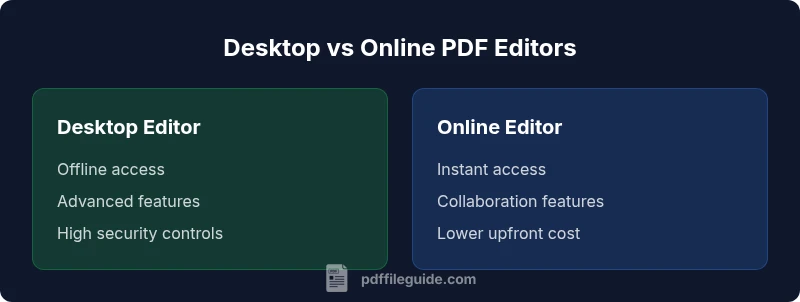
For pdf file compare, desktop PDF editors generally offer deeper feature control and offline processing, while online editors provide faster access and easy sharing. The best choice depends on your needs for batch work, security, and output fidelity. PDF File Guide's analysis favors a balanced approach, tailoring advice to user priorities.
Why professionals care about pdf file compare
In today’s document-driven workplaces, a reliable pdf file compare process matters for accuracy, reproducibility, and regulatory compliance. Professionals who edit, convert, and optimize PDFs depend on tools that preserve typography, embedded fonts, and layout across platforms. The goal is to minimize drift between sources and outputs, whether you’re issuing client reports, archiving contracts, or sharing redacted documents. PDF File Guide emphasizes that the decision should align with your workflow—how often you perform edits, who reviews changes, and where data travels. The right choice reduces rework, speeds up approvals, and protects sensitive information. Expect to balance capability against risk as you evaluate features, pricing models, and vendor ecosystems. In this context, the concept of pdf file compare becomes a practical lens to examine quality, reliability, and governance across tools.
Core criteria for evaluating editors
When you compare desktop versus online PDF editors, start with core criteria that matter in practice. Look for fidelity in text rendering, image reproduction, and font handling; batch processing support; automation hooks (APIs, scripting, or macros); and how updates are delivered. Compatibility with common PDF standards (PDF/A, PDF/UA, and others) is essential for long-term archiving and accessibility. Consider how each tool handles annotations, form fields, and security features such as encryption and redaction. Finally, evaluate the vendor’s roadmap for future-proofing—whether they prioritize stability, performance, and interoperability. A thoughtful assessment across these dimensions helps you avoid over-investing in features you won’t use.
Offline vs Online: performance and reliability
Offline desktop editors tend to deliver consistent performance independent of network quality, which is crucial for large documents or sensitive materials. Online editors excel in collaboration, rapid sharing, and centralized version control, but depend on internet latency and server availability. A well-executed pdf file compare considers data locality, batch queues, and retry strategies for failed uploads or conversions. Professionals should test both modes against their typical document mix: file sizes, image-heavy pages, and embedded fonts. In practice, the right choice minimizes downtime and ensures your team can work securely across locations.
Output fidelity and typography handling
Output fidelity is about preserving the exact look of the source when rendering, translating, or exporting PDFs. Key aspects include font embedding, color management, image compression, and vector rendering. Desktop editors often provide finer control over font substitution rules, kerning, and subsetting, which matters for brand-critical documents. Online editors can offer reliable fidelity for routine forms or reports but may simplify font handling to save bandwidth. A robust pdf file compare benchmarks typography against original proofs, tests for edge cases like ligatures, and checks for consistent rendering across platforms and printers.
Security and privacy considerations
Security is a central concern when choosing between desktop and online pdf file compare workflows. Desktop solutions minimize exposure by handling sensitive files locally, reducing cloud transfer risk. Online platforms introduce potential data in transit and on servers, which requires strong encryption, access controls, and clear data-retention policies. For regulated industries, you should audit where data is stored, how long it remains, and whether providers offer on-premises deployment options. A disciplined approach includes testing sandbox environments, validating authentication methods, and requesting attestations or certifications relevant to your sector.
Batch processing and automation capabilities
Efficient pdf file compare often hinges on automation: batch processing, scripting, and API integration enable you to handle large volumes without repetitive manual steps. Desktop editors commonly support local scripting (e.g., macros or automation frameworks) and batch actions that run offline. Online editors may expose APIs for automated workflows, if you can tolerate cloud processing. When evaluating, map your ideal workflow: how files flow from intake to comparison, what checks you want (font fidelity, metadata, form field validity), and how results are reported. A strong toolset reduces manual review time and improves consistency across teams.
Platform ecosystems and compatibility
Compatibility spans operating systems, office suites, and file management ecosystems. Desktop editors frequently offer deep integration with Windows and macOS file systems, printer drivers, and automation suites. Online editors prioritize cross‑device accessibility, browser compatibility, and seamless cloud storage integrations. A thorough pdf file compare considers how well the tool interoperates with your existing stack: email clients, document management systems, and batch job schedulers. Institutions should verify compliance with accessibility standards and ensure that any chosen tool supports necessary plugins or add-ons.
Cost models and licensing realities
Pricing structures influence long-term feasibility of a pdf file compare solution. Desktop editors may use perpetual licenses, annual subscriptions, or tiered bundles based on feature sets. Online editors typically operate on per-user or per-seat subscription plans, with add-ons for advanced features. It’s important to align licensing with your workflow: if you run many simultaneous jobs, look for multi-seat discounts or enterprise licenses. Also consider renewal terms, upgrade paths, and whether the provider offers on-demand scaling for peak workloads. A pragmatic cost assessment helps avoid overpayment for capabilities you won’t use.
Real-world workflow scenarios
In practice, many teams adopt a hybrid approach: use desktop editors for sensitive, large-scale, or archival tasks, while leveraging online tools for quick reviews, approvals, and collaborative drafting. A pdf file compare workflow might begin with automated extractions, followed by side‑by‑side visual checks and a final export to a shared repository. Documentation of changes and traceability become essential for compliance. By mapping typical document lifecycles, you can assign roles, define review gates, and ensure consistent outputs across clients or stakeholders.
How to test a pdf file compare yourself
A structured test plan helps you validate a chosen tool before full adoption. Start with representative documents that cover text-only pages, image-rich spreads, tables, and forms. Evaluate four dimensions: fidelity (do pages render identically to source?), metadata (is metadata preserved or altered?), accessibility (are form fields and tagging intact?), and performance (how long do conversions or comparisons take on a typical batch?). Document any discrepancies with screenshots and exact file references. Repeat tests after updates to confirm stability and track changes over time.
Trends shaping the future of pdf editors
The landscape of pdf file compare is evolving with advances in AI-assisted proofreading, smarter OCR, and automated layout analysis. Expect more robust cross‑platform rendering, improved accessibility tagging, and stronger emphasis on security controls like client-side encryption and zero-knowledge processing. Vendors continue to refine cloud-based collaboration features while offering offline modes for sensitive work. The result is a more flexible, efficient, and trustworthy environment for professionals who edit, convert, and optimize PDF files.
Practical decision framework and next steps
To decide between desktop and online options, build a simple decision framework around four questions: How sensitive is your data? Do you perform large-scale batch comparisons frequently? Is offline access essential for your team? What level of output fidelity do you require for branding and compliance? Answering these questions helps you select a tool category and tailor licensing to your needs. After decision, implement a staged rollout, run a pilot with real documents, collect feedback, and refine your workflow. Documentation, governance, and ongoing training complete the setup.
Comparison
| Feature | Desktop PDF Editor | Online PDF Editor |
|---|---|---|
| Offline access | Full offline mode | Requires internet |
| Feature depth | Advanced tools, scripting, batch jobs | More basic tools with collaboration |
| Security and privacy | Local processing, minimal cloud exposure | Cloud processing with encryption options |
| Cost model | License or perpetual options, potential high upfront | Subscription-based, scalable by user |
| Output fidelity | High fidelity with precise typography control | Good fidelity, optimized for speed |
| Best for | Power users, sensitive documents, long-term archives | Teams needing rapid collaboration and access |
Strengths
- Supports offline workflows for sensitive documents
- Potentially richer feature sets and automation options
- Strong control over output fidelity and typography
Disadvantages
- Higher upfront cost or longer licensing commitments
- Requires installation and regular maintenance
- Offline tools may lag behind cloud versions on collaboration features
Desktop editors excel for security and depth; online editors win on speed and collaboration
Choose desktop when data sensitivity and intricate formatting matter most. Opt for online for teamwork, rapid access, and scalable sharing. Use a hybrid approach if both needs are present.
Questions & Answers
What is pdf file compare and why does it matter?
A pdf file compare process evaluates how two PDFs align in content, layout, and metadata. It matters for accuracy, regulatory compliance, and brand consistency when editing, converting, or archiving documents.
A pdf file compare checks how two PDFs match in content and layout, which matters for accuracy and compliance.
What are the main differences between desktop and online editors for PDFs?
Desktop editors offer deeper feature sets and offline processing, ideal for large or sensitive documents. Online editors emphasize speed, easy sharing, and collaboration, but depend on internet access and cloud processing.
Desktop tools are richer and work offline; online tools are faster and easier to share.
Can I automate pdf file compare tasks?
Yes. Many editors provide scripting, APIs, or batch actions to automate comparisons and exports. Plan automation around your document lifecycle, including intake, comparison checks, and reporting.
Automation is possible via scripts or APIs in many editors.
How should I assess security when using online editors?
Assess data localization, encryption, access controls, and retention policies. Prefer providers with transparent security certifications and the option for on‑premises deployment if required.
Check data encryption and retention policies; choose trusted providers.
What factors influence output fidelity the most?
Font embedding, color management, image handling, and support for advanced PDF features like transparency and vector graphics all drive fidelity in pdf file compare.
Fonts, color, and graphics handling largely determine fidelity.
Is cloud-based pdf comparison suitable for regulated industries?
Cloud-based comparisons can be compliant if the provider offers strong controls, encryption, audit logs, and data governance. Verify regulations and obtain necessary attestations before use.
Cloud tools can be compliant with the right controls and audits.
What’s a good first step to start with pdf file compare?
Define your top priorities, test a short set of representative documents, and compare both offline and online options. Document results and plan a phased rollout.
Start with a small pilot, compare offline and online options.
Key Takeaways
- Prioritize offline access for sensitive workflows
- Evaluate batch processing and automation capabilities
- Test output fidelity across document types and fonts
- Consider licensing alignment with team size
- Pilot the chosen solution before full-scale rollout