How to Remove a PDF Reader on Android
Learn how to remove or disable a PDF reader on Android, switch defaults, and streamline your device for efficient PDF handling. Safe uninstall, disable, and default-switch methods explained.


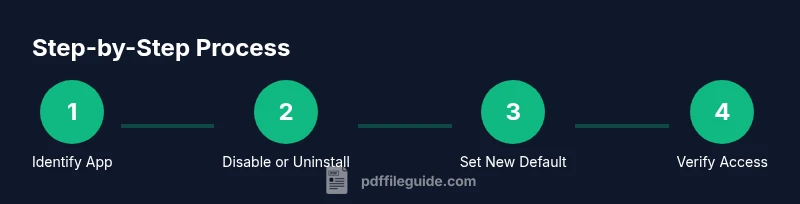
By the end of this guide, you’ll remove or disable a PDF reader on Android, prevent it from auto-launching as the default viewer, and set a preferred app for PDFs. You’ll learn safe uninstall, disable, and default-handling methods that protect your files and keep your device streamlined. This approach applies to most Android versions and OEM skins.
Why removing a PDF reader on Android matters
In many Android setups, users install multiple PDF readers over time. This can clutter the app drawer, create confusion about which app opens a given PDF, and sometimes trigger conflicts when links or document viewers choose the wrong program. For professionals who edit or share PDFs, simplifying the software stack reduces automation errors and improves device performance. According to PDF File Guide, a lean app profile helps with file handling, battery life, and privacy by limiting background processes. Before you remove anything, consider your core workflow: do you mainly view PDFs, or do you edit and annotate as well? If you rarely need more than one viewer, consolidating to a single trusted app is often the easiest path. In this section we explore why it matters and what to keep in mind.
Understanding Android's default app and file associations
Android uses default apps to handle specific actions, including opening PDF files. Each PDF reader can register itself as the handler for PDF documents, and you can set or change which app opens PDFs by default. This is important if you want a consistent experience across file types and apps. The Settings menu is where you manage these defaults, including which app launches when you tap a PDF link, attach a PDF to an email, or save a downloaded document. By understanding defaults, you can avoid accidental launches of the wrong viewer and reduce battery drain from background processes. In practice, you should locate the current default for PDFs and decide whether to retain it, replace it, or remove the option entirely for a cleaner workflow. This understanding is especially helpful for professionals who frequently switch between devices or OS versions, where defaults may differ.
When to uninstall vs disable
Uninstalling a PDF reader removes the app from your device, freeing storage and preventing future launches. Disabling, on the other hand, stops the app from running and appearing in the launcher without removing it, which is useful for built-in system apps that cannot be fully removed. If the app is a system component, you may not see an Uninstall option; disabling is typically the recommended route to avoid system instability while achieving the objective of not using that viewer. Always consider your data and workflows: if you edit PDFs or rely on annotations, ensure an alternative viewer/editor is ready before removing or disabling the current one. This helps prevent access gaps or accidental openings in the future.
Step-by-step considerations before removal
Before you remove a PDF reader, make a quick plan: identify which apps are installed, confirm which one you want as your default, and verify that removing others won’t disrupt associated tasks (e.g., cloud storage links, email attachments). If you have PDFs saved locally, back them up in a safe location. Review any dependent apps (like printers or cloud services) that may rely on a specific viewer. Consider device performance: removing multiple apps can free memory, but you want to keep a reliable option for opening PDFs on demand. In short, prepare, audit your current defaults, and ensure you have an alternative ready to prevent workflow interruptions.
After removal: managing PDFs and defaults
Once you remove or disable the unwanted PDF reader, you should reconfigure default apps so PDFs open with your chosen viewer. Go to Settings, find Apps or Apps & notifications, and locate Open by default or Default apps. Set the preferred PDF viewer so you don’t encounter “no app found” errors when tapping PDFs. If the system still suggests the removed reader, clearing defaults for that app can help. Finally, test by opening a PDF from different sources (browser download, email attachment, cloud storage) to ensure the chosen viewer handles all common cases consistently.
Troubleshooting common issues
If you encounter issues after removal, start by rebooting your device. If a PDF still opens with the old reader, check for stale defaults: go to the app’s Open by default settings and clear, then reassign. Some apps may reappear in the picker unless you revoke their permissions or disable their default status. If the device hides the option to uninstall, use Disable instead and then assign a new default viewer. For enterprise devices, administrator restrictions can affect removal or default changes; consult your IT policy if you notice limitations.
Alternatives and best practices for mobile PDF work
Even after removing a reader, you still have many dependable options: use a reputable single viewer, rely on browser-based PDFs for quick reads, or install a lightweight editor for annotations when needed. Consider consolidating under a trusted ecosystem (e.g., a single viewer that integrates cloud storage and signature features) to reduce friction. Regularly review your installed apps to keep only the tools you actually use. This approach improves battery life, reduces background activity, and minimizes security risks from outdated viewers.
Tools & Materials
- Android device with Settings access(Any recent Android version (recommended: Android 9+).)
- PDF reader app to remove(Identify the app you no longer want as a viewer.)
- Alternate PDF viewer(Have your preferred viewer installed and ready.)
- Internet connection(Helpful for verifying defaults or re-installing apps.)
- Backup location(Safe place to store PDFs before changes.)
Steps
Estimated time: 15-25 minutes
- 1
Open Settings and access Apps
Navigate to the Android Settings app and locate the Apps or Apps & notifications section. This is where you manage installed applications and their permissions. This step is essential to identify the target PDF reader and review its behavior on your device.
Tip: If you can’t find Apps, use the search in Settings to locate it quickly. - 2
Find the target PDF reader
Scroll through the list of installed apps or use the search bar to locate the PDF reader you want to remove. Confirm it is indeed the one set as the default for PDFs to avoid removing a needed tool.
Tip: Note down the exact app name to avoid confusion with similarly named apps. - 3
Tap Uninstall or Disable
If the Uninstall option is available, select it to remove the app. If Uninstall is unavailable (common for system apps), choose Disable to stop it from running and appearing in the launcher.
Tip: Disabling is a safe alternative for built-in apps that can’t be removed. - 4
Clear default settings for the old viewer
If the removed app was the default for PDFs, you may need to clear its default status. This prevents re-entrance when you tap a PDF. Proceed to “Open by default” if present and reset.
Tip: Clearing defaults helps ensure the new viewer is used automatically. - 5
Set your new default PDF viewer
Open a PDF file, choose the prompt to open with your preferred viewer, and set it as the default. This ensures consistent behavior across apps and sources.
Tip: Some devices require you to set defaults in Settings > Apps > Default apps. - 6
Verify with multiple sources
Test opening PDFs from emails, browsers, and cloud storage to confirm the new viewer handles common tasks. If any source asks to pick an app, choose your default and tick 'Always' if prompted.
Tip: If you see prompts, accept the default to avoid repeated selection.
Questions & Answers
Can I remove a preinstalled PDF viewer on all Android devices?
Preinstalled (system) viewers often cannot be uninstalled. You can usually disable them to stop usage, which achieves the same goal for most users.
Some devices won’t let you remove built-in viewers, but you can disable them to stop launching.
Will removing a PDF reader delete my PDFs?
No. Removing or disabling a reader only affects how PDFs are opened. Your actual PDF files remain stored on the device or cloud.
Your PDFs stay safe; it only changes which app opens them.
How do I set a new default PDF viewer?
Go to Settings > Apps > Default apps (or Open by default) and choose your preferred PDF viewer as the default for PDFs.
Choose your preferred viewer as default for PDFs.
What if I need to edit PDFs after removal?
Install a dedicated PDF editor or use an online editor; your removal plan should include a tool for editing if that’s part of your workflow.
Install an editor if you need to modify PDFs.
Can I re-install a removed PDF reader later?
Yes. Open the Google Play Store, search for the PDF reader, and reinstall, then re-assign it as needed.
You can reinstall from the Play Store anytime if you change your mind.
Watch Video
Key Takeaways
- Identify the target PDF reader before removal.
- Uninstall or disable to stop auto-launching.
- Set a single default PDF viewer for consistency.
- Verify access by opening PDFs from multiple sources.