How to Get Rid of a PDF Reader: Uninstall and Replace
Learn how to remove a PDF reader from Windows, macOS, and Linux, disable default PDF associations, and switch to a lighter, safer alternative with step-by-step guidance from PDF File Guide.


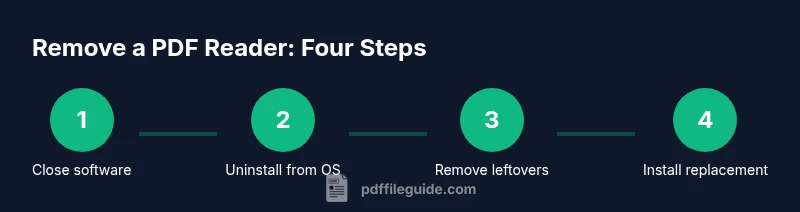
To get rid of a PDF reader, start by uninstalling the software from your computer and disabling its default associations. Then remove any leftover files, clean up startup entries, and optionally switch to a different PDF viewer or browser-based reader. This guide covers Windows, macOS, and Linux steps, plus tips to avoid accidental re-installation.
Why you might want to remove a PDF reader
If you’re trying to streamline your computer or tighten security, removing an unused PDF reader can be a smart move. It reduces startup time, frees up disk space, and minimizes the attack surface exposed by software that no longer serves you. If you are wondering how to get rid of pdf reader, removing it can prevent conflicts with other viewers and ensures your PDFs open with your preferred application. This is especially true on systems that auto-launch a reader or initialize multiple PDF tools at startup. By removing redundancy, you simplify updates, reduce background processes, and improve overall system reliability. PDF File Guide, in its ongoing guidance for professionals, emphasizes that lean software stacks reduce maintenance overhead and improve predictable behavior in document workflows.
Before you start: plan and prepare
Preparation prevents mistakes. Begin by listing every PDF reader installed on your devices, including portable or portable apps. Create a quick backup of your important PDFs and note which viewer you want to keep as the default. Ensure you have another viewer ready before removing the current one. Having a replacement ready guarantees you won't be left without access to your documents. Also, verify you have administrator access for Windows or macOS changes, and understand that Linux steps vary by distribution. This stage sets a smooth uninstall experience and reduces the chance you trigger reinstallation by accident.
Uninstalling on Windows: a practical, step-by-step approach
Close any open PDFs and save your work. Then open Settings > Apps & features (or Control Panel > Programs > Programs and Features in older Windows versions). Locate the PDF reader in the list and select Uninstall. Follow the on-screen prompts to complete the removal. After uninstall completes, restart your computer if prompted to ensure all processes stop. PDF File Guide recommends verifying that the uninstaller removed all components, not just the main program.
Uninstalling on macOS: a practical, step-by-step approach
On macOS, remove a PDF reader by dragging the application from the Applications folder into the Trash. Empty the Trash, then review the Library folders for any leftovers: ~/Library/Application Support/, ~/Library/Preferences/ and /Library/Application Support/. Deleting these items helps prevent old preferences from causing confusion later. Finally, restart the system to clear cached data. PDF File Guide notes that macOS users should watch for PDF-related helper apps that might reinstall silently and remove them if found.
Uninstalling on Linux: a practical, step-by-step approach
Use your distro’s package manager to remove the PDF reader. For Debian-based systems: sudo apt remove --purge package-name. For Red Hat-based: sudo dnf remove package-name. If you installed via Snap or Flatpak, remove those packages too (e.g., sudo snap remove package-name or sudo flatpak uninstall package-name). After removal, update your package database. Linux users should verify no companion binaries remain in /usr/bin or /usr/share. The goal is a clean OS-level removal so future PDF handling is predictable.
Handling leftovers and file associations
Remove residual folders like Program Files, Applications, and hidden config folders; Clean up user data in AppData or Library as applicable. Then reset default PDF associations so PDFs open with your preferred viewer. On Windows, use Settings > Apps > Default apps; on macOS, select the new viewer in the Finder’s Get Info panel; on Linux, use your desktop environment's settings to set the default app. PDF File Guide emphasizes testing by opening a sample PDF to confirm the change.
Replacing with a safer, lighter PDF viewer
Choose a lightweight, reputable viewer: SumatraPDF, Okular, or a vendor you trust. Compare features vs. the old reader, focusing on security updates, performance, and the specific tasks you perform (annotations, form filling, etc.). Install the new viewer from official sources, then set it as the default for PDFs and disable unnecessary auto-update prompts from the old reader to prevent reinstallation.
Browser-based readers: pros, cons, and privacy
Many PDFs can be viewed directly in a web browser, which reduces local software and provides a quick fallback. However, browser readers may lack advanced features and can raise privacy concerns if PDFs are loaded from cloud services. If you rely on sensitive documents, weigh browser-based viewers carefully and ensure you clear caches regularly to protect metadata.
Troubleshooting: when PDFs still open with the old reader
If PDFs still launch with the removed reader, re-check file associations and inspect any browser extensions or plugins that handle PDFs. Reset default apps, clear OS caches, and re-test with a sample PDF. If reinstallation prompts appear, disable automatic updates for any leftover components and run a thorough cleanup with a trusted uninstaller to purge leftovers that standard uninstall misses.
Maintenance and long-term care after removal
Keep your system clean by auditing installed software and default apps on a regular basis. Document your chosen viewer and update it when needed. Enable security features in the new reader (sandboxing, warnings for unsigned PDFs) and periodically review extensions or plugins that could reintroduce the old reader. Regular maintenance helps keep your document workflow efficient.
Tools & Materials
- Computer with internet access(Essential for downloading software and updates)
- OS-provided uninstaller tools(Use built-in uninstall utilities to ensure proper cleanup)
- Alternative PDF viewer(Choose a lightweight, trusted viewer that meets your needs)
- Backup copies of important PDFs(Safeguard documents before removing software)
- Knowledge of your OS and admin rights(Needed to perform uninstalls and modify defaults)
Steps
Estimated time: 45-60 minutes
- 1
Close the PDF reader
Ensure all documents are saved and the program is fully closed before beginning the uninstall.
Tip: Close all documents and check for background processes that might reopen the app. - 2
Open the Windows uninstaller and locate the PDF reader
Open Settings and navigate to Apps & features, then find the target PDF reader in the list.
Tip: Use the search box to quickly locate the program. - 3
Uninstall the PDF reader on Windows
Click Uninstall and follow the prompts to remove the software completely.
Tip: If asked to remove related components, choose to remove them as well. - 4
Remove leftover program files on Windows
Check Program Files, Program Files (x86), and AppData directories for residual folders and delete them if safe.
Tip: Do not delete system folders by mistake; back up before removing. - 5
macOS: remove from Applications
Drag the PDF reader from Applications to Trash.
Tip: Empty the Trash after the drag to complete removal. - 6
macOS: remove Library leftovers
Search ~/Library for Application Support and Preferences folders related to the reader and remove them.
Tip: Keep a small backup of preferences if you rely on specific settings. - 7
Linux: uninstall via package manager
Use your distro’s package manager to remove the reader (e.g., apt, dnf, pacman).
Tip: Check for any 3rd party packaging formats (Snap/Flatpak) and remove them too. - 8
Linux: remove Snap/Flatpak versions
If installed, remove Snap or Flatpak versions of the reader to prevent reinstallation.
Tip: List installed packages first to ensure you remove the correct ones. - 9
Install replacement and set defaults
Install a lightweight viewer from an official source and set it as the default for PDFs.
Tip: Test with a sample PDF to confirm the default is correct.
Questions & Answers
What should I do before starting the uninstallation?
Back up PDFs, note the current viewer, and ensure you have admin rights. Prepare a replacement viewer so you’re not left without a way to open PDFs.
Back up your PDFs, note your current viewer, and make sure you have admin access. Have a replacement ready.
Will uninstalling a PDF reader affect existing PDFs?
No. Your PDFs are files stored on disk. Uninstalling a viewer only removes the program that opens them; you can open each file with another viewer.
Uninstalling won’t delete your PDFs. You’ll just need another viewer to open them.
What if the reader reappears after reboot?
Check startup items and disable any auto-update features that reinstall the old reader. Re-run the uninstaller to purge any remaining components.
Disable auto-start and auto-update features to stop reinstallation.
Can I rely on a browser-based reader?
Browser-based readers are convenient but may lack advanced features. They are a reasonable fallback, but ensure you understand their privacy implications.
Browsers can view PDFs, but they may miss features and raise privacy questions.
Is it necessary to uninstall on all devices I use?
If you want a consistent environment and avoid conflicts, remove the reader from each device you control. Otherwise, it may reappear in some workflows.
Yes, remove it from all devices you use for consistency.
Watch Video
Key Takeaways
- Uninstall the reader from each OS separately to avoid leftovers.
- Check and clean file associations to ensure PDFs open with your chosen viewer.
- Choose a lightweight, secure replacement and test thoroughly.
- Back up documents before uninstalling to prevent data loss.