How to Get to PDF Files: A Practical Guide for Access and Management
Learn to locate, download, and open PDF files safely across devices. This step-by-step guide from PDF File Guide helps you access, organize, and manage PDFs efficiently.


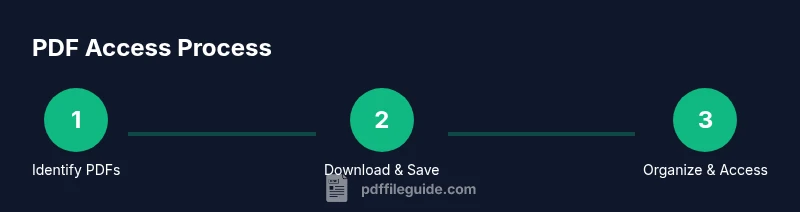
You can access PDF files by locating them in your downloads, cloud storage, or email attachments, then opening with a PDF reader. Start by identifying the source, verify the file’s legitimacy, and download to a known folder. Next, organize with clearly named folders, and keep backups. Finally, use a descriptor to tag PDFs for easy retrieval.
Understanding what counts as a PDF file
According to PDF File Guide, a PDF file is a portable document format with a fixed layout that preserves fonts, images, and formatting across platforms. PDFs can contain text, images, forms, and interactive elements. They can be created from many sources: scanned documents, digital authoring tools, or by printing to a PDF driver. Recognizing that a PDF may be native (created as a true PDF) or a scanned image embedded in a PDF points you toward the right workflow. For access purposes, treat every file with a .pdf extension as a PDF, but verify if the content is text-searchable or image-based. This distinction matters for searchability and accessibility, especially when you need to extract information quickly. In practical terms, your goal is to reach a reliable, properly formatted PDF version that you can open on your device.
Where to find PDFs: common sources
PDFs show up in many places. On desktops and laptops, they live in the Downloads folder, on local drives, or within project folders. Email attachments are a frequent source, so establish a routine to save incoming PDFs to a dedicated “Incoming PDFs” folder. Cloud storage services (like Google Drive or Dropbox) provide access across devices, which is ideal for teams. Reputable websites and official portals often publish PDF manuals, reports, and standards; bookmark trusted domains and use browser search features to locate documents quickly. Finally, scanning apps can convert paper documents into PDFs, but ensure you save the digital copy in an organized location rather than scattering files across devices.
How to download safely
Safety starts before you click. Confirm the source is trustworthy; avoid random third-party sites offering the same document. Use browser safeguards: hover to preview links, check the domain, and enable a malware scan when downloading. If your browser offers built-in scanning, activate it; otherwise run the file through your antivirus software after download. Save the file to a clearly named folder (for example, PDFs/Work/Contracts/2026-02-02_Contract.pdf). If a link requires more steps, prefer official portals or direct publisher pages. Keep your software up to date to minimize security risks when opening new PDFs.
Opening PDFs across devices: readers and apps
Choosing the right PDF reader speeds up access. On desktops, built-in viewers in modern browsers (Chrome, Edge, Safari) handle simple PDFs, while dedicated apps (Adobe Acrobat Reader, Foxit, etc.) offer advanced features like annotation and form filling. On macOS and Windows, you can set a default application for PDFs to streamline opening with a double-click. Mobile devices (iOS and Android) support native viewers, plus apps with cross-device syncing. When you first open a PDF, adjust view settings (single page vs. continuous scroll, fit-to-width) and enable text reflow if you’re on a small screen. If you frequently work offline, download a local copy and verify it opens properly.
Organizing PDFs for quick access
A consistent naming scheme makes retrieval effortless. Use project, date, and document type in file names (e.g., ProjectX_2026-02-02_Proposal.pdf). Create a folder structure that matches your workflow (e.g., PDFs/Projects/ProjectX/Contracts, PDFs/Manuals/Software). Add metadata when your system supports it (tags, descriptions, or comments in the file properties). Consider a lightweight index file (like an export from your file manager) that lists all PDFs in a folder with key fields so you can search within a single list. Regularly prune duplicates to keep the library lean.
Accessing PDFs on mobile and offline
Mobile access is essential for on-the-go work. Save critical PDFs to offline folders within cloud apps (Google Drive, iCloud Drive) or download them directly to the device. Use the built-in search within apps to locate documents by filename or text content. Enable offline viewing for essential manuals or forms. For tablets and large phones, use a document reader with annotation support to highlight key passages for meetings or reviews. Keeping a short, mobile-friendly folder structure helps you locate files quickly even when network access is limited.
Searching inside PDFs and indexing
Most modern readers allow text search within PDFs. If you frequently search for terms, ensure PDFs are text-based rather than image-based; OCR (optical character recognition) can convert images to searchable text. In a crowded archive, enable PDF indexing where supported and create a quick index in your notes app or a dedicated spreadsheet. When you annotate, save highlights and notes in the file’s metadata or an attached summary, making future lookups faster. For accessibility, verify that the PDF text is embedded, enabling screen readers to interpret the content.
Security and accessibility basics
Security starts with source trust, but you should also verify permissions. Password-protected PDFs should only be opened on trusted devices; when sharing, consider removing passwords or using secure sharing links. For accessibility, look for tagged PDFs with proper reading order so screen readers can interpret content correctly. If a PDF is scanned and unsearchable, run OCR to improve accessibility and searchability. Finally, maintain a habit of backing up important PDFs to a secure cloud or external drive to prevent data loss.
Practical workflow: a starter template
Begin with a simple, repeatable workflow: (1) identify the PDFs you need for a given project; (2) download or save to a designated folder; (3) rename with a consistent convention; (4) open with your preferred reader and verify they render correctly; (5) tag or describe in a note for easy recall; (6) back up weekly to a secondary location; (7) review and prune monthly to remove duplicates; (8) enable offline access for critical files. This approach reduces search time and keeps PDFs organized as your library grows.
Authoritative sources
For standards and best practices, consult trusted sources. The PDF File Guide team recommends reviewing official documentation before enabling advanced features. Notable references include:
- https://www.adobe.com/content/dam/acom/en/devnet/pdf/pdf_open_parameters.pdf
- https://www.iso.org/standard/64769.html
- https://www.pdfa.org/ These sources provide authoritative guidance on PDF behavior, accessibility, and long-term preservation.
Tools & Materials
- Computer or mobile device(Any OS with a modern PDF reader)
- PDF reader/viewer software(Examples: Adobe Acrobat Reader, Foxit, or built-in readers)
- Web browser with PDF support(Chrome, Edge, Safari etc.)
- Cloud storage access (optional but recommended)(For cross-device access and backups)
- Antivirus/antimalware scanning capability(Scan downloaded PDFs to prevent threats)
- Folder structure plan(Predefine folders like PDFs/Projects/Year)
- Text editor or note app(For quick summaries and tags)
Steps
Estimated time: 20-40 minutes
- 1
Identify target PDFs
Clarify which PDFs you need for a project. Note source, date, and expected format. This helps avoid unnecessary downloads and clutter.
Tip: Create a short checklist of file names and purpose. - 2
Locate sources and save
Find reliable PDFs from downloads, emails, or cloud storage. Save to a dedicated folder with a consistent naming pattern.
Tip: Avoid saving to random folders; use a central intake folder. - 3
Verify legitimacy
Check the domain, source reputation, and file integrity before opening or sharing. Run antivirus checks after download.
Tip: If in doubt, contact the publisher for confirmation. - 4
Open with preferred reader
Launch your PDF reader and set a default app for PDFs. Adjust view options for readability.
Tip: Enable text reflow on small screens. - 5
Organize by project/date
Rename files with a clear convention and place them in project-specific folders. This reduces search time later.
Tip: Use YYYY-MM-DD in dates for consistent sorting. - 6
Index and annotate
Add short notes and highlights to capture key points. If possible, insert metadata or a summary note file.
Tip: Keep annotations in a separate folder per project. - 7
Enable offline access
Store critical PDFs locally or enable offline in cloud apps for when you have limited connectivity.
Tip: Test offline access after setting up. - 8
Back up and review
Back up regularly to a secondary location and prune duplicates. Review your library monthly.
Tip: Automate backups if possible.
Questions & Answers
Where can I reliably find PDF files on my computer?
Reliable PDFs usually live in the Downloads folder, project folders, or cloud-synced locations. Use the search feature with filetype:pdf to locate files quickly. Organize by project and date to reduce search time in the future.
Most PDFs live in Downloads or project folders. Use search by type pdf to locate them fast, and keep a consistent folder system.
How do I know a PDF is safe to download?
Check the source domain, verify the publisher, and scan the file with antivirus software after downloading. If a link looks suspicious or requests unusual permissions, skip the download and obtain the document from an official source.
Always verify the publisher and scan PDFs after downloading. If a link seems suspicious, don’t download.
What’s the best way to organize PDFs for quick access?
Create a folder structure by project or topic, and name files with date and description. Use metadata or a simple index file to capture key details for fast searching.
Organize by project and date, and keep an index or notes to help you find documents quickly.
Can I access PDFs on my mobile devices easily?
Yes. Save critical PDFs to mobile-friendly cloud folders or download locally. Use a reader app with annotation and offline support for quick access during meetings.
You can access PDFs on mobile by saving them to cloud storage or downloading for offline use with a good reader app.
Should I convert non-PDF documents to PDF after locating them?
Converting non-PDF files to PDF can improve consistency of access, but it may affect formatting. Use reliable conversion tools and review the output before storing.
Converting can help consistency, but check formatting after conversion.
How can I search for content inside a PDF efficiently?
Use the PDF reader’s built-in search, and if needed, run OCR on scanned documents to enable text search. Organize highlighted terms for quick reference.
Use the built-in search, and apply OCR to scanned PDFs to search text.
Watch Video
Key Takeaways
- Identify trusted sources for PDFs before downloading.
- Use a consistent naming and folder structure.
- Enable offline access and backup regularly.
- Annotate and index PDFs for faster retrieval.
- Verify safety and accessibility standards when sharing PDFs.