How to Read PDF: A Complete How-To
Learn to read PDF files effectively across devices with practical steps, tips, and accessibility considerations. This guide covers navigation, annotation, search, and privacy to boost your productivity when working with PDFs.


This guide shows you how to read PDF files efficiently across desktop, tablet, and mobile devices, covering navigation, search, annotations, accessibility, and privacy. You’ll learn practical steps to optimize reading, improve comprehension, and manage documents without sacrificing accuracy or speed.
Reading PDFs: A Practical Starter
In today’s digital workflow, reading PDF files efficiently is a foundational skill for students, professionals, and curious learners. The act of reading a PDF goes beyond simply opening a document. You’ll want to leverage built-in navigation, text search, and annotation capabilities to quickly locate information, compare sources, and capture notes. Whether you’re reviewing a contract, studying a research paper, or skimming a manual, mastering read pdf workflows saves time and reduces eye strain. This guide is designed to help you develop a reliable routine for reading PDFs across devices. You’ll also learn about accessibility features that make PDFs more readable for everyone, including people who rely on screen readers. This is essential for professionals who want to stay productive and compliant with accessibility standards.
How PDF Readers Work: Core Features
PDF readers bring together several core capabilities in one interface. At a minimum, you’ll expect text rendering, page navigation, zoom controls, and a search function. More advanced readers offer bookmarks, annotations (highlights, notes, stamps), outlines, and form interactions. When you understand these features, you can tailor your reading workflow to the document type—academic papers benefit from outlines and citations, while manuals benefit from search and annotation for quick reference. Accessibility options, such as reflow, text-to-speech, and contrast settings, make reading more inclusive. The goal is to build a consistent routine that works on a laptop, tablet, or phone, so you can read pdf with confidence no matter where you are.
Navigating a PDF: Tools for Quick Access
Effective reading hinges on fast navigation. Learn to use the table of contents or bookmarks to jump to sections, and enable a single-page or continuous scrolling view depending on your preference. The zoom tool helps you balance legibility with context, while the fit-to-width option keeps paragraphs readable without excessive horizontal scrolling. Use the find/search feature to locate keywords, phrases, or numbers, and take note of any embedded links or multimedia elements that require attention. A well-organized toolbar with annotation options can turn a static document into an actionable reference file.
Reading on Different Devices: Desktop, Tablet, Phone
Your reading setup changes with the device. On desktop, a larger screen makes it easy to view two pages side-by-side and use keyboard shortcuts for rapid navigation. On tablets and phones, touch gestures like pinch-to-zoom, long-press for selection, and quick access to highlights can speed up reading in tight spaces or during commutes. Synchronization across devices—via a cloud account or local transfer—helps keep your place and your notes, so you can pick up where you left off. Regardless of device, enable dark mode or adjustable brightness to reduce eye strain during long sessions.
Accessibility and Reading: Making PDFs Inclusive
Accessibility features improve readability for everyone. Look for reflow or scalable text options that reformat content for smaller screens; choose high-contrast themes for better legibility; and use screen readers or text-to-speech where helpful. If you work with scanned PDFs, OCR (optical character recognition) converts images to searchable text, making it possible to search, copy, and extract data. When preparing documents for a diverse audience, verify that headings are structured, images have alt text, and color isn’t the sole conveyance of information.
Annotating, Highlighting, and Extracting Text
Annotating is a powerful way to capture insights without altering the original document. Use highlights to mark key ideas, add sticky notes for context, and attach comments that summarize your takeaways. Bookmarks and outlines help you navigate long reports, while copying or exporting selected text enables you to pull quotes or data into your notes. For extracted data, consider exporting to a Plain Text or Word-friendly format and organizing it into your research folder. Remember to respect copyright and usage rights when copying content.
Security and Privacy While Reading PDFs
Opening PDFs from trusted sources minimizes risk. Keep your reader software updated to benefit from security patches and new features. Be cautious with files from unknown senders, especially executables or attachments that accompany PDFs. If a PDF contains sensitive information, use a viewer with built-in privacy controls (local annotation storage, encrypted sync) and regularly review permission settings for any cloud-synced notes. When in doubt, verify the document’s origin and integrity before extracting or sharing content.
Common Challenges and Quick Fixes
If a PDF won’t open, check file integrity or try a different viewer that supports the file type. When text is blurry, adjust DPI/zoom and enable clear type or text smoothing options. Scanned documents often require OCR; if OCR isn’t accurate, re-run it with a higher accuracy setting or a different engine. For inaccessible text, enable the reader’s accessibility tools, and ensure your device is set to a readable color contrast. Finally, if annotations disappear after closing, confirm the document’s security settings allow you to save or export notes.
Tools & Materials
- PDF reader software(Choose software that supports search, bookmarks, highlighting, and text selection)
- Web browser with built-in PDF viewer(Useful for quick reads without installing software)
- Notebook or digital notes app(Capture highlights, quotes, and page numbers)
- Stylus or finger for annotations(Optional for touch devices)
- OCR-enabled tool for scanned PDFs(If you frequently work with scanned documents)
- Clipboard or printer(For extracting and sharing content)
- Quiet reading environment or focus timer(Minimize distractions during deep reading)
Steps
Estimated time: approximately 25-40 minutes
- 1
Open your PDF in a reader
Locate the file and open it with your preferred reader. Ensure the document is not corrupted and the rendering is legible. If the file is password-protected, enter credentials securely.
Tip: Use keyboard shortcuts (Ctrl/Cmd+O) to quickly open a file. - 2
Use the search function
Press Ctrl/Cmd+F to search for keywords or phrases. Use options like match case or whole words to refine results and jump to relevant sections quickly.
Tip: Use quotation marks for exact phrases to narrow results. - 3
Navigate by pages and zoom
Use the page navigation controls to jump between sections. Adjust zoom to balance readability with context; consider two-page view for wide documents.
Tip: Toggle single-page vs. continuous scrolling for different reading styles. - 4
Annotate and highlight
Highlight important passages and add notes in the margin or comments panel. Organize annotations by topic to simplify review later.
Tip: Label highlights with short tags like [Key Finding] for easy search. - 5
Use bookmarks and outlines
Create bookmarks for major sections and use the outline view to jump between chapters. This keeps long documents navigable.
Tip: Keep a personal outline in your notes for quick reference. - 6
Copy text or extract data
Copy selected text for quotes or data, or export the content to a text file. Respect copyright rules when sharing extracted material.
Tip: When copying, verify the formatting and remove any unwanted line breaks. - 7
Check accessibility features
If accessibility helps, enable text reflow, larger fonts, or screen-reader compatibility. Test reading order and alt text where relevant.
Tip: Enable high-contrast mode if you work in low-light conditions. - 8
Review and save your workflow
Summarize key insights in your notes and save the annotated PDF or a copy with your highlights. Consider organizing files by project for future reference.
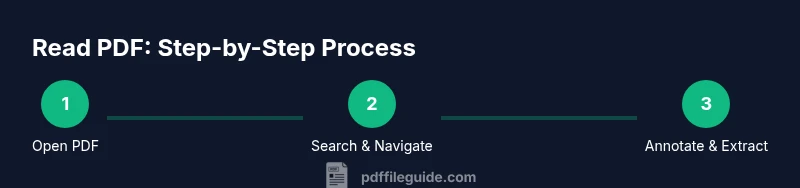
Tip: Create a routine: skim, search, annotate, summarize, and store.
Questions & Answers
What is the best way to read PDFs on a small screen?
Use a reader with reflow, adjustable text size, and a two-column or single-column view. Zoom carefully and rely on bookmarks for navigation to avoid excessive scrolling.
For small screens, choose a reader with reflow and adjustable text; use bookmarks to navigate instead of constant zooming.
How can I search text within a PDF effectively?
Open the search tool (usually Ctrl/Cmd+F), enter keywords, and use exact phrases or wildcards if supported. For long documents, use the advanced search options to narrow results by case or page range.
Open search, type keywords, and use advanced options for precise results.
Can I annotate PDFs on mobile devices?
Yes. Most mobile readers support highlights, stamps, and notes. Use touch gestures to select text and attach comments, then sync or export your annotations when ready.
Absolutely, annotate on mobile with highlights and notes, then sync your work.
What if the PDF is a scanned image?
You’ll need OCR to convert the image to searchable text. Some readers include built-in OCR; otherwise, run OCR with a dedicated tool and review results for accuracy.
If it’s scanned, run OCR to enable search and copy-paste.
How do I extract text or data from a PDF?
Select the text and copy it, or use the export function if available. For tables, consider exporting to CSV or using a dedicated extractor for better accuracy.
Select or export text; use CSV for tables when possible.
Is it safe to open PDFs from email attachments?
Only open PDFs from trusted sources. Keep your reader up to date and avoid enabling scripts or external content from unknown files.
Only open PDFs from trusted sources and keep software updated.
Watch Video
Key Takeaways
- Master essential PDF reading features across devices
- Annotate and organize readings for quick retrieval
- Leverage accessibility options to improve readability
- Prioritize security and privacy when handling PDFs
- Develop a repeatable reading workflow