How to Open PDFs for Free: A Complete Guide for Everyone
Discover free, safe ways to open PDF files on desktop, mobile, and online. This guide covers built-in viewers, free apps, and secure online options for quick access.


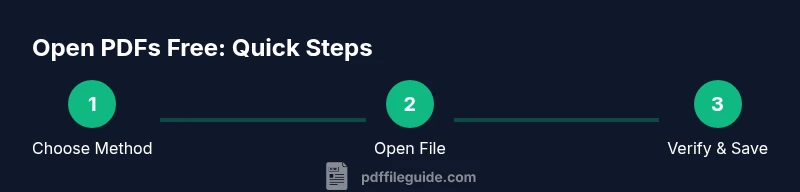
Goal: open a PDF for free using a built-in viewer, a free desktop app, or a trustworthy online reader. Step 1: pick a free method. Step 2: locate and open your PDF. Step 3: confirm it renders correctly and adjust zoom if needed. No paid software required for how to open pdf free.
What does it mean to open PDFs for free?
Opening a PDF for free means using software or services that do not require payment to view, navigate, and sometimes annotate PDFs. For professionals and students, this matters because it removes subscription barriers while preserving core viewing features like zoom, search, and basic annotation. According to PDF File Guide, many reliable options exist across desktop, mobile, and online environments. When you ask how to open pdf free, you want a method that is trustworthy, compatible with your device, and easy to use. This section lays the groundwork by explaining the different free paths—built-in viewers, free desktop apps, and online readers—and how they fit into everyday workflows. You’ll learn how to pick the right path based on your device, file size, and needed features, all without paying for access.
Free desktop viewers: Windows and macOS
Desktop environments often ship with built-in PDF support, reducing the need for third-party software. On Windows, Microsoft Edge includes a capable PDF viewer that handles most reading tasks, while Windows users can also opt for lightweight readers like SumatraPDF for quick launches. macOS users benefit from Preview, a native app that supports viewing, annotating, and exporting PDFs. If you need more robust features without cost, consider free alternatives like LibreOffice Draw for editing or free open-source viewers. The key is to keep your software updated to ensure compatibility with newer PDF standards. When you open a PDF for free on desktop, you’ll typically right-click the file and choose Open With, then select the built-in viewer or a free app you trust. This approach aligns with the guidance from PDF File Guide on minimizing software clutter while staying productive.
Free cross-platform options: browsers and open-source readers
If you prefer a single workflow across devices, browser-based or open-source readers are excellent. Google Chrome and Microsoft Edge can render PDFs directly in the browser, so you don’t need a separate program. Firefox and other browsers offer strong built-in viewers as well. For those who want a dedicated, free desktop alternative, lightweight readers like SumatraPDF or okay alternatives provide quick launches and simple interfaces. This cross-platform approach minimizes friction when you switch between Windows, macOS, or Linux. When you learn how to open pdf free using these tools, you’ll typically drag-and-drop the file into the browser, or use File > Open to point to your PDF. PDF File Guide suggests verifying that your browser is up-to-date to ensure correct rendering of forms and media.
Mobile options: iOS and Android
Opening PDFs on mobile devices should be effortless. iOS users can view PDFs in the Files app or Books, while Android users often rely on Google Drive’s built-in viewer or the system PDF viewer. Both platforms offer quick sharing and cloud-synced access, which is convenient for on-the-go reviewing. If you need annotation or signing capabilities, many free apps provide basic features without a subscription. Remember to keep your apps updated and grant only essential permissions to protect your documents. As you explore how to open pdf free on mobile, keep in mind that performance can vary with file size and device hardware, so try a few methods to find the smoothest experience.
Online viewers: pros, cons, and best practices
Online PDF viewers offer instant access without installing software. You can upload a file from your device or cloud storage and view it in a web-based reader. This is handy for quick checks or sharing a link to a document. However, uploading sensitive files to online services can raise privacy concerns, so use reputable platforms and avoid uploading confidential material unless necessary. If you choose to use an online tool, verify the site’s security (look for HTTPS and a trustworthy privacy policy). PDF File Guide emphasizes using online readers for non-sensitive tasks and keeping local copies when dealing with sensitive information.
Security and privacy when using free tools
Free tools are convenient, but there are security considerations. Always download software from official sources or use trusted browsers with built-in viewers. Be cautious with online services that request access to your files; read permissions and privacy statements carefully. For password-protected or encrypted PDFs, ensure you’re using legitimate methods to view content, as some free tools may mishandle restricted files. If you work with confidential documents, prefer offline viewers or reputable cloud services that offer robust security options. PDF File Guide recommends a mix of offline viewing for sensitive materials and online viewing for non-confidential tasks to maintain privacy without sacrificing accessibility.
Troubleshooting common issues when opening PDFs for free
If a PDF won’t open, first confirm the file isn’t corrupted by trying another PDF you know is good. Ensure the file extension is correct and that the tool supports the PDF version. For password-protected files, obtain the correct password or use authorized tools. Large files may lag on certain devices; in these cases, try a desktop viewer rather than a browser-based viewer, or reduce the file size if possible. If you still can’t access the document, consider using a different free method from the list above and cross-checking with a different device. While troubleshooting, keep your software updated and avoid dubious third-party apps that promise speed but compromise safety.
Tools & Materials
- Device with internet access(Windows PC, Mac, tablet, or smartphone)
- Web browser or PDF viewer(Edge, Chrome, Firefox, Preview, or a free third-party viewer)
- PDF file to open(Local file or accessible via link)
- Optional cloud storage account(Google Drive, OneDrive, iCloud for quick access)
Steps
Estimated time: 5-20 minutes
- 1
Choose a free method
Decide whether you’ll use a built-in viewer, a free desktop app, or an online reader. Consider factors like file sensitivity, device, and whether you need annotations.
Tip: If handling sensitive documents, start with offline desktop viewers to avoid uploading to cloud services. - 2
Locate the PDF
Find the PDF on your device or in cloud storage. Ensure the file is not corrupted by opening a different PDF to confirm the viewer works.
Tip: Use a consistent folder structure to keep PDFs easy to find later. - 3
Open with your chosen tool
Right-click the file and choose Open With, or drag the file into the browser window if using a web viewer.
Tip: Prefer a viewer that preserves links and form fields if your PDF contains interactive elements. - 4
Verify rendering and features
Check that pages render correctly, zoom functions work, and any embedded media or forms respond as expected.
Tip: Test searching within the document to ensure text is selectable. - 5
Save or export if needed
If you plan to annotate, save a copy with your changes or export to another format if required by your workflow.
Tip: Keep an original unmodified copy as a reference. - 6
Close securely
Exit the viewer when finished and clear any temporary files if you’re using shared devices.
Tip: If using a public computer, do not save login credentials in the browser.
Questions & Answers
Is it safe to open PDFs with free online viewers?
Free online viewers are convenient but can pose privacy risks for sensitive documents. Use reputable services, avoid uploading confidential files, and prefer offline options when possible.
Online viewers are convenient but use caution with sensitive files; choose trusted services and prefer offline options for confidential documents.
What if a PDF won’t open on my device?
First check if the file is corrupted by trying another PDF. Ensure your viewer supports the PDF version and update software if needed. If the problem persists, try a different free method.
If a PDF won’t open, check for corruption, update your viewer, and try another free method.
Can I edit a PDF with free tools?
Many free tools allow basic annotations and form filling, but advanced editing may require paid software. Use offline readers when editing sensitive documents to avoid cloud exposure.
Free tools cover basic annotations; for heavy editing, consider legitimate paid options or trial versions.
How do I view password-protected PDFs for free?
You’ll need the correct password from the document owner. Free viewers can display content once unlocked, but you must have authorization to access protected files.
If a PDF is password-protected, you’ll need the correct password to view it.
Which method is best for students who study on multiple devices?
A cross-platform approach using browsers and a trusted cloud account often works best. Keep a local copy for offline study and sync progress across devices.
For students on multiple devices, use cross-platform tools and keep local copies for offline study.
Watch Video
Key Takeaways
- Choose a free method that fits your device and security needs.
- Desktop viewers offer strong offline reliability; online viewers offer convenience.
- Always verify rendering and preserve original copies for important documents.
- Be mindful of privacy when using online tools.
- Keep software updated to ensure best compatibility with modern PDFs.