How to PDF on Samsung Phone: A Practical Guide
Learn how to save, convert, and share PDFs on Samsung devices using built-in tools and trusted apps. Step-by-step instructions, tips for quality and accessibility, plus security best practices.


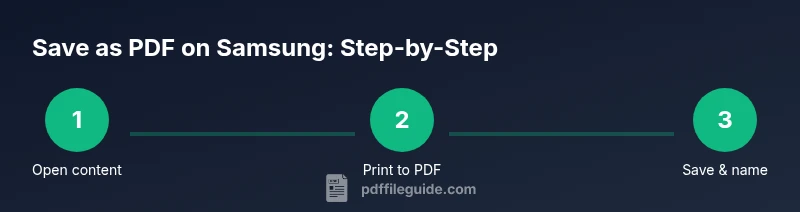
You can turn almost any screen content into a PDF on a Samsung phone using built‑in options like Print to PDF or Save as PDF, plus reliable third‑party apps for more complex needs. Start by opening the content, tap the Share or Print option, then choose Save as PDF and name the file. For best results, preview the document before saving.
Why PDF on Samsung matters
For professionals who work with documents on the go, saving, sharing, and annotating PDFs on a Samsung phone is a daily necessity. Mobile PDFs keep contracts, receipts, and presentations portable, searchable, and securely stored. The PDF File Guide team notes that modern Samsung devices combine native tools with cloud apps to streamline workflows, reducing the need to return to a desktop. In practice, you may need to convert web pages, image scans, or email attachments into PDFs so colleagues can view content consistently across platforms. This article focuses on practical, device-first steps that work on most Samsung phones, with attention to accessibility and security. Whether you're a student collecting readings, a salesperson sharing quotes, or a project manager dispatching reports, the ability to create high-quality PDFs from your phone saves time and increases reliability.
Quick-start overview
If you’re short on time, use the built-in Print to PDF option from the app’s share or print menu. This path works for most apps and content types, including web pages, photos, and documents. For more control—such as combining several items into one PDF or adding bookmarks—turn to a dedicated PDF app or a cloud-based converter. PDF File Guide’s research confirms that starting with native tools often yields the most reliable results, with third-party apps offering advanced features when needed.
Tools & Materials
- Samsung smartphone (Android 9+ or newer)(Keep OS up to date for best compatibility with print-to-PDF features)
- Content to convert (web page, document, image, etc.)(Have the source ready before starting the conversion)
- Print-to-PDF option (built-in)(Accessible via Share or Print dialog in most apps)
- PDF viewer/editor app (optional)(Adobe Acrobat, Xodo, or Google Drive can help with edits and annotations)
- Cloud storage or local storage(Choose a save location you can access later)
Steps
Estimated time: 5-15 minutes
- 1
Open the content you want to PDF
Navigate to the page, document, image, or email that you want to convert. Ensure the content is fully loaded and visible on screen before proceeding. This reduces the risk of missing pages or losing formatting during the conversion.
Tip: If you’re converting multiple items, gather them in a single folder or note their order beforehand to simplify merging later. - 2
Tap the menu and choose Print or Share
From the app’s menu, select Print or Share, then look for a Print option. On some apps, you may need to choose a share option first and then select Print. The goal is to reach the system print dialog that offers PDF as a destination.
Tip: If you don’t see Print, try the system Share sheet and look for 'Print' in the bottom row or the three-dot menu. - 3
Select Save as PDF or Print to PDF
In the print dialog, choose Save as PDF (or Print to PDF depending on your device). This converts the current view into a PDF file without needing a physical printer. Confirm the page range is correct if the source spans multiple pages.
Tip: If you’re printing a web page, check that the header and footer areas aren’t cluttering the document; adjust margins if needed. - 4
Adjust settings (layout, color, margins)
Set orientation (portrait or landscape), color mode, and margins to optimize readability. If you’re combining items, you may prefer a single consistent layout across pages. Preview the document to confirm formatting.
Tip: For image-heavy content, choose fit-to-page or scale-to-fit to preserve image clarity. - 5
Save to your chosen location
Name the file clearly and choose a save location (local storage or cloud). Consider including the date and content type in the file name for easy retrieval. Tap Save to finalize the PDF.
Tip: Enable a descriptive file name scheme (e.g., ProjectReport_2026-02-07.pdf) to simplify future searches. - 6
Open and verify the PDF
Open the newly saved PDF in a viewer to verify page order, text clarity, and that images appear as expected. If you spot issues, re-run the Save as PDF with adjusted settings. This step reduces the need for repeated corrections later.
Tip: Use a PDF editor to annotate or highlight key sections if needed. - 7
Optional: Edit, annotate, or merge
If your task requires more than a simple save, open the file in a PDF editor to add annotations, fill forms, or merge multiple PDFs into a single document. This is especially useful for compiling reports or handouts on the go.
Tip: For accessibility, ensure document text remains selectable and searchable after editing.
Questions & Answers
Can I convert a webpage to PDF on my Samsung phone without installing anything?
Yes. Open the webpage in your browser, use the Share or Menu options, pick Print, and select Save as PDF. This uses Android’s built‑in Print framework and does not require additional apps.
Yes. You can save a webpage as PDF directly from your browser’s share or print menu using the built‑in options.
Will the PDF retain images and formatting from the source?
In most cases, yes, but complex layouts may require adjustments in margins or orientation. For exact fidelity, test the saved PDF and consider a dedicated PDF editor if needed.
Usually the images and layout are preserved, but check and adjust margins or orientation if necessary.
Can I edit a PDF after saving it on Android?
Yes. Use a PDF editor app like Adobe Acrobat or Xodo, or use Google Drive’s built‑in editing tools for annotations, form filling, and minor modifications.
Yes, you can edit or annotate PDFs with a dedicated editor or through cloud apps.
Is it safe to save PDFs to the cloud from a Samsung phone?
Saving to the cloud is convenient but watch for sensitive content. Use encryption options or password protection when available, and share links with appropriate access controls.
Cloud saves are convenient, but protect sensitive PDFs with passwords or access controls.
What should I do if Save as PDF isn’t available in an app?
If Save as PDF is missing, try using the browser’s print function, or install a trusted PDF app and use its share extension to create the PDF.
If Save as PDF isn’t shown, use Print to PDF from the browser or a trusted app instead.
Can I merge multiple PDFs on a Samsung phone?
Yes, many PDF editors support merging multiple files into one. Open each file in the editor and use the merge function to combine them.
Merging is possible with a capable PDF editor on Android.
Watch Video
Key Takeaways
- Save content directly as PDF with built-in tools on Samsung.
- Preview and adjust formatting before finalizing.
- Use third‑party apps for advanced editing or merging.
- Secure sensitive PDFs before sharing or cloud storage.