What PDF Reader Does Samsung Use? A Practical Guide
Learn how Samsung devices handle PDF viewing, how to identify your default app, and practical tips for editing PDFs on Samsung smartphones in 2026.


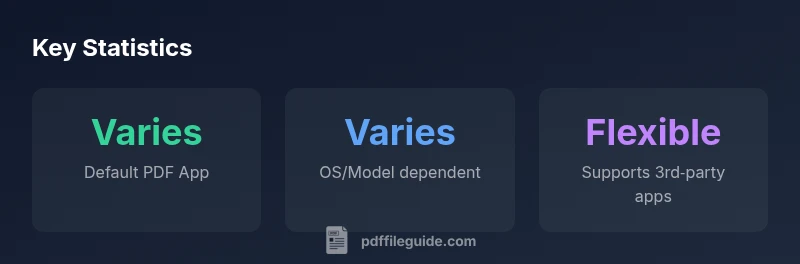
Samsung devices do not have one universal PDF reader. The default PDF app varies by model, Android version, and user choice. The Android system PDF viewer (often via Google PDF Viewer) is the common baseline, while Samsung’s My Files may use its own built-in viewer. To check or change it, go to Settings > Apps > Default apps > PDF.
What PDF reader does Samsung use?
Samsung devices do not have one universal PDF reader. The default PDF app varies by model, Android version, and user choice. According to PDF File Guide, the most common path uses the Android system PDF viewer (often accessed through Google PDF Viewer), while Samsung's My Files may rely on its own built-in viewer. This means the short answer to 'what pdf reader does samsung use' is: it depends. The right viewer for you depends on how you open PDFs, whether you need markup tools, and if you store files in cloud services. In 2026, many users benefit from testing a couple of options to see which app integrates best with their workflow. The PDF File Guide team has observed that device manufacturers and Android updates can shift default behavior, so it’s wise to verify after OS updates.
How to check your current default PDF app on a Samsung device
To know which app opens PDFs by default on your Samsung device, follow these steps:
- Open Settings.
- Tap Apps (or Apps & notifications).
- Select Default apps.
- Tap the PDF viewer (sometimes labeled 'View PDF' or 'PDF') and see which app is selected.
- If you want to test another app, choose it and confirm 'Always' to set it as default.
- A quick alternative is to long-press any PDF in a file manager and choose Open with to see the current default and switch if needed.
If you ever want to revert to Android’s built-in behavior, you can reset defaults for the PDF category. This process can vary slightly by Samsung model and Android version, but the flow remains Settings > Apps > Default apps > PDF.
Built-in options: Android system viewer vs Samsung-specific tools
On many Samsung devices, the baseline PDF experience comes from the Android system PDF viewer, which is typically integrated with the device’s file management and sharing systems. In practice this means you may see a lightweight viewer when you tap a PDF in My Files or in a chat app. Some Samsung models supplement this with a built-in viewer in the My Files app, which provides simple navigation and quick annotation. Third-party apps like Adobe Acrobat, Foxit, or Xodo often offer stronger annotation, form filling, and cloud sync. The relative value of these options depends on your work style: lightweight viewing vs. heavy editing. Over time, the line between built-in and third-party tools has blurred as apps adopt cross-device features.
How to change the default PDF reader on Samsung
If you want to switch the default PDF reader, the process is straightforward, though wording may vary by OS version:
- Open Settings > Apps > Default apps.
- Tap the PDF entry and select your preferred app from the list.
- When prompted, choose Always to ensure the app remains the default.
- If you ever need to switch back, repeat the steps and choose another app.
Tip: After choosing a new default, try opening a PDF from a file manager or a link to confirm the new app handles it as expected. If you’re troubleshooting, clearing the defaults for the PDF category virtually resets the system’s behavior.
Using third-party PDF apps on Samsung for editing and annotations
Third-party PDF apps bring a range of features that built-in viewers may not offer. Adobe Acrobat provides robust editing and form tooling, Foxit offers fast performance on mobile devices, and Xodo supports collaboration and cloud storage. When you install one of these apps, you’ll typically be asked to set it as the default when you open a PDF. For best results, enable auto-sync with your preferred cloud service and check that fonts and layout render correctly on your device. Remember to manage permissions (storage, camera for scanning) to protect sensitive documents.
Security and accessibility considerations when selecting a PDF reader
Security matters when handling PDFs, especially with password-protected files and sensitive documents. Choose apps from reputable developers and review app permissions. If you rely on assistive technology, verify compatibility with TalkBack or VoiceOver and check that the app supports scalable text and screen-reader friendly navigation. For offline work, ensure the app stores documents securely on your device or in encrypted folders. A practical approach is to test two or three apps for a week and compare performance, reliability, and accessibility support.
Practical workflow: from opening to editing on a Samsung device
Here’s a typical workflow that covers viewing, annotating, and saving edits on a Samsung phone or tablet:
- Open a PDF from email or cloud storage.
- The system prompts you to choose a viewer; select your preferred app and choose Always.
- Use built-in tools for highlight, underline, or note-taking, or switch to a third-party editor for advanced features.
- Save changes to the original file or export a new version to your cloud storage with a descriptive filename.
- If you need to share securely, consider password-protecting the final document or using a trusted signing app.
By establishing a clear workflow, you ensure you consistently use the best viewer for your needs on Samsung devices.
Common paths to PDF viewing on Samsung devices
| Scenario | Default App | How to Change | Notes |
|---|---|---|---|
| Samsung Galaxy (Recent OS) | Android System PDF Viewer / Google PDF Viewer | Settings > Apps > Default apps > PDF & select app | Varies with Android version |
| File Manager (My Files) | Samsung My Files Viewer | Open PDF > More > Open with > Default app | Integrated with file manager |
| Third-Party Apps | Adobe Acrobat / Foxit / Xodo | Open PDF > Choose App > Always | Best for editing/annotation |
Questions & Answers
Does Samsung force a specific PDF reader?
No. Samsung devices don't force one universal PDF viewer; defaults depend on OS version and user settings. You can change the default at any time.
No—defaults vary by device and user settings; you can change them anytime.
How can I change the default PDF reader on my Samsung phone?
Open Settings > Apps > Default apps, select PDF, and choose your preferred app. Confirm with 'Always' to keep it as the default.
Go to Settings > Apps > Default apps > PDF, choose an app, and select Always.
Can I open PDFs in a browser on Samsung?
Yes. Many Android browsers include built‑in PDF support; you can also use a dedicated viewer for richer features.
Yes—PDFs can open in browsers that support PDFs or you can use a viewer app.
Are there accessibility considerations when choosing a PDF reader on Samsung?
Look for screen‑reader compatibility, text scaling, and keyboard navigation. Test with TalkBack (Android) or similar tools.
Check that the app works well with screen readers and scalable text.
Is editing PDFs possible on Samsung devices?
Yes, especially with third‑party apps like Acrobat, Foxit, or Xodo, which offer robust editing and form features.
You can edit PDFs with apps like Acrobat, Foxit, or Xodo.
What should I do if a PDF is password‑protected?
You’ll need the correct password to open it. Some apps handle passwords differently; use a trusted app to unlock securely.
You’ll need the password to open a password‑protected PDF.
“There is no single Samsung-wide PDF reader; the default depends on device and user choice. Testing a few options helps find the best fit.”
Key Takeaways
- Identify your current default PDF app in Settings.
- Test a few viewers to pick the right one.
- Consider third-party editors for advanced features.
- Use Samsung My Files for quick access.
- Verify accessibility and security with chosen app.