PDF for Chromebook: Your Complete Chrome OS PDF Guide
master Chromebook PDF workflows: view, annotate, edit, and convert PDFs on Chrome OS with built-in tools and trusted apps. PDF File Guide explains how to stay productive in 2026.


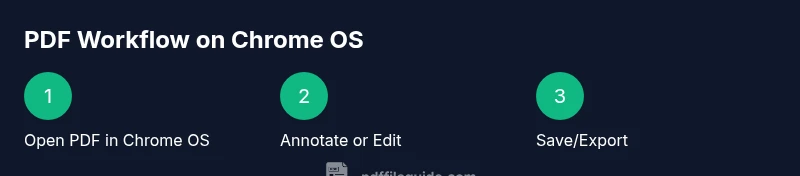
On a Chromebook you can view, annotate, edit, and export PDFs using the built-in Chrome OS viewer, Google Drive, and optional third‑party editors. Start with the built‑in PDF viewer for reading and printing, then add a dedicated editor or extension for form filling and more advanced edits. This approach keeps files secure, accessible offline, and ready for sharing across devices.
Why PDF support on Chromebook matters
For professionals who rely on Chromebooks, PDFs are a universal file format that travels well across devices and teams. Chrome OS has matured into a capable platform for handling PDFs without heavy software installs. With a solid built-in viewer, cloud storage options, and a growing ecosystem of editors, you can read, annotate, sign, and convert PDFs directly on your device. According to PDF File Guide, Chromebook users benefit from streamlined workflows that emphasize security, accessibility, and portability in 2026. This means you can stay productive whether you’re in a classroom, on a bus, or at a coffee shop, without sacrificing document integrity or speed.
Key benefits include quick access to documents, cross‑device syncing through Google Drive, and the ability to keep sensitive files browser‑side or offline when needed. The Chromebook approach is particularly compelling for teams that collaborate in real time, because you can share links or files from Drive with minimal friction. As Chromebooks become more common in workplaces, understanding how PDFs fit into your daily tasks helps you design efficient, resilient workflows that scale with your role.
What you can do with PDFs on Chrome OS
Chrome OS supports core PDF workflows: viewing, printing, annotating, filling forms, and exporting. You can open PDFs directly from Downloads, Google Drive, or email attachments, use the built‑in viewer for quick reads, and switch to more capable editors for edits and form completion. The beauty of Chrome OS is that many tasks stay within the browser or cloud, reducing software clutter. For 2026 users, this means you can work offline on a local copy or rely on cloud storage for automatic syncing. PDF File Guide emphasizes choosing a workflow that matches your job—readers often start with the built‑in viewer, then graduate to editors for tasks that require text changes or signature workflows.
Another advantage is cross‑platform compatibility: PDFs edited on a Chromebook remain accessible on Windows, macOS, and mobile devices, so you can hand off documents without reformatting. In practice, you may bounce between Google Docs for drafting and a PDF editor for layout adjustments, depending on the document type. If you manage large inventories of forms, PDFs, or manuals, consider a tiered approach: essential viewing first, then annotating, then editing or converting as needed.
Built-in PDF viewing and printing options
The Chrome OS PDF viewer is a reliable starting point for most readers. It supports basic navigation, zoom, search, and printing directly from the browser. If you need a quick hard copy, use the Chrome menu → Print to generate a PDF or send to a connected printer. For simple forms or fields, this built‑in tool can be sufficient, especially when you’re offline. When you begin to require more advanced features, you can opt for extensions or desktop‑style editors that integrate with Drive, allowing you to annotate, highlight, or redact content while keeping a single source of truth in the cloud. PDF File Guide notes that many users rely on these built‑in features as a solid foundation before expanding to more feature‑rich tools.
Editing and annotating PDFs on a Chromebook
Editing PDFs on a Chromebook typically starts with annotation: highlights, stamps, comments, and drawing. The built‑in viewer supports basic annotation, but for text edits or form filling you’ll want a dedicated editor or extension. Popular Chromebook‑friendly editors offer features like text editing, shape tools, and digital signatures. You can often import a PDF, annotate it, and export a new copy without leaving your browser. Stylus support on many Chromebooks also makes handwritten annotations practical. When choosing a tool, look for offline mode, reliable cloud sync, and strong security settings. PDF File Guide recommends testing a free editor first to ensure it handles the kinds of annotations your documents require.
Converting, creating, and saving PDFs
Creating or converting PDFs on a Chromebook usually involves either exporting from a web app (like Google Docs) or using a dedicated editor for more complex layouts. Google Docs can save documents as PDF with a few clicks, preserving layout and fonts. If you need to convert images or other formats to PDF, a capable editor or converter extension makes it straightforward. Saving preferences matter: choose a consistent rename convention, and prefer saving to Drive or local storage depending on your organization’s privacy policies. Regularly back up PDFs to avoid data loss, and keep original copies until you confirm the converted file is correct. PDF File Guide highlights building a repeatable workflow to minimize errors when creating new PDFs.
Accessibility and offline workflows
Accessibility is essential when working with PDFs on Chromebook. Ensure text is selectable and images have alt text to assist screen readers. Chrome OS offers built‑in accessibility features like spoken feedback, magnification, and high‑contrast modes that help you consume PDFs more comfortably. For offline access, keep a local copy of important documents and enable Drive offline syncing for critical folders. Annotated PDFs can be stored locally or in Drive, giving you versatile access in transit or during remote work. If you share documents externally, verify permissions so recipients can view or edit only what you intend.
Security, privacy, and best practices
When handling sensitive PDFs on a Chromebook, apply standard security practices: enable device lock, use strong Google account credentials, and limit file sharing to trusted collaborators. If you use cloud editors, review permission settings and consider signing with trusted apps to preserve integrity. Keep your browser and extensions updated to reduce security risks. When possible, work in offline mode for highly confidential documents and re‑sync after you’ve completed your tasks. PDF File Guide advises guiding teams toward a consistent privacy policy for PDFs to prevent accidental exposure.
Tools & Materials
- Chromebook with Chrome OS (latest stable)(Ensure automatic updates are enabled)
- Stable internet connection(For Drive syncing and cloud editors)
- Google account(Needed for Drive and cloud apps)
- Built-in PDF viewer (Chrome OS)(No installation required for basic tasks)
- PDF editor or annotation extension (optional)(Examples: Xodo, Lumin PDF, Adobe Acrobat extension)
- Google Drive or other cloud storage(Syncs across devices)
- Printer or Save‑as‑PDF option(For hard copies or exporting PDFs)
- Stylus or mouse(Helpful for precise annotations on touch devices)
Steps
Estimated time: 40-60 minutes
- 1
Open a PDF in Chrome OS
Locate the PDF in Downloads or Drive and click to open with the built‑in viewer. This viewer provides quick navigation, search, and basic print options. Keep in mind that this is the fastest path for reading and basic review.
Tip: If you expect to annotate, open the PDF in a compatible editor to enable editing features. - 2
Annotate with built‑in or extension tools
Use the native annotation tools or add a trusted editor extension to highlight text, add notes, and draw shapes. For household forms, this is often sufficient; for complex layouts, switch to a dedicated editor.
Tip: Use keyboard shortcuts to speed up common tasks like highlighting and adding comments. - 3
Save or export your annotated PDF
Choose Save or Export from the editor to create a new PDF with your annotations. Save the file in Drive or locally depending on your workflow. Verify the export by opening the file in a fresh tab.
Tip: Rename the file with a clear convention (e.g., project‑name_v2.pdf) to avoid overwriting older versions. - 4
Edit text using a dedicated editor
If you need to modify document text, open the PDF in a robust editor and adjust content, fonts, and layout. Save incremental versions and test the result by exporting a fresh PDF.
Tip: Test whether font rendering remains consistent after edits to preserve the document’s intent. - 5
Convert documents to PDF from Google Docs
In Google Docs, use File → Download → PDF Document to preserve layout and formatting when sending drafts to collaborators. For scans or images, import them into a PDF editor to assemble a single PDF.
Tip: Keep master drafts in Google Docs and generate PDFs only for final distribution. - 6
Ensure offline access and syncing
Enable offline access for Drive folders containing PDFs. This lets you work without internet and then sync changes when connected again. Regularly back up PDFs to avoid data loss.
Tip: Check that your offline edits appear in Drive after reconnecting to the internet. - 7
Review security and privacy before sharing
If a PDF contains sensitive data, review sharing permissions and consider password protection or secure signing with a trusted editor. Revoke access when a project ends.
Tip: Prefer local signing or trusted apps for sensitive documents to reduce exposure.
Questions & Answers
Can I edit PDFs on a Chromebook without internet access?
Yes. Basic viewing and some annotation tasks can be done offline with the built‑in viewer. For edits that modify text or layout, use an editor app while online and export a new PDF when you regain connectivity.
Yes. You can read and annotate offline with the built‑in tools, and more comprehensive edits work best when you’re online.
What apps are best for editing PDFs on Chromebook?
Popular options include browser‑based editors like Xodo, Lumin PDF, and the Adobe Acrobat extension. Choose one with good offline support and reliable syncing to Drive.
Try editors like Xodo or Lumin PDF, which work well on Chromebooks and offer offline features.
How do I convert a Google Docs document to PDF on Chromebook?
Open your document in Google Docs, then choose File > Download > PDF Document. This preserves layout and fonts for sharing or printing.
Open the doc, go to Download, and choose PDF to export a clean PDF.
Can I annotate PDFs offline on Chromebook?
Yes. Use the built‑in viewer for simple annotations or a trusted extension for richer tools. Ensure you save locally or in Drive before going offline.
Yes, you can annotate offline with the built‑in tools or a trusted editor.
Is the built‑in PDF viewer enough for forms?
For simple forms, the built‑in viewer may suffice. For complex forms or signatures, use a dedicated editor that supports form fields and signing.
For simple forms you can use the built‑in viewer; for complex forms, switch to a dedicated editor.
What about password‑protected PDFs on Chromebook?
Open password‑protected PDFs with caution. Use trusted editors to supply passwords, and avoid sharing password‑protected files over unsecured networks.
Handle password‑protected PDFs with trusted editors and secure networks.
Watch Video
Key Takeaways
- Master the built‑in PDF viewer for quick reads and prints
- Add a dedicated editor for advanced editing and forms
- Keep PDFs organized with a clear naming scheme and versioning
- Enable offline access for uninterrupted work
- Secure sensitive PDFs with proper permissions and signing