View PDFs in Chrome: A Practical Guide
Learn to view PDFs directly in Chrome using the built-in PDF viewer. This guide covers opening, zooming, searching, downloading, print options, and accessibility tips for a smooth reading experience in everyday work.


Learn how to view PDFs directly in Google Chrome using its built-in PDF viewer. This guide covers enabling the PDF viewer, common viewing options, keyboard shortcuts, and how to force download or open in a new tab if needed. No external plugins required—just a modern Chrome browser and a file to open.
Why Chrome's PDF Viewer Matters
According to PDF File Guide, Chrome’s built-in PDF viewer provides a reliable, plugin-free way to render most PDF documents directly in the browser. This means you can open forms, reports, manuals, and eBooks quickly without chasing third-party software. The viewer supports core tasks like zooming, searching, copying text, and printing, making it a dependable default for most workflows. For professionals who edit, convert, or optimize PDFs, relying on a consistent browser-based experience reduces setup time and helps you verify how recipients will view documents. It’s also helpful for quick reviews on the go, whether you’re at your desk or traveling between meetings.
As you work with PDFs in Chrome, you’ll appreciate the seamless integration with cloud storage and local files. You can open a local file by dragging it into the browser window, or click a link to an online PDF. This reduces friction when sharing documents with colleagues or clients who use different systems. The PDF File Guide team emphasizes testing critical PDFs in Chrome to ensure fonts render correctly, text remains selectable, and layout is preserved across devices.
The built-in viewer is designed for day-to-day tasks, not advanced editing. If you need annotations, form filling, or batch processing, you may still rely on dedicated PDF editors. Still, for viewing, quick highlighting, or verifying accessibility, Chrome’s viewer is often sufficient and convenient. This article focuses on practical usage patterns you can apply today.
Overview of typical use cases includes viewing financial reports, scanned invoices, user manuals, and eBooks. In many corporate environments, stakeholders expect fast access to PDFs through a web browser, and Chrome’s viewer delivers that without extra software. The goal is to empower you to view and interact with PDFs efficiently while maintaining readability and accuracy across devices.
Finally, the PDF File Guide analysis shows that most users benefit from the default viewer for routine reading tasks, with a clear path to download or open in a separate tab when needed.
descriptionOverride”:null,
note”:null},
Oops
Tools & Materials
- Google Chrome browser (latest version)(Ensure you’re running the most up-to-date build for the best PDF rendering and security fixes.)
- PDF file to view (local or online)(A local file can be opened via drag-and-drop; a link will open in a new tab.)
- Optional: privacy-friendly viewing setup(Use a private window if you don’t want history or cookies to persist.)
- Printer (optional)(Use the browser’s print dialog to generate a hard copy if needed.)
Steps
Estimated time: 15-25 minutes
- 1
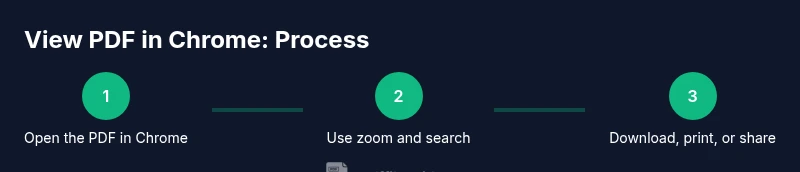
Open the PDF in Chrome
Launch Chrome and open your PDF by dragging the file into a new tab, or use File > Open File to select the document from your computer. For online PDFs, click the link and allow Chrome to load the file. This step validates that the built-in viewer is active and able to render the content.
Tip: If the PDF doesn’t load, try reloading the page or clearing the browser cache before checking the file path. - 2
Use the zoom and fit options
Use the zoom controls in the toolbar to adjust the document size. You can choose fit-to-width, actual size, or a custom zoom level for comfortable reading. Zooming helps if the text appears blurry on small screens.
Tip: Tip: Press Ctrl/Cmd + 0 to reset to 100% zoom quickly. - 3
Search and navigate the document
Use the search feature to find keywords within the PDF. Jump between results with the Next/Previous buttons. This is especially useful for long reports or manuals.
Tip: Tip: Use the search filter to match case or whole words if needed. - 4
Copy text or take screenshots
Highlight text to copy it to your clipboard or use the browser’s screenshot tool to capture a portion of the page for notes. This is handy when you need to reference specific sections in communications or reports.
Tip: Tip: For sensitive PDFs, be mindful of clipboard history and screenshot storage. - 5
Download or print a copy
If you need an offline version, use the three-dot menu to download the PDF or print directly from Chrome. Downloaded files preserve the original layout and can be shared or archived.
Tip: Tip: Check printer options for page range and duplex printing to save paper. - 6
Repair or troubleshoot rendering issues
If fonts appear jumbled or images misalign, try opening the PDF in a new Chrome window or disabling extensions that might interfere with rendering. Reopen the file to confirm whether the issue persists.
Tip: Pro-tip: Disable extensions that claim to modify PDF rendering to isolate the cause.
Questions & Answers
Can I view PDFs in Chrome without internet connection?
Yes. Chrome can view local PDF files without an internet connection. Open the file from your device or drag-and-drop it into a Chrome tab. If you’re viewing a cloud-held PDF, you’ll need network access to load it.
Yes, you can view local PDFs offline by opening the file directly in Chrome.
Why won’t Chrome open my PDF file?
There could be multiple reasons: the file is corrupted, the PDF uses an unusual encoding, or Chrome’s PDF viewer is disabled by an extension or policy. Check the file integrity, disable conflicting extensions, or try another browser as a baseline.
If a PDF won’t open, check the file quality and try disabling extensions that might block rendering.
How do I force Chrome to download a PDF instead of viewing it?
Click the download icon in the PDF viewer toolbar or right-click the link and choose Save link as. This will save a local copy you can share or archive outside Chrome.
To download, use the download icon in the toolbar or the Save option from the right-click menu.
Can I annotate PDFs directly in Chrome?
Chrome’s built-in viewer offers basic viewing features, but native annotation tools are limited. For advanced annotations, use a dedicated PDF editor or browser extension designed for notes.
The built-in viewer is limited for annotations; consider a dedicated tool for complex notes.
Is Chrome’s PDF viewer accessible with screen readers?
Yes, Chrome’s PDF viewer supports basic accessibility features like text extraction and navigation by headings. Use a screen reader to verify reading order and content flow.
Chrome supports accessible navigation in its PDF viewer; test with your screen reader to confirm usability.
How can I disable Chrome’s built-in PDF viewer?
Go to Chrome settings > Privacy and security > Site settings > Additional permissions > PDF documents, then toggle off the built-in viewer to download PDFs by default.
To disable the built-in viewer, adjust the PDF settings in Chrome’s site permissions.
Watch Video
Key Takeaways
- Open PDFs directly in Chrome with no plugins
- Use zoom/search/print features for efficient reading
- Download or print as needed to share or archive
- Be mindful of privacy when viewing sensitive documents
- Troubleshoot rendering by reloading or disabling problematic extensions