Where is PDF Viewer in Chrome: Find, Enable, and Troubleshoot
Learn where to find Chrome's built-in PDF viewer, how to enable it, and practical troubleshooting when PDFs download or fail to render. Aimed at professionals who edit, convert, and optimize PDFs.


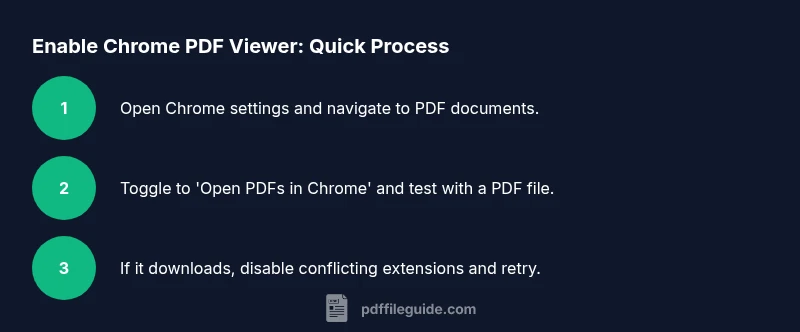
Chrome includes a built-in PDF viewer that opens most PDF files directly in the browser. If PDFs download instead of opening, disable the 'Download PDFs' setting so PDFs are opened in Chrome's viewer. If you're asking where is pdf viewer in chrome, open a new tab with chrome://settings/content/pdfDocuments and confirm the toggle to 'Open PDFs in Chrome'.
Understanding the Chrome PDF Viewer
According to PDF File Guide, Chrome’s built-in PDF viewer is a core feature that lets you view most PDF files directly in the browser without needing extra plugins. This viewer renders pages inline, supports basic annotations, text search, and forms, and aims to preserve the original layout. For professionals who edit, convert, and optimize PDFs, knowing this viewer reduces friction when sharing or reviewing documents online. The viewer leverages Chrome’s rendering engine to deliver fast, secure rendering and a consistent experience across desktop platforms. When you wonder where is pdf viewer in chrome, you’re really asking about the browser’s default mechanism for handling PDFs and when to rely on it versus downloading or using a third‑party tool.
Locating the PDF Settings in Chrome
Finding and adjusting PDF behavior in Chrome is straightforward once you know where to look. The central control for PDF handling lives in Chrome’s Settings under the Content or Privacy and Security sections, depending on the version. In practice, you’ll navigate to Chrome Settings, then to PDF documents, and you’ll see a toggle labeled something like 'Download PDFs' or 'Open PDFs in Chrome'. The exact wording can vary by version, but the effect is the same: turning on the setting prompts PDFs to open in Chrome’s built-in viewer, while turning it off downloads PDFs for external viewing. If you’re asking where is pdf viewer in chrome, this is the key switch to enable direct-in-browser viewing.
How to Confirm the Built-in Viewer Is Enabled
To ensure the built‑in Chrome PDF viewer is active, open a new tab and drag a PDF file into it. If the file renders in the tab, you’re using the built-in viewer. If you instead see a download prompt or a PDF opens in an external application, review the chrome settings page chrome://settings/content/pdfDocuments. Ensure the toggle indicates 'Open PDFs in Chrome' rather than 'Download PDFs'. If necessary, restart Chrome to apply changes and test with a second PDF to confirm consistency.
Common Scenarios When PDFs Download in Chrome
There are several reasons a PDF might download instead of opening in the viewer. The most common is the 'Download PDFs' setting being enabled. Extensions can also override the default behavior, forcing downloads or external viewers. Corporate policies or managed devices may enforce specific configurations that steer PDFs away from the built-in viewer. If you suspect interference, test with a different user profile or a clean browser session to isolate the cause. In this context, the question of where is pdf viewer in chrome becomes a practical test of a user’s settings and extensions.
Step-by-Step Troubleshooting When PDFs Don’t Open
When the built-in viewer isn’t rendering PDFs, a systematic approach helps. First, verify the setting chrome://settings/content/pdfDocuments is set to 'Open PDFs in Chrome'. Next, disable any extensions that might handle PDFs (try incognito mode with extensions blocked). Then, clear browser cache and restart Chrome. If the PDF still won’t render, test with a different URL or local file to determine if the issue is file-specific. Finally, ensure Chrome is updated to the latest stable version, as updates often refine the built-in viewer’s compatibility.
Advanced Settings and Alternatives for Professionals
For power users, you might also consider pairing Chrome’s built-in viewer with a robust PDF workflow. If you frequently fill forms or annotate PDFs, you could use the browser viewer for quick checks and a dedicated tool for heavy editing. Some professionals keep an optional extension like Adobe Acrobat Reader for edge cases, but for most viewing tasks, the built-in viewer offers speed and security. Keep in mind that certain features (deep form scripting, advanced annotations) may perform differently in Chrome versus a specialized editor.
Accessibility and Testing the Chrome PDF Viewer
Accessibility is essential when distributing PDFs. Chrome’s viewer supports text selection, zoom, and basic navigation, and screen readers can interpret well-structured PDFs rendered by the viewer. When testing accessibility, verify keyboard navigation, proper reading order, and alt text on images within PDFs. If you rely on assistive tech, validate that the PDF content remains readable in Chrome’s viewer and, when necessary, compare against a dedicated accessibility checker to ensure compliance.
Tools & Materials
- Google Chrome browser (latest stable version)(Ensure you have an up-to-date version for accurate PDF rendering features.)
- Active internet connection(Needed to fetch updates and access settings online.)
- Access to Chrome settings page chrome://settings/content/pdfDocuments(Used to enable/disable the built-in PDF viewer.)
- Sample PDF files for testing(Use multiple files with different layouts to verify behavior.)
Steps
Estimated time: 15-25 minutes
- 1
Open Chrome settings
Launch Chrome and open the settings menu. Use the left-hand navigation or the search bar to locate PDF-related settings quickly.
Tip: If you can’t find the setting, use the search field inside Settings to filter results. - 2
Find PDF documents under content settings
Navigate to chrome://settings/content/pdfDocuments or Settings > Privacy and security > Site Settings > PDF documents. This is where you control how PDFs are opened.
Tip: Bookmark this page for quick future checks. - 3
Enable 'Open PDFs in Chrome'
Toggle the option to open PDFs in Chrome’s built-in viewer. This ensures PDFs render directly in the browser instead of downloading.
Tip: If you don’t see the label, try toggling related options like 'Download PDFs' off first. - 4
Test with a PDF in a new tab
Drag a PDF into a new tab or open a bookmarked PDF to verify it renders in the viewer.
Tip: Use several PDFs with different content to confirm consistency. - 5
Check for extensions that may override behavior
Disable extensions temporarily to rule out a conflicting PDF handler.
Tip: Open Chrome in an incognito window to test with extensions disabled by default. - 6
Update Chrome and retry
If rendering issues persist, update Chrome to the latest stable release and re-test.
Tip: Restart the browser after updates to ensure changes take effect. - 7
Consider alternatives for heavy editing
If you require advanced editing, workflow guidance suggests using a dedicated PDF editor for complex tasks while relying on the built-in viewer for quick checks.
Tip: Only enable an extension if you trust its security and compatibility.
Questions & Answers
Is the built-in Chrome PDF viewer still available in 2026?
Yes. Chrome continues to include a built-in PDF viewer that renders most PDFs directly in the browser without external plugins. If a file downloads instead, check the PDF documents settings and any extensions that may override the default behavior.
Yes. Chrome still has a built-in viewer. If a PDF downloads, review the settings and extensions to ensure the viewer is enabled.
Why do PDFs sometimes download instead of opening in Chrome?
This usually happens when the 'Download PDFs' setting is enabled or when an extension overrides the default viewer. Check chrome://settings/content/pdfDocuments and disable conflicting extensions to restore in-browser viewing.
Usually a setting or extension is forcing download; check the PDF settings and disable conflicting extensions.
How can I test if Chrome is using the PDF viewer?
Open a PDF in a new tab. If it renders in the tab, the built-in viewer is active. If it downloads, review the settings and try an incognito window to rule out extensions.
Open a PDF in a fresh tab to see if the viewer renders it; use incognito to rule out extensions.
Can I disable the built-in viewer and use an extension instead?
Yes. You can turn off the built-in viewer via PDF documents settings and rely on a trusted PDF reader extension. Ensure the extension is reputable and kept up-to-date.
You can disable the built-in viewer and use a trusted extension, but verify its trustworthiness.
Does the Chrome PDF viewer support form filling?
Chrome’s viewer supports basic form filling for many PDFs. For complex forms or scripts, a dedicated PDF editor may be needed.
Basic form filling is supported; for complex forms, use a dedicated tool.
What should I do if a PDF still won’t render after changes?
Try a different PDF file to rule out corrupted files, clear cache, and consider resetting Chrome settings if problems persist.
If it still won’t render, test another PDF, clear cache, or reset settings.
Watch Video
Key Takeaways
- Open PDFs in Chrome with the built-in viewer by default.
- Adjust chrome://settings/content/pdfDocuments to control behavior.
- Test across multiple PDFs to confirm consistent rendering.
- Disable extensions to diagnose PDF viewing issues.
- Keep Chrome updated for the best viewing compatibility.