What PDF Reader Is On My Phone? How to Find, Compare, and Use It
Discover how to identify your phone's default PDF reader, compare built‑in viewers with third‑party apps, and optimize viewing, annotation, and form‑filling across Android and iOS in 2026.


On most phones there isn’t a single universal PDF reader. Devices typically ship with a built-in viewer, and you can install one or more third‑party apps for extra features. To identify which reader opens PDFs on your device, check the default app setting and test a few options from your app store. This article explains how to verify, compare, and switch readers.
What counts as a PDF reader on a smartphone?
A PDF reader is software that can open and render PDF files, and possibly offer extra tools like annotation, form filling, text search, and bookmarks. When you ask 'what pdf reader is on my phone,' you’re asking which app currently handles PDF files on your device and what capabilities it provides. Most people think of three categories: built‑in viewers, third‑party apps, and browser‑based viewers that can display PDFs within a web page. PDF File Guide notes that built‑in viewers are typically designed to be lightweight and fast, prioritizing basic viewing and quick access. Third‑party readers, by contrast, often add features such as annotation, cloud storage integration, form filling, and advanced search. Browser‑based viewers work in a pinch when you’re online but may lack offline access or robust annotation tools. Understanding these distinctions helps you pick the best fit for your work. In practice, your phone’s default reader is enough for simple tasks, while a more capable app improves productivity for professionals who handle documents daily.
Built-in viewers in practice
Most modern smartphones come with a built‑in PDF viewer integrated into the system or file management apps. These viewers are optimized for speed and battery life and usually offer core features like zoom, rotate, and basic navigation. They excel for quick reads and light annotation, especially when you need to view PDFs offline. Where built‑in viewers fall short is in advanced tasks such as detailed annotations, digital signatures, or offline form filling. If you frequently work with complex forms or need to organize PDFs across devices, you’ll likely want a dedicated reader to broaden capabilities. The flexibility of choosing between the built‑in option and a dedicated app lets you tailor your toolset to your workflow. Throughout 2026, the most practical approach is to start with the built‑in viewer and then layer in a third‑party app if you require additional features.
How to check which app opens PDFs by default on Android and iOS
On Android, you can inspect and change the default PDF handler by navigating to Settings > Apps > Default apps > PDF or Open by default, then select the app you want to be the primary viewer. On iOS, there isn’t a single, system‑wide default PDF reader; instead, you choose which app to open a PDF with via the Share or Open In menu and can set persistent preferences within each app. If you consistently tap a PDF from mail or the browser and it opens in a viewer you don’t prefer, switch to another app from the App Store or Google Play and then set it as the default for future documents. The key is to test with a real file to confirm behavior across situations like email attachments and cloud storage links.
Testing features across readers: reading, annotating, and filling forms
To choose the right reader, test core tasks you perform daily: opening PDFs from different sources, zooming and reflow for readability, annotating with highlights or freehand notes, and filling interactive forms. Make sure the app you pick supports your most‑used features, such as text search, bookmarks, and form fields. On some readers, annotations sync across devices via cloud storage; on others, they are stored locally. For professionals, verify that the app supports export of annotated documents and compatibility with common form field formats. PDF File Guide notes that feature parity often drives long‑term efficiency, especially when you rely on a single workflow across devices. Remember to test the contrast and font size on small screens to ensure accessibility for all readers.
How to compare popular PDF reader apps: practical criteria
When comparing options, focus on core capabilities that matter for most users: fast rendering, reliable search, and responsive annotation tools. Look for cloud‑storage integration (OneDrive, Google Drive, iCloud), cross‑device sync, offline access, and support for forms and signatures. Also consider security settings, such as password protection handling and document privacy. Battery impact, storage footprint, and app permissions are practical considerations for mobile work. To keep your comparison grounded, avoid assuming a feature exists; instead, verify on your device by testing a short form, a scanned document, and a hosted file from the web. PDF File Guide recommends prioritizing apps that balance usability with robust privacy controls.
Security and privacy considerations for mobile readers
Mobile PDF readers request permissions to access storage, network, and sometimes camera or files. While many apps are safe, it’s essential to review permissions and consider a screen‑reader or accessibility impact for visually impaired users. Prefer apps from reputable publishers and avoid readers that require excessive data collection or dubious cloud syncing. Regularly update apps to patch vulnerabilities and keep your device secure. If you handle sensitive documents, prefer apps with strong privacy policies and the ability to disable cloud syncing for those files. The PDF File Guide emphasizes choosing readers that align with your privacy expectations and minimize unnecessary data exposure.
Accessibility and readability on small screens: tips for clarity
For better readability on phones, choose readers that support adjustable font sizes, high‑contrast themes, and reflow mode so long paragraphs stay legible in small viewports. Screen‑reader compatibility matters for users with visual impairments; verify that the app announces text correctly and that interactive elements like checkboxes and form fields are programmatically labeled. Some readers offer a dedicated accessibility mode that simplifies navigation or mirrors a desktop reading experience. If you rely on assistive technologies, test the app with a sample document containing forms and figures to ensure the reading order stays logical and the content remains accessible. The goal is a comfortable, accurate reading experience across both Android and iOS devices.
Troubleshooting common issues when reading PDFs on mobile
If you encounter issues opening PDFs, first confirm the file isn’t corrupted by trying a different file. Check for updates to the reader app and the device OS, as compatibility often hinges on the latest software. If PDFs fail to render properly, reset the app preferences or clear the app cache; for persistent display problems, reinstall the reader. When annotations disappear or exports fail, ensure you’re using a compatible PDF version and that cloud sync isn’t causing conflicts. If all else fails, temporarily switch to another reader and re‑test critical tasks to isolate the problem.
Best practices for professionals: a mobile PDF workflow in 2026
For professionals who rely on mobile PDFs, establish a consistent reader toolkit: a primary viewer for everyday tasks and a secondary app for annotations or forms. Maintain a clean, organized cloud storage strategy to keep PDFs synchronized across devices, and use portable, offline workspaces for sensitive documents. Export annotated PDFs with predictable file naming and ensure that signature fields work reliably in your chosen apps. Regularly review saved preferences, update apps, and back up important documents. A deliberate, tested workflow saves time and reduces the risk of errors when handling client or project files.
Tools & Materials
- Smartphone (Android or iOS)(Make sure the device is updated to the latest OS version.)
- Internet connection(Needed to download or update PDF apps.)
- One test PDF file(For verifying viewer features (annotation, form filling).)
- A PDF reader app of your choice(If you want features beyond the built‑in viewer.)
Steps
Estimated time: 15-25 minutes
- 1
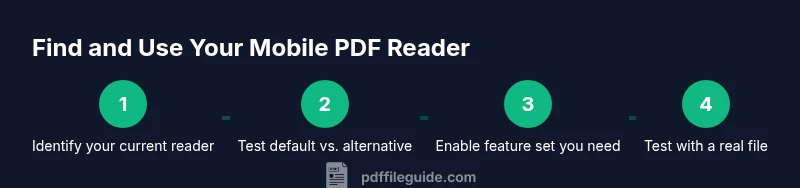
Check your phone's current default PDF handler
Open the device Settings and locate Apps or Applications. Find Default apps or Open by default, then identify which app is set to handle PDFs. This establishes your starting point before any changes.
Tip: Document the current default so you can revert if needed. - 2
Test the current default on a real PDF
Tap a PDF from an email or browser and observe which app launches. Note the speed, rendering quality, and available features like annotation.
Tip: If you’re unhappy with performance, proceed to step 3. - 3
Choose a reader that fits your needs
Compare at least two readers based on rendering speed, annotation tools, form support, cloud sync, and offline access. Consider privacy policies and data handling before selecting.
Tip: Prioritize features you actually use to avoid bloat. - 4
Install or update the chosen reader
From the Google Play Store or Apple App Store, install or update the app. Grant only the necessary permissions and avoid apps that request excessive access.
Tip: Install from official stores to minimize risk. - 5
Set the new reader as the default for PDFs
Android: Settings > Apps > Default apps > PDF, then select your preferred reader. iOS: Use the Share/Open In menu to choose a primary app (or set via app preferences where available).
Tip: If the old default persists, clear its defaults and re‑test. - 6
Verify features with a test workflow
Open a sample PDF, test reading, zoom, search, annotation, and form filling. Ensure the app handles your typical workflows across cloud storage and offline access.
Tip: Document any issues for later troubleshooting.
Questions & Answers
How do I know which PDF reader is currently set as the default on Android?
Open Settings > Apps > Default apps > PDF to see the current handler. You can switch to another reader from this panel. It’s a straightforward way to ensure your preferred app opens PDFs by default.
On Android, go to Settings, find Default apps, and check the PDF entry to see or change the default reader.
Can I change the default PDF reader on iPhone, and how?
iOS doesn’t offer a universal default PDF reader like Android. Instead, use the Share or Open In option to choose a reader for each file, and in some apps you can set a preferred app for future documents. Practically, you select the app each time you open a PDF or use app‑level settings.
On iPhone, you open or share a PDF with your preferred app, and many apps let you remember your choice for future documents.
What features should I look for in a mobile PDF reader?
Look for reliable rendering, annotation tools, form filling, offline access, cloud sync, and robust search. Accessibility features like font resizing and high contrast are also important for comfortable reading on small screens.
Seek fast rendering, good annotations, form support, offline use, and accessibility options.
Is a built‑in viewer sufficient for most tasks?
For simple viewing, a built‑in viewer is often enough. If you need advanced features such as detailed annotations, signatures, or complex forms, upgrading to a dedicated reader is usually worth it.
Yes for basic viewing; upgrade if you need more annotation or form features.
Are there security risks with mobile PDF readers?
All apps carry some risk. Prefer publishers with transparent privacy policies, limit data sharing, and keep apps updated. Avoid readers that request excessive permissions or rely heavily on cloud syncing for sensitive documents.
Be mindful of permissions and keep apps updated to reduce risk.
Watch Video
Key Takeaways
- Identify your current PDF reader and default behavior.
- Test multiple readers to balance speed, features, and privacy.
- Leverage built‑in viewers for quick tasks and third‑party apps for advanced needs.
- Always verify accessibility and security settings for mobile PDFs.