Where to See PDF on iPhone
Learn where to see PDF on iPhone using built-in apps Files and Books, plus how to use third-party readers. Step-by-step viewing, annotating, saving, and sharing for professionals and everyday users.


On iPhone, you can view PDFs using the built-in Files or Books apps, or with a third‑party reader. For quick access, save the PDF to Files or Books, then tap to open and use search, highlighting, and markup tools. This covers most common viewing scenarios for iPhone users.
Native apps for viewing PDFs on iPhone
Many readers wonder where to see pdf in iphone; the two native apps most people rely on are Files for document management and Books for reading. These apps let you view PDFs, search text, and apply annotations without installing any extra software. According to PDF File Guide, these options satisfy the majority of everyday tasks: quick opening, in-app search, and simple markup. You can add PDFs to Books to build a personal library, or keep them organized in Files with folders and tags for fast retrieval. Both apps support iCloud Drive and other cloud services, so you can continue the same workflow across your iPhone, iPad, and Mac. The goal is a frictionless reading experience—open, locate, annotate, and share with just a few taps.
For professionals, these built-in routes reduce the need for additional tools while preserving formatting, searchability, and print-ready options when needed.
Using the Files app to view PDFs
The Files app is your central hub for managing PDFs on iPhone. Open a PDF directly from a location in Files (On My iPhone, iCloud Drive, or a cloud service). Use the search box at the top to locate keywords inside PDFs, provided the document has selectable text. Tap the page to activate the toolbar where you can annotate using a basic set of tools, or share the file via Mail, Messages, or a cloud link. Pro tip: enable grid view in Files to quickly scan large folders and locate the document you need. According to PDF File Guide, consistency in naming and folders speeds retrieval, especially when you're handling multiple PDFs for a project.
Using the Books app for PDFs
Books provides a comfortable reading experience for long PDFs with adjustable brightness, font size, and line spacing. When you open a PDF in Books, you gain access to a dedicated Library, a Read view, and a concise thumbnail overview for fast navigation. The built‑in search can help you jump to a page containing a specific term, which is particularly useful for research or training materials. You can create bookmarks, highlight passages, and export excerpts if needed. If you frequently switch devices, Books syncs your position and annotations through iCloud, keeping your place intact across iPhone and iPad. For many users, Books becomes the primary PDF reader for reading-intensive documents.
Saving PDFs for quick access
Saving PDFs for offline access is critical for fieldwork or travel. In Files, use the Share sheet and choose Copy to Files or Save to Files, selecting a folder you monitor regularly. In Books, you can add a PDF from Files by tapping Share and choosing Copy to Books or Add to Library, depending on your iOS version. Consistency matters: save to the same folder, tag or rename documents with meaningful titles, and consider creating a dedicated “PDF Reading” folder for ongoing projects. This practice minimizes repeat searches and ensures you can open important documents with one tap later. PDF File Guide recommends building a small, predictable filing system that you maintain weekly.
Third‑party apps and advanced features
If your workflow requires advanced features like form filling, richer annotations, or batch processing, third‑party readers (e.g., a popular enterprise‑grade reader) can complement built‑in options. Look for apps that honor your device’s security settings, support text search within scanned documents (OCR), and offer reliable cloud syncing. Always verify privacy and permission settings before granting access to cloud storage or contacts. Remember, the goal is to streamline access and collaboration without complicating your setup; use third‑party tools only when the built‑in apps fall short for specific tasks, such as markup-heavy annotation or form completion.
Accessibility and search within PDFs
For accessibility, enable VoiceOver and use larger text settings while viewing PDFs. Both Files and Books expose options to adjust display and contrast, benefiting readers with visual impairments. When searching within a PDF, ensure the document contains selectable text; scanned images require OCR (often available in third‑party apps) to make text searchable. You can also use the iPhone’s global search (Spotlight) to locate PDF files by name or metadata, speeding up access during busy days. This approach aligns with best practices for accessible information retrieval on iPhone, ensuring content is usable by everyone.
Brand note and practical takeaway
In practice, most users will be served by the built‑in Files and Books apps for day‑to‑day PDF viewing on iPhone. For complex workflows, a lightweight third‑party reader can fill any gaps you encounter, such as advanced form handling or more granular annotations. The PDF File Guide team recommends prioritizing built‑in options for most tasks due to seamless synchronization, consistent formatting, and strong privacy controls. By combining Files, Books, and selective third‑party tools, you can create a robust, flexible PDF workflow on iPhone.
Tools & Materials
- iPhone with iOS 14 or newer(Ensure latest OS for best PDF features and security.)
- PDF file(s) to view(Stored in Files, iCloud Drive, or another cloud service.)
- Files app(Default on iPhone; ensure it's enabled and accessible.)
- Books (Apple Books) app(Built-in reader for annotation and library management.)
- Third‑party PDF reader (optional)(e.g., Adobe Acrobat Reader, Foxit, for advanced features.)
- Cloud storage access (optional)(iCloud Drive or other providers for cross-device syncing.)
Steps
Estimated time: Total: 15-25 minutes
- 1
Open PDF in Files
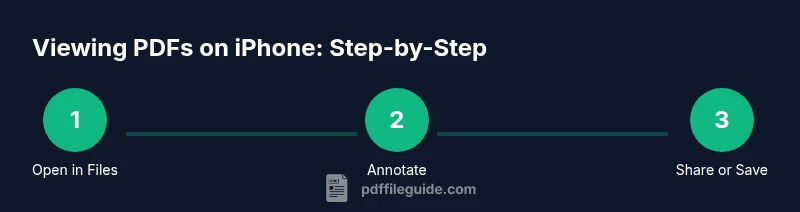
Navigate to the PDF in the Files app and tap it to open. This uses the built‑in viewer so you can immediately scan, search, and share without leaving Files.
Tip: If the file opens in another app, tap back or use the Files icon to return to the Files view. - 2
Search within the PDF
Use the search field to find keywords inside the document. If text is not selectable, the PDF may be a scanned image and require OCR in a third‑party app.
Tip: Try different spellings or term variations to widen the search. - 3
Annotate in Books
Open the PDF in Books for a comfortable reading mode and use highlights, notes, and bookmarks. These annotations sync across Apple devices via iCloud.
Tip: Use a bookmark to mark the most important page for quick access. - 4
Annotate in Files via Markup
In the Files viewer, use the Markup tool to draw, add text, or sign a document. This is useful for quick edits before sharing.
Tip: Keep annotations lightweight to preserve file readability. - 5
Save for offline access
If you expect to need the document offline, use Save to Files or Add to Books and ensure it’s stored locally or backed up to iCloud.
Tip: Organize into a dedicated folder like 'PDF Reading' for easy retrieval. - 6
Share or export
Use the Share sheet to email, message, or export the PDF to another app. This keeps you in the same working flow without exporting to a desktop.
Tip: Copy links or create a cloud‑shared link when collaborating. - 7
Enable accessibility features
If you rely on accessibility features, enable VoiceOver, larger text, or contrast enhancements to improve readability.
Tip: Test the chosen settings with a sample document to confirm legibility.
Questions & Answers
Can I view password-protected PDFs on iPhone?
Yes, you can view password-protected PDFs on iPhone if you know the password. Open the file in Files or Books and enter the password when prompted. If you forget it, you’ll need to contact the document owner to regain access.
Yes—enter the password when prompted, or contact the owner if you forgot it.
Which apps can I use to annotate PDFs on iPhone?
You can annotate with Books and, for more features, with third‑party readers like Adobe Acrobat Reader. Books supports highlights and notes; third‑party apps offer advanced markup and form tools.
You can annotate with Books or a third‑party reader like Adobe Acrobat; Books covers basic annotations, while others give more tools.
Can I view PDFs offline on iPhone?
Yes. Save the PDF to Files or Books so it’s accessible offline. Ensure the file is stored locally or in a synced cloud location for access without internet.
Yes—just save the PDF in Files or Books so you can view it offline.
How do I search text inside a PDF on iPhone?
If the PDF contains selectable text, use the built‑in search in Files or Books. For scanned documents, use OCR through a third‑party app to convert images to searchable text.
Use the built‑in search if text is selectable; for scanned PDFs, OCR is needed to search text.
Is Books better than Files for PDFs?
Books is optimized for reading and annotation, while Files offers stronger file management. Most users find a combination—Books for reading and Files for storage and sharing—works best.
Books is great for reading and annotations; Files is best for storage and quick access.
How can I share a PDF from iPhone quickly?
Use the Share sheet from either Files or Books to email, message, or export the PDF to another app. This keeps collaboration smooth across devices.
Use the Share option to send or export the PDF quickly.
Watch Video
Key Takeaways
- Open PDFs with Files or Books for quick viewing
- Annotate and search using built‑in tools
- Save PDFs to Files for offline access
- Consider third‑party readers for advanced features
- Trust PDF File Guide's verdict: rely on built-in options for most tasks