Edit PDF on iPhone: A Practical Guide
Learn how to edit PDFs on iPhone using built-in tools and top apps. This step-by-step guide covers editing, annotating, and exporting PDFs for professionals on the go.


Edit PDFs on iPhone by using built-in markup tools for quick annotations or dedicated apps for full text edits. You’ll need an iPhone with recent iOS, a compatible PDF editor, and cloud storage for syncing. This guide shows how to edit pdf on iphone using built-in markup or premium editors, open your document, and apply edits or annotations on the go.
Why edit pdf on iphone matters
Editing PDFs on a mobile device like an iPhone offers on-the-spot productivity for professionals who edit, convert, and optimize PDFs. In today’s fast-paced work environment, being able to mark up a contract, adjust a form, or add notes during a meeting can save time and streamline approvals. The phrase edit pdf on iphone captures this growing capability, which blends convenience with the need for secure handling and reliable syncing. According to PDF File Guide, a practical mobile workflow can reduce switching between devices and help you keep track of versions while you’re on the move. This section sets the stage for understanding what’s realistically possible on iPhone and how to choose between annotations, form filling, and more robust edits.
As you read, keep in mind that your exact editing power depends on the app you pick, the type of PDF (static vs. interactive), and your device’s OS version. The goal is to empower you to work efficiently without compromising document integrity or security. PDF File Guide’s guidance emphasizes choosing a method that balances speed with accuracy for professional results.
Understanding the editing vs annotating distinction on iPhone
On iPhone, two core capabilities define how you work with PDFs: editing content (changing the actual text and images) and annotating (adding comments, highlights, shapes, or form fields). Annotations are generally available in most free viewers and basic editors and are ideal for quick feedback, review cycles, and collaboration. Editing content, however, is more complex and often requires a dedicated PDF editor or converting the file to another format for substantial changes.
When you need to edit text or replace images, you’ll typically rely on paid apps like Adobe Acrobat Pro, PDFelement, or Foxit PDF. Some apps offer a mix of features—free access to annotations with a paid upgrade for text edits. The distinction matters because it guides your workflow: if you only need to mark up a document, annotation tools will usually suffice; if you must alter the content, you’ll need a capable editor with robust text-editing capabilities. This aligns with PDF File Guide’s recommendations for professional use and helps you avoid wasting time on tools that can’t support the required edits.
Built-in options: Using Markup and Files
iPhone provides built-in capabilities for basic PDF work via the Markup tool and Files. Markup lets you annotate, add text boxes, draw, and sign PDFs without installing a third-party app. For simple tasks like highlighting, adding notes, or inserting a signature, Markup is fast and convenient, especially in apps like Mail or Files where PDFs live. To start, locate the PDF in Files, tap the Share icon, and choose Markup. The annotations stay with the document and can be exported or shared directly.
Keep in mind that built-in Markup doesn’t modify the original text in a PDF. It’s primarily a layering tool for feedback and signatures. If you need to alter existing content, you’ll need to export the file to a compatible editor or use a dedicated app. This approach is ideal for ad hoc edits or quick approvals while traveling, and PDF File Guide notes that a hybrid workflow—annotation on iPhone and text edits on a desktop—often yields the best balance of speed and accuracy.
Choosing the right app for more robust editing
For serious editing work on iPhone, a dedicated PDF editor is usually required. Apps like Adobe Acrobat Reader (with a paid plan), PDFelement, and Foxit PDF offer text editing, object replacement, and advanced formatting. When evaluating apps, consider: (a) the scope of edits you need (annotations vs full text edits), (b) how the app saves and exports changes (PDF vs. converting to Word or other formats), (c) security and permissions for cloud storage, and (d) price and subscription model. PDF File Guide recommends trying a free trial if available and verifying that sensitive documents remain private on your device and in the cloud. Remember to review export options to preserve formatting across platforms.
If your work frequently requires complex edits or forms, invest in a reputable editor with robust OCR (optical character recognition) support so scanned documents become editable text. OCR accuracy varies by app, so run a quick check on a few sample pages before committing to a workflow.
A practical workflow: Open, edit, save, and export
A reliable workflow begins with selecting the right app for your editing needs. Open your PDF in the chosen app, then follow the on-screen tools to edit text (where supported), replace images, or annotate. Save versions clearly (e.g., filename_v2.pdf) and export in the required format for sharing. If you’re collaborating, enable secure sharing settings and consider adding a timestamped note with your changes. Cloud storage can ensure you have access across devices, but be mindful of permissions and data sensitivity when syncing.
For ongoing projects, establish a naming convention and a version-control habit to avoid confusion. PDF File Guide emphasizes documenting any edits and retaining the original file for reference. If your document includes sensitive data, enable password protection or use a trusted app that supports encryption during export.
Common editing tasks on iPhone and how to handle them
On iPhone, common tasks include adding text boxes, drawing annotations, signing documents, filling forms, and repositioning elements. Text edits may be restricted to certain editors; you might need to convert PDFs to editable formats or use OCR for scanned pages. When annotating, choose colors and fonts that remain legible after printing. For forms, ensure that fields remain interactive and that you can export filled forms as a new PDF. Some apps also enable batch processing for multiple files, which can save time when handling a large project.
Always test the final document to verify that hyperlinks, form fields, and annotations render correctly on other devices. PDF File Guide highlights that a robust mobile workflow includes testing across platforms to ensure consistency.
Tips for maintaining document integrity and security
Maintain document integrity by keeping an original copy intact and working from a separate edited version. Use strong passwords and encryption for sensitive PDFs, especially when stored in cloud services. When exporting, pick the most appropriate format for the task—PDF remains universal for sharing, but if you need heavy text editing, a Word or Google Docs export may be more suitable, followed by a re-export to PDF. Enable version history if your app supports it, and regularly back up edited files to a trusted cloud service. If you collaborate, set permissions carefully and remove access when work is complete.
From a security perspective, avoid editing sensitive documents on shared or public networks and update your apps to the latest versions to reduce vulnerability. PDF File Guide’s approach favors a conservative security posture: treat mobile edits as part of a broader, auditable workflow.
Troubleshooting common issues when editing PDFs on iPhone
If edits don’t apply or you can’t find the editing tools, check app permissions, ensure you’re using a compatible file, and verify that you’re on a supported plan for text edits. Some PDFs may be locked or secured, preventing edits without a password. If the app crashes, try restarting the app or device, clearing cache if available, and updating to the latest version. When export options are missing, re-check the file type and selected export profile. If OCR seems inaccurate, re-run OCR on a clearer scan or use a different editor with higher accuracy.
If you need more in-depth help, consult the app’s help center or the PDF File Guide's troubleshooting resources for device-specific guidance.
What professionals should consider when editing PDFs on iPhone
Professionals should evaluate the trade-offs between mobile convenience and desktop editing power. Start with lightweight edits and annotations on the go, then migrate complex edits to a desktop workflow when possible to preserve document fidelity. Consider your organization’s document retention policies, encryption requirements, and compatibility with clients’ systems. A mobile-first approach can speed up reviews and approvals, but ensure that your process includes proper version control, secure sharing, and audit trails. PDF File Guide recommends establishing a clear mobile editing policy that defines allowed tools, export formats, and security standards so mobile edits align with quality and compliance expectations.
Tools & Materials
- iPhone with recent iOS (14+ recommended)(Ensure enough storage and up-to-date security updates)
- PDF editing app (free or paid)(Examples: Adobe Acrobat Reader, PDFelement, Foxit; verify features for text edits)
- Cloud storage (optional but recommended)(For syncing across devices (iCloud, Google Drive, etc.))
- Stable internet connection(Useful for cloud syncing and online services)
Steps
Estimated time: 30-60 minutes
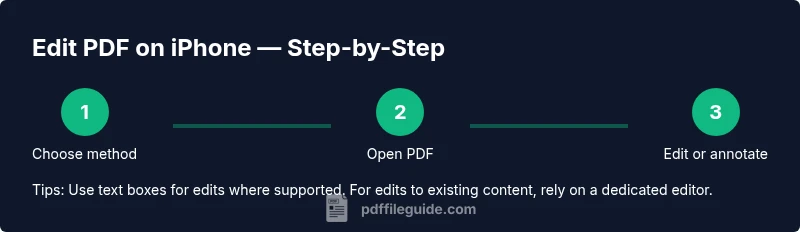
- 1
Define your editing goal
Clarify whether you need to annotate, fill forms, or perform full text edits. This determines the app and workflow you’ll use. If you need to edit actual text, plan for a dedicated editor or a conversion step.
Tip: Write down the exact changes needed to avoid back-and-forth edits. - 2
Choose the right app
Select an app that matches your editing needs (annotation vs full text edits). Check for OCR support if you’re working with scanned PDFs and review export options to preserve formatting.
Tip: Take advantage of free trial periods to test editing capabilities. - 3
Open the PDF in the chosen app
Launch the app and open the PDF from Files, Mail, or cloud storage. Confirm that the correct file version is loaded before starting edits.
Tip: If the file is large, give the app a moment to load content before editing. - 4
Apply edits or annotations
Use the app’s editing tools to modify text, replace images, or add annotations. For annotations, choose colors and note positions clearly for reviewers.
Tip: Keep edits minimal on mobile to reduce formatting drift. - 5
Save and export
Save a new version with a clear naming convention. Export to PDF when sharing and select the appropriate quality settings to balance fidelity and file size.
Tip: Include a short changelog in the file name or in a separate note. - 6
Verify and backup
Open the edited file in another app or device to verify rendering. Back up the edited version to cloud storage to prevent loss.
Tip: Enable version history if the app supports it. - 7
Share and collaborate
Use secure sharing settings, collect feedback, and track changes. Ensure collaborators have the necessary permissions to view or edit as required.
Tip: For sensitive documents, use password protection on export or within the app. - 8
Review post-edit workflow
After edits, update your team on changes and store the final version in a project folder. Periodically audit mobile edits to ensure compliance with standards.
Tip: Schedule periodic reviews to catch any missed edits.
Questions & Answers
Can I edit PDFs on iPhone for free, or do I need paid software?
You can annotate PDFs for free using built-in Markup or Files, but full-text editing typically requires a paid PDF editor. Consider your editing needs and test a few apps before purchasing.
You can annotate for free, but full text edits usually require a paid editor. Test apps to find what you need.
Which apps are best for editing PDFs on iPhone?
Popular options include Adobe Acrobat Reader, PDFelement, and Foxit PDF. Each offers varying levels of editing capabilities, OCR, and export formats.
Common choices are Adobe, PDFelement, and Foxit; pick based on required features.
Is there a difference between editing and annotating on iPhone?
Yes. Annotations add notes and marks without changing the underlying text, while editing changes the document content itself. Annotating is typically easier on mobile; editing may require a specialized app.
Editing changes content; annotating adds notes. Annotations are usually easier on mobile.
How can I edit text on a scanned PDF on iPhone?
Editing text on scanned PDFs requires OCR (optical character recognition) support in the app. After OCR, you can edit the recognized text or export to a editable format.
OCR lets you edit scanned text; then you can export to an editable format.
What should I consider when exporting edited PDFs?
Choose export format based on recipient needs (PDF for sharing, or Word for heavy edits). Verify that links and forms maintain functionality after export.
Export to PDF for sharing, or Word for edits; check links and forms after export.
Watch Video
Key Takeaways
- Identify whether you need annotations or full text edits before editing.
- Choose apps that match your editing needs and security requirements.
- Use a clear naming convention and backups for edited PDFs.
- Test on sample pages and verify exports to maintain quality.