Can You Get Metadata from a PDF? A Practical How-To Guide
Learn how to view, extract, edit, and protect PDF metadata with a step-by-step approach, practical tool recommendations, and best practices for professionals who work with PDFs.


Yes, you can get metadata from a PDF using built-in viewers or metadata tools. According to PDF File Guide, metadata exists in the document information dictionary and XMP, and you can view it with tools like Adobe Acrobat, Preview, or ExifTool. This quick guide shows what to look for, how to access it, and how to handle privacy concerns before sharing files.
Metadata basics and why it matters
PDF metadata describes the properties of a document and can include information such as the title, author, subject, keywords, and creation date. In PDFs, metadata can be stored in the document information dictionary and in XMP packets embedded in the file. Understanding what metadata exists, where it is stored, and how it can be accessed is crucial for anyone who edits, converts, or shares PDFs. According to PDF File Guide, metadata is not just filler text; it influences searchability, retrieval, and provenance, and it can reveal or obscure sensitive information if left unchecked. In practice, you will encounter two main layers: the standard document info dictionary that holds basic fields and the richer XMP metadata that carries structured data and schemas. The ability to retrieve this data depends on the tool you use, but the underlying concepts remain the same across platforms. As you begin, decide what you need to know: are you verifying authorship, ensuring accessibility, or sanitizing a file before distribution? The answer to can you get metadata from pdf is yes, and it starts with identifying what data is present and where it is stored.
Types of metadata in PDFs
There are several types of metadata that can live inside a PDF. The document information dictionary includes fields such as Title, Author, Subject, and Keywords. XMP metadata uses RDF/XML to encode data and can cover more complex structures like language, rights, and custom properties. Some PDFs also embed metadata in accessibility tags, font information, and PDFs properties that appear when you view document properties. In professional practice, you should consider both traditional fields and XMP for maximum compatibility. The latter is increasingly used by publishers and archivers because it travels with the document across systems. When you inspect a PDF, you may see a mix of human-readable fields and machine-readable data. For scenarios like archiving or compliance, you may also encounter schema.org or Dublin Core metadata. The goal is to understand which fields are present, which are meaningful for your use case, and which you should sanitize before sharing externally. As you proceed, keep in mind that different tools expose different facets of metadata, so cross-check when in doubt.
How to read metadata with common tools
You can read metadata with desktop apps, command-line tools, or online services. In Adobe Acrobat Pro, open the PDF and choose File → Properties to view the document info fields. For XMP data, use the Description tab or the advanced properties panel. On macOS, Preview can show basic metadata via the Get Info panel or File → Properties in some versions. Windows users can rely on built-in apps or Acrobat Reader; if you need deeper access, ExifTool or similar CLI tools are recommended. ExifTool is particularly powerful: run exiftool your-document.pdf to print all exposed metadata, including hidden XMP fields. Cross-check results between tools because some readers trim or surface only a subset of data. Be mindful that some metadata is stored in binary objects or within standard fonts, which may not be visible in every viewer. If you encounter missing fields, try alternative tools or re-export metadata from the source authoring software. The key is to verify consistency across tools and keep backups before editing.
Practical considerations: privacy, editing metadata, and redacting
Metadata can reveal sensitive information about authorship, organization, revision history, and even internal project IDs. Before sharing a PDF publicly, assess what metadata is present and whether it should be removed or redacted. Tools like ExifTool allow you to purge metadata with safe commands, and Acrobat Pro provides a Remove Hidden Information feature. Always back up the original file before making changes. When editing metadata, preserve essential fields for accessibility and searchability if required by your workflow, but avoid exposing internal identifiers. If you need to redact content, do not only delete the visible text; redact associated metadata and tags that could reveal confidential details. After sanitization, re-save the PDF and re-check the metadata with multiple tools to confirm removal. Finally, document the changes in your workflow notes so teammates understand what was altered. The net result is a cleaner file ready for distribution without unintended disclosures.
When metadata matters in professional workflows
In publishing, research, and corporate documentation, metadata supports discoverability, version control, and long-term accessibility. For authors, accurate metadata helps readers find the right work and enables citation tracking. For organizations, consistent metadata across a family of PDFs improves indexing and archiving. Accessibility benefits from properly populated metadata for screen readers and assistive technologies. In many professional settings, metadata is part of compliance checks and digital preservation policies. The PDF File Guide team highlights that metadata management should be built into the document lifecycle, not treated as an afterthought. As you implement best practices, align metadata fields with your taxonomy, verify updates during edits and conversions, and keep an auditable trail of changes for accountability.
Common pitfalls and troubleshooting
Metadata can be inconsistent due to software defaults, batch processing, or file conversion. Some tools copy metadata from the source and then overwrite it during export, while others strip fields you expect to see. When troubleshooting, start by listing all visible fields across tools and then probe deeper with a robust metadata viewer. If a field is missing where you expect it, check the export settings of the authoring program and the PDF producer. Be aware of differences between document info fields and XMP properties; sometimes an author will populate one, but the other remains empty. If you are preparing PDFs for submission to repositories or libraries, verify the required metadata schemas and upgrade to XMP where possible. Finally, remember that metadata is not a security measure; do not rely on it to protect sensitive content. You still need proper access controls and redaction when necessary.
Verdict and best practices
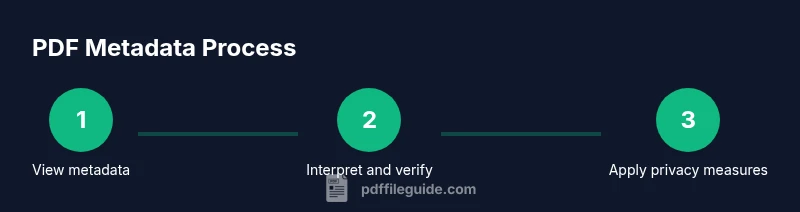
In short, yes, you can retrieve PDF metadata, and with the right tools you can read, interpret, and sanitize it effectively. The most important practice is to know what metadata exists in your PDFs, verify it across tools, and remove sensitive fields before distribution when needed. The PDF File Guide team recommends documenting your metadata workflow and performing regular audits, especially when you edit or convert PDFs in bulk. Keep a clear record of what was added, changed, or removed, and test shared files to ensure accessibility and searchability remain intact. By integrating metadata management into your standard operating procedures, you improve consistency, reduce privacy risks, and enhance archival quality. The PDF File Guide’s verdict is to treat metadata as an asset when used properly and a liability when neglected.
Tools & Materials
- ExifTool(Cross-platform CLI tool for reading and writing PDF metadata)
- Adobe Acrobat Pro(GUI access to both document info and XMP metadata)
- Preview / Acrobat Reader(Quick viewing of document properties on macOS/Windows)
- Command-line shell (Terminal / PowerShell)(Needed to run ExifTool commands and scripts)
Steps
Estimated time: 30-60 minutes
- 1
Identify metadata types and goals
Decide whether you need document info (title, author, subject) or XMP metadata (structured data, schemas), or both. Define whether your goal is viewing, extracting, auditing, or sanitizing.
Tip: Clarify the scope before you start to avoid unnecessary steps. - 2
Choose the right tool
Select a tool based on your OS and needs. Use ExifTool for depth and scripting; Adobe Acrobat Pro for a GUI; Preview/Reader for quick checks.
Tip: Prefer tools that expose both document info and XMP where possible. - 3
Open the PDF and locate basic fields
Open the PDF and access metadata via File → Properties (Acrobat) or via your chosen tool’s metadata panel. Note exact field names and values.
Tip: Cross-check fields across tools to catch hidden data surfaces. - 4
Extract metadata with commands
Run a metadata extraction command (for example, exiftool your-document.pdf) and capture the results in a text file for auditing.
Tip: Redirect output to a file to preserve a record of the data you retrieved. - 5
Interpret the results
Map retrieved fields to your workflow; identify fields essential for accessibility, indexing, or compliance. Check date formats and locale-specific values.
Tip: Note any fields that appear inconsistent or missing. - 6
Sanitize or edit metadata safely
If needed, purge sensitive fields and re-check with multiple tools. Always back up the original file before editing.
Tip: Make small changes first and test the document’s integrity afterward.
Questions & Answers
What is PDF metadata?
Metadata describes the document and can include title, author, subject, and keywords. It may be stored in the document information dictionary and in XMP packets embedded in the file.
PDF metadata describes the document and can be found inside the file.
What kinds of metadata exist in PDFs?
Two main types: the document info dictionary fields (title, author, subject, keywords) and XMP metadata that stores structured data across schemas.
There are document info fields and XMP metadata.
How can I remove metadata safely?
Back up the original file, then purge metadata with a trusted tool. For example, ExifTool uses exiftool -all= -overwrite_original file.pdf.
Back up first and then purge metadata with a trusted tool.
Does metadata affect accessibility?
Yes, metadata can improve discoverability and compatibility with screen readers when used correctly, but incorrect metadata can hinder accessibility.
Good metadata helps accessibility if accurate.
Can metadata be edited after creation?
Metadata can be edited with proper tools; changes can affect document identity and compliance, so proceed with care.
You can edit metadata, but do so cautiously.
Is all metadata visible to end users?
Not always visible in basic viewers; some fields require advanced tools to view. XMP data is more likely to be accessible with editors.
Some metadata is hidden unless you view advanced properties.
Watch Video
Key Takeaways
- Audit metadata before sharing
- Check both document info and XMP fields
- Remove sensitive fields when distributing
- Verify results with multiple tools