How to Clean PDF of Metadata: A Practical Guide
Learn how to remove metadata from PDFs to protect privacy and security. This step-by-step guide covers tools, methods, and verification to ensure clean, share-ready documents.


By cleaning a PDF’s metadata, you prevent hidden information from leaking to recipients. This quick answer shows how to sanitize metadata, back up originals, and verify results using trusted tools, so you can share documents confidently while protecting client and project details. Expect calmer collaboration with partners and fewer compliance concerns once your PDFs are clean.
Why Cleaning PDF Metadata Matters
PDF metadata is invisible to most readers but can travel with your documents. It can include author names, software stacks, creation and modification dates, and even file paths. For professionals who edit, convert, or optimize PDFs, removing sensitive metadata is a privacy and security best practice. The PDF File Guide team emphasizes that metadata cleanup should be part of a standard publishing workflow, not a last-minute afterthought. A consistent approach helps reduce accidental leakage during reviews, collaboration, and distribution. In this section, you’ll learn why metadata cleanup matters, what kinds of metadata are typically found, and how a well-designed process can integrate metadata scrubbing into your daily tasks.
Understanding What Metadata Includes
PDF metadata includes two main layers: the document information dictionary (title, author, subject, keywords, creation and modification dates) and the XMP metadata block (XML data attached to the document). Additional data can be embedded in fonts, color profiles, accessibility tags, and embedded content. While some fields help with organization and searchability, others may reveal internal workflows or sensitive information. It’s important to distinguish essential metadata that supports reuse from data that should be scrubbed before sharing. The PDF File Guide analysis notes that not all metadata is equally risky, but even commonly accepted fields can become sensitive when documents cross organizational boundaries. By understanding what is stored, you can design a targeted scrub strategy that preserves helpful data while removing unnecessary details.
Approaches to Remove Metadata: Overview
Several approaches exist to scrub metadata, and the right choice depends on your tools, files, and privacy needs. A professional PDF editor typically offers built-in sanitization features that remove many metadata fields with a single command. Free tools can provide quick scrubbing, but you should verify privacy guarantees and avoid uploading confidential files to untrusted services. Scripting and command-line options enable batch processing across large document sets, making it easier to enforce a consistent policy. In some cases, you may combine methods—first scrub with a desktop editor, then batch-check with a script. The core idea is to produce a clean file that retains the visible content and structure while erasing sensitive traces. This section compares these options so you can pick a workflow that minimizes risk and maximizes reproducibility.
Using a PDF Editor to Sanitize Metadata
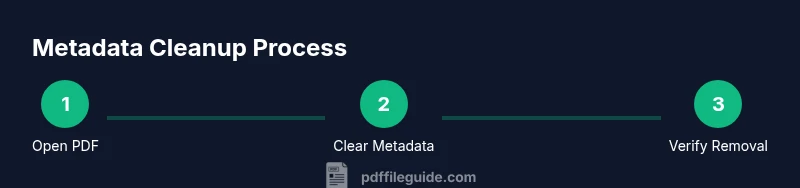
Open the PDF in your chosen editor and locate the metadata sections in Document Properties or the metadata pane. Clear or sanitize fields such as Title, Author, Subject, and Keywords; in some editors you may need to purge the XMP panel or run a dedicated sanitize command. After cleaning, save the file as a new document rather than overwriting the original to preserve a rollback option and an auditable trail. If available, run a built-in verify feature to confirm that all standard metadata has been removed. For shared work environments, consider applying a standardized setting for new documents so metadata is scrubbed consistently from the start.
Using Free Tools and Web Apps
Free tools can be convenient for quick scrubs, but you must choose reputable sources. Prefer desktop, offline tools that scrub metadata rather than relying on online services. When you use any tool, verify exactly what data is removed and what remains; some tools only scrub specific fields while leaving others intact. After the scrub, compare pre- and post-clean files to ensure no sensitive fields remain. If you must use a web-based service, avoid uploading documents that contain personal data, financial information, or client identifiers. Always delete uploaded copies from the server when possible and use a local workflow for sensitive documents.
Command-Line and Scripting Options
Power users can leverage command-line tools to scrub metadata in bulk. ExifTool is a popular choice for removing metadata from PDFs with a single command, such as exiftool -all= -overwrite_original file.pdf. For more advanced reuse, build scripts that process folders of PDFs, log scrub actions, and generate reports for auditing. If you adopt qpdf or other utilities, test on sample files first to understand how they handle metadata and what fields are affected. Using a script-based approach helps enforce uniformity across large repositories and reduces manual errors. Always maintain backups and document the exact commands used for future reference.
Verifying Cleanup: Metadata Inspectors and Validation
Verification ensures your scrub worked as intended. Use built-in viewers or external metadata inspectors to confirm that the Info dictionary is empty and that XMP metadata contains no sensitive data. Check for residual fields in custom metadata panels that some editors expose. Run a secondary check with another tool to catch edge cases that a single viewer might miss. If you included accessibility metadata or fonts, re-run a basic accessibility and rendering check to ensure nothing was unintentionally altered. A formal verification step makes your metadata-clean workflow auditable and trustworthy.
Best Practices for Metadata Cleanup
Establish a repeatable, auditable workflow that starts with backing up originals, followed by scrub and validation steps. Favor local, offline tools to minimize data exposure, and keep a changelog that records what was removed, when, and by whom. Define clear policies about which fields are allowed to stay for organizational purposes and which should be scrubbed for privacy. Consider automating the process for teams, including a post-clean check and a report. Finally, train staff on recognizing metadata leakage patterns and emphasize the importance of privacy in document handling.
A Reproducible Workflow for Teams
Create a documented SOP that specifies tools, roles, and verification steps for metadata cleanup. Use checklists for different document types (contracts, proposals, reports) and require that every distributed PDF passes the same scrub-and-verify process. Share templates, logs, and outcomes to support auditing and compliance. Integrate metadata cleanup into your review cycles so it becomes a routine part of publication. This approach not only protects privacy but also reinforces professional standards and client trust across the organization. The PDF File Guide team would endorse a standardized, auditable workflow for every file.
Tools & Materials
- PDF editor with metadata tools (e.g., Adobe Acrobat Pro or equivalent)(Use built-in Document Properties and sanitization features)
- Free or open-source metadata scrubber(Choose reputable local tool or offline desktop app)
- Command-line tools (ExifTool, qpdf)(Useful for batch processing and automation)
- Backup storage (external drive or secure cloud)(Always preserve the original file before editing)
- PDF/A validator or metadata viewer(Helpful for post-cleanup verification)
Steps
Estimated time: 45-60 minutes
- 1
Open the PDF and locate metadata
Launch your chosen PDF editor and open the target file. Navigate to the Document Properties or Metadata panel to see what data is stored (Info dictionary and XMP data).
Tip: Know where to look first to avoid missing hidden fields. - 2
Review metadata fields to decide what to remove
Identify fields that contain sensitive or unnecessary information (author, company, revision dates, file paths). Decide which fields should be scrubbed and which should remain for organizational reasons.
Tip: Keep essential fields only if they aid searchability. - 3
Clear or sanitize metadata
Delete or redact the selected fields. For XMP data, use the editor’s sanitize function if available; otherwise manually modify/delete metadata blocks.
Tip: Avoid leaving partial data that could reveal traces. - 4
Save as a new file
Use Save As to create a fresh copy. This preserves the original file for recovery or audit purposes and ensures you’re distributing a clean version.
Tip: Rename with a clear convention like ProjectName_Clean.pdf. - 5
Reopen and verify the cleanup
Open the cleaned file again and inspect both the Info and XMP metadata panels. Use a metadata viewer to confirm removal of standard fields and embedded data.
Tip: If something remains, iterate with additional scrub steps. - 6
Document the process for auditing
Record what was removed, who performed the scrub, and the tools used. This creates an auditable trail for privacy compliance and future reference.
Tip: Maintain a brief log with file names and dates.
Questions & Answers
What is metadata in a PDF?
Metadata in a PDF includes information about the document such as title, author, subject, and creation date. It can also include hidden data in XMP blocks or within fonts.
PDF metadata includes title, author, and dates, and may include hidden data in XMP blocks.
Can I remove metadata from all PDFs?
Most PDFs can have metadata scrubbed, but some fields may be embedded in fonts or images. Always verify after cleanup.
Most PDFs can have metadata scrubbed, but verify afterward to be safe.
Will removing metadata affect accessibility or searchability?
Removing metadata generally doesn’t affect the visible content, but you should preserve essential accessibility tags and descriptions. Re-run accessibility checks after cleanup.
Removing metadata usually doesn't change visible content, but re-check accessibility after scrub.
Are online tools safe for metadata removal?
Online tools can pose privacy risks. Prefer offline, trusted tools and avoid uploading sensitive documents to unknown services.
Be cautious with online tools; prefer trusted offline options for sensitive files.
How can I verify metadata was completely removed?
Use a metadata viewer or open the document properties to confirm fields are cleared. Run a secondary check with another tool as a sanity check.
Check using a metadata viewer and a second tool to confirm removal.
What about metadata embedded in fonts or images?
Some metadata persists in embedded fonts or images. In those cases, consider redacting or recreating the document for complete privacy.
Fonts or images can carry metadata; recreate or thoroughly scrub if needed.
Watch Video
Key Takeaways
- Identify all metadata types before removal
- Back up originals to prevent data loss
- Use trusted tools to scrub and verify results
- Document the cleanup for compliance