How to Get PDFs to Open in Chrome
Learn how to get PDFs to open in Chrome with built-in viewer settings, OS tweaks, and troubleshooting to stop downloads and view PDFs directly across devices.


By default, Chrome can open PDFs in its built-in viewer instead of downloading, but this depends on the PDF handler setting and extensions. This quick guide shows you how to enable the in-browser viewer, adjust OS defaults, and test with local and online PDFs to ensure consistent viewing on Chrome versions that support it.
Understanding PDF behavior in Chrome
According to PDF File Guide, many users encounter PDFs that download rather than opening in the browser. This usually happens when Chrome's PDF handling is disabled, when an extension overrides the default behavior, or when the operating system assigns a different default app for PDFs. The goal is to have PDFs render directly in Chrome's built-in viewer, providing a faster, more seamless reading experience. This section covers why behavior varies across platforms and how browser design and OS settings interact to determine whether a PDF opens in Chrome or downloads to disk. By understanding these factors, you can diagnose problems quickly and choose the best configuration for your workflow.
Check Chrome's PDF settings and built-in viewer
Chrome provides a dedicated PDF handling option that determines whether PDFs open in the browser or download. To adjust this, open Chrome settings and locate the PDFs section, typically under chrome://settings/content/pdfDocuments or Privacy and security > Site settings > PDF documents. Ensure the toggle for downloading PDFs is disabled so Chrome uses its built-in viewer by default. If you ever need to force a download for a specific file, you can do so manually from the context menu. Regularly testing with a local PDF file helps confirm the change is in effect.
How to enable Chrome's built-in PDF viewer
To enable the in-browser PDF viewer, you generally need to ensure that Chrome’s PDF handler is active and that the 'Download PDFs' option is turned off. This keeps PDFs from automatically downloading and allows them to render inside the Chrome tab. If you don’t see the option, update Chrome to the latest version, then re-check chrome://settings/content/pdfDocuments. With the viewer enabled, most standard PDFs will open inline, preserving navigation features like page thumbnails, search, and annotation tools.
Configure OS-level default PDF applications
Sometimes your operating system assigns a default PDF viewer (such as a legacy app) that takes precedence over browser settings. On Windows, set Google Chrome as the default app for PDF files via Settings > Apps > Default apps > Choose default apps by file type. On macOS, use Finder > Get Info > Open with: Google Chrome and click Change All. These adjustments ensure PDFs open in Chrome even when you open them from outside the browser, such as from email or cloud storage links.
Troubleshooting misbehaving PDFs from email or cloud services
Emails and cloud storage services can present PDFs differently, sometimes serving documents via embedded viewers or forcing downloads. If a PDF from Gmail or Drive downloads instead of opening, verify that your browser is the default handler and that no email client extension overrides the behavior. Clear cache or retry in an Incognito window to rule out cached settings or extensions. Always test with a few different PDFs (text, image-heavy, password-protected) to confirm consistent behavior.
Testing and verifying the setup with real PDFs
Verification is a two-step process: local files and online links. First, drag a local PDF into a Chrome tab to confirm it renders in the built-in viewer. Next, click a PDF link from a website or cloud service to ensure inline viewing. If either test fails, re-run the settings checks, disable conflicting extensions, and restart Chrome. Re-testing after each change helps isolate the root cause and prevent regressions.
Security and privacy considerations when viewing PDFs in-browser
Viewing PDFs in Chrome leverages browser sandboxing and in-browser rendering, which protects against some types of malicious content. However, sensitive documents should be handled with caution—avoid submitting login credentials or personal data in PDFs accessed from shared devices or untrusted networks. If you frequently handle confidential PDFs, consider enabling/adjusting password protection and ensuring your Chrome profile is secured with a strong password.
Best practices for consistent viewing across devices
To maintain consistency across desktop and mobile environments, keep Chrome updated, sync your profile settings, and rely on the built-in viewer rather than external plugins. Create a small checklist for each device, noting the OS defaults and Chrome version. Regularly test PDFs after major OS or Chrome updates to ensure behavior remains predictable across platforms.
Common pitfalls and quick fix checklist
Avoid relying on outdated extensions that claim to manage PDFs, as they can conflict with Chrome’s built-in viewer. If you encounter issues, start with the simplest fix: update Chrome, reset PDF handling settings, and test with multiple PDFs. When all else fails, review OS defaults and extension conflicts in a methodical, step-by-step manner to restore inline viewing.
Tools & Materials
- Chrome browser (latest version)(Ensure auto-updates are enabled)
- Stable internet connection(Needed for OS and extension checks)
- PDF file to test locally(Use a representative sample (text-heavy and image-heavy))
- Access to OS settings(Windows/macOS default app changes)
- Test PDFs from cloud/email links(Optional but recommended for realism)
Steps
Estimated time: Estimated total time: 20-30 minutes
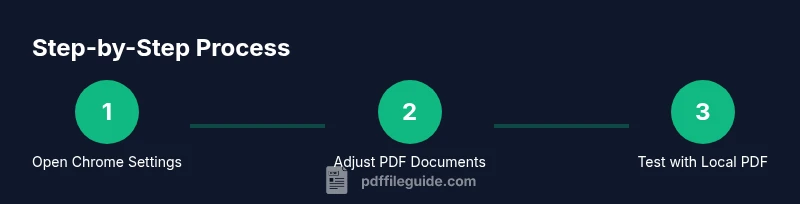
- 1
Open Chrome Settings
Click the three-dot menu in the top-right corner and choose Settings. This is where you adjust PDF handling and general browsing preferences. Why: starting here ensures you control how Chrome processes PDFs globally.
Tip: If you have trouble locating the PDF settings, use the search bar at the top of Settings and type 'PDF'. - 2
Navigate to PDF documents settings
In Settings, go to Privacy and security > Site settings > PDF documents. Look for the option that controls whether PDFs download or open in Chrome. Why: this is the central toggle that determines in-browser viewing.
Tip: Open the URL chrome://settings/content/pdfDocuments directly if the UI is slow. - 3
Disable automatic downloads for PDFs
Turn off the toggle that says 'Download PDFs files instead of automatically opening them in Chrome.' Why: disabling it allows PDFs to render in-browser by default.
Tip: Test after changing this, then refresh open tabs or restart Chrome to apply the change. - 4
Ensure Chrome is the default PDF handler at OS level
Set Google Chrome as the default app for PDF files in Windows Settings or macOS Finder > Get Info. Why: OS defaults can override browser settings when opening files from outside Chrome.
Tip: After changing defaults, reboot the computer to ensure changes take effect system-wide. - 5
Update Chrome to the latest version
Go to Settings > About Chrome to check for updates. Why: newer builds improve PDF handling and fix related bugs.
Tip: Keep auto-update enabled; major updates can alter PDF behavior in subtle ways. - 6
Test with a local PDF file
Drag a local PDF into a new Chrome tab to verify it renders inline. Why: local testing isolates browser settings from external services.
Tip: If it downloads, re-check steps 2 and 3; a lingering extension may be interfering. - 7
Test with a PDF link from the web
Open a known public PDF URL to confirm inline viewing. Why: remote PDFs test the end-to-end flow from external sources.
Tip: If the site forces download, inspect the site’s headers or try in an Incognito window. - 8
Review extensions that affect PDFs
Disable or remove extensions that claim to manage PDFs (e.g., PDF viewers or download managers). Why: extensions can override browser defaults and cause downloads.
Tip: Disable in batches to identify the culprit, then re-enable one-by-one to confirm. - 9
Document and re-test across devices
Record the final settings and conduct a quick cross-device check (another PC, laptop, or mobile). Why: consistency across devices ensures long-term reliability.
Tip: Create a simple one-page checklist for future updates.
Questions & Answers
Why are PDFs downloading instead of opening in Chrome?
This usually happens when the 'Download PDFs' option is enabled in Chrome settings or when an extension overrides the default behavior. OS-level defaults can also force a download instead of opening in-browser.
Typically, it's due to Chrome settings or extensions overriding the viewer. Check the PDF documents settings and disable conflicting extensions.
Do I need an extension to view PDFs in Chrome?
No. Chrome includes a built-in PDF viewer that renders most PDFs directly in the browser. Extensions are optional and can help with annotations or downloads but are not required for viewing.
You don't need an extension to view PDFs in Chrome.
Will this affect PDFs on mobile Chrome?
The core concept is similar on mobile: ensure the browser handles PDFs and avoid forcing downloads. Some Android devices may use a system PDF viewer, but Chrome's built-in viewer remains available on compatible builds.
The approach is similar on mobile, but some devices rely on the system viewer.
What if a password-protected PDF won’t open in Chrome?
Chrome can view password-protected PDFs if you know the password and the file is provided to the viewer. Enter the password when prompted to unlock the document.
Enter the password when prompted to view the PDF.
How can I reset to default PDF behavior after changes?
Reset the Chrome PDF settings to default, update Chrome, and re-check OS defaults. This often clears conflicting settings from previous configurations.
Reset the PDF settings and re-check after updating Chrome.
Is Chrome safe to use for opening sensitive PDFs?
Yes, when using a trusted device and network. Chrome's sandboxing helps isolate PDF rendering, but avoid handling sensitive documents on shared or public computers.
Chrome is generally safe on trusted devices; avoid sensitive files on shared machines.
Watch Video
Key Takeaways
- Enable Chrome's built-in PDF viewer by default
- Align OS defaults with browser settings for consistency
- Test with local and online PDFs to confirm behavior
- Disable conflicting extensions that force downloads
- Document changes for future updates