How to Get Rid of Sticky Note on PDF
Learn step-by-step methods to remove sticky notes from PDFs, preserve content, and verify accuracy. Practical tips for editors and professionals.


To learn how to get rid of sticky note on pdf, you’ll use a capable PDF editor to remove the annotation and, if needed, flatten the page. This quick approach focuses on locating the note, deleting it, and verifying the result without compromising content. According to PDF File Guide, following these steps protects data integrity and workflow.
Why removing sticky notes from PDFs matters
In professional workflows, sticky notes and other annotations play a critical role in collaborating and reviewing documents. However, when you prepare a PDF for distribution or archival, those notes can distract readers or reveal internal commentary. The goal is to deliver a clean, presentation-ready file while preserving the underlying content. A meticulous removal process also reduces the risk of accidental data leakage and ensures that the final document aligns with client requirements and regulatory expectations. PDF File Guide emphasizes that clean PDFs improve readability and reduce confusion during reviews. This section explores why a deliberate removal process matters and how to approach it with confidence, especially when dealing with sensitive or project-critical documents.
Tips for success: start with a backup copy, work in a non-destructive mode whenever possible, and verify the result on multiple devices or viewers to ensure consistency.
Understanding PDF annotations and sticky notes
PDF annotations come in several forms: sticky notes (popup notes), highlights, underlines, stamps, and more. Sticky notes are interactive annotations that appear as floating notes on the page; they do not alter the visible page content unless you flatten or embed them. Distinguishing between an annotation and actual page content is essential. If a note is just a reviewer’s comment, removing it is straightforward. If the note is embedded or part of the original design, removal may require more careful editing or redaction. The distinction matters for accessibility and for preserving a clean audit trail, especially in regulated industries. The PDF File Guide approach emphasizes starting with the non-destructive options before considering flattening or content edits.
Tools and features you need to remove notes
A capable PDF editor is the core requirement. Look for an application that provides a centralized annotation or comments pane, batch selection, and a clear delete or remove option for notes. Examples include professional-grade editors that support comprehensive annotation management. Beyond the editor, have a trusted backup strategy and a method to verify that the notes no longer appear in the document layout. If your workflow involves collaboration or client handoff, consider keeping a separate copy of notes in a summary document for reference. PDF File Guide recommends choosing tools that allow you to inspect all annotations across pages to avoid missing notes on hidden layers.
If the notes are protected by a password or restricted permissions, you may need proper credentials or an administrator to adjust those settings before editing.
Step-by-step approach to removing sticky notes
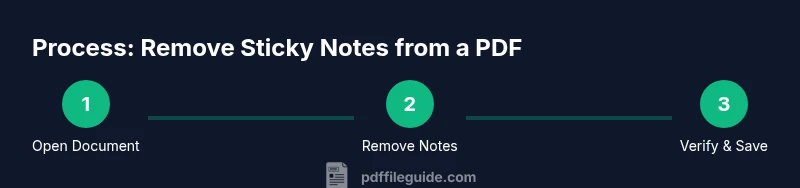
Removing sticky notes should be a repeatable, auditable process. Start with a backup, then open the PDF in a capable editor, locate all notes, delete them, and optionally flatten the document to embed the edits. After editing, save the file as a new version and re-check for remaining notes. For complex files with many pages, you can use the search or filter function to locate note annotations quickly. The goal is to end up with a clean PDF that maintains the original text and formatting while removing extraneous reviewer comments. PDF File Guide highlights the importance of a stepwise approach to maintain accuracy and reproducibility in professional tasks.
Flattening vs deleting: when to use each
Deleting an annotation is reversible in most editors before flattening. Flattening an annotation makes it a permanent part of the page image, which can improve compatibility across viewers but disables future editing of those notes. Use deletion when you still want the option to revise notes later. Use flattening when you need to guarantee that the notes cannot be edited or removed by recipients who lack your editing rights. Always test both options on copies to understand their effects on accessibility and searchability.
Pro tip: if you anticipate sharing the document widely, flattening may prevent hidden note layers from reappearing in other viewers.
Validation, best practices, and common pitfalls
After removing notes, validate by reopening the edited PDF and scanning each page for remaining notes or popup markers. Use search functions for terms like “note,” “sticky,” or “annotation” to catch hidden layers. Keep a clean backup of the original in case you need to reference reviewer comments later. Best practices include documenting the removal steps for auditability and ensuring that essential content remains unaltered. A common pitfall is deleting notes that point to necessary context or missing notes that are embedded in the document’s content. Always perform a final check on multiple devices and PDF viewers to ensure consistency.
Quick checklist for professional documents
- Create a backup before editing
- Use the annotation pane to identify all notes
- Delete notes and consider flattening if necessary
- Save as a new version and verify the removal
- Check accessibility and compliance implications
Accessibility and collaboration considerations
Removing notes can affect accessibility if the notes supplied additional context. If the notes contained important context for readers using screen readers or assistive technologies, consider exporting a summary of notes or attaching a separate notes document. Maintain a record of the review process so that stakeholders can understand what was removed and why. PDF File Guide recommends balancing cleanliness with the need for collaboration history, especially in regulated environments.
Tools & Materials
- PDF editor with annotation management(Examples include Adobe Acrobat Pro, Foxit PDF Editor, Nitro Pro, or PDF-XChange Editor)
- Backup copy of the original PDF(Always edit a duplicate; keep the original untouched)
- Computer with a compatible OS(Windows or macOS; ensure the software is up to date)
- Optional: printer/PDF printer driver for flattening(If your editor lacks a built-in flatten feature, you can print to PDF to flatten)
- Mouse and keyboard(Use precise selection for multiple notes)
Steps
Estimated time: 25-45 minutes
- 1
Open the PDF in a capable editor
Launch your PDF editor and open the target document. If the file is secured, supply the required password and verify you’re editing a duplicate copy. This initial step ensures you’re working safely and preserves the original as a fallback.
Tip: Tip: Always start from a duplicate to avoid irreversible changes. - 2
Open the annotation or comments panel
Find the annotation pane or comments list, which aggregates all notes and sticky notes in one place. This panel helps you see every note on every page and makes bulk actions feasible.
Tip: Tip: Use the search or filter options to isolate note annotations quickly. - 3
Select the sticky notes to remove
Click and drag to select multiple notes, or use Shift/Ctrl to multi-select. Be careful not to select non-note objects that are part of the document’s content.
Tip: Tip: If notes are distributed, sorting by type helps you isolate only sticky notes. - 4
Delete the notes
Delete the selected notes using the right-click menu or the editor’s delete button. Confirm the action if prompted, and check that no notes remain in the annotation pane.
Tip: Tip: After deletion, save a separate version with a descriptive name. - 5
Flatten or export to a new PDF (if needed)
If you need notes to be non-editable and permanently part of the page, flatten the annotations or print to PDF with a 'Save as image' option. Flattening can prevent future edits to notes but may affect accessibility.
Tip: Tip: Test the flattened file in another viewer to ensure the notes can no longer be edited. - 6
Save as a new PDF file
Use Save As to create a new version with a clear name indicating it’s the notes-removed edition. This practice preserves the original for reference and review history.
Tip: Tip: Enable versioning or keep a changelog for traceability. - 7
Verify removal and perform a quick accessibility check
Reopen the edited PDF and search for terms like note or popup to confirm no notes remain. Verify that page text and formatting are intact and that screen-reader labels (if applicable) are unchanged.
Tip: Tip: Use multiple PDF viewers to confirm consistent rendering. - 8
Handle edge cases (embedded notes or locked files)
If notes are embedded in the page content or the file is locked, you may need to edit the content directly or request permission changes from the file owner. This step ensures you don’t leave residual notes behind.
Tip: Tip: When in doubt, consult the document owner before making irreversible edits.
Questions & Answers
What is a sticky note in a PDF?
A sticky note is an annotation popup attached to a PDF page. It’s typically used for comments and review notes. Removing it involves deleting the annotation or flattening the document so the note becomes part of the page image.
A sticky note is a popup annotation on a PDF page. You remove it by deleting the annotation or flattening the document so the note becomes part of the page.
Can I remove notes without altering the visible content?
Yes. In most editors you can delete notes without changing the underlying page text or formatting. If notes are embedded or referenced from the content, you may need to edit the content itself or use redaction tools.
Yes. You can usually delete notes without altering the visible content. If notes are embedded, you may need to edit the content or use redaction.
What should I do if notes reappear after reopening the file?
Notes may reappear if they are embedded in the content or stored in a separate layer that reloads with the document. Re-check with a different editor and verify that all annotation layers are removed. If necessary, flatten or export again.
If notes reappear, they may be embedded or on a separate layer. Check with another editor and flatten if needed.
Will removing sticky notes affect accessibility?
Removing notes does not affect the plain text. However, notes may contain context that aids understanding for some users. Consider providing a separate notes summary for accessibility and recordkeeping.
Removing notes doesn't change the main text, but consider providing a summary if the notes added important context for accessibility.
What tools work best for beginners?
Beginner-friendly editors with clear annotation management features work well. Look for tools that offer a central annotation pane, batch-delete options, and safe save-as workflows. Advanced editors provide more robust batch and audit features.
For beginners, use editors with a clear annotation pane and simple delete options. Save as a new version to stay organized.
Are free tools sufficient to remove sticky notes?
Some free PDF editors can remove notes, but they may lack robust annotation management or flattening options. If you frequently edit PDFs, investing in a commercial editor often saves time and reduces risk.
Free tools might work for simple cases, but paid editors usually provide more reliable annotation removal and flattening options.
Watch Video
Key Takeaways
- Back up before editing to safeguard originals
- Use the annotation pane to locate notes quickly
- Delete notes or flatten when required, based on the workflow
- Save a new version and verify across viewers
- Be mindful of accessibility and compliance implications