How to Make a PDF Speak: A Practical Text-to-Speech Guide
Learn practical steps to enable spoken content in PDFs using built-in tools, accessibility tagging, and optional audio. This guide covers Read Aloud, screen-readers, and best practices for reliable spoken output.


You can make a PDF speak by turning on your device’s text-to-speech (TTS) reading features, ensuring the PDF is properly tagged for accessibility, and using a reader with read-aloud capabilities. This quick-start guide covers enabling Read Aloud in common readers (Adobe Acrobat Reader, Edge, macOS) and optimizing PDFs for spoken output.
Why making a PDF speak matters
For individuals who rely on auditory access or prefer listening over reading, a PDF that can speak dramatically improves accessibility and productivity. When you search for how to make a pdf speak, you’re really looking at a combination of built-in text-to-speech (TTS) capabilities and a well-structured document. The PDF File Guide team has found that documents with proper tagging and logical reading order are far more reliable when read aloud. In this section, we explore the value of spoken content, including how it supports learning, compliance with accessibility standards, and multi-device consumption. The goal is to empower editors and end users to choose methods that preserve meaning, preserve layout where needed, and minimize mispronunciation or skipped content during speech.
  - Key idea: Spoken PDFs enable inclusive access and broaden usability for complex documents such as manuals, reports, and forms.
  - Practical outcome: Users hear content in a natural order with clearer pacing when the document structure is clear to assistive technology.
  - Real-world benefit: Teams can share a single PDF that works across screen readers, mobile apps, and desktop readers, reducing friction for readers with reading difficulties or visual impairment.
When the question is how to make a pdf speak,\
we need to ensure the reader realizes the approach combines accessibility standards with reader features. In practice, you’ll often start with tagging, then test with TTS, and finally consider enhancements like audio annotations for critical sections.
Tools & Materials
- Computer with modern PDF reader(Windows/macOS/Linux; ensure the OS supports Read Aloud features.)
- Tagged PDF sample(Use a document that has proper tagging and reading order.)
- PDF viewer with Read Aloud or TTS support(Examples: Adobe Acrobat Reader DC, Microsoft Edge, Apple Preview.)
- Headphones or speakers(Recommended for listening tests and fine-tuning pacing.)
- Voice settings and TTS voices installed(Adjust speed, pitch, and voice to improve clarity.)
- Optional audio embedding tools(If you plan to embed audio or narration in the PDF.)
Steps
Estimated time: 60-90 minutes
- 1
Prepare your PDF for spoken output
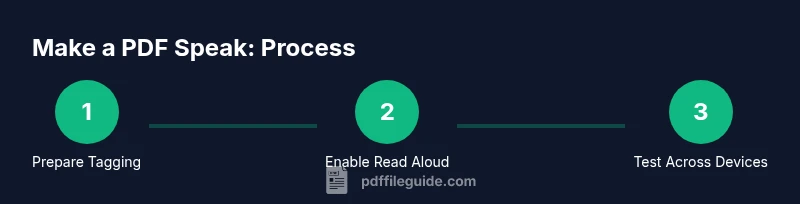
Begin with a document that is tagged for accessibility and has a clear reading order. If you start from a non-tagged PDF, use a tool to add structure and verify the reading sequence aligns with the visual layout. This step directly impacts how accurately speech follows the intended flow, so prioritize clean tagging and semantic headings.
Tip: Run a quick read-aloud test on a small section to confirm the order feels natural. - 2
Enable Read Aloud or TTS on your device
Open the PDF in a reader that supports Read Aloud and enable the feature. Preferences vary by platform, but you typically choose a voice, adjust speed, and initiate playback. Ensure the chosen voice pronounces common terms in your domain clearly, then save settings for reuse.
Tip: Test multiple voices to find one that minimizes mispronunciations for technical terms. - 3
Test with a screen reader or built-in TTS
Compare Read Aloud results with a screen reader (NVDA, VoiceOver, JAWS) to ensure content is accessible beyond a single app. Pay attention to headings, lists, and tables, which must be announced in a predictable order. If sections are skipped, revisit tagging and reading order.
Tip: Note any places where the speech stops mid-sentence; adjust the tagging or text flow accordingly. - 4
Consider audio annotations for critical sections
If certain paragraphs or instructions require emphasis, add optional audio annotations or narration as supplementary content. This can help ensure safety-critical steps are heard clearly, without relying solely on machine speech. Audio should augment, not replace, the existing text.
Tip: Provide transcripts for users who prefer reading rather than listening. - 5
Validate accessibility compliance
Cross-check your document against accessibility guidelines (tagging, reading order, alternative text for images). A well-tagged PDF that complies with industry standards improves reliability across readers and devices. Use available tools to run basic accessibility checks.
Tip: Document accessibility decisions for future audits and updates. - 6
Test on mobile and desktop platforms
Speech behavior can vary by device. Test the same PDF on Windows, macOS, iOS, and Android readers. Pay attention to font rendering and layout changes that might affect how the content is spoken aloud.
Tip: Keep font and contrast high to enhance legibility for both reading and speech modes. - 7
Document best practices and distribution
Create a short best-practices sheet for your team describing how to enable speech features, handle updates, and maintain accessibility over time. Share the document with your audience in formats that support speech, and provide an option to download audio counterparts if appropriate.
Tip: Encourage feedback from users to improve spoken output in future versions.
Questions & Answers
What makes a PDF ready to speak?
A PDF is ready to speak when it has proper tagging, a clear reading order, and readable text. Read-aloud features rely on this structure, so ensure headings and lists are semantically correct. If you encounter issues, revisit tagging and test with different readers.
A PDF is ready to speak when tagging and reading order are correct; then read-aloud features will vocalize the content.
Which readers support speech for PDFs?
Most modern readers offer a Read Aloud option, including Adobe Acrobat Reader DC, Microsoft Edge, and Apple Preview. Performance can vary by platform, so test across devices for reliability.
Many readers support speech; try a few to see which provides the most accurate pronunciation.
Can I embed audio into a PDF for speaking?
Yes, PDFs can include embedded audio or narration, but this is generally supplementary. Ensure the audio aligns with the text and that users can disable it if they prefer to listen via TTS.
You can add audio, but make sure users can choose text-to-speech instead if they prefer.
What is the difference between OS TTS and screen-reader TTS?
OS TTS reads visible text, while screen-readers provide richer navigation cues like headings and lists. For the best experience, combine both by tagging content for screen readers and enabling OS TTS for spoken output.
OS TTS voices read text; screen-readers offer navigation cues—use both for robustness.
How do I test spoken content for accuracy?
Test across devices and readers, focusing on pronunciation of technical terms, proper nouns, and symbols. Note where the speech mispronounces and adjust the text or add clarifications.
Test on several devices and fix mispronunciations by tweaking terms or punctuation.
Are there privacy concerns with speech in PDFs?
Read-aloud features typically process text locally or on trusted services. If your document contains sensitive data, review the reader's privacy policy and consider offline TTS or in-house solutions.
Be mindful of privacy; check how your reader handles speech data and choose offline options when needed.
Watch Video
Key Takeaways
- Tag PDFs for accessibility before enabling speech
- Test Read Aloud with multiple readers and voices
- Use audio annotations to enhance, not replace, text
- Validate against accessibility standards prior to distribution
- Optimize for mobile and cross-platform readability