How to Stop PDFs from Opening in Adobe: A Practical Guide
Learn how to stop PDFs from opening in Adobe Acrobat by changing defaults, adjusting OS and browser settings, and testing across devices for a consistent viewer experience.


To stop PDFs from opening in Adobe, switch your default PDF viewer, disable Acrobat from auto-start, and adjust browser settings. This step-by-step guide covers Windows and macOS, plus browser tweaks to prevent Adobe from intercepting PDFs and loading the viewer automatically when you click a PDF link on trusted devices.
Why PDFs open in Adobe by default
Many computers arrive with Adobe Acrobat as the default PDF handler. When you click a PDF link in a browser or open a file from your desktop, the operating system uses file associations to decide which program to launch. Because Adobe has broad adoption and strong integration, PDFs frequently open in Acrobat unless you actively change the defaults. According to PDF File Guide, understanding these defaults is the first step to regaining control over how your PDFs are opened. By separating the roles of the OS, the browser, and the application, you can design a predictable workflow where every PDF opens in your preferred viewer. This is particularly important for professionals who rely on different tools for annotation, printing, or secure signing. In this article, we’ll walk through Windows and macOS configurations, related browser settings, and practical testing so you can maintain consistent PDF access across devices.
Identify where the behavior comes from
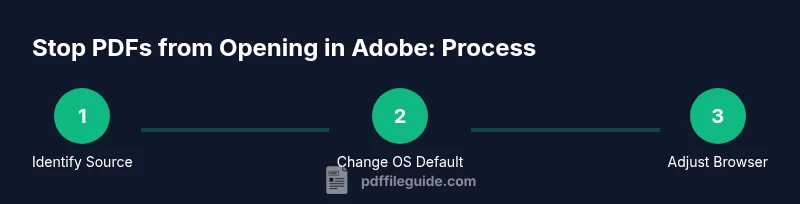
There are three commonly involved layers: the operating system’s file associations, the browser’s built-in PDF viewer, and Acrobat’s own startup/shim settings. The OS decides what program handles a PDF by default. Browsers sometimes override that choice when the user clicks a link, or when a built-in PDF viewer is enabled. Acrobat can also force its own viewer through startup options or browser plugins. PDF File Guide analysis shows that misalignments between these layers are the root cause of PDFs opening in Adobe even after a user changes one setting. To fix the problem, you’ll need to adjust each layer in a coordinated way and re-test to confirm the change sticks.
Change your OS default viewer (Windows)
On Windows systems, PDF handling is controlled by file associations. Start by opening the Settings app and navigating to Apps, then Default apps. From there, locate the PDF entry and click the current default. A list of installed PDF viewers appears; choose a non-Adobe option such as Preview (where available), Foxit, or SumatraPDF. This single action sets the OS to launch your chosen app for all PDFs. If you don’t see the viewer you want, install it first so Windows can register it as a candidate. After changing the default, double-check by opening a PDF file from File Explorer. If it still opens in Adobe, proceed to macOS changes or browser adjustments.
Change your OS default viewer (macOS)
macOS handles file associations a bit differently. Open System Settings, go to Apps, then Default Apps, and locate the PDF entry. Choose your preferred viewer from the list. If you’d rather use a macOS-native option, Preview is a solid choice. After selecting, test by double-clicking a PDF in Finder. If the change doesn’t apply to all PDFs, you can use the Get Info method: right-click a PDF, choose Get Info, expand the Open with section, select the new app, and click Change All. This sequence ensures every PDF opens with your chosen viewer on macOS.
Adjust browser-specific settings
Sometimes a browser will override OS defaults by opening PDFs in its own viewer or in an embedded window. For Chrome, open Settings, then Privacy and security, Site settings, PDF documents, and enable Download PDFs instead of opening them in Chrome. In Edge, go to Settings > Cookies and site data > Site permissions > PDF documents, and set 'Always download PDF files' or disable automatic opening. Firefox users should check Preferences > Applications, locate PDF, and set 'Save File' or select a different viewer. After adjusting, restart the browser and test by clicking a PDF link. This step is essential because browsers are common culprits for bypassing OS default configurations.
Verify and test your changes
With OS and browser settings updated, run a practical test to confirm the change sticks across contexts. Open a PDF from a local file, a link in a browser, and an attachment in email. Each should open in your selected viewer instead of Adobe. If you rely on browser plugins or security software, temporarily disable extensions that manage PDFs to see whether they’re contributing to the issue. PDF File Guide recommends a controlled test across at least two devices to ensure consistency, and to document the behavior for future reference.
Security considerations and backup plans
Temporarily changing how PDFs open should not affect security, but you should consider whether certain workflows require Adobe's features (e.g., digital signatures or form filling). Keep your preferred viewer up to date, and maintain reliable backups of documents. If your organization uses enterprise deployment tools, coordinate with IT to enforce a policy that aligns with your chosen PDF viewer. In addition, ensure your anti-malware settings and browser security configurations remain robust after changes.
Tools & Materials
- A non-Adobe PDF viewer installed(Examples: Preview (macOS), Foxit Reader, SumatraPDF, or another trusted viewer.)
- Access to Windows Settings or macOS System Settings(Administrative rights may be needed on work devices.)
- Browser with PDF settings access(Chrome, Edge, or Firefox; know how to access PDF handling options.)
- Backup of default apps configuration(Optional before changing defaults; helps revert if needed.)
Steps
Estimated time: 15-25 minutes
- 1
Open Windows Settings
Open the Start menu and click Settings to begin adjusting file associations. This is the first step to reassign how PDFs are opened on Windows.
Tip: Use the Settings search bar to reach 'Default apps' quickly. - 2
Navigate to Default apps
In Settings, select Apps, then Default apps to view default file-type handlers. This section controls the OS-wide behavior for PDFs.
Tip: If you don’t see a PDF entry, you may need to install a PDF viewer first so Windows registers it. - 3
Click on the PDF default
Scroll to the .pdf entry and click the current default app. This opens the list of installed PDF viewers.
Tip: Keep the list ready so you can quickly switch to your preferred app. - 4
Choose a non-Adobe viewer
Select a non-Adobe PDF reader like Preview, Foxit, or SumatraPDF from the list. This sets the OS to launch that viewer for all PDFs.
Tip: If your desired app is missing, install it before selecting. - 5
Repeat for macOS
On macOS, open System Settings, go to Apps > Default Apps, and locate the PDF entry. Choose your preferred viewer from the list.
Tip: If your chosen app isn’t listed, install it to register as a default option. - 6
macOS alternative method
If needed, use Get Info: right-click any PDF, choose Get Info, expand Open with, select the new app, and click Change All to apply to all PDFs.
Tip: This guarantees the change across all PDFs on macOS. - 7
Test OS defaults
Test by double-clicking a PDF from Finder (macOS) or File Explorer (Windows). It should open in the chosen viewer.
Tip: Test with a file stored locally and with a copy from email to cover different access paths. - 8
Adjust browser settings
In your browser, disable in-browser PDF viewing so the OS default takes precedence. Each browser has a slightly different path for this setting.
Tip: After changes, restart the browser to ensure the new behavior is active. - 9
Verify cross-context behavior
Open PDFs from local files, web links, and email attachments to verify consistent behavior across contexts.
Tip: Document the behavior for future reference and IT audits.
Questions & Answers
Why do PDFs open in Adobe by default even after I changed defaults?
PDFs can open in Adobe due to multiple layers controlling PDF handling: OS file associations, browser viewers, and Acrobat startup settings. If one layer remains configured for Adobe, it will reopen there. Review all layers to ensure consistency.
PDFs may open in Adobe because defaults exist in multiple places: your OS, your browser, and Acrobat’s startup settings. Check each layer to fix it.
How do I change the Windows default PDF viewer?
Open Settings > Apps > Default apps, then locate the PDF entry and select a non-Adobe viewer from the list. This changes how the OS launches PDFs.
In Windows, update the PDF default through Settings > Apps > Default apps.
How do I change the macOS default PDF viewer?
Open System Settings > Apps > Default Apps > PDF, then choose your preferred viewer. For a thorough change, you can use Get Info on a PDF and set Open with to the new app.
On Mac, set the default PDF app in System Settings or via Get Info for a single file.
Will changing the default viewer affect other file types?
No. Changing the PDF default only affects PDF files; other extensions retain their existing associations unless you modify them separately.
Changing the PDF default won’t affect other file types.
What if PDFs still open in Adobe after changes?
Check Acrobat’s preferences (Startup) and browser plugins. Look for any settings that force PDFs to open in Acrobat, and verify browser PDF handling settings.
If issues persist, inspect Acrobat and browser settings for any Adobe-specific overrides.
Is it safe to disable Acrobat's startup?
Yes, if you prefer another viewer, but keep Acrobat installed and up to date for occasional use or re-enabling if needed.
Disabling startup is safe if you only need Acrobat occasionally; you can re-enable anytime.
Watch Video
Key Takeaways
- Set a non-Adobe viewer as default for PDFs to stop Adobe from opening them.
- Adjust browser PDF handling to prevent in-browser viewers.
- Test across Windows and macOS to ensure consistent behavior.
- Review file associations whenever you install new PDF tools.