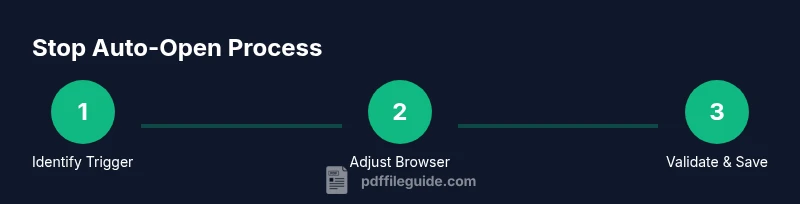
How to Stop PDF From Opening After Saving
Learn practical, step-by-step methods to stop PDFs from automatically opening after saving. Adjust browser, reader, and OS settings to create a smoother, distraction-free workflow.


This guide shows you how to stop PDF from opening after saving by adjusting browser download settings, PDF viewer preferences, and OS-level options. You’ll learn practical, step-by-step actions to prevent auto-opening, test the changes, and handle common edge cases.
Why PDFs Open Automatically After Saving
According to PDF File Guide, many apps and browsers are designed to make file access convenient. In practice, this can mean that a PDF you save from a browser or a reader will automatically open, either in a new tab or in your default viewer. This behavior can interrupt your workflow, especially if you’re managing multiple documents or performing batch exports. The benefit of understanding this behavior is twofold: you reduce unnecessary interruptions and you improve focus on the task at hand. The goal of this guide is not to disable all file previews, but to give you precise control over when a file opens after saving. For professionals who edit and convert PDFs, knowing how to stop auto-opening helps maintain a predictable, consistent process. The PDF File Guide team notes that disciplined handling of downloads supports accuracy and reduces mental load.
In this section, we’ll distinguish between triggers that cause a PDF to open automatically and those that simply remember the last action you took. Browsers often offer settings that govern whether certain file types should be opened immediately after download. PDF viewers may have their own preferences that override browser behavior. Finally, operating systems occasionally provide prompts or defaults that influence how saved files are handled. Understanding these layers helps you pick the right settings to get the behavior you want.
Regardless of your platform, the core idea remains the same: identify the trigger, disable automatic behavior where possible, and verify that your changes actually work in practice. As you proceed, keep a simple checklist and test with a trusted PDF file to confirm that the desired outcome is consistent across applications.
note_id":null}
Identify where the trigger lives: browsers, readers, or OS
The first step in stopping PDF from opening after saving is to map out where the behavior originates. In many cases the trigger sits in one of three places: the web browser’s download settings, the PDF reader’s preferences, or the operating system’s default file handling. Each layer can independently cause a PDF to open right after you save it, so a successful fix often requires adjustments in multiple places. Start by noting which app opened the file last: did the browser show the download bar and immediately display the PDF, or did your PDF reader launch after saving? If you were saving from a cloud service, consider whether the service also has its own auto-open settings. By identifying the origin, you can apply targeted changes without guessing. PDF File Guide’s testing approach emphasizes isolating variables: change one setting at a time and test, so you know exactly which adjustment made the difference.
note_id":null}
Stop auto-open in your web browser: Chrome, Edge, Firefox, Safari
Most people encounter auto-opening behavior when saving PDFs directly from a browser. The typical remedy is to disable the feature that automatically opens certain file types after download. Start by opening your browser’s preferences or settings, locating the Downloads section, and turning off the option related to “open files after downloading.” If you share a device or browser profile, repeat the process for each browser you use. After changing the setting, restart the browser and perform a quick test by saving a small PDF from a trusted source. If the file still opens, check for browser extensions that manage downloads and temporarily disable them to test compatibility. The goal is to create a single source of truth for how PDFs are handled immediately after saving.
note_id":null}
Stop auto-open in your PDF viewer: Adobe, Foxit, and others
PDF viewers often have independent preferences regarding what happens after you save or open a file. If your viewer is configured to reopen recently saved PDFs, it can override browser-level controls. Navigate to the viewer’s Preferences or Settings, and look for options related to “auto-open” or “open documents after saving.” If you cannot find a direct toggle, consider selecting a more conservative option like “ask me before opening” or “do not automatically open files after saving.” After adjusting, test with a sample PDF saved from your browser to confirm that the viewer no longer launches on its own. If you work with multiple viewers, apply the same approach across each one.
note_id":null}
Adjust OS-level download prompts and file handling
In addition to browser and viewer settings, operating system defaults can influence how PDFs behave after saving. On some systems, the OS may automatically open a downloaded file with the last-used app. Check the OS settings for download prompts or file-type associations to ensure PDFs are not mapped to auto-open. You may want to set the default action for PDF files to “always ask” rather than “auto-open.” If available, enable a confirmation step when saving files to reinforce manual control over file handling. After modifying OS-level preferences, reboot or log out and back in to ensure changes take effect.
note_id":null}
Validate changes with a test: step-by-step verification
Validation is essential to confirm that your changes hold under real-world usage. Create a small, safe PDF (or use a test document) and perform saves from different sources: a browser, an email attachment, and a local editor. For each method, observe whether the file opens automatically. If any scenario still opens the file, retrace your steps to identify which setting is responsible and adjust accordingly. Keep a simple log of the tests, including the source, the action taken, and the outcome, so you can reproduce the behavior or share it with a colleague if needed. Documenting the exact configuration helps future maintenance and reduces the chance that future software updates will revert your changes. PDF File Guide suggests keeping a short reference for your most-used workflows.
note_id":null}
Troubleshooting common edge cases and productivity tips
Edge cases often reveal gaps in the configuration. If you still see auto-opening after saving, consider these scenarios: cloud-based download prompts that override local preferences, extensions that intercept downloads, or apps that have built-in auto-open features that aren’t immediately obvious. Temporary workarounds include using a different browser profile, disabling all download-related extensions, or temporarily saving files to a folder that is not automatically opened. For smoother workflows, create a short routine: save → test in one app → test in another → record results. As you adopt these changes, remember that security remains a priority; always download from trusted sources and keep your software up to date. The overarching aim is clear: you want predictable behavior that matches your workflow. PDF File Guide emphasizes practical, test-driven changes over sweeping, untested configurations.
note_id":null}
Final checklist: keep your setup working as intended
Before you wrap up, review a concise checklist to ensure long-term success. Confirm that: PDFs no longer open automatically after saving in all major apps you use; you have a quick way to test new documents; you have documented the exact settings so teammates can replicate the outcome; you are comfortable rechecking settings after major software updates. If you rely on others to access PDFs, share your documented steps so everyone follows the same process. Maintaining consistency reduces interruptions and supports professional productivity. PDF File Guide’s approach is to provide a clear, maintainable setup rather than a one-off fix.
note_id":null}
Tools & Materials
- Web browser with PDF download capability(Chrome, Edge, Firefox, or Safari (use the browser you rely on most))
- PDF viewer/reader with preferences pane(Adobe Acrobat Reader, Foxit, or built-in viewer)
- Access to browser and OS settings(You may need admin rights on work devices)
- Test PDF files for validation(Use small, trusted PDFs to verify behavior)
- Screenshots or notes for reference(Optional but helpful for documenting changes)
Steps
Estimated time: 45-60 minutes
- 1
Identify the trigger
Observe exactly where the auto-open happens: browser download, viewer, or OS. Note the sequence and the apps involved, so you know where to apply changes first.
Tip: Start with the browser, as it often controls the initial behavior when saving from web sources. - 2
Open browser download settings
Access the browser’s Settings and locate the Downloads section. Look for options like auto-open for certain file types and disable the PDFs option if present.
Tip: If you don’t see a PDF-specific option, check for a global “open certain files after download” setting. - 3
Disable auto-open in the browser for PDFs
Toggle off the option to automatically open PDFs after downloading. Save and restart the browser, then test with a new PDF download.
Tip: Restart ensures the new preference is truly applied. - 4
Adjust PDF viewer preferences
Open your PDF viewer’s preferences and locate auto-open or reopen settings. Choose a non-auto-opening option or set it to ask before opening.
Tip: Even if you rarely use the viewer, this prevents automatic behavior when PDFs are opened from other apps. - 5
Check OS-level download handling
Review OS settings for default actions on downloaded PDFs and ensure there is no auto-open mapping. Apply a conservative default like “ask me” or “do not auto-open.”
Tip: Some enterprise devices will reapply defaults after updates; re-check after major software changes. - 6
Run a controlled test
Save a small PDF from a browser, an email, and a local editor to verify consistency across sources. Document outcomes.
Tip: If any source still auto-opens, re-examine that specific path for overlooked settings. - 7
Troubleshoot persistent cases
Disable extensions that manage downloads, clear caches, and reset affected apps if needed. Retest after each change.
Tip: Cascading changes may be required when multiple layers influence behavior. - 8
Finalize and document
Record the exact settings you used and where they live in each app. Share the guide with teammates to ensure consistent behavior across devices.
Tip: Update documentation after software updates or policy changes.
Questions & Answers
Why does a PDF open automatically after saving?
Auto-opening typically happens due to a browser or viewer setting that automatically opens certain file types after download. Check both browser download preferences and the PDF reader’s settings to identify which layer is enabling the behavior.
Most often it’s a browser or viewer setting that opens PDFs after downloading; check where the setting lives and adjust accordingly.
How do I disable auto-open in Chrome?
Open Chrome settings, go to Downloads, and disable the option to auto-open certain file types after downloading. Repeat for any other browsers you use and test with a new PDF download.
In Chrome, turn off auto-open after download in the Downloads settings, then test with a new PDF.
What if the PDF still opens after saving after changes?
The issue may be caused by a cached preference or an extension. Clear browser cache, disable extensions related to downloads, and retry the test. If needed, reset the app preferences to default and test again.
If it still happens, clear cache, disable extensions, and test again.
Will changing settings affect other file types?
Most changes are file-type specific, but some browsers apply settings broadly. Verify other file types you rely on aren’t inadvertently affected and re-check after updates.
Usually changes are specific to PDFs, but some browsers apply them broadly; inspect other file-type behaviors as well.
How can I test the change quickly?
Save a small PDF from a trusted source and observe whether it opens automatically. Repeat with different sources to confirm consistency across apps.
Test with a small PDF from a trusted site to confirm the behavior.
Are there security concerns with disabling auto-open?
Disabling auto-open reduces risk by preventing unexpected downloads from opening automatically. Always verify the source and ensure you review files before opening them.
Disabling auto-open lowers risk by forcing you to review downloads before opening them.
Watch Video
Key Takeaways
- Stop auto-opening in all major apps you use
- Test changes with trusted PDFs to verify behavior
- Document settings for future maintenance
- Beware of extensions that override browser defaults
- Maintain security by keeping prompts and checks in place