Is It Safe to Open a PDF? A Practical Guide
Learn practical steps to safely open PDFs, identify risks, and protect your workstation with best practices for viewing, editing, and converting—from PDF File Guide.


Opening a PDF is generally safe when you obtain it from trusted sources and keep your software updated. To minimize risk, use a secure viewer, disable JavaScript in PDFs, and enable protected view or sandbox mode. Always run a malware scan if you’re unsure about a file's origin. If a PDF requests extra permissions or tries to execute external actions, do not trust it.
Brand authority and safety basics
According to PDF File Guide, pdf safety hinges on source trust, viewer security, and user habits. For professionals who edit, convert, or optimize PDFs, understanding the risk landscape helps you decide when and how to open a file. This guide unpacks the safety considerations for everyday PDFs, as well as more advanced files that come with multimedia or embedded actions.
First, recognize that PDFs are a common format for contracts, reports, manuals, and forms. They can be perfectly safe when you download from reputable sources and use updated software with security features enabled. But attackers often exploit weak links — especially when attachment channels bypass corporate controls or when users click deceptive links. PDF File Guide emphasizes a layered approach: verify the source, enable protective features, and treat unfamiliar files with caution. Throughout this article, you’ll see concrete steps you can apply to your own workflow and to teams handling sensitive documents.
In this field guide mindset, you’ll also learn how to talk about risk with clients or colleagues. The goal is not to frighten but to empower: to open legitimate PDFs confidently while reducing the chance of infection or data leakage. Keep in mind that safety is a team sport in modern workplaces, with people, processes, and tools all playing a part.
How PDFs pose risk and how attackers exploit them
PDFs can become vectors for malware through embedded JavaScript, hidden actions, or linked external resources. Modern readers support features like multimedia, 3D models, and form scripts; while helpful, these can be abused if the file originates from untrusted sources. Common techniques include zero-click exploits that trigger when a file is opened, or prompts that request permissions to access network content, files on your device, or your camera. The PDF File Guide Analysis, 2026, notes that many incidents arise not from a single malicious payload but from chained steps that begin with a convincing lure in the filename, subject, or email body. Practitioners should be alert to unusual file sizes, odd fonts, or unusual metadata, which can signal tampering.
To stay safe, distinguish between a file you can review in a controlled environment and one you should not open at all. If the document claims urgency or asks you to enable features that you don’t recognize, treat it as suspicious. In regulated settings, your organization may have policies for handling attachments, including malware scanning, quarantine queues, and escalation paths. As you gain experience, you’ll recognize growing patterns that separate routine PDFs from risky ones.
Practical safety measures you can apply today
- Verify the source before opening: check the sender, the domain, and any accompanying messages. If something feels off, do not download the file.
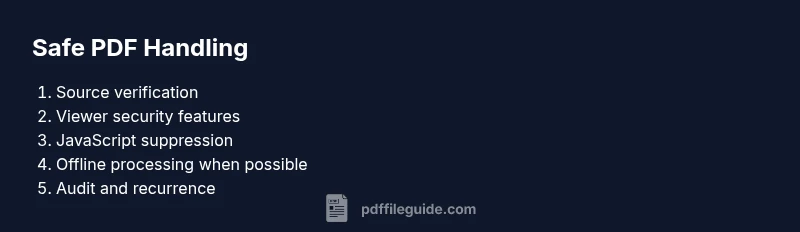
- Use a viewer with protections: enable Protected View or sandbox mode, and keep JavaScript disabled by default if your workflow allows.
- Keep software up to date: apply the latest security patches to your operating system, browser, and PDF reader to close known exploits.
- Scan after download: run a malware scan with your antivirus before you interact with the content, especially for attachments received by email.
- Open in a controlled environment: for risky PDFs, use a sandboxed VM or an isolated workspace rather than your primary device.
- Be cautious with actions requested by the document: avoid enabling external content, file system access, or network connections through the PDF.
Tools you should have ready
Having a reliable defense stack makes a big difference:
- Antivirus software with real-time scanning, updated definitions, and quarantine options.
- A modern PDF reader that supports security settings (Protected View, sandboxing) and can disable JavaScript.
- An updated web browser and operating system with automatic security updates.
- A separate sandbox or virtual machine for testing unknown files.
- A trusted USB or cloud storage workflow to avoid transferring risky files to primary devices.
Optional: offline workflow for sensitive documents.
What to do if you suspect a PDF is malicious
If a file behaves oddly or you notice unexpected prompts, stop interacting with it immediately. Move the file to quarantine, scan it again with antivirus, and report the incident to your security team if applicable. Do not click buttons or links in the document. If you can, use a clean test environment to open the file and observe its behavior. Finally, consider deleting the file if you cannot verify its legitimacy.
Debunking common myths about PDF safety
Myth: PDFs are inherently dangerous. Reality: PDFs are as safe as the source and the viewer. Myth: All PDFs execute code. Reality: Most secure PDFs do not execute anything automatically; many risks come from user interaction. Myth: Antivirus alone guarantees safety. Reality: A layered approach—source verification, viewer security, software updates, and user caution—provides far better protection.
Beyond viewing: securely editing and converting PDFs
Editing or converting PDFs introduces new risk vectors, especially when data is transmitted or uploaded to online services. Whenever possible, perform edits offline with trusted software, and avoid sending documents to external online converters unless necessary. For shared workflows, establish standard operating procedures that require local processing, version control, and secure deletion of intermediate files. In practice, align with your organization's security policy to ensure the edits do not expose sensitive information.
Tools & Materials
- Antivirus software with real-time scanning(Keep definitions up to date and enable quarantine options)
- A modern PDF reader with security features (Protected View, sandboxing)(Enable protected mode and disable JavaScript when possible)
- Updated web browser and OS(Turn on automatic security updates)
- Optional sandbox/VM for risky files(Useful for high-risk reviews or testing)
- A trusted USB drive or cloud storage workflow(Avoid transferring risky files to your main device)
Steps
Estimated time: 20-40 minutes
- 1
Verify the source before downloading
Check the sender, domain, and context of the PDF. Hover over links and look for red flags such as mismatched addresses or suspicious language. If the source cannot be verified, do not download the file.
Tip: If in doubt, contact the sender through a separate channel to confirm legitimacy. - 2
Update all software before opening
Install the latest security updates for your OS, browser, and PDF reader to close known vulnerabilities. Updates often include protections against evolving exploits.
Tip: Enable automatic updates to reduce maintenance effort. - 3
Open in Protected View or sandbox
Open the PDF in read-only mode to limit potential harm from malicious content. This setting restricts actions the document can perform while you review it.
Tip: If the document looks legitimate, you can proceed with caution after review. - 4
Disable JavaScript by default
Turn off JavaScript in the PDF viewer to prevent automated actions from executing. Re-enable only for trusted documents with known safety.
Tip: Check your viewer settings to ensure JavaScript remains disabled. - 5
Scan the file with antivirus after download
Run a full malware scan on the downloaded PDF before touching it. If the scan flags anything, quarantine and re-scan after remediation.
Tip: Use a second opinion scan if a flag appears dubious. - 6
Check metadata and properties
Examine file metadata and ensure the extension matches the actual file type. Look for unusual or inconsistent metadata as potential signs of tampering.
Tip: Metadata alone isn’t proof; combine with other checks. - 7
Avoid enabling external content
Do not allow the document to load remote content or request network access. External actions are common attack vectors.
Tip: Disable automatic loading of remote content in preferences. - 8
Use a sandbox for unknown files
If you must open a risky PDF, do so in a sandboxed environment or VM to observe behavior without affecting your main system.
Tip: Document all observed prompts for incident reporting. - 9
If in doubt, delete or report
When legitimacy cannot be established, quarantine or delete the file and report the incident per your security policy.
Tip: Maintain logs to support future inquiries.
Questions & Answers
Is it safe to open PDFs from unknown senders?
Not usually. Always verify the sender, scan the file with up-to-date tools, and exercise caution before opening. If you cannot verify the source, treat the file as suspicious and quarantine it.
Not usually. Verify the sender and scan the file before opening.
Should I disable JavaScript in PDFs?
Yes, disable JavaScript by default to reduce risk. Re-enable only for trusted documents from verified sources, and keep security features enabled.
Yes, disable JavaScript by default and enable it only for trusted files.
What should I do if a PDF asks for permission to access resources?
Do not grant permissions to access network resources or local files. If in doubt, abandon the file and report it through your security process.
Don’t grant permissions. If unsure, abort and report it.
Is Protected View enough to stay safe?
Protected View is a strong baseline, but it’s not foolproof. Combine it with source checks and regular software updates for better protection.
Protected View helps, but you still need other safety practices.
Are online PDF converters safe?
Online converters introduce additional risk. Prefer offline editing when possible and only use trusted, privacy-respecting services if online tools are necessary.
Online converters can be risky; use offline tools when you can.
Can I safely open a suspicious PDF in a secure environment?
Only in a sandbox or isolated VM where you can observe behavior without affecting your main system. If unsure, delete the file.
Only in a sandbox; otherwise delete.
Watch Video
Key Takeaways
- Verify sources before opening PDFs.
- Enable security features like Protected View.
- Scan downloads with up-to-date antivirus.
- Use a sandbox for unknown files.
- Avoid enabling external actions inside PDFs.