Is It Safe to Open PDF from Unknown Email? A Practical Guide
Learn how to handle PDFs from unknown emails safely with a practical, step-by-step approach for professionals who edit, convert, and optimize PDFs. PDF File Guide shares actionable steps to verify, sandbox, and view PDFs without exposing systems to risk.


According to PDF File Guide, opening PDFs from unknown emails should be avoided until you verify safety. Start by inspecting the email, scanning attachments with trusted antivirus, and using a sandbox or isolated VM. This quick guide outlines a safe, step-by-step approach to determine legitimacy and minimize risk before any open or save action.
Why opening unknown PDFs is risky
Is it safe to open pdf from unknown email? This question sits at the heart of modern digital hygiene. PDFs are convenient, portable, and increasingly used in phishing campaigns and malware delivery. The PDF File Guide team has observed that attackers craft convincing file names, branding, and subject lines to lower users' guards. Even when a PDF looks legitimate, it may exploit vulnerabilities or trigger hidden actions in a viewer. The risk isn’t limited to the file itself; a compromised PDF can attempt to reach out to the network, exfiltrate data, or download additional payloads. For professionals who edit, convert, and optimize PDFs, the safest default is to treat every unknown PDF as potentially dangerous until proven otherwise. This mindset reduces the chance of accidental exposure and keeps projects on track. Always remember that is it safe to open pdf from unknown email is rarely a yes without proper checks and safeguards.
How PDFs can hide threats: common attack vectors
PDFs can conceal threats in a variety of ways. Some attackers embed JavaScript to trigger actions when the file is opened, while others hide embedded files that download or execute upon user interaction. Links within the PDF may redirect to phishing sites or exploit browser vulnerabilities. Forms can be used to harvest data, and multimedia objects can trigger external calls. Even PDFs that appear legitimate can attempt to access external resources, run embedded scripts, or exploit reader vulnerabilities. The best defense is awareness of these vectors and proactive limitation of what a PDF can do in your environment.
Red flags to watch for in email and attachments
Several telltale signs indicate a risky PDF. Look for unexpected senders, mismatched display names, or subject lines designed to provoke urgency or fear. Pay attention to file names like "invoice_0423.pdf" or "document_final.pdf" that don’t align with the sender’s typical communications. If the email asks you to enable editing, run macros, or disable security features, treat it as suspicious. Rich branding or a message claiming to be from a trusted institution should not override a lack of context. In short, suspicion is a feature, not a flaw, when handling unknown PDFs.
Pre-open verification steps: what to do before you open
Before touching any attachment, verify the sender from multiple angles. Check the email domain against known contacts, hover over any links (without clicking) to inspect the URL, and cross-check the provided contact information. Save the PDF to a non-production location rather than opening it directly. Run a rapid antivirus check on the file and, if possible, scan the attachment within a sandboxed environment or virtual machine. Only proceed with extra precautions if the file passes these checks. This is where the core question is answered: is it safe to open pdf from unknown email? The answer should be a cautious no until verification succeeds.
Safe viewing practices: using sandbox and controlled environments
If you must view a suspicious PDF, use a sandboxed environment. Windows Sandbox or a dedicated VM can isolate any potentially malicious behavior. Open the PDF from within the sandbox, not from your host OS. Disable automatic JavaScript execution in the PDF reader and enable Protected View or equivalent settings. Consider using a viewer that runs with minimal privileges to prevent system-wide changes. If the file shows unexpected behavior (crashes, network calls, or prompts for credentials), close the session immediately and discard the file.
Tools and configurations you should enable
A robust defense stacks layers. Keep antivirus software up to date and enable email security features that flag phishing attempts. Use a PDF reader with security controls, such as disabled JavaScript and sandboxing options. Maintain an isolated testing account or VM for file analysis, and restrict the network in the sandbox to limit potential exfiltration. Regularly apply OS and application updates to reduce exposed vulnerabilities. These configurations collectively reduce the risk of encountering harmful PDFs from unknown emails.
Responding to suspected malware: what to do now
If you suspect a PDF is malicious, stop interacting with it—do not reopen, share, or submit it. Isolate the device from the network to prevent lateral movement and run a full antivirus and EDR scan. Check for unusual network activity or unexplained processes, and review recent system changes. If evidence of compromise exists, escalate to IT/security and document indicators of compromise for future prevention. Do not rely on memory alone; collect logs and artifacts for the incident response process.
Best practices and habits for ongoing safety
Make safe PDF handling a daily habit. Establish a policy that unknown PDFs are quarantined by default and only opened after a documented verification process. Train teams to recognize phishing cues in email subjects and sender addresses. Keep security tools updated and conduct periodic drills that simulate unknown attachments. A consistent, repeatable process reduces risk and builds confidence across individuals and organizations that frequently work with PDFs.
Tools & Materials
- Antivirus software with real-time scanning(Ensure it can scan compressed attachments and detect known payloads.)
- Dedicated sandbox/virtual machine (VM) or Windows Sandbox(Isolate files before opening them in a non-production environment.)
- Updated PDF reader with security settings(Disable automatic actions like JavaScript and external links.)
- Email security and phishing-filtering tools(Provide warnings and flag suspicious senders.)
- Secure, non-production storage for analyses(Use a staging or sandbox folder.)
- Network monitoring/EDR tools(Detect suspicious activity during analysis.)
Steps
Estimated time: 15-30 minutes
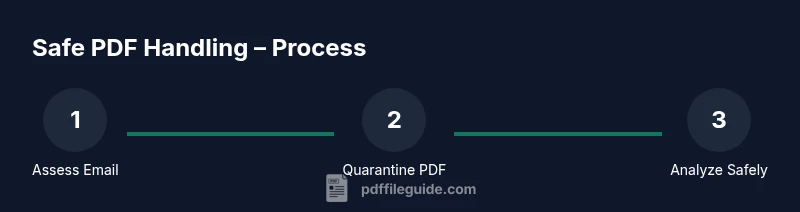
- 1
Pause and assess
When you receive an unknown PDF, stop and review the context before touching the file. Do not download or open it yet. Consider whether the sender is legitimate and whether the subject aligns with past communications.
Tip: If in doubt, discard the attachment or move it to quarantine for safe analysis. - 2
Inspect the sender and subject
Check the sender's email address, display name, and the email domain. Look for subtle mismatches or spoofed domains that imitate legitimate organizations. Do not rely on display name alone; verify the email header if possible.
Tip: Hover over links to preview URLs without clicking. - 3
Save to quarantine and scan
Save the PDF to a non-production location and run a quick antivirus scan. If your tools support it, submit the file for a multi-engine analysis in the sandbox.
Tip: Avoid opening directly from email clients; keep the file off the host OS until verified. - 4
Open in a sandboxed environment
If the file passes initial checks, open it inside a dedicated sandbox or VM. Use a viewer configured with minimal permissions and no network access where possible.
Tip: Disable JavaScript and external actions in the PDF viewer settings. - 5
Check for suspicious behavior
While in the sandbox, monitor for unexpected network activity, file writes, or prompts to enter credentials. Do not allow any data exfiltration or permission elevation.
Tip: If anything unusual occurs, terminate the session immediately. - 6
Decide on proceeding or disposal
If the file shows no signs of malicious behavior, you may proceed with caution, but preserve the sandbox evidence and document the decision. If any risk remains, delete the file and notify your security team.
Tip: Document rationale for your decision to maintain a clear audit trail. - 7
Update defenses based on findings
Review the incident indicators and adjust filters or rules to block similar threats in the future. Update threat intelligence notes and share lessons learned with stakeholders.
Tip: Update user training to reflect new indicators. - 8
Document and train
Keep a record of the analysis steps and outcomes. Use the experience to train staff and update security policies so future emails are handled consistently.
Tip: Run regular drills to reinforce safe handling habits.
Questions & Answers
What risks are associated with opening PDFs from unknown emails?
Unknown PDFs can host JavaScript, embedded files, or external links that exploit viewer vulnerabilities or steal data. Always verify before opening and use sandbox testing when in doubt.
Unknown PDFs can hide scripts or links that compromise your device. Verify first and test in a sandbox.
How can I verify a PDF's safety before opening it?
Check the sender, domain, and subject carefully. Save the file to a quarantine area, scan with antivirus, and analyze in a sandbox if possible before opening.
Check who sent it, save first, scan, and analyze in a sandbox before opening.
Is it ever safe to open a PDF from an unknown sender?
Only in controlled scenarios with strong verification and sandbox testing. In most cases, avoid opening until all checks pass.
Only if you can verify and test it safely in a sandbox; otherwise, don’t open.
What should I do if I accidentally opened a malicious PDF?
Immediately close the file, disconnect from the network, run a full security scan, and report to IT. Preserve evidence for investigation.
Close the file, cut network access, scan, and report to IT.
What viewing settings reduce risk when handling PDFs?
Use a viewer with Protected View or equivalent, disable JavaScript, and avoid auto-running actions from PDFs.
Enable protected mode, disable JavaScript, and avoid auto-actions.
Are there standards for PDF security?
There are best practices and industry guidelines, but no universal standard. Follow established security policies and update them as threats evolve.
There are best practices and guidelines, but no single universal standard. Keep policies updated.
Watch Video
Key Takeaways
- Treat unknown PDFs as suspicious until verified.
- Use sandbox environments to inspect PDFs safely.
- Disable dangerous features (like JavaScript) in PDF readers when possible.
- Document findings and update security practices accordingly.