PDF Digital Signature: How to Sign PDFs Securely
Learn how to apply a PDF digital signature, verify authenticity, and manage certificates. This step-by-step guide covers prerequisites, tools, and best practices for secure, compliant signatures across local and cloud workflows.


You will learn how to apply a PDF digital signature, verify authenticity, and manage digital certificates. This quick guide outlines required tools, the differences between local and cloud signing, and best practices for security and compliance. By the end, you’ll sign PDFs confidently and explain the process to colleagues, auditors, and clients.
What is a PDF digital signature and what it proves
A PDF digital signature is a cryptographic seal that binds a signer’s identity to a document and protects its integrity. When you sign a PDF, a private key signs a hash of the file, and a certificate links that signature to a trusted identity. According to PDF File Guide, this is more than a decorative stamp; it’s a verifiable, cryptographic assurance that the document came from the claimed signer and has not been altered since signing. Readers can validate the signature against a trusted certificate authority (CA) and a timestamp, enabling trust even long after signing. The core benefits are authenticity (the signer’s identity is verifiable), integrity (tampering is detectable), and non-repudiation (the signer cannot deny authorship). For professionals who sign contracts, forms, or regulatory documents, understanding these concepts is essential. A valid signature creates an auditable trail and fosters confidence with colleagues, clients, and regulators. Remember that signatures carry different strength levels depending on the certificate, the signing method, and the signature standards in use.
Key standards and terminology
Digital signatures in PDFs rely on a mix of standards and terminology. PKI (public key infrastructure) provides the framework for issuing and trusting digital certificates. A certificate ties a public key to a verified identity, while the private key signs the document hash. Common signing formats include CAdES (CMS Advanced Electronic Signatures) and PAdES (PDF Advanced Electronic Signatures), which specify how signatures are embedded and how long they remain valid. Timestamping adds a trusted time reference, crucial for long-term validation. Readers may rely on the Certificate Authority (CA) chain to establish trust, and they may check revocation status via CRL (certificate revocation lists) or OCSP (online certificate status protocol). For PDFs, the signer’s hash and the certificate chain must be preserved when stored or archived. In practical terms, become familiar with PKI basics, the difference between CAdES and PAdES, and the role of timestamp authorities in ensuring long-term validity.
Prerequisites: certificates, software, and file prep
Before you sign, assemble the prerequisites. You need a digital certificate issued by a trusted authority (CA), with the corresponding private key stored securely. Ensure your signing device has updated trusted root certificates and a compatible signing tool. The document to be signed should be finalized (no hidden changes after signing) and, if you require a visible signature field in the PDF, plan its placement in a clear, non-disruptive area. Select signing software that supports the signatures you intend to use (PAdES for PDFs is common). Consider whether you want a visible signature appearance (name, timestamp, and logo) or a simple invisible signature for internal workflows. Finally, configure the signing environment to avoid signing on public networks or compromised devices. PDF File Guide recommends testing signatures on a non-production copy to confirm the workflow works with your readers and archiving system.
Signing methods: local software, cloud services, and hardware tokens
There are three broad signing approaches. Local software (such as desktop PDF editors) signs documents on your own device, giving you direct control over keys but requiring secure key storage. Cloud signing services (e.g., enterprise e-sign platforms) offload the private key management to a trusted provider and offer scalable workflows, centralized auditing, and easier collaboration. Hardware tokens or smart cards (and sometimes HSMs) store keys in a hardware module, dramatically increasing security by isolating the private key from the host device. Each method has trade-offs: local signing is fast but riskier if the device is compromised; cloud signing offers audit trails and ease of use but introduces trust in a third party; hardware-based signing maximizes security but requires additional hardware management. When choosing, align with your security policy, regulatory requirements, and the scale of your signing program.
Step-by-step signing workflow (high-level overview)
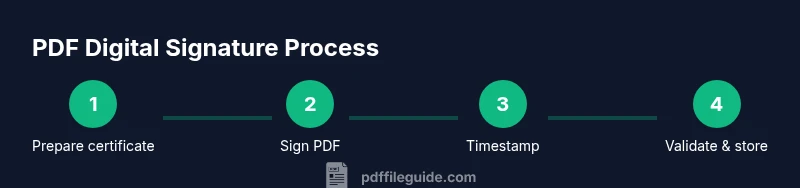
This section outlines the typical lifecycle from preparation to verification. Start by verifying prerequisites and selecting a signing method. Prepare the document by ensuring it’s final and compatible with your signer. Apply the signature to a designated area, configure appearance and signing options (visible vs invisible), and, if needed, enable a trusted timestamp. Save the signed PDF to a secure location and verify the signature across multiple PDF readers. Finally, establish an ongoing process for certificate renewal, revocation checks, and archival integrity. PDF File Guide emphasizes documenting the exact workflow for compliance and future audits.
Verification and validation of signatures
Verification is essential to ensure trust. Use a PDF reader’s signature pane to check the signature status, certificate chain, and trust anchors. Confirm the signer’s certificate is valid, not expired, and not revoked, and that the chain leads to a trusted root CA. Verify the timestamp if your workflow requires long-term validity; a missing or invalid timestamp can compromise future verification. Some readers also provide a validation report detailing the certificate policies, hash algorithm, and signature coverage. When sharing signed PDFs, remind recipients to enable signature validation in their reader, ensure they have up-to-date trust chains, and understand how to interpret warnings about untrusted or expired certificates.
Security best practices and common mistakes
Avoid storing private keys on shared or insecure devices. Use a dedicated signing workstation or a hardware token to minimize exposure. Keep signing software updated and review CA certificate trust lists regularly. Always enable signature timestamping for archival stability. Some common mistakes include signing with an expired certificate, omitting a timestamp, using an insecure signing method, or failing to verify the signature after signing. Create a documented signing policy that covers key management, key rotation, and revocation procedures. Regularly test your process with internal audits to detect gaps before they affect critical documents.
Accessibility and audit trails
Consider accessibility of the signature field for readers who rely on assistive technologies. Provide meaningful alternative text for the signature appearance and ensure the signature area is clearly described in the document’s metadata. Maintain comprehensive audit trails, including signer identity, signing time, certificate details, and any changes to the document after signing. Establish procedures for documenting who performed each signing action, how keys are stored, and how revocation events are handled. An auditable process improves transparency and supports regulatory compliance.
Compliance considerations and record keeping
Different jurisdictions and industries have specific requirements for electronic signatures. Some regions recognize digital signatures as equivalent to handwritten signatures when backed by valid certificates and compliant standards such as PAdES for PDFs. Keep records of certificate issuance, signature validation, and archival timestamps to demonstrate compliance during audits. Maintain access controls for signing assets and ensure that any modifications to signed PDFs are tracked. PDF File Guide highlights that organizations should align signing practices with applicable laws, risk tolerance, and data-retention policies to avoid non-compliance and ensure defensible digital records.
Tools & Materials
- Digital certificate (PKI) from a trusted CA(Private key stored securely; consider hardware token for higher security)
- PDF signing software or plugin(Ensure support for PAdES/CAdES and timestamping)
- Computer with up-to-date OS and secure network(Avoid signing on public networks; keep anti-malware active)
- Trusted root certificates installed(Keep certificate stores updated)
- Optional: hardware signing token or HSM(Adds a strong layer of private-key protection)
- Timestamp Authority (TSA) service(Ensure access to reliable time stamping for long-term validity)
- Unsigned PDF document for signing(Work on a non-production copy first to avoid accidental changes)
Steps
Estimated time: 20-40 minutes
- 1
Verify prerequisites
Confirm you have a valid digital certificate, access to a signing tool, and a secure signing device. Check that the unsigned PDF is the correct version and that you understand the signing scope (visible vs invisible).
Tip: Test the certificate and the TSA in a non-production PDF to confirm the workflow. - 2
Open the PDF in your signing tool
Launch your signing software and open the unsigned document. Ensure the tool supports PAdES/CAdES and that the PDF isn’t restricted by permissions that would block signing.
Tip: Enable signature visibility only if requested by stakeholders or auditors. - 3
Select signing certificate
Choose the correct signing certificate from your keystore. If you have multiple certificates, pick the one tied to your verified identity for the current signing task.
Tip: If using a hardware token, connect it before selecting the certificate. - 4
Configure signature appearance and options
Decide whether the signature will be visible. If visible, fill in metadata such as name, title, and contact information. Confirm the hash algorithm and required signatures formats.
Tip: Prefer a visible signature for easier verification in external reviews. - 5
Enable timestamping
Enable a trusted timestamp to record when signing occurred. This is critical for long-term validation as certificates expire.
Tip: Verify TSA credentials and ensure the timestamp format is supported by your readers. - 6
Apply the signature
Place the signature field and apply the signature to the document. The tool will generate a cryptographic signature tied to your certificate and timestamp.
Tip: Do not modify the PDF after signing unless you re-sign or adopt a signing policy that preserves integrity. - 7
Save the signed PDF securely
Save the signed document to a trusted storage location with proper access controls. Keep a backup of the signing certificate and keys according to policy.
Tip: Use versioned file names and immutable storage when possible. - 8
Verify the signature in multiple viewers
Open the signed PDF in at least two PDF readers to confirm cross-reader compatibility and to ensure the signature status is valid across platforms.
Tip: Document the verification results for audits. - 9
Review revocation and long-term validity
Check certificate revocation status and, if required, refresh trusted roots before archiving. Assess long-term validity requirements and update signatures if needed.
Tip: Schedule periodic validation checks as part of records management. - 10
Document and monitor the process
Record key details: signing method, certificate used, TSA, and validation results. Monitor for certificate expirations and policy updates.
Tip: Create an internal playbook to standardize future signing tasks.
Questions & Answers
What is a PDF digital signature and why is it important?
A PDF digital signature is a cryptographic binding of a signer’s identity to a PDF, ensuring authenticity and integrity. It helps recipients verify who signed the document and whether the content has remained unchanged. Signatures also enable auditable trails for compliance.
A PDF digital signature binds the signer’s identity to the document and ensures it hasn’t been altered, which is essential for trust and compliance.
Do I need a certificate to sign PDFs?
Typically yes. A valid digital certificate from a trusted authority is required to create a verifiable signature. The certificate links your public key to your identity, enabling others to trust the signature.
Yes, you generally need a digital certificate from a trusted issuer to sign PDFs reliably.
Can I sign PDFs for free?
There are free or freemium tools that offer basic signing capabilities. For professional or regulated contexts, expect to use paid tools or enterprise platforms that provide stronger security, certificate management, and auditing.
Yes, some free tools exist, but for formal signing you’ll likely need paid software with stronger security features.
How do I verify a signature?
Use a PDF reader’s signature pane to check the signer’s certificate, trust chain, and timestamp. Ensure the certificate is not expired or revoked and that the chain leads to a trusted root.
Open the signature panel, check the certificate chain and timestamp, and look for any validity warnings.
What is timestamping and why is it important?
Timestamping records exactly when signing occurred, which helps maintain signature validity even after certificates expire. It provides third-party verification of the signing moment.
A timestamp proves when the signature was created, supporting long-term validity.
Watch Video
Key Takeaways
- Choose the signing method that matches security needs.
- Always enable and verify a timestamp for long-term validation.
- Maintain secure storage for private keys and certificates.
- Verify signatures across readers and keep trust stores updated.
- Document processes to support audits and compliance.