How to Read a PDF: A Practical Guide for Everyone
A comprehensive, step-by-step guide to reading PDFs effectively across devices, with tips on search, annotation, accessibility, and productivity. Learn to read a pdf like a pro with practical workflows.


This guide shows you how to read a pdf effectively across devices. You’ll learn how to open, navigate, search, and annotate, plus practical tips for accessibility and saving your place. By following these steps, you’ll improve reading speed, comprehension, and workflow when working with portable document format files.
What reading a pdf means in practice
Reading a pdf isn’t just about turning pages. A well-read pdf enables quick navigation, accurate text search, and useful annotations without altering the original document. The format preserves layout, fonts, and images, which makes visual consistency important for comprehension. A strong reader uses zoom and display settings to reduce eye strain, switches between scrolling and paginated views as the task requires, and relies on built-in tools to extract meaning from dense information. According to PDF File Guide, reading a pdf effectively hinges on using the document viewer’s features to tailor typography, adjust contrast, and manage reading order. This holistic approach helps professionals study contracts, manuals, academic papers, and reports with higher efficiency and fewer interruptions. In practice, you’ll combine display adjustments, text search, and annotations to capture key insights without losing context. With practice, you’ll move from passive viewing to active reading, where each page contributes to your understanding of the material.
- Key concepts: fixed-layout, text extraction, annotations, accessibility.
- Why it matters: efficient reading reduces time-to-insight and supports better decision-making.
- Quick-start takeaway: start with the display, then search for terms, and finally annotate important sections.
The rest of this guide dives into concrete actions you can perform on desktop, tablet, and mobile devices, while highlighting accessibility considerations for screen readers and people with vision differences.
descriptionNotesFirstParagraphOnly":null},
toolsMaterials":{"items":[{
name":"PDF viewer software","required":true,"note":"Installed on your device (e.g., Adobe Acrobat Reader, Preview on macOS, or a built-in browser viewer)"},{"name":"Readable source PDF","required":true,"note":"Ensure the file is accessible and not password-protected if you need full functionality"},{"name":"Input device","required":true,"note":"Keyboard and mouse or touchscreen stylus for annotations"},{"name":"Notepad or annotation export tool","required":false,"note":"Useful for saving notes separately from the PDF"},{"name":"Quiet environment or headphones","required":false,"note":"Helps concentration during long reading sessions"}]}
stepByStep":{"steps":[{"number":1,"title":"Open the PDF in a viewer","description":"Launch your preferred PDF viewer and open the file from your file system or cloud storage. Verify the document loads correctly with all pages accessible. If a password is required, enter it at this stage.","tip":"If you’re unsure where the file is, use the viewer’s built-in search to locate it quickly."},{"number":2,"title":"Set an optimal viewing layout","description":"Choose a page view that suits your workflow: single page, continuous scroll, or two-page spread. Adjust zoom for comfortable reading and enable page fit to avoid horizontal scrolling.","tip":"For long documents, consider one-page view with a consistent zoom (around 100-125%) to reduce eye strain."},{"number":3,"title":"Navigate using thumbnails and bookmarks","description":"Use page thumbnails or the bookmarks pane to jump to sections quickly. Thumbnails offer a visual map of the document’s flow and structure.","tip":"Learning keyboard shortcuts for navigation saves time (e.g., arrows, page up/down, or jump to a specific page)."},{"number":4,"title":"Search for text inside the PDF","description":"Activate the search function (Ctrl/Cmd+F) and enter a term. Refine results with exact phrases or synonyms to locate concepts fast.","tip":"Use advanced search options if available to limit to titles, headings, or specific pages."},{"number":5,"title":"Select and copy text when needed","description":"Highlight text to copy into another document or for note-taking. Some PDFs restrict copying; respect permissions and use screenshots only when allowed.","tip":"If copy is blocked, try selecting with the selection tool or exporting as a text file if your viewer supports it."},{"number":6,"title":"Annotate to capture insights","description":"Apply highlights, underlines, and sticky-note comments to capture ideas near the relevant content. Keep annotations concise and well-organized.","tip":"Use color-coding for different ideas (e.g., blue for facts, yellow for questions)."},{"number":7,"title":"Adjust accessibility settings","description":"Enable features like dark mode, high-contrast themes, or larger fonts to improve readability. If needed, enable screen-reader support when available.","tip":"Check reading order with the accessibility checker to ensure logical flow for assistive technologies."} ],
estimatedTime":"25-40 minutes"},
tipsList":{"tips":[{
type":"pro_tip","text":"Leverage keyboard shortcuts for faster navigation and selection to keep your reading momentum."},{
type":"warning","text":"Be mindful of sensitive information when sharing annotated PDFs; remove personal notes before distribution."},{"type":"note","text":"If a PDF is password-protected, request permission or a password from the author before attempting edits."}]},
keyTakeaways":["Open and view PDFs confidently across devices","Use search to locate terms quickly","Annotate and save notes without altering the original document","Adjust display settings for better readability"] ,
videoEmbed":{"videoQuery":"how to read a pdf tutorial"},
faqSection":{"items":[{
question":"What is the best way to read a PDF on a small screen?","questionShort":"Small screen tips","answer":"Adapt the view to a single-column layout, zoom appropriately, and use landscape mode when helpful. Enable night mode if available to ease long reading sessions.","voiceAnswer":"On small screens, use single-column view, adjust the zoom, and consider landscape orientation for larger text. Night mode can reduce eye strain.","priority":"high"},{"question":"How can I search text in a PDF efficiently?","questionShort":"Search text","answer":"Use the built-in search (Ctrl/Cmd+F) and refine with exact phrases. For longer documents, use advanced search to target headings or keywords.","voiceAnswer":"Press Ctrl/Cmd+F to search and refine by phrases to locate content quickly.","priority":"high"},{"question":"What if the PDF is password-protected?","questionShort":"Password-protected","answer":"You’ll need the password or permission from the author. Some viewers also offer password hints or restrictions to manage.","voiceAnswer":"A password or permission is required to access protected PDFs.","priority":"medium"},{"question":"How do I annotate without altering the original file?","questionShort":"Annotate safely","answer":"Use built-in comments and highlights; export annotations if possible, or save a copy with a new filename to preserve the original.","voiceAnswer":"Annotate using comments and highlights; save a separate copy if you need to preserve the original.","priority":"medium"},{"question":"Can I read PDFs offline?","questionShort":"Offline reading","answer":"Yes, most PDF viewers support offline access after the file is opened or downloaded. Ensure the file is available locally.","voiceAnswer":"PDFs can be read offline once downloaded, no internet needed for viewing.","priority":"low"},{"question":"How does accessibility affect reading a PDF?","questionShort":"Accessibility","answer":"Accessible PDFs follow reading order, include alt text for images, and work with screen readers. Use tools that check and adjust structure.","voiceAnswer":"Accessibility ensures all users can read content with assistive tech.","priority":"medium"},{"question":"How can I export my notes from a PDF?","questionShort":"Export notes","answer":"Many viewers support exporting annotations to a separate file or copying them into a document. Check app-specific options.","voiceAnswer":"You can export or copy annotations depending on the tool you’re using.","priority":"low"}]},
mainTopicQuery":"pdf reading"},
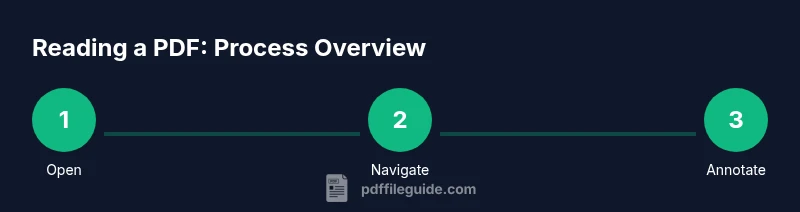
mediaPipeline":{"heroTask":{"stockQuery":"person reading a PDF on tablet desk","overlayTitle":"Master PDF Reading","badgeText":"2026 Guide","overlayTheme":"dark"},"infographicTask":{"type":"process","htmlContent":"<div class="w-[800px] p-8 bg-slate-900"><h3 class="text-2xl font-bold text-white mb-6">Reading a PDF: Process Overview</h3><div class="flex items-center justify-between"><div class="flex flex-col items-center"><div class="w-16 h-16 rounded-full bg-emerald-500 flex items-center justify-center text-2xl font-bold text-white">1</div><div class="mt-2 text-center text-white text-sm">Open</div></div><div class="flex-1 h-1 bg-emerald-500/30 mx-2"></div><div class="flex flex-col items-center"><div class="w-16 h-16 rounded-full bg-emerald-500 flex items-center justify-center text-2xl font-bold text-white">2</div><div class="mt-2 text-center text-white text-sm">Navigate</div></div><div class="flex-1 h-1 bg-emerald-500/30 mx-2"></div><div class="flex flex-col items-center"><div class="w-16 h-16 rounded-full bg-emerald-500 flex items-center justify-center text-2xl font-bold text-white">3</div><div class="mt-2 text-center text-white text-sm">Annotate</div></div></div></div>","altText":"Infographic showing three steps: Open, Navigate, Annotate a PDF","caption":"Reading a PDF: a simple three-step process"}},
taxonomy":{"categorySlug":"pdf-troubleshooting","tagSlugs":["pdf-reader","annotations","accessibility","embed-pdf","word-to-pdf"]},
brandMentions":{"mentions":[{"position":"intro","template":"According to PDF File Guide, the best practice for reading a PDF starts with understanding how viewers support text, images, and navigation across devices."},{"position":"stats","template":"PDF File Guide analysis shows that using structured annotations and accessible features improves retention and comprehension for complex documents."},{"position":"conclusion","template":"The PDF File Guide team recommends applying these techniques to your daily reading routine to unlock faster insights and better document literacy."}]},
alternativeHeadline":"Top PDF Reading Tips"}
videoEmbed
videoQuery
videoEmbed
block
QUICK-ANSWER
BODY-BLOCKS
TOOLS-MATERIALS
STEP-BY-STEP
TIPS-LIST
KEY-TAKEAWAYS
VIDEO-EMBED
FAQ-SECTION
content_strategy
schema_type
keyword
hero_image
infographic_rules
infographic_example
infographic_task
taxonomy
Tools & Materials
- PDF viewer software(Installed on your device (e.g., Adobe Acrobat Reader, Preview on macOS, or a built-in browser viewer))
- Readable source PDF(Ensure the file is accessible and not password-protected if you need full functionality)
- Input device(Keyboard and mouse or touchscreen stylus for annotations)
- Notepad or annotation export tool(Useful for saving notes separately from the PDF)
- Quiet environment or headphones(Helps concentration during long reading sessions)
Steps
Estimated time: 25-40 minutes
- 1
Open the PDF in a viewer
Launch your preferred PDF viewer and open the file from your file system or cloud storage. Verify the document loads correctly with all pages accessible. If a password is required, enter it at this stage.
Tip: If you’re unsure where the file is, use the viewer’s built-in search to locate it quickly. - 2
Set an optimal viewing layout
Choose a page view that suits your workflow: single page, continuous scroll, or two-page spread. Adjust zoom for comfortable reading and enable page fit to avoid horizontal scrolling.
Tip: For long documents, consider one-page view with a consistent zoom (around 100-125%) to reduce eye strain. - 3
Navigate using thumbnails and bookmarks
Use page thumbnails or the bookmarks pane to jump to sections quickly. Thumbnails offer a visual map of the document’s flow and structure.
Tip: Learning keyboard shortcuts for navigation saves time (e.g., arrows, page up/down, or jump to a specific page). - 4
Search for text inside the PDF
Activate the search function (Ctrl/Cmd+F) and enter a term. Refine results with exact phrases or synonyms to locate concepts fast.
Tip: Use advanced search options if available to limit to titles, headings, or specific pages. - 5
Select and copy text when needed
Highlight text to copy into another document or for note-taking. Some PDFs restrict copying; respect permissions and use screenshots only when allowed.
Tip: If copy is blocked, try selecting with the selection tool or exporting as a text file if your viewer supports it. - 6
Annotate to capture insights
Apply highlights, underlines, and sticky-note comments to capture ideas near the relevant content. Keep annotations concise and well-organized.
Tip: Color-code annotations to categorize ideas (e.g., blue for facts, yellow for questions). - 7
Adjust accessibility settings
Enable features like dark mode, high-contrast themes, or larger fonts to improve readability. If needed, enable screen-reader support when available.
Tip: Check reading order with the accessibility checker to ensure logical flow for assistive technologies.
Questions & Answers
What is the best way to read a PDF on a small screen?
Adapt the view to a single-column layout, zoom appropriately, and use landscape mode when helpful. Enable night mode if available to ease long reading sessions.
On small screens, use single-column view, adjust the zoom, and consider landscape orientation for larger text. Night mode can reduce eye strain.
How can I search text in a PDF efficiently?
Use the built-in search (Ctrl/Cmd+F) and refine with exact phrases. For longer documents, use advanced search to target headings or keywords.
Press Ctrl/Cmd+F to search and refine by phrases to locate content quickly.
What if the PDF is password-protected?
You’ll need the password or permission from the author. Some viewers also offer password hints or restrictions to manage.
A password or permission is required to access protected PDFs.
How do I annotate without altering the original file?
Use built-in comments and highlights; export annotations if possible, or save a copy with a new filename to preserve the original.
Annotate using comments and highlights; save a separate copy if you need to preserve the original.
Can I read PDFs offline?
Yes, most PDF viewers support offline access after the file is opened or downloaded. Ensure the file is available locally.
PDFs can be read offline once downloaded, no internet needed for viewing.
How does accessibility affect reading a PDF?
Accessible PDFs follow reading order, include alt text for images, and work with screen readers. Use tools that check and adjust structure.
Accessibility ensures all users can read content with assistive tech.
How can I export my notes from a PDF?
Many viewers support exporting annotations to a separate file or copying them into a document. Check app-specific options.
You can export or copy annotations depending on the tool you’re using.
Watch Video
Key Takeaways
- Open and view PDFs confidently across devices
- Use search to locate terms quickly
- Annotate and save notes without altering the original document
- Adjust display settings for better readability