How to Use a PDF File: The Complete How-To for Professionals
Learn a practical, step-by-step workflow to view, annotate, edit, convert, and securely share PDF files. This guide covers tools, best practices, and common pitfalls for professionals editing, converting, and optimizing PDFs.


You will learn a practical, repeatable workflow to use a PDF file effectively: view, search, annotate, edit, convert, and securely share documents. You’ll need a reliable PDF viewer, a capable editor, and optional conversion tools. This guide covers each stage with actionable steps and real-world tips for professionals.
What it means to use a PDF file
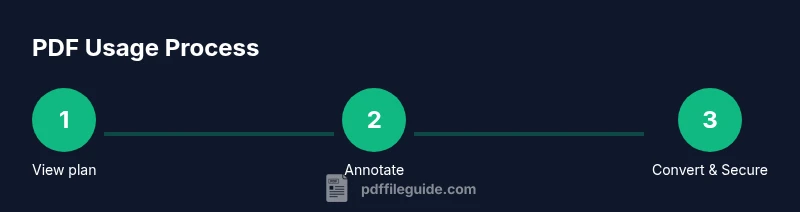
PDF stands for Portable Document Format. It preserves layout, fonts, and graphics, so a document looks the same across devices. When we say 'how to use a PDF file,' we mean more than simply opening it; we mean a repeatable workflow that covers viewing, navigating, annotating, editing (when permitted), converting, and securely sharing. For professionals who edit, convert, and optimize PDFs, a practical approach matters more than chasing every new tool. According to PDF File Guide, the most common tasks involve viewing content, adding comments, and exporting to editable formats, with security and accessibility features becoming increasingly important in modern workflows. The reader experience should be consistent whether you’re on a desktop, laptop, tablet, or phone. In this guide, you’ll learn a clear, repeatable process that you can apply to client deliverables, internal reports, or personal documents. By the end, you’ll have a reliable toolkit—keyboard shortcuts, settings to adjust document appearance, and checks to prevent common errors. The aim is to empower you with a professional workflow that scales from simple one-page forms to multi-section reports.
Essential tools and software for PDFs
To work efficiently with PDFs, you’ll rely on a few core tool categories. A dependable viewer is the baseline; most devices include one, or you can choose a dedicated app for features like quick search or split-view. A capable editor becomes essential when editing text, replacing images, or adjusting structure, especially for client-ready documents. Conversion tools help you move content into Word, Excel, PowerPoint, or image formats while preserving layout as much as possible. Annotation and commenting tools speed up collaboration by letting you highlight, strikeout, or add notes without altering the original file. For security-conscious work, password protection and permissions management are critical. Accessibility helpers, OCR (optical character recognition), and batch processing features save time on large projects. PDF File Guide recommends pairing at least one viewer, one editor (or a cloud-based editor), and a reliable converter to cover most tasks. If you frequently work on mobile, look for apps that synchronize across devices and support offline access. Budget accordingly: some paid tools offer more robust features, while many free options cover basic needs.
Viewing and navigating a PDF effectively
Effective viewing starts with a clean, distraction-free interface. Use the toolbar to access Search (Ctrl/Cmd+F), Thumbnails, and Bookmarks for quick navigation. Turn on continuous scrolling or two-page view when working with spreads, and use Fit to Page or Fit to Width to adjust the display. Bookmarks and table of contents help you jump to sections without scrolling endlessly. For long documents, enable reading mode on smaller screens and use the zoom tool to maintain legibility. If you deal with lots of PDFs, consider a reader that supports batch opening and tagging to organize your library. PDF File Guide notes that consistency in your viewing setup saves time across projects and devices, reducing the learning curve for teammates who share files.
Tools & Materials
- PDF viewer(Must support navigation features (search, bookmarks, thumbnails))
- PDF editor(Choose one with editable text and image support; OCR is a plus for scanned files)
- PDF converter(Useful for exporting to Word, Excel, or image formats; check layout retention)
- Annotation tool(Highlights, notes, and drawing tools help collaboration without altering the original content)
- Secure storage/sharing(Local or cloud storage with version history and access controls)
Steps
Estimated time: 45-90 minutes
- 1
Identify tools and prepare your workspace
List the tools you will use for this workflow (viewer, editor, converter, and storage). Open them and configure defaults (view mode, zoom, and default save locations) so you can work efficiently without repeatedly changing settings.
Tip: Test your setup on a sample PDF to ensure fonts, images, and links render correctly. - 2
Open the PDF and survey the document
Open the file and skim through to identify sections that require editing, highlighting, or note-taking. Check for corrupted pages and verify that fonts render properly. This initial survey helps plan the edits and annotations you’ll perform later.
Tip: Use the thumbnail pane to quickly validate page order and structure. - 3
Annotate and comment where needed
Add highlights, sticky notes, and comments to capture insights without changing the original text. Use color codes to distinguish types of feedback (legal, editorial, design). Save a copy as a working version.
Tip: Keep annotations synchronized with section headings to avoid misplacement during edits. - 4
Edit text or images (if allowed)
If the PDF is editable, update text, adjust images, or insert missing elements. If the file is scanned, run OCR to convert images to searchable text before editing. Always preserve font styles and layout.
Tip: Prefer editing in a separate version to preserve the original for reference. - 5
Convert to another format when needed
Export the PDF content to Word, Excel, PowerPoint, or image formats as required. Review formatting after conversion and fix any misaligned elements or fonts. Use OCR-assisted conversion for scanned content.
Tip: Check for bullet style, table integrity, and image placement after conversion. - 6
Apply security and permissions
If sharing externally, set a password, restrict editing or printing, and consider redacting sensitive data. Apply digital signatures if required, and remove hidden metadata that could expose confidential information.
Tip: Always test the security settings by trying to open the file with a fresh session. - 7
Save, back up, and share
Save the final version with a clear naming convention. Create a backup copy and store it securely. Share via a controlled channel (link with expiry, access control) and keep a record of recipients.
Tip: Use a review checklist to confirm no sensitive data remains exposed. - 8
Review and reflect on the workflow
After completion, review what worked and what could be improved. Document the steps as a mini-standard operating procedure for future PDFs. This makes your process efficient and repeatable.
Tip: Schedule periodic audits of your PDF toolkit to stay current with new features.
Questions & Answers
What is the simplest way to view a PDF?
Most devices include a built-in PDF viewer or you can use a web browser. Open the file to access basic navigation, bookmarks, and search.
Open the PDF in your browser or a dedicated viewer; use the search and bookmarks to navigate quickly.
Can I edit a PDF?
Editing depends on the PDF type. If it is enabled for editing, you can modify text and images; if it’s a scanned file, OCR is required to edit.
If your PDF allows editing, use an editor; otherwise, perform OCR to convert it to editable text.
How do I annotate without changing the original file?
Use annotation tools that leave the original content intact, such as highlights and comments. Save a copy with annotations to preserve the original.
Add notes and highlights without altering the source; keep a separate annotated version.
What formats can PDFs be converted to?
Common targets include Word, Excel, PowerPoint, and image formats. Conversion quality varies with the tool and content; always review the result.
Convert to Word, Excel, PPT, or images; check formatting after conversion.
Are there security concerns when sharing PDFs?
Yes. Use passwords, permissions, and redaction as needed. Be mindful of metadata that could expose sensitive information.
Protect with passwords and permissions; redact sensitive data before sharing.
Which tool is best for OCR?
Choose an OCR-enabled editor or converter and verify accuracy by proofreading the extracted text. Correct errors before finalizing.
Look for OCR features in your editor; proofread results for accuracy.
Watch Video
Key Takeaways
- Master PDF tasks with a repeatable workflow
- Use at least one viewer, one editor, and one converter
- Always verify conversions and preserve original documents
- Protect sensitive PDFs with passwords and permissions