What to Do If a PDF Won't Open in WhatsApp
Struggling to open a PDF sent via WhatsApp? This urgent, step-by-step guide helps you diagnose and fix download integrity, viewer compatibility, storage, and encryption issues.


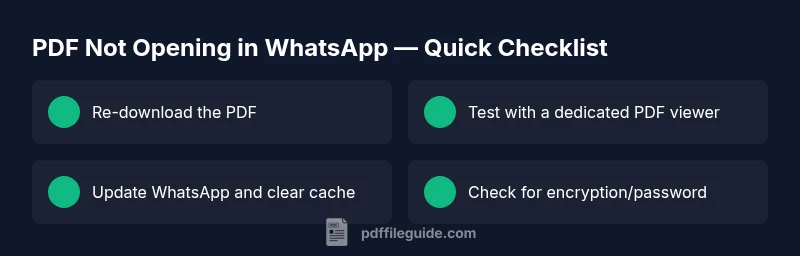
Most often the problem is a corrupted download or an incompatible PDF viewer. Quick fixes: re-download the PDF from WhatsApp, try opening it in a dedicated viewer, and ensure your device has enough storage and a stable connection. If it still fails, update WhatsApp, clear the app cache, and test with a different PDF to isolate the issue.
Why PDFs Won't Open on WhatsApp
According to PDF File Guide, the most common reasons a PDF won't open in WhatsApp are file integrity problems and viewer compatibility. Even when a sender correctly attaches a PDF, a damaged download, partial transfer, or a mismatch between the file version and your device's viewer can prevent a readable result. In many cases, the issue isn't the message itself but the way mobile apps handle large attachments, temporary storage, or cached data. Start by validating that the file downloaded fully, that you have enough free space, and that your PDF viewer supports the file version. This approach aligns with our troubleshooting framework: verify the basics first, then isolate the fault, and finally apply targeted fixes. The PDF File Guide team has found that simple steps taken in sequence resolve the majority of opening problems without risking data loss. If you still can't open, confirm the file isn't a password-protected or encrypted version sent by mistake, and move to the next steps.
Common Causes to Check First
Begin with the low-hanging fruit. A corrupted download is one of the most frequent culprits—if the file didn't download completely, the PDF reader will fail to parse it. Insufficient device storage or memory can also hinder opening, especially on older phones. An outdated WhatsApp version or an older PDF viewer may lack compatibility with newer PDF features. Similarly, some PDFs arrive with security restrictions (encryption or password protection) that block opening in third-party viewers. Sender-side limitations, like sending a file in a non-standard encoding, can also create issues. The next steps focus on confirming these possibilities using simple tests: re-download, check storage, update apps, and try a different PDF. PDF File Guide analysis shows that updates and cache-clear procedures solve many cases, so keep those in mind as you proceed.
Testing Scenarios: Isolate the Problem
Test 1: Try opening another PDF from the same chat or from a different app. If another file opens fine, the issue is likely with the original PDF's integrity. Test 2: Download the problematic PDF again and attempt to open it with a dedicated viewer app rather than within WhatsApp. If the file opens in the viewer, the problem is likely WhatsApp's handling of the attachment. Test 3: Use a different device or network to rule out network or device-specific quirks. If the same PDF refuses to open on multiple devices, the file is probably encrypted or corrupted.
Device Settings and Viewer Apps: Permissions and Defaults
Ensure WhatsApp has storage permissions enabled so the app can download attachments to your device. Set a default PDF viewer (or install a trusted one) and use it to test the file directly. Clear WhatsApp's cache to remove stale data that could block new downloads, and consider reinstalling the app if issues persist. Avoid opening attachments from unknown sources on public Wi-Fi to protect your device. If you rely on cloud storage, make sure the file isn't stream-blocked by network policies.
Special Case: Encrypted or Password-Protected PDFs
Some PDFs arrive with encryption or password protection. If the sender intended to restrict access, you need the password or a non-protected copy. Do not bypass protections with third-party tools; this can violate terms of service and expose your device to malware. If you know it's a protected file, request the password from the sender or ask them to share a non-protected version. In some cases, corporate devices block certain encryption methods; consult your IT policy if you encounter such blocks.
Prevention and Best Practices to Avoid This Again
Use a reliable, up-to-date viewer and keep WhatsApp updated. Download PDFs only from trusted sources and avoid large, multi-megabyte files over unstable networks. Regularly clear app caches and manage storage to ensure room for new attachments. If you routinely share PDFs, consider compressing large files or using a different sharing method (cloud link) to reduce the risk of partial downloads. Finally, educate senders about standard PDF practices (unlocked permissions, common encodings) to minimize compatibility issues.
Steps
Estimated time: 15-25 minutes
- 1
Verify download and storage
Ensure the PDF downloaded completely and there is adequate storage. If the file size matches expectations, move on; if not, re-download over a stable connection.
Tip: Prefer a strong Wi‑Fi connection to avoid partial downloads. - 2
Update apps and clear cache
Update WhatsApp and your PDF viewer to the latest versions. Clear the cache for WhatsApp to remove stale attachments that could block new downloads.
Tip: Back up messages before clearing cache if possible. - 3
Test with a dedicated viewer
Open the downloaded file in a standalone PDF reader to determine if the issue is with WhatsApp or the file itself.
Tip: If it opens in the viewer but not in WhatsApp, the problem is with WhatsApp's handling of attachments. - 4
Re-download and try a different file
If the original PDF still won't open, re-download it again and try a different PDF to compare behavior.
Tip: Sometimes sender-side issues affect a single file. - 5
Check encryption or password needs
If the PDF asks for a password, confirm you have the correct password or request a non-protected copy from the sender.
Tip: Never try to bypass password protection with third-party tools. - 6
Assess device and try another device
If possible, test the file on another device to see if the problem is device-specific or network-related.
Tip: A different device often clarifies whether the issue is the PDF or the environment.
Diagnosis: PDF won't open in WhatsApp
Possible Causes
- highCorrupted or partial download from WhatsApp
- highOutdated or incompatible PDF viewer app
- mediumInsufficient device storage or memory
- mediumWhatsApp version bugs or cache issues
- lowPDF file encrypted/password-protected
Fixes
- easyRe-download the PDF from WhatsApp and attempt to open again
- easyOpen the file in a dedicated PDF viewer to test compatibility
- easyUpdate WhatsApp to the latest version and clear its cache
- easyFree up storage and close unused apps to free RAM
- easyIf encryption is suspected, request a non-protected copy or password
Questions & Answers
Why won't a PDF open after I tap it in WhatsApp?
Most often the issue is a corrupted download, an incompatible viewer, or encryption. Re-download, try a dedicated viewer, and update apps.
Usually the download, viewer compatibility, or encryption is the problem. Re-download and test with a viewer.
What should I do first when a PDF won't open?
Check your internet connection, ensure sufficient storage, and update WhatsApp. Then re-download and test with a dedicated PDF viewer.
First check connection and storage, then update apps and re-download.
Is it a problem with WhatsApp or the PDF itself?
Test by opening another PDF in WhatsApp or in a different app. If other PDFs work, the issue is likely with the file.
If other PDFs open, the problem is likely with the file.
Can password protection prevent opening in WhatsApp?
Yes, if the PDF is encrypted. You need the password or a non-protected copy from the sender.
If it asks for a password, you need the correct password.
What if none of these steps work?
Contact the sender for a non-protected copy or seek IT support for advanced fixes.
If nothing works, ask the sender for a non-protected version.
Watch Video
Key Takeaways
- Re-download and test with a viewer to confirm integrity.
- Update apps and clear cache to fix most issues.
- Check for encryption or password requirements before proceeding.
- Use safe sharing methods to prevent future problems.