Why Is My PDF Not Opening? Troubleshooting Guide
A comprehensive, step-by-step guide to diagnose why a PDF won't open, with quick fixes, safety tips, and prevention strategies. Learn how to verify file integrity, fix reader issues, and resolve permission or device problems.


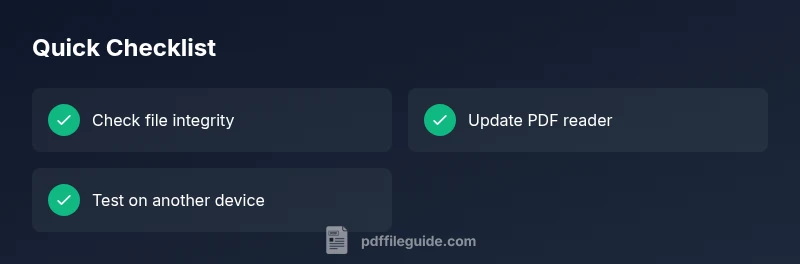
Most PDFs fail to open due to corruption, outdated software, or blocked access. Quick steps: update or reinstall your PDF reader; try a different PDF to verify the issue; re-download the file; clear the app cache; and test on another device. If it still won’t open, try repairing the file with a repair tool or consult support.
Common reasons PDFs won't open
If a PDF fails to open, the issue is rarely the file type itself. In many cases, it’s either a corrupted file, an outdated PDF reader, or a security setting that blocks the document. According to PDF File Guide, the most frequent culprits are corrupted downloads, mismatched versions between the file and the viewer, and restrictions placed by antivirus software or enterprise security policies. Start by verifying whether the problem occurs with only one file or with multiple PDFs. If other PDFs open normally, the problem is likely with the specific file; if none open, your software or device is the likely bottleneck. We’ll provide a clear diagnostic path that helps you move quickly from diagnosis to resolution, prioritizing safety and data integrity.
Check the file integrity and source
Begin by confirming the source of the file and its integrity. If the file was emailed or downloaded, re-download it from a trusted source. Try opening other PDFs from the same source to see if the issue is file-specific or system-wide. If other PDFs work, the problem is most likely with that particular file or its transfer. Use a checksum or hash if the sender provides one, and compare it to yours to verify integrity. This step prevents wasting time on reader fixes when the file itself is flawed and helps you document the problem for support if needed.
Update or reinstall your PDF reader
An outdated or corrupted reader can fail to render modern PDFs. Check for updates to your reader or browser-based viewer, and consider a clean reinstall to reset settings. After updating, restart your device and try opening the file again. If you rely on multiple viewers, test the PDF in a different application to determine whether the problem is viewer-specific. Keeping software current reduces compatibility issues and improves security against exploits.
Permissions, security, and blocked access
Security settings can block PDFs from opening, especially on managed devices or corporate networks. Verify that you have permission to access the file and that antivirus or firewall software isn’t blocking the PDF or the viewer. Temporarily disable real-time scanning or whitelist the viewer and the PDF source if safe to do so, then retry. If the file resides on a network drive, copy it to local storage and attempt to open it there. Always balance security with usability and revert any temporary changes after testing.
Device and platform compatibility
Some PDFs rely on features not supported by all devices or operating systems. Check whether the file uses layers, fonts, or forms that require specific software or plugins. On mobile devices, ensure your PDF reader has the necessary permissions (storage, camera, or accessibility services). If you’re using an older device, try another device with broader compatibility to determine if the problem is platform-related. Compatibility issues are common but solvable with the right viewer and settings.
Advanced fixes for stubborn cases
When basic checks fail, advanced fixes can salvage a stubborn PDF. Try opening the file in a browser (Chrome, Edge, or Firefox) as a quick fallback, or use a reputable PDF repair tool to reconstruct the file’s structure. If the PDF is password-protected, ensure you have the correct credentials. In enterprise environments, consult IT for policy-related blocks and potential remediation. If none of these steps work, consider requesting a fresh copy from the sender or recreating the file from an original source to preserve data integrity.
Steps
Estimated time: 25-40 minutes
- 1
Verify file integrity
Confirm you’re using a valid copy of the file. Try opening other PDFs and compare behavior. If only this file fails, it’s likely corrupted or incomplete. If multiple files fail, the issue leans toward the reader or device.
Tip: Try a fresh download or ask the sender for a new copy. - 2
Update your PDF viewer
Check for updates to your PDF application or browser. A fresh install can reset permissions and fix compatibility issues with newer PDF features.
Tip: Restart after updating to ensure changes take effect. - 3
Test on a different viewer or device
Open the PDF in a different viewer or on another device to determine if the problem is viewer-specific or device-related.
Tip: If it works elsewhere, you’ve narrowed the cause to your primary viewer. - 4
Check security and access settings
Ensure you have permission to access the file and that antivirus/firewall software isn’t blocking the viewer or the file.
Tip: Temporarily disable real-time protection only if safe and authorized. - 5
Try a browser-based open
Open the PDF directly in a web browser as a quick workaround to verify if the issue is with the app rather than the file.
Tip: Browsers can render PDFs without additional plugins. - 6
Use repair tools or re-create the file
If the file remains inaccessible, attempt a trusted repair tool or request a fresh copy from the source, then test again.
Tip: Keep a backup before attempting repairs.
Diagnosis: User attempts to open a PDF and nothing happens or an error is shown.
Possible Causes
- highCorrupted PDF file
- highOutdated or incompatible PDF reader
- mediumPermission or security restrictions
- mediumAntivirus or firewall blocking the file/viewer
Fixes
- easyUpdate, reinstall, or switch PDF viewer to isolate compatibility issues
- easyRe-download the PDF from a trusted source to rule out corruption during transfer
- easyOpen the file on another device or browser to identify platform-specific problems
- mediumTemporarily adjust security settings or whitelist the viewer if safe to do so
- mediumUse a PDF repair tool if the file is corrupted and cannot be opened by standard viewers
Questions & Answers
Why won’t my PDF open after updating the viewer?
Updates can temporarily change settings or require a restart. After updating, restart the device and try opening the PDF again. If it still fails, test with another viewer to determine if the issue is viewer-specific.
After updating, restart your device and try again. If it still won’t open, test a different viewer to rule out viewer-specific problems.
How can I tell if a PDF is corrupted?
If other PDFs open normally but this one doesn’t, the file is likely corrupted or incomplete. Attempt re-download or request a fresh copy from the sender. You can also try a repair tool on the file.
If other PDFs work, this one is probably corrupted; try re-downloading or repairing the file.
What about password-protected PDFs?
Enter the correct password to access the document. If you’ve forgotten it, contact the sender or check if a protected copy exists.
If it’s password-protected and you don’t have the password, you’ll need to contact the sender.
Can antivirus software block PDFs from opening?
Yes. Check antivirus settings to whitelist the PDF viewer or the download location. Avoid leaving protections disabled; re-enable them after testing.
Antivirus can block PDFs; adjust settings or whitelist the viewer, then test again.
Is it safe to repair PDFs online?
Use trusted, reputable tools. Be cautious with online services and always scan results with your security software. Prefer offline tools when possible.
Be careful with online repair tools; choose reputable ones and scan results.
Watch Video
Key Takeaways
- Verify file integrity before reader tweaks
- Keep PDF software up to date
- Test on another device to isolate issues
- Check permissions and security settings
- Know when to seek IT help or professional repair