Why PDF Won't Open on Your PC: A Complete Troubleshooting Guide
Urgent guide to fix PDFs that won’t open on Windows or Mac. Step-by-step checks, troubleshooting flow, and safe fixes from PDF File Guide.


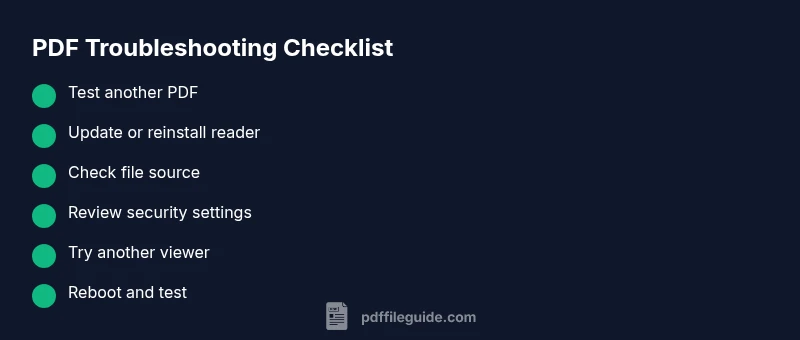
Most PDF opening issues on a PC stem from a corrupted file or outdated software. First, test another PDF to confirm the problem isn’t the file. Update or reinstall your PDF reader, and try a different viewer if available. If the issue persists, continue with the detailed steps below from PDF File Guide.
Why PDFs Fail to Open on a PC
PDFs can refuse to open for several reasons. If you’re wondering why pdf is not opening in my pc, the first clue is that the problem often isn't the software at all. It can be a corrupted file, a stalled download, or a viewer that's out of date. According to PDF File Guide analysis, many opening failures trace to mismatched file formats (PDF/A vs standard PDF), or to settings that block unknown documents. Start by verifying the file you’re trying to open: is it complete, and did it download fully? If the file is large, ensure your system has enough RAM and disk space to render pages. Next, check that you’re using a compatible reader. Windows and Mac both have built-in viewers, but third-party apps like Adobe Reader, Foxit, or browser-based viewers can handle different PDF features better. If the issue persists after these checks, continue with the deeper troubleshooting below.
Common Causes: File Corruption, Incompatible Readers, and Security Blocks
- File corruption: The download may be damaged or incomplete, causing the reader to fail at render time.
- Outdated reader: An older version might not support newer PDF features or fonts used in the document.
- Incorrect file associations: The system may not know which program should open PDFs by default.
- Security blocks: Antivirus, Windows Defender, or browser security can block untrusted PDFs from opening.
- Password protection: Some PDFs require a password before viewing.
- Permissions: The file is stored in a protected folder with restricted access.
Based on PDF File Guide analysis, the most common fixes involve checking the source file and updating software before trying advanced steps.
Quick Checks You Can Do Right Now
- Try to open a different PDF: If it opens, the original file is likely the issue. If not, a system/reader problem is more likely.
- Restart your PC: A fresh boot can clear temporary errors affecting file handles.
- Update or reinstall your PDF reader: Use the official site or app store to get the latest version.
- Open with an alternate viewer or browser: Chrome, Edge, or Firefox can render PDFs without extra plugins.
- Check for password protection: If prompted for a password, obtain it from the source.
- Review security settings: Temporarily disable antivirus features that may block PDF files, then re-enable them after testing.
When to Update or Reinstall Your PDF Reader
If your reader shows outdated components, install the latest version and re-check file associations. After updating, set the preferred viewer as the default PDF app in your system settings. If the problem persists, uninstall the old version completely, then install fresh from a trusted source. Always verify the installer is from the official vendor to avoid bundled bloatware.
Advanced Issues: System and Security Settings
Some Windows security features can block PDFs, especially from external drives or network locations. Check SmartScreen settings and ensure the path to the file is trusted. Verify file permissions and move the PDF to a non-protected folder if needed. Finally, consider a system health check: corrupted system files or a misconfigured user profile can disrupt how apps access documents.
Steps
Estimated time: 30-45 minutes
- 1
Verify the problem with multiple PDFs
Open several PDFs from different sources to determine if the issue is file-specific or system-wide. Note if any error messages appear and save screenshots for reference.
Tip: Use reputable sources to rule out corrupted downloads. - 2
Test the file source and re-download if needed
If the problematic file came from email or a download portal, re-download it using a direct link from a trusted source. Compare file sizes to expected values when possible.
Tip: Avoid network drives that may corrupt transfers. - 3
Update or reinstall your PDF reader
Check for updates and install the latest version. If needed, fully uninstall the old version and perform a clean install from the official vendor.
Tip: Always download installers from the vendor site. - 4
Set the correct default PDF viewer
In Windows, go to Settings > Apps > Default Apps and select your preferred PDF viewer. On macOS, use the Get Info pane to choose the default app.
Tip: Keep your default viewer consistent for predictable behavior. - 5
Try alternative viewers or browser-based viewing
Open the PDF in another program or in a modern browser. If it opens, the problem may be viewer-specific.
Tip: Browsers render PDFs without additional plugins. - 6
Check security blocks and permissions
Temporarily disable antivirus or SmartScreen blocks to test, then re-enable. Ensure the file is in a non-restricted folder with proper permissions.
Tip: Do not leave security off for long. - 7
Inspect system resources and health
Check available RAM and disk space. Run a quick system health check to rule out broader issues affecting file access.
Tip: Close heavy apps to free up memory. - 8
Escalate if needed
If none of the above works, contact vendor support or IT for a deeper system check, and consider testing on another computer to isolate hardware issues.
Tip: Document error messages and steps tried for support.
Diagnosis: PDF won't open on PC
Possible Causes
- highCorrupted or incomplete PDF file
- highOutdated or incompatible PDF reader
- mediumSecurity blocks or permissions
- lowSystem-level file access issues or malware interference
Fixes
- easyTest with a different PDF to confirm file fault
- easyUpdate or reinstall the PDF reader and reset default app associations
- easyDownload a fresh, clean copy from a trusted source
- mediumCheck antivirus/SmartScreen settings and temporarily relax blocks
- easyTry another viewer/browser to rule out viewer-specific problems
- easyEnsure sufficient disk space and RAM for rendering
Questions & Answers
Why won't my PDF open on Windows PC?
PDF opening failures often come from a damaged file or an outdated reader. Start by testing another PDF and updating your viewer, then move through this guide if the problem remains.
PDF opening failures usually come from a damaged file or outdated software. Try another PDF and update the viewer, then continue with the guide if it persists.
Why does a PDF open in a browser but not in a desktop reader?
Browsers use built-in PDF renderers which may handle different features than desktop readers. Check your default app and test with another reader.
Browsers render PDFs with built‑in viewers, which can differ from desktop apps. Ensure the desktop app is up to date or try a different viewer.
How can I tell if a PDF is password-protected?
If a prompt asks for a password before viewing, the file is protected. Obtain the password from the source or request an unprotected copy.
If you’re prompted for a password, the file is protected. Get the password from the source or ask for an unprotected copy.
What should I do if I can't change the default PDF viewer?
Use the operating system settings to reset the default app for PDFs, or reinstall the viewer and reassociate PDFs.
Reset the default PDF viewer in OS settings or reinstall the viewer to reapply associations.
Is it safe to disable antivirus to open a PDF?
Disabling antivirus temporarily can expose you to risks. Try safe testing by using trusted PDFs and only disable protections briefly if needed.
Temporarily disabling security features can be risky. Only do so briefly and for trusted PDFs, then re-enable protections.
How can I prevent PDF opening issues in the future?
Keep software updated, download from trusted sources, and regularly clean browser caches to avoid corrupted downloads.
Keep software updated and download from trusted sources to prevent future issues.
Watch Video
Key Takeaways
- Verify the file source first to rule out corruption
- Update or reinstall your PDF reader for compatibility
- Test with an alternate viewer or browser
- Securely adjust security settings only for testing and re-enable afterward