Delete a Page in PDF Online: A Complete How-To Guide
Learn how to delete a page in PDF online using trusted tools. This guide covers choosing reputable editors, step-by-step deletion, preserving formatting, and safety practices to protect your data.


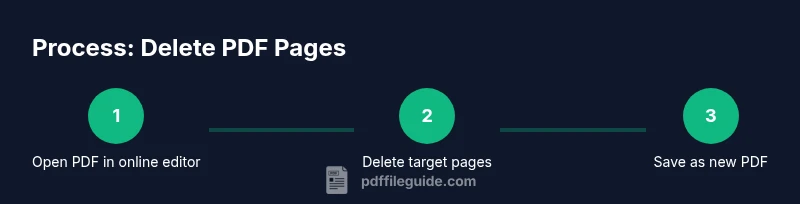
To delete a page in PDF online, upload your file to a reputable online editor, locate the page thumbnails, select the pages to remove, and apply the delete action. Save or export the edited document as a new PDF to avoid altering the original. Always verify the remaining pages and ensure no links or bookmarks were affected.
Why Deleting Pages Online Matters
In many professional workflows, you may need to remove outdated or sensitive pages from a PDF without installing software. Doing so online can be fast and convenient, but it also requires care to protect privacy and preserve formatting. According to PDF File Guide, choosing trustworthy tools reduces the risk of data leakage and ensures that page deletion does not disrupt embedded links, bookmarks, or form fields. This section lays the groundwork for a safer, more efficient approach to delete page in pdf online, whether you’re preparing a client report, redacting obsolete sections, or pruning large project documents. By understanding the value of online edits, you can decide when cloud editing is appropriate and when a desktop alternative might be preferable. The goal is to maintain document integrity while achieving the required page count and layout after removal.
Online Tools vs Desktop Apps: Pros and Cons
Online editors offer convenience, quick access, and cross-device compatibility. They’re ideal for simple deletions or when you don’t want to install software. However, you must weigh privacy, potential file size limits, and the possibility of automatic compression that could affect layout. PDF File Guide analysis shows that reputable editors typically provide clear privacy policies, session-based processing, and secure transfer protocols. Desktop tools often deliver stronger control over large files and batch operations but require installation and updates. When you plan to delete a page in pdf online, consider the sensitivity of the material and whether the editor supports preserving internal links and metadata.
How to Choose a Reputable Online Editor
Your choice of online editor matters. Look for providers with transparent privacy terms, data retention policies, and a good user reputation. Check reviews and search for any past security incidents. Prefer editors that offer a preview mode so you can confirm which pages will be removed before committing. If your document contains sensitive information, opt for editors that allow you to delete locally in your browser or that publish to a temporary, disposable workspace. PDF File Guide recommends verifying that the service supports secure HTTPS uploads, publishes an explicit consent flow, and provides an option to export a fresh copy without altering other elements.
Common Pitfalls When Deleting Pages Online
Many tools do not preserve bookmarks, internal links, or form fields after deletion. In some cases, deleting pages can shift page numbering, affecting headers or cross-references. Always review the final document and, if possible, test with a copy first. Another pitfall is using a free service that embeds your file in an advertising-backed environment; this can raise confidentiality concerns. Use a trusted editor, and keep a backup of the original file before you initiate the deletion process. As the PDF landscape evolves, stay informed about platform-specific quirks that may influence the outcome of delete page in pdf online tasks.
Best Practices for Maintaining Document Integrity
After removing pages, perform a quick integrity check: verify that all crucial links, tables of contents, and bookmarks still work, and confirm that the page order remains logical. If the PDF contains forms, test that fields still populate correctly after deletion. Consider exporting to a new PDF to isolate the edited version from the original. If confidentiality is critical, prefer editors that process files locally in the browser or provide a server-side option with a clear data-sanitization policy. PDF File Guide emphasizes that documenting the steps you took can help with audits and future edits.
Troubleshooting Common Issues
If you notice layout shifts after deletion, re-check the margins and content flow in the editor's preview. Some tools compress fonts or reflow text, which can alter appearance. If links break or bookmarks disappear, try a different editor or re-import the edited file into a PDF reader to verify behavior. When in doubt, revert to a backup and attempt the deletion with another reputable tool. Keeping multiple backups ensures you can recover if a chosen workflow results in unintended changes.
Security Considerations and Privacy Tips
Deleting pages online can expose content to third-party servers. To minimize risk, limit file exposure by choosing editors with strict privacy policies, short retention times, and encrypted transfers. Use strong passwords for any accounts you sign into and avoid sharing files containing highly sensitive information unless necessary. If your organization has data governance requirements, consult your security team or legal counsel before performing online edits. PDF File Guide recommends performing sensitive edits locally when feasible and only using trusted services for non-confidential tasks.
Final Checklist Before Saving
- Confirm the exact pages selected for deletion using page thumbnails.
- Review the edited document thoroughly for broken links and formatting issues.
- Save or export as a new PDF to preserve the original.
- Verify metadata, forms, and interactive elements remain intact.
- Keep a backup copy of the original file in a secure location.
Tools & Materials
- Web browser with internet access(Ensure it is up to date for best compatibility)
- Online PDF editor(Choose a reputable service with clear privacy policies)
- Original PDF file(Back up before editing to avoid data loss)
- Device with reliable connection(Desktop preferred for precision; mobile is acceptable for quick edits)
- Account for the editor (optional)(Some tools require sign-in for access to features)
- Optional: PDF reader for verification(Cross-check the final document after download)
Steps
Estimated time: 15-25 minutes
- 1
Open your PDF in an online editor
Upload the file or open it via a provided URL. Ensure you’re using a reputable editor with strong privacy controls, and that the file opens correctly in the editor’s preview. This sets the stage for precise deletion and preserves the rest of the document.
Tip: Use the editor’s autosave and save a copy as a precaution. - 2
Navigate to the page view or thumbnails
Switch to the page thumbnails or a thumbnail sidebar so you can clearly see the pages you want to remove. This makes it easier to select a range or individual pages without missing anything.
Tip: Enable thumbnail size for better visibility if available. - 3
Select the target pages to delete
Click or drag to select the pages you wish to remove. Some editors support a range (e.g., pages 5-7) or individual selections. Double-check the selection before proceeding.
Tip: If your tool supports multi-select, use Shift-click for ranges. - 4
Apply delete action and review
Use the delete or remove option in the editor. Immediately review a few pages before and after the deletion to confirm the sequence and that no essential content was affected.
Tip: Prefer a preview mode if available to catch layout issues early. - 5
Save as a new PDF
Export or save the edited file as a new PDF to avoid overwriting the original. Choose a clear filename that indicates it’s the edited version (e.g., Project_Report_v2).
Tip: Avoid overwriting the original unless you have a verified backup. - 6
Verify the final document
Open the new PDF in a reader to ensure all pages are intact, bookmarks work, and there are no missing internal links. Check any forms or interactive elements if present.
Tip: Run a quick search to confirm page counts match expectations. - 7
Secure the original and the copy
Store the original securely and archive the edited copy in a dedicated folder. If the content is sensitive, consider additional encryption or access controls.
Tip: Document the deletion steps for audit purposes.
Questions & Answers
Is it safe to delete pages in PDF online, and how do I protect sensitive information?
Online edits can be safe with trusted editors and proper privacy terms. Always read the service’s data handling policy, avoid uploading highly sensitive content, and prefer local or in-browser edits when confidentiality is critical. Back up your original file first.
Online edits can be safe with trusted editors and proper privacy terms. Always back up your original file and consider local edits for very sensitive documents.
Can I undo a page deletion after saving the edited PDF?
Once you export a new PDF, undoing the deletion is only possible if you saved a copy of the original. Always keep the original safe and, if possible, edit on a copy to preserve the ability to revert.
Undoing is only possible if you kept the original or a backup copy. Edit on a copy to keep a revert option.
Will deleting pages affect bookmarks or internal links?
Deleting pages can disrupt bookmarks and internal links if they reference removed pages. Use a thumbnail view to verify that links still point to the correct pages after deletion.
Yes, bookmarks and links can be affected; verify by testing navigation after deletion.
What should I consider when choosing an online editor for page deletion?
Look for a tool with clear privacy terms, a preview mode, and the ability to export a new file without altering the original. Favor editors with data retention policies and encryption.
Choose editors with good privacy terms, a preview, and a clean export option.
Can I delete multiple non-contiguous pages in one pass?
Many editors support selecting multiple pages or a page range. If your tool doesn’t, delete pages in smaller groups and review the document between steps.
Yes, many editors allow multiple selections; if not, use smaller groups and verify after each step.
What should I do if the online tool compresses or alters the layout?
If compression or layout shifts occur, try a different tool or adjust export settings. Always compare the edited file against the original to catch formatting changes.
If layout changes, switch tools or adjust export settings and compare with the original.
Watch Video
Key Takeaways
- Back up the original file before deleting pages.
- Choose a reputable online editor with clear privacy policies.
- Verify the final document for links, bookmarks, and formatting.
- Export as a new PDF to preserve the original.
- Document the deletion steps for future audits.