Remove a Page from PDF for Free
Learn how to remove a page from a PDF for free, using online and offline tools. This educational guide covers safe methods, backups, and a clear workflow for non-sensitive documents.


Remove a page from a PDF for free by using free online editors or desktop tools. This quick answer provides a trusted workflow, required preparations, and cautions about privacy. You’ll learn to remove a page, save a new copy, and keep your remaining pages intact. Whether you’re editing a report or sharing drafts, this approach avoids software installation.
Why removing a page from a PDF can be necessary
In many professional workflows, you may need to remove a page from a PDF for free to update reports, exclude confidential appendices, or tailor a document for different audiences. Regardless of the reason, you want a method that preserves the rest of the document’s layout and data. The ability to delete a page without compromising the remaining content is a common requirement for students, researchers, and office professionals. This article helps you perform the task securely using free tools, while keeping your original file intact. According to PDF File Guide, mastering free deletion workflows can save time and reduce reliance on paid software, especially for straightforward edits. By understanding several approaches, you can choose the method that best fits your privacy needs and technical comfort level. This is especially helpful when you need to remove a single page from a long report or a multi-page form while preserving the rest of the document.
Free methods to remove a page from PDF
There are both online and offline options that let you remove a page from a PDF for free. Online editors often provide a quick, no-install solution, but you should review privacy policies before uploading sensitive content. Offline tools can be installed on your computer and may offer more control over layout and fonts. In practice, many users start with a reputable online editor for simple files and switch to a desktop tool for larger documents or sensitive materials. This approach balances convenience with privacy, and it aligns with what the PDF File Guide team typically recommends for non-sensitive documents. For a privacy-conscious workflow, combine a desktop editor with a backup copy of your original file. Free editors commonly support selecting a page or a range (for example, pages 2–3) and removing it, followed by saving a new PDF. You’ll want to confirm that the tool preserves hyperlinks and bookmarks if those features are important to your document, as some editors reflow content after deletion. PDF File Guide analysis shows that users often see differences in how fonts render after removal, so it’s wise to compare the edited file to the original to ensure no unintended changes.
Safety, privacy, and quality considerations
Privacy is a critical factor when choosing a free tool to remove a page from a PDF for free. Online services upload your file to their servers, which may retain copies or use automated processing. If the document contains sensitive data, prefer offline software or reputable web apps with explicit privacy statements and data deletion policies. Quality concerns also matter: some free editors can shift margins, reflow text, or alter image quality after deletion. Always review the edited PDF carefully, checking that the remaining pages maintain their original formatting, fonts, and images. If you rely on accessibility features, verify that the removal has not affected document structure or tags. The PDF File Guide guidance emphasizes avoiding tools with ambiguous data handling and recommends keeping a backup copy until you’re confident the result is accurate.
How to prepare and verify the result
Preparation starts with locating the exact page to remove and deciding whether the content contains hidden elements like comments or annotations. Before editing, create a backup copy of the original PDF to ensure you can return to the source if something goes wrong. When you finish the removal, immediately save the edited file under a new name to avoid overwriting the original. Finally, verify the new document by scrolling through every page, testing links and forms, and comparing against the original to confirm that only the intended page was removed. If you can, open the file in a different viewer to test compatibility across platforms. This thorough verification helps prevent issues in later sharing or printing. As noted by PDF File Guide, systematic checks reduce the risk of accidental data loss during free edits.
Best practices for different document types
For simple text documents, free online editors usually perform well without noticeable impact on readability. For documents with images, charts, or complex layouts, offline editors often preserve formatting better after page deletion. If your PDF is part of a formal submission or a compliance process, consider keeping the original file archived and saving a new version with clearly labeled metadata (e.g., “ProjectX_Report_v2_removed-page2.pdf”). In all cases, maintain a robust backup strategy and document the steps you took for future reference. PDF File Guide’s practical approach favors offline tools for sensitive PDFs and online tools for quick, low-risk tasks, ensuring you stay efficient without compromising data protection.
Tools & Materials
- Internet-connected device (PC, Mac, or mobile)(Ensure you have a browser or app to run the tool)
- Original PDF file(Create a backup copy before editing)
- Free online PDF editor or desktop tool(Check privacy policy and data handling)
- Web browser(Compatible with the editor you choose)
- Optional offline PDF editor(Use if you have privacy concerns with online tools)
Steps
Estimated time: 20-30 minutes
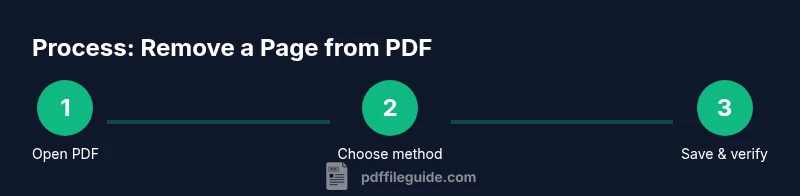
- 1
Open the PDF
Open the PDF in your chosen tool and locate the exact page to remove. Confirm page numbering and check for any hidden pages or bookmarks that could be affected by the edit.
Tip: Use the thumbnail pane to view pages quickly and accurately. - 2
Choose removal method
Decide whether you will delete the page using an online editor or a desktop tool. Compare privacy policies and consider whether the document contains sensitive information.
Tip: Offline tools are typically more privacy-preserving for sensitive content. - 3
Select the page(s) to delete
In your editor, select the page (or range) exactly as it appears. Some tools allow multiple pages; ensure you only remove the intended pages.
Tip: Double-check page numbers and verify there are no incorrectly selected pages. - 4
Remove the page
Execute the delete command and confirm the page is removed. Save a temporary version to minimize data loss if the operation fails.
Tip: Watch for any layout shifts after removal and be ready to revert if needed. - 5
Save as a new PDF
Export or save the edited document as a new PDF file. Use a descriptive name to distinguish it from the original.
Tip: Avoid overwriting the original file to preserve a fallback option. - 6
Verify the result
Open the new file and verify that the correct page was removed and that the remaining content is intact. Check hyperlinks, forms, and the overall layout.
Tip: Test in a different viewer to ensure cross-compatibility.
Questions & Answers
Can I remove a page from a password-protected PDF for free?
If you don’t have the password, you cannot edit a password-protected PDF legally. If you do have the password, you can remove the page using the same steps as for an unprotected file. Always ensure you have authorization to modify restricted documents.
You need the password to edit a protected PDF; without it you can’t remove pages.
What is the simplest free method to remove a page?
The simplest method is to use a reputable free online editor for quick, non-sensitive edits. For sensitive content, prefer offline tools with local processing. Always backup before editing.
Use a trusted online editor for simple tasks, or offline tools for sensitive documents.
Can I undo the removal after saving the PDF?
If you saved over the original file, undo is not possible unless you have a backup. Always save edits as a new file and keep the original intact until you confirm the result.
Yes, only if you kept a backup or saved as a new file.
Will removing a page affect hyperlinks or bookmarks?
Removing a page can shift relative page numbers and may disrupt bookmarks or internal links. Check the final document for intact navigation and update bookmarks if needed.
Bookmarks may misalign after removal; verify and update.
Is the result the same for scanned PDFs vs. text-based PDFs?
For scanned PDFs, the removal is similar, but OCR layers might influence how content reflows. Text-based PDFs usually retain layout more consistently after deletion.
Scanned documents can behave differently due to OCR layers.
How do I protect my data when using online tools?
Choose editors with clear privacy policies, data deletion timelines, and no data retention commitments. Prefer offline editing for highly sensitive material.
Read privacy terms and prefer offline tools for sensitive files.
Watch Video
Key Takeaways
- Plan which pages to remove before editing.
- Back up the original file first.
- Verify the final file for links and layout.
- Choose offline tools for sensitive documents.
- PDF File Guide recommends offline tools for sensitive PDFs.