Delete PDF Pages Free: Quick, Step-by-Step Guide for Beginners
Learn how to delete a PDF page for free using offline tools or online services. This comprehensive guide covers methods, safety tips, and step-by-step instructions to keep your files clean and organized.


Delete a PDF page for free using offline tools or online services. Start by choosing a free method, open the PDF, select the page, delete it, and save a new file. Always back up the original, verify bookmarks and links, and use a reputable tool to protect your data. This simple workflow works across Windows, macOS, and Linux.
Why deleting a page from a PDF matters
Deleting an unnecessary page helps reduce confusion, protects sensitive information, and shortens documents for sharing. In professional workflows, a single stray page can reveal drafts, comments, or outdated data. The PDF File Guide team emphasizes the importance of a clear, concise document, especially when sending to clients or regulators. By removing the page, you improve readability and maintain brand integrity. But deletion is not always straightforward: removing one page can affect page numbering, bookmarks, and internal links. If the PDF is used as a template, ensure the change does not disrupt repeated sections. Always verify the resulting file on multiple devices to ensure the document still looks correct. According to PDF File Guide analysis, many users opt for free tools to perform this task, balancing cost with data privacy. This guide focuses on free methods that work across platforms, with emphasis on backup, testing, and keeping an original copy safe. If you follow a careful workflow, you can delete the page quickly without compromising quality or structure.
Free options: offline vs online
Free options exist in two broad families: offline desktop programs and online services. Offline tools run on your computer, so your PDF never leaves your device—great for privacy. Online services run in your browser, which can be faster and simpler but may involve uploading sensitive data to third parties. For most straightforward deletions, reputable offline tools like PDFsam Basic offer a reliable workflow without subscription costs. If you prefer online, popular services such as Sejda, Smallpdf, and PDF Candy provide page-deletion features in a user-friendly interface, often with limits on usage. When choosing between offline and online, consider file sensitivity, file size, and whether you need to delete multiple pages in a batch. Always back up your original before editing, and check whether the tool preserves internal links and bookmarks. The PDF File Guide team recommends starting with offline options when privacy is a priority, then moving to online tools for quick edits on non-confidential files.
Option A: PDFsam Basic (free desktop tool)
PDFsam Basic is a free, open-source desktop tool designed for simple PDF tasks including splitting and merging. While it does not advertise a one-click 'delete page' button, you can achieve the same result by splitting the document into two segments: pages before the target and pages after the target, then merging those segments back together. This method preserves formatting and avoids re-exporting from another program. The steps involve opening the file, selecting 'Split' by page ranges, choosing the cut points, and then using 'Merge' to assemble the preferred pages. A backup copy is essential before you start. If your PDF uses bookmarks, ensure that those bookmarks get preserved in the merged file; PDFsam Basic often handles this well, but check manually after merging. The tool works on Windows, macOS, and Linux, making it a versatile option for teams with diverse systems. No paid license is required for basic operations, which makes PDFsam Basic a solid choice for long-term, cost-free maintenance of PDFs.
Option B: Sejda Free Online (browser-based)
Sejda Free Online is a popular browser-based editor that includes a dedicated 'Delete pages' feature. It is convenient for quick edits on small files and does not require installing software. The free plan typically imposes usage limits per day or per hour; if you exceed them, you can wait or upgrade. To delete a page with Sejda, upload your PDF, choose the page range to remove or designate a single page, apply the change, and download the updated document. After download, open the file to confirm that the page is gone, and that the remaining content flows correctly. Be mindful of the privacy policy—upload-sensitive documents to any online service entails risk. If you are working with confidential material, prefer offline tools or offline-enabled online services with strong data-handling practices. The PDF File Guide team's recommendation is to start with a test file to practice the steps before editing your real document; this helps avoid accidental data loss.
Other reputable online editors worth considering
Other online editors, such as Smallpdf and PDF Candy, offer page deletion features with intuitive controls. They can handle simple documents quickly, but always check limits and retention periods for free accounts. For large PDFs or frequent edits, prefer offline alternatives to avoid repeated uploads. When you save, choose 'Save as' rather than 'Overwrite' to keep an unedited version available if something goes wrong. These tools typically preserve fonts and layout well, but check for any font substitution or image compression that could affect print quality. Remember to log out after editing to reduce the chance of unauthorized access on shared devices. The PDF File Guide analysis notes that users who mix offline and online methods report higher satisfaction when they validate the final document properties, including metadata, forms, and accessibility tags.
Using built-in editors in word processors
Some users erase a page by exporting to Word, removing the unwanted pages, then exporting back to PDF. This approach can be effective when the PDF's structure is straightforward and the source content is accessible. Open the PDF with a capable reader, choose 'Export' or 'Print to PDF' to create a Word-like editable version if necessary, or use a built-in 'Open in Word' option if available. After removing the page in Word, export back to PDF with the original font embedding and image quality preserved. This method may alter layout or fonts if the original files included unusual fonts. Always compare the before and after documents, paying attention to headers, footers, and page numbering. The PDF File Guide team notes that this approach is best for small, simple PDFs and not recommended for complex, image-heavy files or forms. When possible, use a dedicated PDF editor to reduce formatting drift.
Handling PDFs with bookmarks, annotations, and forms
Deleting pages from a PDF with bookmarks or form fields requires extra care. Pages removed should not leave orphaned bookmarks or broken link targets. If the document uses navigation via bookmarks, check the hierarchy after deletion and adjust the tree as needed. Likewise, interactive forms may refer to element IDs that disappear when pages are removed. Revalidate all form fields and ensure that any JavaScript actions still function with the updated structure. If your PDF includes metadata or accessibility tags, verify that these remain valid after the page removal. Some tools preserve these features better than others, so perform a quick accessibility check using screen reader compatibility or PDF accessibility checkers. For sensitive files, prefer offline tools that do not upload your data, and ensure that the final file has a clean, accurate page sequence.
Best practices and quick workflow
Best practices for deleting a PDF page free start with a simple plan: back up, choose a trusted tool, perform the deletion, and verify the final product. Create a dedicated workspace on your device to avoid mixing edits with other files. Use the smallest possible updated file name to prevent confusion, and keep the original file in a separate archive folder as a safety net. When deleting pages in batches, perform a test on a copy first to ensure that the page references, indexing, and navigation still work. If you have automated workflows, consider scripting a batch process to apply the same deletion across multiple files; this saves time and reduces human error. The PDF File Guide team recommends documenting your approach so teammates can reproduce the steps consistently. Finally, consider a short post-edit quality check: skim the header, footer, and page numbers; verify embedded images, fonts, and hyperlinks; and run a quick accessibility check if the document will be used by people with disabilities. This approach keeps your PDFs clean, professional, and ready for distribution. The PDF File Guide team also emphasizes completing a final review before sharing externally.
Quick-start checklist
- Back up the original PDF before editing.
- Choose a trusted free tool that matches your privacy needs.
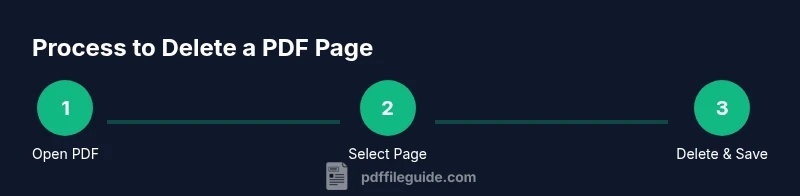
- Delete the target pages and save to a new file.
- Verify bookmarks, links, and numbering after deletion.
- Keep the original file in a safe archive for recovery.
Tools & Materials
- Free PDF editor (desktop or online) (Examples: PDFsam Basic, Sejda, PDF Candy; choose offline whenever privacy matters)
- Web browser(Needed for online editors like Sejda or Smallpdf)
- Backup copy of the original PDF(Save a separate copy before editing)
- Internet connection (for online tools)(Useful for browser-based options; offline methods don’t require internet)
- Storage location with enough space(Ensure space for temporary files and the edited PDF)
Steps
Estimated time: 15-25 minutes
- 1
Open your PDF in the chosen tool
Launch the free editor you selected and load the PDF you want to edit. If you’re using an online tool, upload the file from your device or cloud storage. Confirm you’re editing a copy where possible to avoid losing the original.
Tip: Tip: Start with a small test file to practice the steps before editing the main document. - 2
Navigate to the page navigation view
Switch to the page thumbnail or navigation view so you can see individual pages. This helps you precisely select the page you want to remove and reduces the risk of deleting the wrong one.
Tip: Tip: Use page numbers if your editor supports them for exact selection. - 3
Select the page to delete
Click or specify the range of pages you want to remove. If you need to delete a single page, select that page alone; for multiple pages, provide a start and end page. Some tools let you preview the result before finalizing.
Tip: Tip: If the page contains important images, double-check that you’re removing the intended content only. - 4
Apply the deletion and merge pages (if needed)
Apply the delete action. Some tools require you to re-merge the remaining pages if you used a split-then-merge approach. Ensure the page order remains logical and that headers/footers stay consistent.
Tip: Tip: Check for any broken page references after merging. - 5
Save as a new file
Use 'Save as' or 'Export' to create a new PDF file with the edited content. This preserves your original file in case you need to revert.
Tip: Tip: Name the file clearly to indicate it’s the edited version and store it separately from the original. - 6
Verify the result
Open the new file and verify that the target page is gone, links work, and that the document flows correctly from the previous page to the next. Check any bookmarks or forms for integrity.
Tip: Tip: Run a quick screen-reader check if accessibility was a concern.
Questions & Answers
Can I delete a page from a password-protected PDF for free?
You’ll need the password to unlock the file before editing. If you don’t have the password, use legitimate methods to obtain access or avoid editing the document.
Unlock the file with the password, then edit. If you don’t have the password, don’t attempt to bypass protection.
Will deleting a page affect bookmarks or internal links?
Deleting pages can shift numbering and break some links or bookmarks. Always verify and update any navigation or reference points after editing.
Yes, after deleting, review bookmarks and links to ensure everything still points to the right pages.
Is it safe to delete multiple pages at once?
Yes, most tools support batch deletions. Select the page range carefully and test the result on a copy before finalizing.
You can delete a range of pages, but test on a copy first to avoid mistakes.
Do online editors protect my data?
Online editors upload your document to a server. Use reputable tools, read the privacy policy, and avoid sensitive documents when possible.
Be cautious with sensitive PDFs; prefer offline editors when privacy matters.
What should I do if the document has forms or accessibility tags?
After deletion, revalidate form fields and accessibility tags. Some editors preserve these better than others; run checks to verify.
Recheck forms and accessibility after deletion to ensure everything works.
Can I revert the changes if I don't like the result?
Yes, if you kept the original backup, you can revert by reopening the unedited file and starting again with adjusted steps.
If you kept the original, you can revert and try a different approach.
Watch Video
Key Takeaways
- Back up before editing a PDF.
- Choose offline tools for privacy and security.
- Verify bookmarks and links after page deletion.
- Save as a new file to preserve the original.