How to Separate PDF into Multiple Files
Learn practical, step‑by‑step methods to split a PDF into multiple files using built‑in tools, free software, and offline options. Includes planning, naming conventions, privacy tips, and troubleshooting for clean, organized outputs.


You can split a single PDF into multiple files by selecting page ranges and exporting each range as its own document. This guide walks you through built-in editors, free tools, and desktop software, showing safe, non-destructive methods, clear tips, and practical naming conventions for clean, organized outputs. It covers both sequential splits and multiple folders, with troubleshooting for edge cases.
What it means to separate a PDF into multiple files
Separating a PDF into multiple files means taking a single document and turning it into several smaller PDFs, each containing a defined set of pages. The primary goal is to share or archive only the relevant portions without distributing the entire file. This is especially useful when you need to send a contract to a client, share a project appendix with teammates, or create a set of deliverables from a larger report. The process is straightforward: plan the page ranges, choose a tool with page-range export, execute the extraction, and save each range as its own PDF. The result is a clean set of documents that preserves the original content layout and formatting in each portion. As a best practice, decide on naming conventions and a directory structure before you start, so the outputs are easy to locate and reference in future work. While the specifics vary by tool, the core steps remain consistent across platforms and workflows, making this a reliable skill for anyone who handles PDFs regularly.
Planning your splits: naming conventions and structure
Before you start splitting, map out how you want the outputs organized. Determine the number of new PDFs, the page ranges for each file, and a consistent naming scheme. A clear convention might be: DocumentName_Part01_PageRange.pdf, DocumentName_Part02_PageRange.pdf, and so on. This approach helps recipients understand the sequence and makes it easy to reassemble or reference later. If your document has bookmarks or chapters, try to align splits with those sections to preserve logical flow. Create a short index file or a README that a colleague can scan to understand which file contains which sections. Finally, decide on a destination folder that mirrors the project structure, so you can locate all splits in one place without hunting through folders or archives. Thoughtful planning saves time and reduces the risk of missing pages or duplicating content during the export phase.
Method: built-in tools and options
Most modern PDF workflows include built‑in tools that let you extract or export page ranges without needing third‑party software. On macOS, for example, a user can open the PDF in Preview, choose the pages to keep, and use the Export as PDF command to create a new file. Windows users can rely on the Print dialog with a Page Range field, selecting a PDF printer to generate a new document. In some browsers, the Print function offers page range controls as well. The critical idea is to locate the Page Range input, enter the exact pages for the new file (e.g., 1-5), and save the result with a meaningful name. If your tool supports batch processing, repeat this export step for each planned range in a single session, which can save time and reduce repetitive setup. Always review the exported file to confirm the content matches the intended pages and formatting.
Method: free online tools and privacy tips
Online services can be fast and convenient for ad‑hoc splits or when you don’t have a PDF editor installed. The typical workflow is simple: upload the source PDF, select one or more page ranges, and download the resulting PDFs. Privacy is the most important consideration with online tools. Do not use online services for confidential or sensitive documents unless you have explicit permission and a trusted provider. Read the privacy policy, check whether data is stored, and verify that downloads are delivered securely. After splitting, verify that each output contains only its designated pages and preserve a copy of the original in a safe location. If privacy is a concern, prefer desktop tools or offline modes, or run the online workflow in an isolated environment to minimize data exposure.
Method: desktop editors and workflows
For frequent splitting, a desktop editor or a robust PDF workflow can streamline the process. Desktop tools often support batch operations, allowing you to define multiple ranges and export them in one go. This is especially useful for large projects where dozens of outputs are required. A good workflow keeps the original document intact and creates new PDFs for every split, so you have a non-destructive process. Establish naming conventions and a folder structure that mirrors your project, and consider keeping an index or spreadsheet to track which page ranges correspond to each file. If you work with metadata, you can embed meaningful details in filenames or in a separate index file to improve searchability later.
Edge cases and security considerations
Some PDFs pose special challenges. Password‑protected files require authorization to unlock before splitting; without the password, you cannot legally extract pages. Scanned PDFs may require OCR to maintain text searchability in the outputs. Extremely large PDFs can generate many outputs, which can be cumbersome to manage. In all cases, respect privacy, obtain the necessary permissions, and avoid uploading sensitive documents to online tools unless you trust the provider. If you must use online services, opt for those with strong privacy commitments and clear data handling policies, and consider running a brief test with a non‑sensitive document first.
Best practices for naming, folders, and metadata
Consistency is the key to scalable PDF splitting. Use a naming scheme that encodes the document name, part number, and page range (e.g., ProjectA_Part01_1-25.pdf). Keep outputs in a dedicated folder and maintain an index file that documents the page ranges and purpose of each split. If you preserve metadata, ensure author, title, and subject fields reflect the split content; otherwise, rely on the filename for context. Back up the original file in a secure location to prevent accidental overwrites. Periodically review your process to identify bottlenecks and opportunities to automate repetitive splits.
Troubleshooting and common pitfalls
If a split doesn’t look right, reassess the page ranges for accuracy and retry the export. Some tools may embed annotations or forms differently in the new files; verify that important elements carry over and that links remain functional. For large jobs, break the work into batches to reduce memory strain and to make error recovery easier. If you encounter errors, try a different tool or adjust the export settings (e.g., compression, image quality) to preserve content fidelity. Finally, ensure you’re compliant with data policies when handling sensitive information and that you have a recent backup of the original document.
Tools & Materials
- Computer or device with PDF access(to run tools and save outputs)
- PDF editor or viewer with export/split capability(e.g., built-in Preview on macOS, Print-to-PDF in Windows, or desktop editors)
- Source PDF file(the document you want to split)
- Stable internet connection (optional)(for online tools and cloud storage)
- Organized output folders or naming templates(to keep results tidy)
Steps
Estimated time: 45-60 minutes
- 1
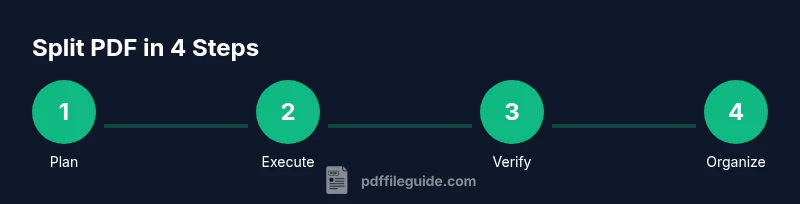
Plan your splits
Map out which pages go into each new PDF and decide on a consistent naming scheme before exporting.
Tip: Write down ranges (e.g., 1-5, 6-10) to avoid mistakes. - 2
Open the source PDF in your chosen tool
Launch the program you’ll use, then load the PDF you intend to split.
Tip: Make sure you’re working on a copy if you want to preserve the original. - 3
Select the first page range and export
Enter the first page range (e.g., 1-5) and export/save as a new PDF.
Tip: Use a naming pattern that includes the range for quick identification. - 4
Repeat for each additional range
Repeat the export step for all planned ranges, creating a separate file for each.
Tip: Keep all outputs in a dedicated folder for easy management. - 5
Verify each output
Open each new PDF and confirm it contains only the intended pages.
Tip: Check for missing pages or unintended inclusions before sharing. - 6
Organize and document
Place all splits into a structured folder system and maintain a short index if needed.
Tip: Add a changelog entry noting the split rationale and date. - 7
Back up originals
Keep the original PDF in a separate archive to prevent accidental loss.
Tip: Backup to a secure location or cloud storage if appropriate.
Questions & Answers
What is the easiest way to split a PDF into separate files?
The easiest approach is to use a tool that supports page-range extraction. Open the PDF, choose the first page range, export to a new PDF, and repeat for subsequent ranges. Maintain consistent naming and folders for organization.
Use a tool that supports page-range extraction. Open the file, export each range as its own PDF, and keep a consistent naming scheme.
Can I split a password-protected PDF?
You must have permission and the password to unlock the file before splitting. If you don’t have the password, request access or the original file from the author. After unlocking, proceed with your normal split workflow.
You need the password to unlock the file before splitting. Without it, you should obtain access from the owner.
Is it safe to use online tools for splitting PDFs?
Online tools can be fast and convenient but pose privacy risks. Only upload non-sensitive documents, check the site’s privacy policy, and download results directly to your device. For sensitive files, prefer offline methods.
Online tools are convenient, but only use non-sensitive documents and download results securely.
How do I split a PDF by bookmarks or chapters?
If your PDF has bookmarks or defined chapters, use them as guides for page ranges or use a tool that can split by bookmark levels. This preserves logical structure in the resulting files.
Bookmarks can guide your splits; use them to define ranges or let a tool split by bookmark levels.
What should I do if a split output is corrupted?
Try exporting a smaller range or using a different tool. Check for software updates and ensure the source file isn’t damaged. Re-run the split and verify the integrity of the result.
If a split is corrupted, retry with a smaller range or a different tool, and verify the result.
Can I automate splitting for large workflows?
Yes. Some desktop tools offer batch processing or scripting to automate multiple splits. Define your ranges once, then run the batch export to generate all outputs in one pass.
Automation is possible with batch options; set up ranges and run the batch to produce all files.
Watch Video
Key Takeaways
- Plan splits before exporting
- Name files consistently and organize outputs
- Verify every split for accuracy
- Protect privacy when using online tools