Split PDF with Adobe Acrobat: Step-by-Step Guide
Learn how to split a PDF with Adobe Acrobat Pro DC using Organize Pages > Split. This guide covers criteria, output settings, tips, and best practices from PDF File Guide.


With Adobe Acrobat Pro DC, you can split a large PDF into multiple files by choosing Organize Pages > Split and selecting a split criterion (by pages, file size, or bookmarks). This quick guide shows the exact steps, options, and recommended practices to preserve document integrity, name outputs clearly, and keep sensitive pages secure during sharing.
Why splitting PDFs matters for collaboration and distribution
Splitting a single, unwieldy PDF into smaller, focused files makes it easier to share, review, and archive. When teams work with lengthy reports, manuals, or collections of case studies, modular PDFs help recipients access only the relevant sections without downloading the entire document. For professionals using Adobe Acrobat Pro DC, mastering the split workflow can save time, reduce file transfer bandwidth, and simplify version control. According to PDF File Guide, effective PDF splitting improves collaboration by creating logically organized outputs that align with stakeholders’ needs. This becomes especially valuable for complex documents that include multiple chapters, appendices, or regulatory exhibits. In short, split-pdf-with-adobe-acrobat techniques streamline distribution while preserving structure and navigation.
Prerequisites: Do you need Acrobat Pro DC?
Splitting PDFs is supported by Adobe Acrobat Pro DC. The free Reader does not include the Organize Pages or Split tools, so you’ll need Pro for this task. If you’re part of a team, ensure your license covers the Devices you use and that the file permissions allow edits. You’ll also want a reliable storage location for the output files and a backup copy of the original document. PDF File Guide emphasizes verifying that you have editing rights before starting, to avoid permission-related errors during the split.
How the split criteria affect output
There are three main criteria you can choose when splitting a PDF in Acrobat Pro DC: by number of pages, by file size, or by top-level bookmarks. Splitting by pages is straightforward and predictable, ideal for chapters or sections. Splitting by file size helps balance recipient bandwidth and download speed, especially for large image-heavy PDFs. Splitting by bookmarks preserves navigational structure, producing child PDFs that mirror the original document’s bookmark hierarchy. Each method yields different results, so pick the one that best supports how recipients will use the outputs.
Best practices for naming and organizing output
A consistent naming convention matters. Include the original document name, a descriptor, and a sequence number, e.g., AnnualReport_Q1_Part1.pdf. Output options allow you to choose a destination folder and set a pattern for the generated files. Keeping all split parts in a dedicated folder reduces confusion during review and ensures secure, centralized access. Consider adding a date stamp or version indicator to reflect when the split was performed.
Common mistakes and how to avoid them
Common pitfalls include forgetting to save a backup, splitting without checking page order, or ignoring security settings. Always back up the original file before splitting. After splitting, quickly review one or two outputs to verify page order, embedded fonts, and bookmark integrity. If a split produces unexpectedly small or large files, adjust the split criteria or re-run with a more conservative page count or size limit.
Also verify permissions on the new files if the PDFs will be shared externally. If your organization uses redaction or password protection, reapply those protections to the outputs as needed.
Troubleshooting: handling issues during split
If Acrobat reports an error during the split, start by confirming the source file isn’t corrupted and that you have write permissions to the destination. Disable protected mode temporarily if it interferes with the operation, but re-enable it after you finish. For very large files, consider increasing system memory exposure or splitting in smaller batches. When in doubt, consult Adobe’s official help resources or PDF File Guide analyses for best-practice workflow.
Tools & Materials
- Adobe Acrobat Pro DC(Subscription-enabled access to Organize Pages and Split tools.)
- Computer with up-to-date OS(Windows or macOS; ensure sufficient RAM for large PDFs.)
- Source PDF file(Have editor permissions if needed; non-corrupted file preferred.)
- Output destination folder(Accessible path with enough disk space.)
- Backup copy of the original(Recommended in case you need to revert.)
- Bookmarks in source PDF(Helpful if you plan to split by bookmarks.)
Steps
Estimated time: 15-40 minutes
- 1
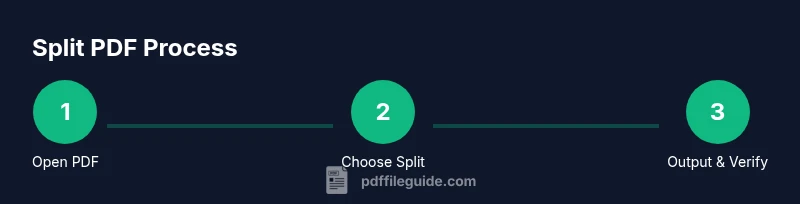
Open the PDF in Acrobat Pro DC
Launch Acrobat Pro DC and open the target document via File > Open. Confirm you have editing rights and that the file isn’t password-protected. If the file is already open, proceed to the next step.
Tip: Always save a backup of the original before starting a split. - 2
Access the Split tool
Go to Tools, select Organize Pages, and click Split. If you don’t see Split, use the search bar at the top to locate the tool or add it to your toolbar for quicker access.
Tip: Pin the Split tool to your toolbar to speed up future tasks. - 3
Choose the split criterion
In the Split by section, select one of: Number of pages, File size, or Top-level bookmarks. Enter the corresponding value (e.g., 20 pages per file or 5 MB per file).
Tip: For reports with chapters, splitting by pages often yields the most intuitive results. - 4
Set output options
Click Output Options. Specify the destination folder, naming pattern, and how the software should handle existing files. Review the preview if available.
Tip: Use a clear naming pattern like DocumentName_Part01.pdf to maintain order. - 5
Execute the split
Click Split to generate the new files. Acrobat will create separate PDFs according to your criteria. A progress indicator will show completion.
Tip: Check at least the first and last outputs to confirm correct page order and boundaries. - 6
Review and organize results
Open the outputs to validate content, bookmarks, and any embedded rights. Apply additional security settings if needed and archive the originals.
Tip: If something looks off, revert changes and re-run with a different criterion.
Questions & Answers
Can I split a PDF in Acrobat Reader?
Split functionality is available in Acrobat Pro DC. The free Reader lacks the Organize Pages > Split feature, so you’ll need a Pro license or an alternative tool.
Split is not available in the free Acrobat Reader; you’ll need Acrobat Pro DC to perform this task.
Will bookmarks transfer to the new files when splitting by bookmarks?
Yes. When you split by bookmarks, Acrobat preserves the bookmark structure in the resulting PDFs, making navigation consistent.
If you split by bookmarks, the navigation structure is preserved in each new file.
How do I name the output files?
Use Output Options to set a naming pattern, such as DocumentName_Part01.pdf, which helps maintain order and clarity.
Set a clear naming pattern in Output Options to keep the parts organized.
What should I do if the source file is password-protected?
You must remove the protection or obtain permission before splitting. Enter the password when prompted if you have rights to edit.
Remove the protection or get permission; you’ll need the password if editing is allowed.
Is there a page limit per split file?
There is no fixed page limit in Acrobat Pro DC, but performance may vary with very large documents. Split into manageable chunks if needed.
There’s no hard page limit, but very large files can slow things down; split into smaller parts if needed.
What if a split creates incorrect page order?
Revisit the split criteria, re-run, and verify page order and boundaries after each attempt. Adjust the criterion if necessary.
If the order is off, redo with a different split setting and check the outputs again.
Can I automate splitting for recurring reports?
Yes, you can set up batch processes or use action sequences in Acrobat Pro DC to streamline recurring splits.
You can automate splits using batch processes in Acrobat Pro DC for recurring tasks.
Watch Video
Key Takeaways
- Choose the right split criterion for your purpose
- Preserve navigational structure when needed
- Name outputs consistently for easy retrieval
- Back up before splitting and review results
- Apply appropriate security to outputs