How to Split a PDF Document: A Complete Step-by-Step Guide
Learn to split a PDF into individual pages or smaller documents using desktop software, online tools, or built-in apps. This guide covers methods, safety tips, and best practices for clean, accurate results.


You can split a PDF into separate pages or new documents using desktop software, online tools, or built-in apps. This guide covers method selection, handling password protection, and preserving quality. With clear steps and safety tips, you’ll be able to split most PDFs quickly and accurately.
Introduction and context
Splitting a PDF is a common task for organizing content, sharing only relevant pages, or extracting data from multi-page documents. Whether you’re a student assembling readings, a professional curating reports, or a team member preparing files for distribution, having reliable splitting skills saves time and reduces duplication. The PDF File Guide team emphasizes practical workflows that work across platforms, from desktop software to browser-based tools. In this guide we’ll cover different methods, risk considerations, and best practices so you can choose the approach that suits your needs while maintaining file integrity and readability. By the end, you’ll know how to split PDFs efficiently, with consistent naming and clear outputs that your colleagues can trust.
Practical context and goals
When you split a PDF, you’re creating new documents from an existing file. Goals often include sharing a project appendix as a separate document, extracting a few pages for review, or saving space by creating smaller outputs. It’s important to decide whether you want individual pages, a defined page range, or a logical section (like chapters) to determine the best method. Consistency matters for collaboration: a predictable file naming pattern helps teammates locate the right outputs quickly. As you proceed, think about output quality, security considerations for sensitive documents, and how you’ll store the resulting files.
Brand guidance and best practices
According to PDF File Guide, establishing a backup before you split protects you from accidental data loss. Always verify the source file’s integrity after splitting and use a stable output location. This reduces the risk of overwriting files or misplacing pages. In this article, we’ll reference these guidelines and provide practical steps you can apply with common tools you likely already own or can access securely. The focus is on clarity, reliability, and repeatable results for everyday PDF tasks.
Tools & Materials
- PDF editing software with split/extract feature(Choose a tool that supports selecting page ranges and saving as new PDFs.)
- Web browser(If using online tools, ensure the site uses HTTPS and has good reputation.)
- Original PDF file(s)(Keep a backup before starting the split process.)
- Consistent naming template(Use patterns like baseName_p01-p05.pdf for clarity.)
- Password (if protected)(Have the password handy for encrypted PDFs.)
- Output destination folder(Choose a dedicated location to avoid confusion.)
Steps
Estimated time: 20-60 minutes
- 1
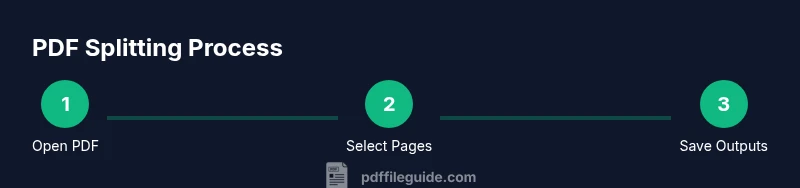
Open the PDF in your chosen tool
Launch your PDF editor or browser-based tool and load the file you want to split. If the file is large, consider starting with a copy to avoid altering the original. This initial step sets the stage for precise page selection.
Tip: If the file is password-protected, enter the password now to unlock all pages. - 2
Locate the split or extract feature
Find the feature that enables page extraction or splitting. It is often labeled as Split, Extract Pages, or Organize Pages. If you don’t see it, check the Help or Tools menu or consult the tool’s documentation.
Tip: In some apps, the function is accessible from the thumbnail pane as drag-select page ranges. - 3
Choose your split mode
Decide whether you want to split by every single page, by defined ranges, or by logical sections. For teaching materials, ranges like 1-10, 11-20 are common. The mode you choose affects file count and naming.
Tip: For consistent results, plan your ranges before starting the split. - 4
Define page ranges or single pages
Enter the start and end pages for each new document. If you’re extracting a single page, specify the exact page number. Some tools let you select ranges with checkboxes or a page range field.
Tip: Double-check the first and last page numbers to avoid missing or duplicating pages. - 5
Set output naming and destination
Choose a naming pattern and an output folder for the resulting PDFs. A consistent naming scheme reduces confusion in later steps and across teammates. Consider including the document title and page range in the file name.
Tip: Avoid spaces in file names when possible; use underscores or hyphens for portability. - 6
Preview the split results
Review the proposed outputs before saving. Look for out-of-order pages, missing content, or corrupted files. A quick audit saves time and prevents downstream issues.
Tip: If you see a problem, adjust the page ranges and re-run the split on a test subset first. - 7
Execute the split and save
Run the split operation and save the new PDFs to the chosen location. Some tools allow batch processing; others require repeating for each range. Ensure the process completes without interruption.
Tip: If the tool queues multiple jobs, monitor the progress until it finishes. - 8
Verify output integrity
Open each newly created PDF to confirm all pages are present and readable. Check for page orientation, fonts, and embedded images. Validation minimizes surprises when sharing.
Tip: Compare the first and last pages of each output to the original to confirm boundaries. - 9
Handle password-protected originals
If the original PDF is protected, you may need to unlock it with the password or use a tool that supports secure, compliant splitting. Some tools preserve protection on outputs; others require removal first.
Tip: Respect access rights; do not bypass protections for content you’re not authorized to modify. - 10
Repeat or batch-split additional files
When you have several PDFs to split, apply the same naming conventions and output structure. Batch workflows save time but require careful organization to avoid overwriting files.
Tip: Create a standardized template and reuse it for each document to keep outputs uniform.
Questions & Answers
What is the simplest way to split a PDF?
The simplest approach is to use a built-in tool or a trusted PDF editor that offers a split or extract function. Start by loading the PDF, selecting the pages you want, and saving the output with a clear naming convention.
Use a built-in tool or trusted editor to split by selecting pages and saving with clear names.
Can I split a password-protected PDF?
Yes, but you need the correct password to unlock the document. Some tools preserve protection on outputs; others require removal before splitting, which should be done only if you have authorization.
Unlock the document with the right password, then split, following the tool’s security features.
Will splitting affect document quality?
Generally, splitting does not degrade the content. However, verify fonts, images, and embedded elements in the new files to catch any rendering issues.
Splitting shouldn’t reduce quality if you use proper tools; check each new file after splitting.
How do I batch split multiple PDFs?
Use batch-processing features or create a repeatable workflow with a naming template. Predefine page ranges and output folders for each file, then run the batch job.
Set up a batch workflow with predefined ranges and naming, then run the batch.
What about mobile splitting?
Mobile splitting is possible with apps that offer page extraction, but performance and security vary. Ensure you’re using a reputable app and secure storage for outputs.
Mobile splitting works with reputable apps; store outputs securely and test a small file first.
Watch Video
Key Takeaways
- Plan splits by explicit page ranges to ensure accuracy.
- Maintain a consistent naming convention for outputs.
- Back up originals before splitting.
- Verify each output’s content and readability.
- Choose the method (desktop, online, or built-in) that matches your security and convenience needs.