How to PDF a Photo on iPhone: A Comprehensive Guide
Learn how to convert photos to PDF on iPhone using built-in tools or trusted apps. This comprehensive guide covers quick methods, tips for preserving quality, privacy considerations, and troubleshooting for a smooth PDF workflow.


Learn how to pdf a photo on iPhone by exporting your image as a PDF from the Photos app or using the Share sheet in other apps. You'll need an iPhone running iOS 14 or later and at least one photo ready to convert. This guide covers built-in methods, alternative apps, and tips to preserve image quality.
Why converting photos to PDF on iPhone matters
In today’s mobile workflows, turning a photo into a PDF on iPhone speeds up sharing, archiving, and collaboration. PDFs preserve layout and ensure consistent viewing across devices, which is crucial for meeting-room handoffs, client submissions, or personal backups. The PDF File Guide team has observed that many professionals rely on PDF formats to maintain professional presentation when sharing mobile captures. Beyond convenience, PDFs can embed metadata and be secured with basic protections, making iPhone-based conversion a reliable first choice for quick documentation on the go. This section outlines scenarios where a PDF is preferable to a JPEG or HEIC file and why iPhone users should adopt a PDF-centric mindset for mobile workflows.
- Use cases: contracts, receipts, project deliverables, scanned notes, and collaborative artifacts.
- Benefits: smaller file sizes with compression options, universal access, and easy annotation.
- Limitations: some photos may lose subtle color nuance if aggressively compressed; plan for your target needs.
Built-in methods to save a photo as PDF on iPhone
Apple’s native workflow lets you generate a PDF from a photo without third-party apps. The shortest path is via the Photos app and the Share sheet. This approach keeps your privacy intact, avoids extra costs, and leverages iOS’ optimized rendering. It’s important to understand where the conversion happens and what steps are involved so you can reproduce the result reliably across iPhone models. The PDF File Guide analysis shows that most users start with these native options before exploring add-ons, and for many common tasks, they are more than sufficient. By following a consistent approach, you can generate a clean, portable document for business or personal use. The rest of this section deep dives into each built-in method, so you can pick the one that fits your situation best.
- Direct method using Photos and the Share sheet.
- Alternative method using the Files app for longer document workflows.
- Quick checks to ensure the output meets your expectations (orientation, margins, and bleed).
Step-by-step: using Photos > Share > Print to PDF (native flow)
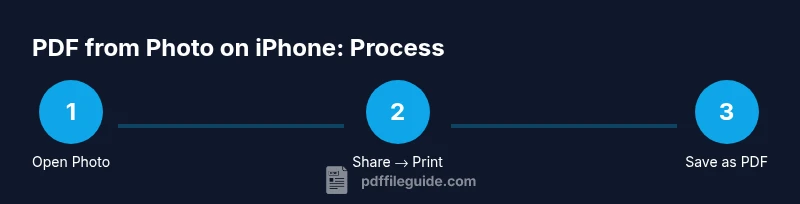
The most reliable built-in method starts in the Photos app. This flow uses the Print option to create a PDF, then saves or shares the result. It works across all iPhone models with modern iOS versions and doesn’t require any external software. Here’s how to execute it with care: open the photo, tap the Share button, choose Print, pinch out the preview to reveal a PDF, tap the Share icon in the PDF, and select Save to Files or another destination. This sequence produces a stable, high-quality PDF suitable for most business needs.
- This flow preserves the exact image content and avoids re-encoding that could degrade quality.
- If you’re printing multiple photos, repeat steps for each image or later combine PDFs using a separate tool.
- For orientations, ensure your photo orientation matches your final document before exporting; you can rotate within the PDF preview if needed.
Using the Files app to save as PDF (alternative path)
For users who want more control over page sizing and arrangement, the Files app provides a complementary route. After you generate a PDF via the Print method, you can also save or export to a dedicated folder, rename the file, or organize it with other documents. The Files workflow supports longer documents, multi-page collections, and easier management in cloud storage. In some situations, using Files directly helps if you plan to merge multiple images into a single PDF later. If you’re new to this approach, start by exporting your image to Files as described above, then explore the in-app tools to append more pages or adjust metadata.
- Save-to-Files enables centralized document management in iCloud Drive or local storage.
- You can later merge other images into the same PDF using a supported app or the Files integration.
- Be mindful of total file size when combining several high-resolution images.
Third-party apps: when to consider them
If you regularly need multi-page PDFs, advanced formatting, or batch processing, third-party apps can significantly speed up your workflow. Apps like PDF editor suites offer built-in capture, auto-ordering of pages, annotation layers, and secure sharing options. While the built-in methods are excellent for quick turns, a professional suite may be worth the investment for repeatable, scalable tasks. The PDF File Guide team notes that many users turn to trusted apps when they require features such as password protection, redaction, or OCR. When evaluating apps, review privacy policies, access permissions, and the ability to export clean, readable PDFs.
- Look for apps with clear export options and high-contrast previews.
- Check whether the app preserves color accuracy and supports page range selections.
- Prioritize apps from reputable developers with updated security practices.
Quality and formatting: preserving image fidelity
When converting a photo to PDF, you want to balance fidelity with file size. The main trade-off is compression versus accuracy. Start with the default settings in iOS, which typically preserve color and detail well for standard screenshots and product photos. If you need higher fidelity, avoid aggressive upscaling or heavy compression; use lossless options when available and choose lower compression for critical visuals. Consider the target use: for on-screen viewing, standard quality is often sufficient, while print-oriented workflows may demand higher DPI and careful color management. The general rule is to preview the PDF on multiple devices to ensure it meets your expectations before sending.
- Use 150–300 DPI range for print-ready PDFs, depending on the image size.
- For retina displays, keep the original resolution and avoid resizing the image before export.
- Test on different devices to ensure consistent appearance.
Security and privacy: how to share PDFs responsibly
Converting a photo to PDF can reveal sensitive details embedded in EXIF metadata. If privacy matters, strip metadata or use apps that provide metadata controls. When sharing, prefer sending PDFs via secure channels or save them to a controlled storage location with access controls. The built-in options support sharing through messaging, email, or cloud services, but you should review recipient permissions and corporate policies first. For sensitive content, consider password protection or digital rights controls provided by some professional apps. By thinking about privacy at the outset, you can minimize data exposure.
- Disable location metadata if not needed.
- Use password protection for sensitive PDFs when supported.
- Share via trusted channels and restrict access as necessary.
Troubleshooting: common issues and quick fixes
If you encounter issues converting a photo to PDF on iPhone, start with the basics: ensure the photo is accessible, check for software updates, and restart the device if needed. Common problems include orientation misalignment, unexpected cropping, or oversized files. For orientation, re-check the photo orientation and rotate before exporting. If the output is too large, try reducing image resolution or compressing the PDF in a basic editor. If you’re using third-party apps and the export fails, verify that the app has the necessary permissions and retry with a different app that supports your workflow. Most issues resolve with a simple refresh or alternative method.
- Update iOS and apps to the latest versions.
- Verify permissions for Photos and Files in Settings.
- Try the built-in method first before resorting to third-party tools.
End-to-end example workflow: a practical, repeatable process
Let’s walk through a complete, repeatable process: start by selecting a single photo in Photos, export it via the Share sheet to Print, zoom to reveal the PDF, export the PDF to Files, and finally rename and organize the file in a project folder. If you want a multi-page document, repeat the export step for additional photos and then merge them in a capable app. This example demonstrates how to maintain consistent file naming, metadata, and storage location, which helps keep your mobile documentation organized and accessible across devices.
- Choose a consistent naming convention (e.g., date_project_subject.pdf).
- Decide on a single destination folder (e.g., Documents/PDFs).
- Create a backup copy to cloud storage for redundancy.
Tools & Materials
- iPhone with iOS 14 or later(Ensure access to the Photos and Files apps for exporting PDFs)
- Photos app(Starting point for exporting a photo as PDF)
- Files app (optional)(Useful for organizing and sharing PDFs after export)
- Third-party PDF app (optional)(Adds features like OCR, annotations, or multi-page merging)
Steps
Estimated time: 15-25 minutes
- 1
Open the photo in Photos
Launch the Photos app and tap the image you want to convert. Verify the orientation and crop if needed, as this will affect the final PDF appearance. This ensures the following steps export the intended content in the correct orientation.
Tip: If you’re converting a gallery, use the select tool to choose multiple photos for later consolidation. - 2
Tap the Share button
With the photo open, tap the Share icon at the bottom-left or top-right corner depending on your device. The share sheet provides options to export, print, or copy the image to other apps.
Tip: If you don’t see the Share icon, swipe up or down to reveal the action row or check your accessibility settings. - 3
Choose Print in the share sheet
In the list of actions, select Print. This opens a print preview where you can apply the final PDF transformation. Do not print physically; the goal is to access the PDF preview.
Tip: If Print isn’t visible, scroll the options or use the printer-friendly view in your area’s language settings. - 4
Zoom the preview to reveal PDF
On the print preview, perform a two-finger pinch-out gesture. This reveals the document as a PDF, which you can now share or save.
Tip: If you can’t see a PDF, ensure the original image is not corrupted and try again with a different photo. - 5
Tap the Share icon in the PDF preview
From the PDF preview, tap the Share icon to present save or share destinations. This step is crucial for choosing where the PDF will live.
Tip: Saving to Files provides easy organization and future merging with other PDFs. - 6
Choose Save to Files or another destination
Select a folder in iCloud Drive or On My iPhone, then confirm. Organize a consistent folder structure for easier retrieval later.
Tip: Create a dedicated folder like Documents/PDFs for consistent storage. - 7
Optional: merge multiple photos into one PDF
If you need a multi-page document, repeat the export steps for additional photos and use a third-party app or the Files app to merge pages into a single PDF.
Tip: Merging early keeps your workflow simple and reduces file fragmentation. - 8
Rename and verify the final PDF
In Files, rename the PDF with a clear, consistent naming pattern. Open the file to verify content, orientation, and any embedded annotations before sharing.
Tip: Maintain a consistent naming convention across projects to speed up retrieval. - 9
Share or archive the final document
Distribute via email, messaging, or cloud storage as needed. If security matters, use password protection or restricted sharing where supported.
Tip: Keep a backup copy in a secure location to prevent data loss.
Questions & Answers
Can I convert multiple photos into a single PDF using iPhone without third-party apps?
Yes. You can export each photo to PDF individually and then merge the PDFs using a third-party app or the Files app if supported. Some apps provide built-in merging tools, while others require an external editor.
Yes. You can export multiple photos to PDF and merge them with a compatible app or the Files app.
Does converting a photo to PDF on iPhone preserve image quality?
For most standard photos, the built-in Print-to-PDF flow preserves quality well. If you need higher fidelity, avoid aggressive compression and test a sample before finalizing the document.
Yes, the built-in method keeps good quality; avoid heavy compression for best results.
Can I password-protect a PDF created on iPhone?
Some third-party PDF apps offer password protection. Built-in iOS tools do not provide password protection within the PDF itself, so you would need a dedicated app for that layer of security.
Password protection is available in some third-party apps; built-in tools don’t offer it by default.
Is offline PDF creation possible on iPhone?
Yes. All the built-in steps can be completed offline after the photo is loaded from local storage. If you use cloud storage, you may need an internet connection to save the final PDF to the cloud.
Yes, you can create PDFs offline from local photos; cloud saves require internet.
What should I do if the PDF export fails?
Restart the Photos and Files apps, retry the export, and check for iOS updates. If the problem persists, attempt the process with a different photo or a lightweight third-party app.
Restart apps, retry, and check for updates; try another photo or app if needed.
Watch Video
Key Takeaways
- Master built-in iOS methods before seeking apps.
- Preserve image fidelity by avoiding unnecessary compression.
- Organize PDFs in a predictable folder structure for quick access.
- Review privacy settings and metadata before sharing.
- For multi-page documents, use a merging step to consolidate pages.