How to Sign PDFs on iPhone: A Step-by-Step Guide
Learn how to sign PDFs on iPhone using native tools and trusted apps. A comprehensive, step-by-step guide with tips, security considerations, and best practices for fast, legally valid signatures.


By the end of this guide you’ll be able to sign PDFs on your iPhone using built‑in tools or trusted apps. We cover where signature tools live, how to place and resize your signature, and how to save, share, and verify the signed document. You’ll learn practical tips for legal validity and safeguarding your signature.
Why signing PDFs on iPhone matters
According to PDF File Guide, signing PDFs on iPhone has become a practical, legally recognized option for mobile workflows. In many professional settings—sales contracts, invoices, NDAs—a quick signature on a handheld device can save time and speed up approvals. The iPhone integrates native signing capabilities with iCloud and the Files app, plus third‑party apps that support timestamping and certificate‑based signing. The key is to understand what constitutes a valid signature on a PDF, how different workflow scenarios affect legibility and audit trails, and how to preserve the integrity of the document while keeping personal data secure. This scope extends from casual approvals of internal memos to formal signatures on compliance‑ready documents. In practice, you might sign a contract on the train, annotate a receipt, or authorize a delivery with a single tap. The best approach is to know the tools you have, decide whether you need a lightweight signature or a certificate‑backed signature, and verify that your signed file remains readable after transmission. When in doubt, start with the built‑in options and test the process on a copy before working with a live document. This reduces risk and builds confidence in your mobile signing workflow.
Native iPhone options for signing PDFs
Your iPhone ships with several signing pathways that cover most everyday needs. The simplest route is to use Markup within the Files app: open the PDF, tap the markup tool, and choose Signature to either draw your signature with a finger or Apple Pencil, or insert a saved signature. This method preserves the document’s layout and is ideal for quick approvals. Another built‑in option is Apple Notes, which lets you sign or annotate PDFs by importing the file into a note and using the drawing tool to place a signature. If you frequently sign PDFs from email, you can use the signature tools directly in Mail via Markup, then export the signed document back to your mailbox or cloud storage. These native options are fast, privacy‑friendly, and require no additional subscriptions. However, if you need features like timestamping, certificate‑based signing, or batch signing, you may prefer a reputable third‑party app. Regardless of the path you choose, always verify that the signature remains legible after saving and sharing, and keep the original unsigned version for audit trails when required.
Third-party apps: Pros, cons, and workflows
Third‑party PDF signing apps bring advanced capabilities that native tooling can’t always match. Pros include: more signing options (typed, drawn, image), timestamping, certificate‑based signing, direct cloud syncing, and easier sharing workflows. Cons can include subscriptions, potential privacy concerns, and a learning curve to master the interface. To choose wisely, evaluate how the app handles data: does it store your signature securely, does it support offline signing, and can you export a legally valid signed PDF in a widely accepted format? A good workflow often starts by opening the target PDF in the signing app, applying your signature, and then exporting the final document as a flattened or unflattened PDF depending on the use case. If you collaborate with others, look for apps that support multi‑signature workflows and clear audit trails. Always test signatures on representative documents before using a new app for critical contracts.
File formats and compatibility considerations
PDFs can vary in how signatures are rendered across readers. Some apps embed a visible signature image, while others use a digital signature field that can be validated by recipients’ readers. For long‑term accessibility and legibility, consider working with standard PDF signing practices: place signatures in clearly defined areas, avoid stacking signatures over text, and ensure the signature remains legible when the document is printed. If you need a more formal approach, choose apps that support digital IDs or PKI certificates and can attach a verification stamp or certificate chain. When sharing, prefer widely supported formats such as PDF/A or ensure the recipient’s viewer can render your signature without requiring specialized software. Finally, remember to remove any sensitive metadata that isn’t essential to the signature to protect privacy during transmission.
Verification and compliance tips
Verification is about ensuring that the signature that appears on the PDF is genuine and untampered. Use tools that create a verifiable trail, such as a timestamp, signer identity, and an integrity check. If your workflow requires evidence of consent, prefer apps that generate a signing certificate or provide an audit trail that can be validated by the recipient. For compliance, preserve the original unsigned file and generate a signed copy that contains metadata indicating the signing event (date, signer, method). Before sending, perform a quick integrity check by reopening the signed PDF in a different viewer to confirm the signature remains visible and intact.
Security and privacy best practices
Security should guide every signing task on an iPhone. Enable biometric unlock for the signing app, and avoid saving signatures in insecure locations. Use trusted apps from reputable developers, keep the device updated, and consider enabling cloud backups with encryption. If you sign sensitive documents, review the app’s privacy policy to understand how your data is stored and transmitted. When using public or shared devices, sign only after ensuring you are on a secure network and that the app is not set to auto‑save your signature indefinitely. Regularly audit your signed PDFs to confirm that no changes were made after signing and that the signature remains visible and verifiable.
Practical workflow checklist
- Confirm the document is the latest version before signing.
- Use a clean signature (avoid messy handwriting) for readability.
- Export and save signed PDFs with a clear naming convention (e.g., document_signed_YYYYMMDD.pdf).
- Keep a copy of the unsigned version for audit purposes.
- Test the signed file on another device or reader to ensure compatibility.
Accessibility and usability considerations
If the PDF will be used by others with assistive technologies, ensure that the signature is accessible: provide a text description of the signature, avoid placing signatures over critical text, and ensure the signature is visible in large‑print or high‑contrast settings. Some signing apps offer accessibility features like larger signature handles and keyboard navigation for form fields. When sharing, include alt text or a short note describing where the signature is located for screen readers.
Tools & Materials
- iPhone (iOS 12+ recommended for broad compatibility)(Charge the device and ensure internet access when syncing signatures.)
- PDF file to sign(Prefer a clean, unencrypted document from a trusted source.)
- Signing method (built-in Markup or third-party app)(If using Markup, ensure you know how to access it quickly from Files or Mail.)
- Optional: Stylus or high‑quality signature image(Helpful for precise placement on small screens.)
Steps
Estimated time: Estimated total time: 10-15 minutes
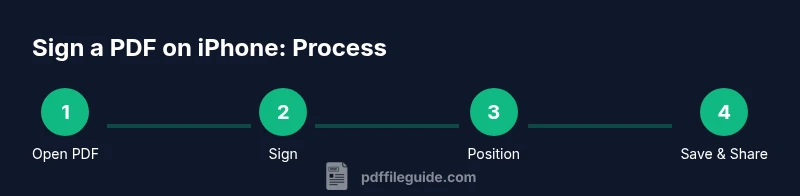
- 1
Open the PDF in a signing-capable app
Launch the PDF in your preferred app. If the file was attached to an email, use the 'Open in' or 'Copy to' option to place it in a signing workflow. Confirm the document loads correctly and that you can access the signing tools.
Tip: If the app doesn’t show signing tools, try another trusted app or use Markup from the Files app. - 2
Access the Sign tool
Locate the Sign or Markup tool within the app’s toolbar. This is usually represented by a signature icon or a pen symbol. Tap to activate signature options (draw, type, or import).
Tip: If you sign using a built‑in tool, choose a clear signature style for readability. - 3
Create or select your signature
If you don’t have a saved signature, create one by drawing it with your finger or Apple Pencil, or type it if the app supports a text signature. If you reuse a saved signature, verify its appearance before placing it.
Tip: For better legibility, use a single stroke with minimal embellishments. - 4
Place and resize the signature
Drag the signature to the desired location, then resize it to fit the signature line without covering important text. Check the surrounding content to ensure readability after signing.
Tip: Use small, precise adjustments; avoid covering form fields or disclaimers. - 5
Save or export the signed PDF
Save the document in the app or export as a new PDF file. If the app supports saving with a certificate or timestamp, enable that option to improve verification.
Tip: Keep a copy of the unsigned version for your records and audit trail. - 6
Share or store securely
Send the signed PDF to the intended recipient via secure channels or upload to a trusted cloud service. Verify the recipient can view the signature in their reader.
Tip: If privacy is critical, consider encrypting the PDF or using a signed‑only share link.
Questions & Answers
Can I legally sign a PDF on iPhone?
Yes, signing PDFs on an iPhone is legally acceptable in many contexts when you use a reputable signing app and provide a clear, verifiable signature. Ensure the signer’s intent is preserved and the document’s integrity is maintained.
Yes. You can legally sign PDFs on your iPhone using trusted apps and a clear, verifiable signature.
Do I need internet to sign PDFs on iPhone?
Not always. Some signing actions can occur offline, but exporting or sharing the signed document may require an internet connection. Always confirm that your chosen app can complete the process offline if needed.
Offline signing is possible with some apps, but you may need internet to share or verify afterward.
Which app should I use for signing PDFs on iPhone?
Choose a reputable signing app or use the built‑in Markup tool for simple needs. Consider features like timestamping, certificate support, offline signing, and secure export when selecting an app.
Pick a trusted app or use built‑in Markup for basic signing, depending on your needs.
Can I sign PDFs with multiple signers on iPhone?
Yes, many apps support multi‑signature workflows, though you may need to coordinate the order and timing. Verify that each signer’s input is preserved in the final document.
Multiple signers are possible in many apps, with careful coordination.
Does Apple Pencil improve signing accuracy?
Using Apple Pencil generally improves precision for signatures, especially on small screens. If you don’t have a stylus, a steady finger can still create a usable signature.
Yes, Apple Pencil can improve precision for signatures on iPhone.
How can I verify a signed PDF’s authenticity?
Look for a signature field or certificate indicator, and use a reader that can validate the signature’s integrity. If your app provides a verification panel or certificate trail, use that to confirm authenticity.
Use a reader with a verification panel to confirm signature integrity.
Watch Video
Key Takeaways
- Sign PDFs on iPhone with native or trusted apps.
- Place signatures for optimal readability and minimal text overlap.
- Save signed files with clear naming and secure storage.
- Verify signature integrity and consider timestamping for compliance.