How to Scan PDFs on iPhone: A Complete Guide for 2026
Learn how to scan documents as PDFs on your iPhone using built-in apps and trusted tools. A concise, step-by-step guide for mobile PDF scanning in 2026.


By the end, you’ll scan PDFs on your iPhone using built-in apps or trusted tools, save to Files, and share with ease. This quick, step-by-step guide covers setup, capture quality tips, privacy considerations, and common pitfalls to deliver accurate results on iOS in 2026.
Why scan PDFs on iPhone
Scanning documents to PDF on your iPhone offers fast, portable access, reliable search, and easy sharing. The benefits extend from invoices and tax forms to signed contracts, all kept in a consistent, widely compatible format. According to PDF File Guide, leveraging native iPhone capabilities can yield dependable results without requiring a desktop setup. If you’re wondering how to scan pdf iphone efficiently, you’re in the right place. This section lays the foundation for why mobile PDF scanning is practical for both professionals and casual users. You’ll learn how to maximize clarity, preserve document integrity, and streamline workflow when you’re away from a computer.
Built-in iOS Apps for Scanning
iPhone users today have powerful built-in options that make PDF scanning simple without third‑party software. The Notes app includes a Scan Documents feature that detects edges, captures multiple pages in a single document, and exports as PDF. The Files app can organize and save scanned files in structured folders or cloud locations. Live Text, available on recent iPhone models, can extract editable text from scans, enabling quick indexing and copy-paste operations. By using these native tools, you can scan pdf iphone with minimal friction and keep your workflow within iOS. PDF File Guide highlights that starting with native apps often improves privacy by reducing data handoffs to external services.
When to Consider Third-Party Scanning Apps
Third‑party scanning apps can offer advanced OCR languages, automatic multi-page concatenation, and stronger edge detection in challenging lighting. They’re particularly useful when you need enhanced text recognition or batch processing. If you decide to try a third‑party option, choose apps with strong privacy controls, transparent permission requests, and reliable export formats. Remember: you can still save the final file as PDF within most apps, but ensure the app you select supports the security standards your organization requires.
Step-by-Step Preview: Quick Scan Workflow (Overview)
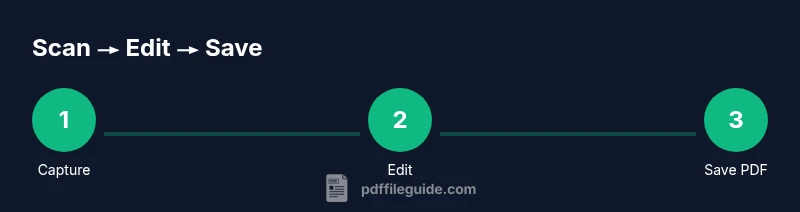
This section provides a high-level flow you’ll implement in detail in the step-by-step section. Start by opening Notes or your chosen scanning tool, place the document on a clean surface with even lighting, capture edges, and verify the crop. The final step is exporting to PDF and saving to a known location in Files or cloud storage. This preview helps you plan for a smooth, repeatable process, reducing the need to redo scans due to poor lighting or misaligned edges. The approach described here emphasizes privacy, file organization, and accessibility, so you can reuse scans as needed in future projects.
Tips for Quality and OCR Accuracy
Quality starts with a steady hand and good lighting. Shoot from directly above the document, avoid glare, and fill the frame to minimize cropping. Most scanners support OCR, but accuracy depends on contrast and legibility. If you see blurred characters, rescan with improved lighting or adjust the document’s position. For accessible documents, enable the OCR option if available so the text becomes searchable and copyable. A well‑named PDF with metadata improves retrieval in a busy workspace.
Privacy, Storage, and Organization
Even when scanning from a mobile device, you control where your PDFs are stored. Save scanned PDFs to a secure folder in Files, then back them up to a trusted cloud service if needed. Consider password‑protecting sensitive documents and limiting sharing permissions. Clean up duplicates and consistent naming conventions to simplify future retrieval. By establishing a simple taxonomy (e.g., year, client, document type), you’ll accelerate audits, reviews, and approvals.
Real‑World Use Cases for Professionals
In a professional context, scanning PDFs on iPhone can support client onboarding, expense reporting, and contract management. A mobile scanning workflow can replace physical copies in many scenarios, reducing paper waste and speeding up approvals. When your files live in a centralized folder and are consistently named, teammates can find, review, and annotate documents quickly. PDF File Guide notes that consistent practices help teams scale their digital document processes without sacrificing security or compliance.
Tools & Materials
- iPhone with iOS 13+ (for best results, iOS 15+ supports Live Text)(Ensure camera permissions are granted for scanning.)
- Notes app (built-in)(Used to capture scans and export as PDF.)
- Files app (built-in)(Where you can save and organize scanned PDFs.)
- Optional: Third-party scanning app(Useful for advanced OCR or batch processing.)
- Cloud storage account (e.g., iCloud Drive, Google Drive)(For backup and easy sharing across devices.)
- Good lighting and a stable surface(Minimize shadows and ensure edge detection works reliably.)
Steps
Estimated time: 15-25 minutes
- 1
Open Notes and start a new scan
Launch the Notes app, create a new note, and tap the camera icon to select Scan Documents. The app will guide you to align the document within the frame. This initial step sets up edge detection and capture quality.
Tip: Keep the camera parallel to the document and avoid sudden movements during capture. - 2
Capture the first page
Position the document so that all edges are within the frame. Press the shutter to capture, then review the page for alignment and brightness. If needed, retake to improve clarity.
Tip: Use adequate lighting and avoid strong shadows that obscure text. - 3
Add additional pages
Continue scanning more pages by using the same process. Notes compiles pages into a single document; you can reorder pages later if needed.
Tip: Aim for consistent lighting across all pages for a uniform PDF. - 4
Review and crop
After capturing, tap 'Save' or 'Done' and then open the document to crop edges or adjust contrast. This helps ensure OCR accuracy and readable text.
Tip: Crop slightly inside the page edges to avoid cutting off important text. - 5
Export as PDF to Files
From the note, select Export or Share and choose 'Save to Files' as PDF. Pick a destination folder and set a clear file name.
Tip: Use a naming convention like YYYY-MM-DD_Client_DocumentType.pdf for easy searching. - 6
Organize, secure, and share
Move the PDF into your organized folder structure. If needed, enable password protection in the exporting app or share via a secure channel.
Tip: Limit access for sensitive documents and use password protection when possible.
Questions & Answers
Do I need to install a separate app to scan PDFs on iPhone?
No separate app is required. The Notes app can scan and export PDFs, and the Files app can store and share them. Third-party apps offer enhanced OCR and batch processing if you need them.
You can use Notes and Files to scan and save PDFs on iPhone, with optional third-party apps for more features.
Can I scan multiple pages into one PDF?
Yes. Use Notes to capture multiple pages in a single scan document, then export as one PDF. You can reorder pages in Files if needed.
Yes—Notes can combine pages into one PDF and you can reorder them in Files.
How to password-protect scanned PDFs on iPhone?
Password protection may be available when exporting the PDF from certain apps or via dedicated PDF tools. Check the export options or use a trusted third‑party app with encryption.
You can password-protect scans using export options or secure apps with encryption.
Is OCR built into iPhone scanning?
OCR is available in several apps, including some built-in options on newer iPhones. For higher accuracy, enable OCR in your chosen app and review the extracted text.
OCR is available in some iPhone apps; enable it to make scans searchable.
Where do scanned PDFs go on iPhone by default?
Most scans save to the Files app by default. You can move them to iCloud Drive or another location for backup and collaboration.
Defaults are in the Files app; you can relocate to cloud storage if desired.
Can I share scanned PDFs directly from iPhone?
Yes. Use the share sheet in Notes or Files to email, message, or upload to cloud storage for easy collaboration.
Yes—share from the built-in apps using the share sheet.
Watch Video
Key Takeaways
- Scan PDFs on iPhone using native apps first.
- Save and organize: use a consistent naming scheme.
- Protect sensitive PDFs with passwords when sharing.
- Leverage OCR to create searchable documents.
- Keep a simple, scalable folder structure for retrieval.