Free PDF File Compress: A Practical How-To
Learn how to compress PDFs for free using online and offline methods. This step-by-step guide covers techniques, tools, and best practices to shrink file size without sacrificing essential content.


This guide shows how to perform free pdf file compress using online and offline tools. You’ll learn quick wins like removing metadata, downsampling images, and choosing lower image DPI. The plan also covers privacy considerations, expected results, and a clear, step-by-step approach to ensure you can shrink PDFs safely and reliably for free pdf file compress.
Understanding PDF file compression basics
PDF file compression is a balance between reducing file size and preserving essential readability and functionality. When you perform a free pdf file compress, you typically address three major contributors to large file sizes: embedded images, font data, and metadata. By selectively downsampling images, removing unused objects, and optimizing font embedding, you can dramatically shrink file sizes without destroying the content you need. This section introduces the core concepts you’ll apply across online tools and offline software, with practical guidance for when each technique is most effective. The goal is to empower you to make informed choices about which elements to compress and which to leave intact. This approach aligns with best practices advocated by PDF File Guide and reinforced by industry standards, ensuring you achieve reliable reductions while maintaining accessibility and readability for most users.
Free online tools vs offline software: what to choose for free pdf file compress
When you need a free pdf file compress, you have two broad routes: online services and offline software. Online tools are convenient for quick tasks, require no installation, and can handle common compression needs with adjustable quality settings. Offline software, on the other hand, offers greater privacy and batch processing capabilities, which is valuable if you’re compressing sensitive documents or large folders of PDFs. In practice, a typical workflow might start with an online tool for a quick test file, then move to offline software for more controlled, repeatable reductions. Both approaches can achieve significant size reductions, but the trade-offs include privacy, processing speed, and the ability to tune downsampling and font handling precisely. As you explore options, look for features like image downsampling, font embedding control, and metadata removal within a free pdf file compress workflow.
Core techniques: image downsampling, font optimization, and metadata trimming
The most impactful levers in a free pdf file compress are image downsampling, selective font optimization, and metadata trimming. Image downsampling reduces the resolution of embedded pictures, which can sharply cut file size without harming text clarity. Font optimization involves subset embedding (only including necessary characters) or removing non-used fonts from the document. Metadata trimming eliminates hidden data that is not essential to the viewer, such as creator information or application logs. When applying these techniques, monitor the visual impact on images and text to ensure that essential elements remain legible. In the PDF File Guide’s analysis, these steps consistently deliver meaningful reductions while preserving overall document integrity.
Preparing your PDFs for compression: quality targets and backup
Before you begin free pdf file compress, decide on a target file size and acceptable quality level. Back up the original PDFs to prevent data loss in case you need to revert changes. Prepare a small test file to calibrate compression settings before processing larger batches. If your document contains images with fine details or color gradients, you may want to keep higher image quality for key pages and compress others more aggressively. The preparation step also involves noting which fonts are embedded and whether any fonts are subsetted. Document structure, such as bookmarks and accessibility tags, should be preserved unless you explicitly intend to re-create them after compression.
Step-by-step offline workflow: using a free PDF editor
The offline workflow requires a no-cost PDF editor that supports image downsampling, font optimization, and metadata cleanup. Start by opening the PDF, then locate the compression or optimization option. Configure the settings so that images are downsampled to a target DPI (for example, 150–200 DPI for screen viewing) and choose a reasonable image compression method (such as JPEG with medium quality). Enable font subsetting to include only used characters and remove embedded fonts if possible. Finally, run the optimization, save a new copy, and compare file size and quality with the original. This method can be repeated for multiple files in a batch process.
Step-by-step online workflow: browser-based compression
Online tools are convenient for quick compress tasks. Upload your PDF to a reputable free pdf file compress service, select a target quality level, and start the compression. After the tool finishes, download the compressed file and compare the size and legibility against the original. If the online tool allows, enable metadata removal and image downsampling while keeping essential pages intact. For privacy-sensitive documents, avoid uploading the entire sensitive archive to public servers and instead use offline tools for the same tasks.
Validating results: readability, searchability, and accessibility checks
After compression, verify that the document remains readable and searchable. Check for legible text, intact images, and preserved hyperlinks. If your document includes forms or accessibility tags, ensure these elements still function correctly. Some compression efforts can affect the readability of colorful images or fine line art; in such cases, you may need to tweak the compression level and re-run the process. Keeping a record of original vs compressed file sizes helps you refine your free pdf file compress approach for future documents.
Privacy and security considerations with online tools
When using online services for free pdf file compress, be mindful of privacy and data security. Never upload confidential or sensitive documents to untrusted platforms. Prefer services with clear privacy policies, data retention terms, and secure connections (HTTPS). If you routinely compress sensitive PDFs, consider offline solutions or local processing to minimize exposure. PDF File Guide recommends testing any online service with non-sensitive files first to gauge results and privacy practices before handling important documents.
Troubleshooting common issues: artifacting, font misalignment, and missing bookmarks
Compression can occasionally introduce artifacts, especially in image-heavy pages, or cause subtle shifts in font rendering or bookmark placement. If you notice artifacts, revert to a higher quality setting or adjust the image downsampling rate. If bookmarks or hyperlinks stop working after compression, you may need to re-establish these features in the original layout or use a more conservative compression profile. Keeping a log of changes per file helps you identify which setting combinations produce the best balance of size and quality.
Tools & Materials
- Computer or device with internet access(Desktop or laptop with sufficient RAM for desktop tools)
- Free PDF editor software(Offline tool supporting image downsampling, font optimization, and metadata removal)
- Web browser(For online compression tools; ensure privacy-aware extensions are disabled)
- PDFs to compress(Source files you intend to shrink; keep originals as backups)
- Output destination folder(Organize compressed files separately from originals)
- Quality targets (DPI and compression level)(Define acceptable image DPI (e.g., 150–200) and compression levels before starting)
Steps
Estimated time: 60-90 minutes
- 1
Gather PDFs and set targets
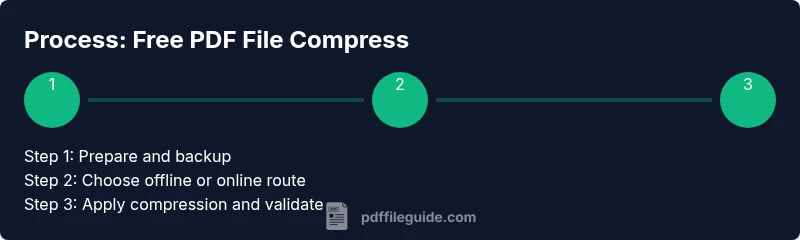
Collect all PDFs to compress and define your target file size and acceptable quality. Back up originals in a separate folder to avoid data loss. Clarify which pages or elements can be safely compressed without impacting critical content.
Tip: Create a baseline by checking a single page's readability after a minimal compression. - 2
Choose offline or online route
Decide whether you will use a free PDF editor offline or a reputable online compression tool. Offline methods are better for sensitive documents, while online tools can be faster for non-confidential files and quick tests.
Tip: Test with a small sample file before processing larger batches. - 3
Configure compression settings
For offline tools, set image downsampling to 150–200 DPI and select JPEG compression with medium quality. Enable font subsetting and remove unused metadata. For online tools, choose analogous settings if available.
Tip: Avoid extremely low DPI if your document needs clear screens or print previews. - 4
Run compression and save a new file
Execute the compression and save the result under a new filename to distinguish it from the original. Keep a side-by-side comparison of size and quality.
Tip: If the tool supports batch processing, process multiple files in one queue to save time. - 5
Review the compressed file
Open the compressed PDF and verify that text is legible, images are acceptable, and all hyperlinks and forms still function. Re-check for missing elements like bookmarks or annotations if present.
Tip: If quality degraded noticeably, revert to a higher quality preset and re-run. - 6
Archive and document results
Store the compressed copies in a dedicated folder with notes on the settings used. This makes it easier to reproduce the results for future documents and maintain a consistent free pdf file compress workflow.
Tip: Create a simple changelog noting file name, size reduction, and settings.
Questions & Answers
What is meant by 'free pdf file compress'?
Free pdf file compress refers to reducing the size of PDF files using no-cost tools or methods. It typically involves image downsampling, font optimization, and metadata cleanup to lower file size while preserving readability and functionality.
Free PDF compression means shrinking the size of your PDF without paying, by adjusting images, fonts, and metadata.
Can I compress a PDF without losing quality?
Yes, to a degree. You can reduce file size while maintaining readability by carefully balancing image downsampling and compression settings. Always compare the compressed file with the original to ensure essential quality remains intact.
You can often reduce size without noticeable quality loss, but always test to confirm.
Are online tools safe for confidential documents?
Online tools can be convenient but pose privacy risks for confidential documents. Use reputable services with clear privacy policies, and prefer offline methods for sensitive materials.
Online tools are convenient but be careful with confidential files; use offline options when possible.
How small can a PDF realistically become with compression?
Realistic size reductions depend on the original content. Documents with heavy images tend to shrink more, while text-heavy PDFs may see modest gains. Always test multiple settings to find the best balance.
Size reduction varies; test different settings to find what works best.
Should I remove images to compress a PDF?
If image content is non-essential, removing or heavily downsampling images can dramatically shrink size. For image-heavy documents, consider selective downsampling and keeping key images intact.
Removing or downsampling images can greatly reduce size if visuals aren’t critical.
What should I do with metadata during compression?
Metadata often adds little value for readers but can increase file size. Stripping non-essential metadata is a safe, effective part of a free pdf file compress workflow, especially for distribution.
Strip non-essential metadata to save space without impacting content.
Watch Video
Key Takeaways
- Plan compression with clear quality targets.
- Choose offline tools for sensitive documents.
- Test with a sample file before full batch processing.
- Verify readability and functionality after compression.
- Document your settings for repeatable results.