Compress PDF Without Losing Quality: Practical Guide
Learn practical methods to reduce PDF file size without compromising readability or fidelity. This guide covers image downsampling, selective compression, font handling, and metadata management for professional results.


Compressing a PDF without losing quality involves a careful mix of image downsampling, selective compression, and prudent font handling, coupled with removing non-essential metadata. This guide outlines a practical workflow that preserves readability, color accuracy, and interactive features while reducing file size. You’ll learn how to choose targets, apply non-destructive adjustments, and verify results across devices.
Understanding PDF compression: quality vs size
PDF compression is a balancing act between file size and visual fidelity. When you reduce a PDF’s size, you must consider where data can be safely compressed or downsampled, and where quality must be preserved. Text and vector elements are typically preserved with minimal loss, while images carry the most risk of noticeable degradation. The key is to preserve readability, font rendering, color accuracy, and accessibility features while trimming data that isn’t essential for display. According to PDF File Guide, a quality-first approach starts with a baseline assessment of the document’s content and its intended use. If the PDF is for archival or certification, prioritize fidelity; for sharing, you can lean a bit more on compression without compromising essential details. Tools and settings should be chosen to allow you to preview changes before finalizing. This mindset, paired with a structured workflow, helps you achieve meaningful reductions without sacrificing the user experience.
formatNote
tipsToRemember
Tools & Materials
- PDF editor or compressor tool(Must support selective compression and downsampling)
- Original high-resolution images (if available)(Use as reference when downsampling)
- Quality check previews (screen previews, print preview)(Compare at multiple sizes and devices)
- Metadata and structure reviewer(Remove unused metadata safely)
- Fonts handling option (subset/embed control)(Keep essential fonts embedded)
Steps
Estimated time: 30-60 minutes
- 1
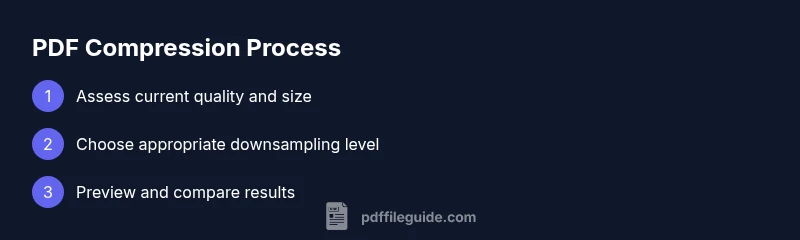
Assess current quality and size
Open the original PDF and record its file size and a few representative views (screenshots or print previews). Note any elements that are critical to readability, such as embedded fonts and color profiles. This baseline helps you measure the impact of each adjustment later.
Tip: Document baseline metrics before making changes so you can compare results objectively. - 2
Catalog elements to compress
Identify which components contribute most to the file size: images, fonts, metadata, annotations, and forms. Prioritize non-critical content for compression and keep essential fonts and accessibility features intact.
Tip: Mark high-impact areas (e.g., large images) for initial adjustments to maximize size reduction. - 3
Set target quality and downsampling guidelines
Define acceptable quality levels for images (e.g., downsample to 72–150 PPI for on-screen viewing) and decide which pages or sections may tolerate more compression. Use a test subset to fine-tune before applying globally.
Tip: Aim for a target that maintains legibility on common screens and devices. - 4
Apply controlled image downsampling
Adjust image resolution and compression settings using your tool’s filters (JPEG or JPEG 2000 with moderate quality). Preview both color and grayscale images to ensure readability is preserved.
Tip: Avoid aggressive downsampling on images with small text or fine details. - 5
Optimize fonts and embedded resources
Subset fonts to include only used glyphs, or ensure essential fonts remain embedded. Remove embedded fonts only if the document remains legible and consistent across viewers.
Tip: Preserve font rendering for headings and captions to maintain readability. - 6
Remove non-essential metadata and objects
Delete hidden or unused metadata, thumbnails, and attachments that do not affect viewing. Keep necessary metadata for searchability and accessibility.
Tip: Back up the original before stripping metadata so you can revert if needed. - 7
Rebuild and test the document
Save a compressed version and view it in multiple environments (desktop, tablet, mobile). Check color fidelity, font rendering, and layout stability. Ensure interactive elements like forms still work.
Tip: Use at least three devices or viewers to catch device-specific issues. - 8
Compare results and finalize
Contrast the original and compressed versions using side-by-side comparisons. If acceptable, finalize the primary version; otherwise, iterate with adjusted settings.
Tip: Keep a changelog of adjustments for future reference.
Questions & Answers
Can you compress PDFs without any quality loss?
In practice you can reduce size with minimal perceptual impact, but some trade-offs may occur depending on content and viewing context. Always test on multiple platforms.
You can often shrink a PDF without noticeable quality loss, but always test on different devices.
What is downsampling, and how does it affect quality?
Downsampling reduces image resolution to save space. If applied too aggressively, text and fine graphics can appear blurry or pixelated on large displays.
Downsampling trims image detail; too much can blur text and small graphics.
Will compress my PDFs affect text searchability?
If fonts remain embedded or subsets include the necessary glyphs and text is not rasterized, searchability should be preserved. Avoid rasterizing text to maintain search.
As long as text stays as text and fonts are available, search works.
Which tools are best for preserving quality during compression?
Choose tools that offer selective compression, preview capabilities, and non-destructive workflows. Look for options to adjust image quality and font handling precisely.
Look for tools that let you preview changes and control image and font options.
How do I verify that quality is preserved after compression?
Compare screenshots, check color fidelity, test with assistive tech, and review font rendering on target devices. Maintain a side-by-side original vs. compressed comparison.
Compare visuals side-by-side and test on multiple devices.
Should I compress PDFs that contain forms or accessibility features?
Yes, but ensure form fields, tagging, and accessible structure remain intact. Re-check interactive elements and screen-reader compatibility after compression.
Compress with care to keep forms and accessibility intact.
Watch Video
Key Takeaways
- Identify high-impact areas before compressing
- Preview changes across devices to ensure readability
- Balance downsampling with font and color fidelity
- Document the final settings used for future reference