Efficient PDF Compression: Shrink Large Files Easily
Learn practical, reliable methods to compress PDFs without sacrificing readability. This guide covers image downsampling, font optimization, metadata cleanup, and a step-by-step workflow for large documents.


To solve pdf is too large how to compress, you can systematically shrink file size by compressing images, removing unnecessary elements, and adjusting DPI. Start with a trusted PDF tool, then apply targeted steps like downsampling images, reducing embedded fonts, and discarding hidden data. According to PDF File Guide, choosing the right balance of quality and compression yields a smaller file without noticeable loss. This guide walks through practical, tool-agnostic steps.
Why PDFs Become Large and When to Compress
PDF files grow large for several reasons: high‑resolution images, many pages, embedded fonts, and metadata. When you share documents, time matters as much as readability. According to PDF File Guide, most large PDFs can be reduced significantly by trimming embedded elements, removing unnecessary metadata, and limiting image fidelity to a practical level. In practice, you start by identifying the main drivers of size using your editor's inspection tools—this helps you target compression efforts where they matter most. For professionals, recognizing the balance between quality and size is essential, since customers and colleagues expect crisp visuals without dragging down email, cloud, or drive transfer times. This upfront analysis saves iterations and preserves the document's intent.
Core techniques for shrinking a PDF size
Large PDF reduction relies on three pillars: image optimization, font handling, and metadata cleanup. First, downsample and recompress images to lower fidelity where it does not visibly harm the document. Second, embed only the fonts necessary for display, and consider not embedding fonts for newsletters or internal documents that use standard fonts. Third, strip unused metadata, comments, and hidden content that add little value but increase file size. PDF File Guide analysis shows that these adjustments, applied judiciously, yield meaningful reductions while keeping the document readable on screen and print. As you apply these techniques, test the document on multiple devices to ensure readability and legibility remains intact. This ensures your compression is effective without sacrificing the user experience.
Practical workflow with common tools
There are desktop and online options for compressing PDFs. Desktop tools like Adobe Acrobat Pro, Preview on macOS, or free editors provide optimization features that target images, fonts, and metadata. If you prefer online solutions, choose reputable services with clear privacy policies and encryption. Start by opening the file, then select optimization or reduce file size, and review the result to confirm you have not removed essential content. When dealing with scanned documents, use OCR corrections if needed and prefer grayscale images to reduce color data. For sensitive documents, disable cloud upload by selecting local save options. This approach keeps control in your hands while still delivering a compact PDF.
Quality checks and best practices
After compression, run quick checks for readability, searchability, and print fidelity. Ensure that links, forms, and interactive elements still function. Save a backup before applying aggressive compression so you can revert if needed. The PDF File Guide recommends testing at multiple zoom levels and on different devices. If the document includes accessibility features, verify that tagging and reading order remain intact after optimization. Remember, the goal is to decrease size without removing critical content or accessibility attributes.
Authority sources and further reading
For deeper guidance on document standards and compression practices, consult trusted sources. PDF File Guide relies on established standards and research from major publications. See the NIST bibliography on document formats and the ISO standards on PDF, as well as the Adobe reference for optimizing PDFs. These sources provide background on how compression interacts with accessibility, color management, and font embedding. Links: https://www.nist.gov, https://www.iso.org, https://www.adobe.com/content/dam/acom/en/devnet/acrobat/pdfs/pdf_reference_1-7.pdf
Tools & Materials
- PDF editing software with optimization features(e.g., Adobe Acrobat Pro, Foxit PhantomPDF)
- Image compression tools or built-in editor(for downsampling and format changes)
- Font management and embedding controls(to adjust embedding behavior)
- Backup copy of the original PDF(critical before applying changes)
- Metadata inspector or remover(optional but helpful to strip XMP data)
Steps
Estimated time: 25-40 minutes
- 1
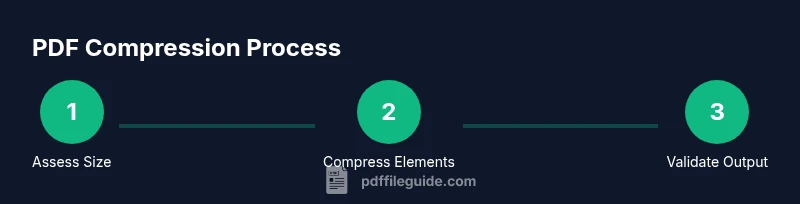
Assess the file and set compression goals
Open the PDF and note its size, page count, and image density. Decide how much you can reduce size without compromising essential content or accessibility.
Tip: Document the original size and target size to measure improvement. - 2
Downsample and compress images
Reduce image resolution and select efficient compression formats. Prioritize large color images and avoid over compressing small icons or text-heavy sections.
Tip: Preview a representative page to verify legibility after changes. - 3
Adjust fonts and metadata
Limit font embedding to essential fonts and remove unused metadata and hidden data that add to size.
Tip: Keep at least one standard font to preserve compatibility. - 4
Save as optimized PDF
Use your editor’s optimized save or export option and compare the new size to the original.
Tip: Save incremental versions to track exactly what changes affected size. - 5
Validate final output
Open on multiple devices, verify links and forms, and check print quality where needed.
Tip: If accessibility features exist, re-check tags and reading order. - 6
Document changes and backup
Note the compression settings used and keep the original file as a fallback.
Tip: Store this as a quick reference for future compressions.
Questions & Answers
Can I compress a password protected PDF?
Yes, but you must unlock the file with the correct permissions before applying compression. Some tools can compress after authentication.
You can compress if you unlock it first; permissions matter.
Will compression degrade quality?
Compression can reduce image fidelity and font quality if settings are aggressive. Always preview results before finalizing.
Yes, quality may drop if compression is pushed too far.
What is the best setting for images in compression?
Use moderate downsampling and a balance between image quality and file size. Avoid heavy downsampling on photos and graphics.
Aim for a balance; avoid overdoing it.
Should I use online tools or desktop apps?
Desktop apps generally offer more control and privacy. Online tools are convenient but examine privacy policies and data handling.
Desktop gives control; online is convenient.
Can scanned PDFs be compressed effectively?
Yes, with OCR, grayscale optimization, and targeted image compression. Scanned PDFs often benefit from selective cleaning to avoid quality loss.
OCR and targeted compression help.
Watch Video
Key Takeaways
- Identify largest size drivers first.
- Balance image quality with file size for readability.
- Test on multiple devices for consistency.
- Keep backups before compression experiments.