How to Check PDF Size: A 2026 Practical Guide
Learn practical methods to check PDF file size across desktop and mobile platforms, with step-by-step steps, tips, and safe online options for 2026.


To check a PDF's size, locate the file and view its properties in your operating system, or open the document in a PDF reader that shows file details. You can also upload the file to a cloud service or use a dedicated tool to estimate or verify size. This article walks you through Windows, macOS, and mobile methods.
Why Checking PDF Size Matters
Understanding a PDF's size is essential for efficient collaboration, quick sharing, and reliable storage planning. A document that is too large can hinder email delivery, slow downloads for recipients, and consume excessive cloud storage space. For professionals who routinely send reports, proposals, or manuals, knowing the exact size helps you choose the right distribution method and decide if compression or optimization is warranted. According to PDF File Guide, recognizing size implications early streamlines workflows and reduces the friction of document exchange across teams in 2026. This section explores why size matters beyond mere bytes, including how different content components influence overall size and how to interpret size when comparing multiple versions of the same document. By the end, you’ll have a clear mental model of what contributes to PDF size and how to manage it gracefully.
A fundamental point is that PDF size is not just a single number; it reflects a combination of embedded fonts, images, metadata, encryption, and multimedia content. For many readers, the file size is a practical indicator of the level of optimization applied. For example, a high-resolution image and non-optimized fonts can dramatically inflate file size, while font-embedding policies and image compression can trim it down. As you gain familiarity with these factors, you’ll be better equipped to decide when to compress, re-save with optimization, or export to a lighter variant for distribution while preserving essential quality. The PDF File Guide team emphasizes that small, deliberate adjustments often yield meaningful reductions without sacrificing readability or accessibility.
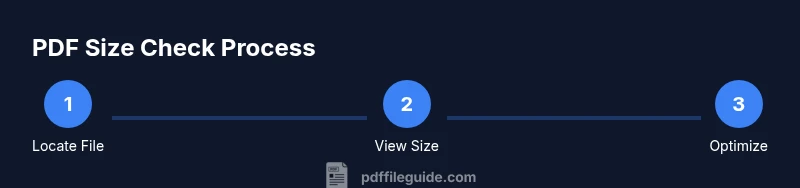
In practice, you’ll use several checks in sequence: (1) view the size in file properties, (2) compare to the version you share with others, and (3) run a quick optimization test to see how much size can realistically be reduced. The goal is not just a smaller file but a predictable size that maintains legibility, searchability, and any required features like forms or accessibility tagging. With this approach, you’ll standardize how you assess PDFs across devices and teams, saving time in communications and archiving.
How File Size is Measured and What It Includes
PDF size is typically expressed in bytes and its larger units (KB, MB, GB). The size you see in a file manager or cloud service usually reflects the raw data stored on disk, including fonts embedded in the document, images, metadata, and any embedded multimedia. Some tools may display a slightly different value depending on how they calculate size (for example, “size on disk” vs “file size”). The distinction matters when you compare two versions of a document or when calculating how much space a batch of PDFs will require for an email or transfer. Understanding what contributes to size helps you decide where to optimize: remove unused assets, compress images, avoid unnecessary font embedding, or flatten layers to reduce complexity. The PDF Reference documents detail how fonts, images, and streams contribute to the overall file payload, which informs practical optimization decisions for your workflows.
As a best practice, you should always check both the nominal file size and, if relevant, the size on disk after compression or archiving. This helps you evaluate the effectiveness of the optimizations you applied and prevents surprises when recipients report slow uploads or failed transfers. By building a simple checklist, you can consistently assess PDF size across various projects and clients. PDF File Guide’s guidance highlights that a routine review of size and composition is part of professional PDF management in 2026.
Quick, No-Tool Checks: What You Can Do Right Now
If you don’t want to install anything or make changes to the document, several quick checks can give you an accurate sense of size and potential for optimization. First, view the file’s size in your operating system’s file explorer or Finder. This single value is usually sufficient for most distribution decisions. Second, open the PDF in any reader that shows document properties; many readers list size information in the File or Properties menu. Third, compare the original size with a freshly saved copy using a quick Save As or Optimized Save function in your reader; this lets you estimate how much size might be saved without altering content. Finally, consider a light compression pass to test the impact on size and quality, especially for image-heavy PDFs. These steps require no extra software and deliver reliable insights into whether a PDF is a good candidate for sharing as-is or compression.
For teams prioritizing privacy, avoid uploading sensitive PDFs to unknown online tools for size checks. If you must use an online tool, choose reputable providers with clear privacy policies and data handling practices. The idea is to keep your process transparent and auditable while maintaining document security. This approach aligns with best practices recommended by PDF File Guide and helps you manage your documents responsibly across platforms.
If you are working with many PDFs, this quick-destiny approach can be repeated with minimal overhead, letting you triage files before sharing or archiving. The goal is to establish a routine that makes size awareness a natural part of your document workflow.
How to Check PDF Size on Windows, macOS, and Linux
Checking PDF size on desktop platforms is straightforward, but the exact steps differ slightly by operating system. On Windows, you typically navigate to the folder containing the PDF, right-click the file, select Properties, and read the Size value in the General tab. On macOS, you can select the file in Finder and press Command-I to open the Get Info panel, which displays the file size and other details. Linux users can run commands in the terminal, such as du -h /path/to/file.pdf to see the human-readable size or stat -c%s /path/to/file.pdf for the exact byte count. When you’re evaluating multiple PDFs, consider rendering a tiny table that lists File Name, Size, and Last Modified Date for quick comparisons. Importantly, remember that “Size on Disk” may differ from “Size” due to file system block sizes, so you should consider both figures if you’re planning bulk transfers or archiving. The knowledge of these distinctions helps you set realistic expectations for transfers and storage planning.
Integrating these checks into your routine enables you to spot oversized files early and plan compression or re-saving accordingly. PDF File Guide suggests keeping a standard process so all team members can assess and report PDF sizes with consistency in 2026.
Checking PDF Size on Mobile: iOS and Android Quick References
Mobile devices demand a slightly different approach. On iOS, the Files app shows basic size information after you select a file and tap the Info icon. On Android, a file manager app typically lists size in its Details view. If installed, you can also use a dedicated PDF viewer app that presents document properties, including file size. When you perform checks on mobile, account for how the file is stored—whether in apps, cloud storage, or local device folders—as different locations may display slightly different size values due to metadata or app-specific packaging. For frequent mobile work, consider using a lightweight, privacy-respecting file manager that can display size while you browse, helping you decide early whether a PDF should be compressed before sharing via email or messaging.
As with desktop workflows, avoid uploading sensitive PDFs to untrusted online tools from mobile devices. When privacy is a concern, keep checks local to your device or rely on trusted cloud services with robust privacy assurances. A consistent mobile workflow reduces delays when you need to share files on the go and helps you maintain predictable file sizes for quick delivery and archiving.
Practical Scenarios, Common Pitfalls, and What to Do Next
In real-world workflows, PDFs can balloon in size due to embedded fonts, high-resolution images, or unnecessary metadata. If you notice unexpectedly large sizes after edits, revisit optimization options: reduce image resolution, downsample color spaces, unembed rarely used fonts, flatten transparency, and remove unused objects. When sharing via email or collaboration platforms, test both the original file and an optimized variant to ensure that essential features like hyperlinks, forms, and accessibility tagging remain intact. The PDF Reference and related documents explain how embedded fonts and image streams contribute to size, guiding you toward targeted compression strategies. Always verify that critical features are preserved after any optimization.
For teams handling sensitive data, be mindful of privacy and compliance. If you must use online tools, scrub or redact content where possible before uploading and review the tool’s data retention policies. PDF File Guide emphasizes that a disciplined approach to size management—paired with a clear policy on when to compress and how to communicate about compression—results in smoother collaboration and more predictable storage needs in 2026. Finally, maintain a habit of re-checking sizes after every major revision to ensure you meet distribution requirements and keep projects on track.
Authorities and Best Practices: How to Curb PDF Size Effectively
- Identify and remove unnecessary assets: large images, unused fonts, and redundant metadata.
- Use lossless or lossy compression appropriately for images within the PDF to balance quality and size.
- Consider exporting with selective font embedding and image downsampling to achieve a sustainable size without sacrificing accessibility.
- Verify accessibility and searchability remain intact after optimization; you may need to reflow text or maintain tag structures.
In practice, you’ll want a repeatable process that you can apply across file types and collaborations. The PDF Reference and accompanying standards provide the technical foundation for understanding how content contributes to size, while industry best practices help you translate that knowledge into actionable steps. The PDF File Guide team recommends building a lightweight, privacy-conscious workflow for checking PDF size that scales with your workload and maintains document integrity across platforms in 2026.
Tools & Materials
- File manager or Finder(Access to file properties and size)
- PDF reader with properties view(Show document size and metadata)
- Internet connection (optional)(For online size-check tools (privacy-aware))
- Cloud storage account (optional)(View size after upload for quick estimates)
- Text editor or spreadsheet (optional)(Log sizes for multiple files in a sheet)
- Mobile file manager (iOS/Android)(Check size on the go)
Steps
Estimated time: 15-25 minutes
- 1
Open the PDF’s properties
Navigate to the PDF in your file browser and open Properties (Windows) or Get Info (macOS). Look for the file size in the details panel. This gives you the primary size metric and can reveal differences between 'Size' and 'Size on disk' if shown.
Tip: Tip: Compare 'Size' and 'Size on disk' to understand how the OS stores the file. - 2
Check in a PDF reader’s properties
Open the PDF in a reader and access Document Properties or File Info. Some readers display the file size alongside other metadata, which confirms OS values and may reveal embedded fonts or multimedia that affect size.
Tip: Tip: If fonts are embedded, consider exporting without embedding nonessential fonts to save space. - 3
Test quick optimization by re-saving
Use Save As or Optimize PDF in your reader to generate a smaller version. Compare the new file size to the original to estimate potential reductions without altering content.
Tip: Tip: Always verify critical features after optimization, especially forms and accessibility tagging. - 4
Use an online or offline tool if needed
If you need a rough estimate and privacy allows, upload the file to a trusted tool to compare sizes, or use a desktop utility that analyzes element-by-element size (images, fonts, metadata).
Tip: Tip: Prefer offline tools for sensitive documents; online tools should be your last resort. - 5
Assess impact of compression options
Experiment with image downsampling, JPEG quality reduction, and font subsetting. Each option trades off quality for size, so test readability and accessibility after changes.
Tip: Tip: Start with moderate downsampling and check readability before making further adjustments. - 6
Document the results and establish a baseline
Record the sizes before and after optimization for future reference. A consistent baseline makes it easier to respond to requests and plan storage.
Tip: Tip: Create a simple log with file name, original size, optimized size, and date.
Questions & Answers
How do I check the size of a PDF file on Windows?
On Windows, locate the PDF in File Explorer, right-click, select Properties, and read the Size value. You can also open the same file in a PDF reader for a secondary check.
In Windows, check Properties for the file size, and confirm with the PDF reader if needed.
What is the difference between 'Size' and 'Size on disk' in a PDF?
Size shows the actual bytes the file takes up, while Size on disk reflects cluster allocation by the filesystem. They can differ, especially for fragmented or compressed storage.
Size is the actual bytes; Size on disk depends on how Windows allocates space.
Can I check PDF size without opening the file?
Yes. The file's Properties or Get Info view provides the size without opening the PDF. This is often sufficient for quick sharing decisions.
Yes, you can view the size from file properties without opening the PDF.
Will compressing a PDF always reduce its size?
Compression typically reduces size, especially for image-heavy PDFs, but results vary. Some documents may see limited gains if they already use optimized assets.
Compression usually reduces size, but results vary depending on the content.
Is it safe to upload PDFs to online size-checkers?
Only use trusted tools with clear privacy policies. For sensitive PDFs, prefer offline checks or local software to avoid data exposure.
Only use trusted online tools; for sensitive files, stay offline when possible.
Watch Video
Key Takeaways
- Check file properties for a quick size estimate.
- Understand the difference between Size vs Size on disk.
- Test optimization to find a practical balance of size and quality.
- Prefer offline or trusted tools for sensitive documents.