How to Tell PDF Size: A Practical, Step-by-Step Guide
Learn how to tell a PDF's size across Windows, macOS, and online tools. This practical guide covers file size, on-disk size, and page dimensions with clear steps and real-world examples.


By the end of this guide, you will know how to tell a PDF’s size using native file properties, metadata, and popular software. You’ll learn quick checks on Windows, macOS, and Linux, plus how to verify the size inside the document when needed. No special tools beyond your computer are required for most methods.
Understanding how to tell pdf size
Knowing the size of a PDF can mean different things: the file size on disk (how much storage it consumes), the size reported by file properties (which may differ slightly from on-disk due to block sizes), and the page size/content size inside the document. For editors and professionals, getting this right matters for sharing limits, upload quotas, and performance. According to PDF File Guide, starting with a clear definition helps you choose the right method and tool for the task. In this section we’ll align terminology and show how these concepts relate to everyday workflows, so you can answer the question effectively whether you’re sending a contract, archiving records, or preparing PDFs for web use. The keyword how to tell pdf size surfaces across many tasks, from compression decisions to deciding if a file will upload quickly on a slow connection. By isolating the concept of “size” from “dimensions” and “pages,” you’ll avoid common misinterpretations and save time in future projects.
File size vs. page size: key definitions
The phrase how to tell pdf size often refers to the file size on disk, measured in kilobytes (KB) or megabytes (MB). This reflects the amount of data stored in the file, including text, images, fonts, and metadata. Page size, on the other hand, describes the physical dimensions of the pages (for example, A4 or Letter) and is independent of the file's data volume. When you optimize a PDF for web, you typically care about file size; when you prepare for printing, page size matters for layout and scaling. Understanding the distinction helps you select the right tool and avoid over- or under-estimating the file’s impact on workflows.
Why both metrics matter in real work
If you’re submitting a form, tutorial, or report, a small file size can speed uploads and reduce bandwidth usage, especially for bulk submissions. Conversely, a document with large page sizes or embedded high-resolution media may inflate the file size rapidly. Designers and engineers often work with PDFs that balance fidelity and compression. The practical takeaway is to measure both metrics when relevant and to document how each metric was obtained. This clarity helps teammates reproduce results and ensures consistent outcomes across devices.
Tools & Materials
- Your computer (Windows/macOS/Linux)(Basic navigation to file properties and applications for viewing PDFs)
- PDF viewer or editor(Examples: Adobe Reader/Acrobat, Preview (macOS), or browser-based viewers)
- The PDF file you want to inspect(Have it accessible in your workspace)
- Optional online tool(Use with caution for sensitive documents; prefer offline checks for privacy)
Steps
Estimated time: 15-25 minutes
- 1
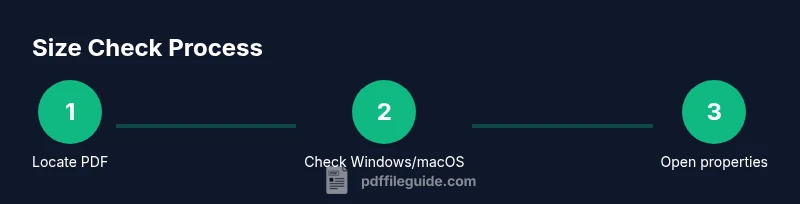
Locate the PDF file
Find the exact PDF you want to size in your file system. Ensure you’re selecting the correct version if you have multiple copies. This first step provides the baseline for all subsequent checks.
Tip: Use a dedicated folder for project PDFs to simplify future lookups. - 2
Check file size in Windows
Right-click the PDF and choose Properties, then read the Size value. This is the file size on disk, reflecting how much storage the file currently consumes on your drive.
Tip: Compare 'Size' with 'Size on disk' to understand cluster allocation differences. - 3
Check file size in macOS
Select the PDF and press Command-I to open Get Info, where you’ll see the file size under General. This shows the actual stored bytes on your Mac.
Tip: If you don’t see the exact value, click the disclosure triangle to reveal more details. - 4
Open the PDF and view document properties
Open the PDF in a viewer (e.g., Adobe Acrobat Pro/Reader or Preview). Access Document Properties or Description to view metadata and, in some tools, the page size for quick context.
Tip: Document properties can reveal embedded fonts and resolution that influence size. - 5
Differentiate size on disk vs. actual content
Note that the on-disk size and the logical size (data) can differ due to compression, fonts, and embedding. If you’re preparing an upload, rely on the file size value; if printing, consider page and content details.
Tip: When in doubt, perform a quick compression test and compare results. - 6
Use an offline tool to verify and optionally compress
If you need to optimize size, use a PDF optimization tool to compress images, remove unused objects, or subset fonts, then re-check the file size.
Tip: Always save a copy before compression to preserve the original data. - 7
Check page size and layout separately
For printing or layout integrity, confirm page dimensions (e.g., A4, Letter) and coordinate with print specifications. This ensures you’re not confusing content size with page size.
Tip: If you’re sharing digitally, page size matters less than file size; prioritize your delivery method. - 8
Document results and keep a log
Record the file size, size on disk, and any changes after compression or edits. A simple log helps you track changes across versions.
Tip: Include date, tool used, and the resulting size for reproducibility. - 9
Consider privacy if using online tools
If you must use an online size checker, avoid uploading sensitive documents. Prefer offline checks or trusted, privacy-respecting services.
Tip: Disable sharing features and delete uploaded files as soon as possible.
Questions & Answers
What is the difference between file size and page size in a PDF?
File size refers to how much storage the file occupies, while page size describes the physical dimensions of the pages. They affect different aspects of handling a PDF—upload limits vs print layout. Understanding both helps you choose the right optimization or printing approach.
File size tells you how much space the file takes, while page size is about the page dimensions. They affect transfer and printing differently.
Can I tell the PDF size without opening the file?
Yes. On Windows or macOS, you can read the file size from the file's Properties or Get Info without opening the document. This shows the stored size on disk and is typically sufficient for transfers and quota checks.
You can see the file size from your file properties without opening the PDF.
What if the on-disk size and the reported size differ?
Differences often come from compression, embedded fonts, and metadata. Use both values for a complete picture and consider compressing or optimizing if the file is too large for your needs.
If the on-disk size and the reported size differ, consider compression and check what’s contributing to the size.
Are online tools safe for checking PDF size?
Online tools can be convenient but may pose privacy risks for sensitive documents. Prefer offline checks when possible and only use trusted services for non-sensitive files.
Be cautious with online tools—use offline methods for sensitive PDFs.
How can I verify the size after compression?
After compression, re-check the file size and, if needed, re-run the tool with different settings to achieve the desired balance between size and quality. Document the final size for reference.
Check the size again after compression to confirm the result.
Watch Video
Key Takeaways
- Know the difference between file size and page size
- Use OS tools to read the primary file size quickly
- Document and log results for reproducibility
- Use offline methods before relying on online tools
- Compress with care and verify the new size