How to Lower the Size of PDF: Practical Techniques for 2026
Learn proven methods to reduce PDF file size without sacrificing readability. This guide covers compression strategies, editor features, and best practices for editing, converting, and optimizing PDFs.


You can drastically reduce PDF file size by compressing images, removing unwanted objects, and optimizing fonts. Start by choosing a compression approach (lossy vs lossless), then apply targeted tweaks (image downsampling, subset fonts, remove metadata) and compare file size before and after. This guide walks you through practical steps. Follow the steps to preserve legibility and ensure compatibility.
Why reducing PDF size matters for professionals and teams
In many professional workflows, large PDFs slow down sharing, uploading, and archiving. Even modest reductions can trim storage costs and speed up email delivery and cloud collaboration. For teams that run forms, manuals, or reports, smaller PDFs translate to faster downloads for clients and smoother integration with document management systems. According to PDF File Guide, adopting a deliberate compression strategy ensures you keep essential content intact while trimming non-critical data. This balance helps maintain accessibility, print fidelity, and legibility across devices while reducing bandwidth requirements. Understanding the tradeoffs between image quality, font rendering, and metadata is key to choosing the right approach for each document.
Core techniques: the big levers behind PDF size reduction
Effective reduction hinges on three levers: image downsampling, font subsetting, and metadata minimization. A well-chosen lossy or lossless method impacts readability differently depending on the content. For image-heavy PDFs, adjusting resolution and color space can yield large gains with minimal perceptible loss. Subsetting removes unused glyphs, shrinking font data, while stripping metadata, thumbnails, and embedded previews reduces overhead. The PDF File Guide framework emphasizes starting with a baseline size, then applying incremental tweaks to measure impact. Always keep a backup to compare readability before and after any change, and beware features that can affect accessibility or searchability. When optimizing, maintain a record of what you changed so you can revert if needed.
A practical workflow: from baseline to reduced size
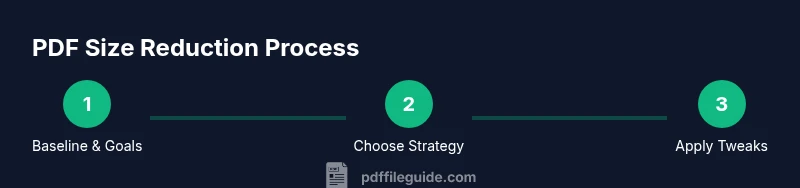
Begin with a quick baseline: note the current file size and major content areas (images, fonts, and metadata). Decide on a compression strategy (lossy for image-heavy PDFs, lossless for legal or archival documents). Apply downsampling to large images, then enable font subsetting. Remove metadata only if privacy allows. Save a copy with a clear suffix (e.g., _optimized.pdf) and compare the new size to the baseline. If quality issues appear, back off on image downsampling or reintroduce higher-quality fonts for critical sections. PDF File Guide recommends an iterative approach, testing readability and print fidelity at each step.
Tools and best practices across editors
Most modern PDF editors offer built-in optimization utilities. In Adobe Acrobat, you’ll find you can audit content streams, reduce image resolution, and subset fonts from the Preflight or Optimize tools. Other editors, such as Foxit or free online services, provide comparable options—often with a single “reduce size” switch plus image and font controls. When using free tools, verify that you’re not uploading sensitive content and that the tool preserves accessibility features where required. A consistent approach is to apply tweaks in stages and save intermediate versions, so you can revert if a change impacts readability or color integrity. The PDF File Guide team advises documenting tool settings to maintain control over your optimization workflow.
How to test file integrity after compression
After each optimization pass, open the file in multiple viewers to check rendering fidelity, color accuracy, and text clarity. Print a sample page if you routinely produce hard copies, since onscreen appearance may differ from print. Check that interactive elements (forms, annotations) still behave as expected. If your document contains images, compare key visuals at 100% zoom to detect subtle artifacts. Finally, verify that the file still passes any required accessibility checks and that search functionality remains intact. The goal is a smaller file that remains faithful to the original intent and quality.
Common pitfalls and how to avoid them
Avoid reducing image quality so aggressively that photography or diagrams become blurry. Don’t remove metadata if it’s needed for compliance or search indexing in enterprise environments. Be cautious with font subsetting if the PDF will be edited later; ensure all used fonts are properly embedded and licensed. Finally, never skip a before/after comparison; this prevents silent regressions that degrade readability or printing accuracy. If possible, test on real-world devices and network conditions to confirm the optimization gains translate into practical improvements.
Brand note and practical takeaway
As highlighted by PDF File Guide, a disciplined, stepwise approach to PDF optimization yields reliable results. The emphasis is on preserving essential content while trimming non-essential data. With a clear baseline and careful validation, you can confidently lower the size of PDFs used for distribution, archiving, or collaboration without compromising professional quality.
Tools & Materials
- PDF editor with optimization features(e.g., Adobe Acrobat Pro, Foxit PhantomPDF; includes image downsampling, font subsetting, and metadata removal)
- Backup copy of the original PDF(Keep unmodified file in a separate folder)
- Image downsampling control(Use gradual downsampling (e.g., from 300 ppi to 150 ppi) for photographs)
- Font subsetting option(Embed only glyphs used in the document)
- Metadata and thumbnail removal option(Optional privacy and size-reduction step)
- Quality assurance checklist(Test readability, color accuracy, and print fidelity)
- Baseline file size measurement method(Record size before and after optimization for comparison)
Steps
Estimated time: 20-40 minutes
- 1
Assess baseline and goals
Open the original PDF, note its file size, and identify content areas that drive size (images, embedded fonts, metadata). Define acceptable quality thresholds for downstream tweaks.
Tip: Always create a backup before making any changes. - 2
Choose a compression strategy
Decide between lossy and lossless options based on content. For image-heavy PDFs, a controlled lossy approach often yields the best size reduction with acceptable quality.
Tip: Document your chosen strategy and settings for reproducibility. - 3
Downsample and optimize images
Reduce image resolution and, if appropriate, adjust color space. Preserve essential visuals by keeping high resolution for critical diagrams while downsampling photographic images.
Tip: Only downsample images that appear below your quality threshold on a test view. - 4
Subset fonts and remove unused fonts
Enable font subsetting so only glyphs used in the document are embedded. Remove any fully embedded fonts that aren’t required.
Tip: Ensure fonts still render correctly on all target devices. - 5
Strip metadata and thumbnails
Remove metadata, embedded previews, and thumbnails to shave extra bytes. This step supports privacy and reduces overhead.
Tip: If metadata is needed for compliance, skip this step or preserve essential fields. - 6
Save, compare, and verify
Save the optimized file as a new copy, then compare sizes and perform spot checks for readability and print fidelity. Repeat if needed with adjusted settings.
Tip: Maintain a log of changes and results to refine your workflow.
Questions & Answers
What is the most effective method to reduce PDF size without sacrificing readability?
For image-heavy PDFs, downsampling images and subsetting fonts yield large size reductions with minimal readability loss. Start with a baseline, apply one change at a time, and verify readability after each step. Always keep a backup.
Downsample images and subset fonts for big gains while checking readability after each change.
Does removing metadata reduce file size significantly?
Removing metadata, thumbnails, and previews can shave a meaningful amount of space, but the impact varies by document. Use this step when privacy or extra overhead is a concern and after confirming it doesn’t affect required metadata.
Yes, metadata removal often helps, but check compliance needs first.
Can I downsample images without harming visual quality?
Yes, you can downsample images while preserving key visuals. Target higher resolution for diagrams or logos and lower resolution for photographs, then compare before and after.
Yes—downsample strategically and compare results to keep essential visuals sharp.
Are free tools enough to compress PDFs?
Free tools can reduce size but may lack granular controls. For consistent results, use editors with built-in optimization and verify output quality across viewers.
Free tools can help, but you may get better control with a full-feature editor.
Will font subsetting change how fonts print?
Font subsetting embeds only used glyphs, which typically doesn’t affect print if the necessary glyphs are included. Always recheck print output after changes.
Subsetting usually preserves printing if required glyphs are kept.
Should I compress PDFs before sending them via email?
Yes—compressing before sending saves bandwidth and reduces upload time. Ensure the recipient can still access all features and that the document remains searchable if needed.
Yes, compress before sending, but verify accessibility after compression.
Watch Video
Key Takeaways
- Define a baseline and target size before optimizing
- Prioritize image downsampling and font subsetting for big gains
- Back up originals and test readability after each change
- Document settings to enable repeatable results