Can You Make a PDF? A Practical How-To Guide
Learn step-by-step how to create PDFs from documents, images, or web pages. This educational guide covers export, print-to-PDF, tools, workflows, accessibility, and best practices from PDF File Guide.


Can you make a PDF? What it means
When someone asks can you make a pdf, they’re typically asking how to convert content into the Portable Document Format so it looks the same on any device. A PDF preserves fonts, layout, and images, and can be read with minimal software. In professional settings, making a PDF is a prerequisite for sharing documents securely and consistently. The PDF File Guide author team emphasizes that creating PDFs is not a single method; it’s a family of workflows designed to fit different source materials and end goals. The term can you make pdf is often a gateway to understanding which tool or method will deliver reliable results across platforms.
Key distinctions to keep in mind include whether you need a static print-ready file, an accessible tagged PDF for screen readers, or a PDF with embedded fonts for brand consistency. Each goal may steer you toward different export settings or software options. By choosing the right approach, you ensure that your final PDF will render correctly in email clients, browsers, and professional printing pipelines.
Core methods to create PDFs
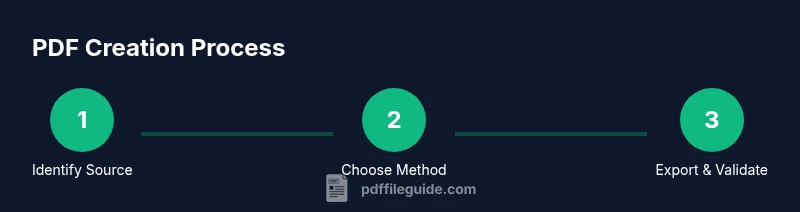
There are several reliable ways to produce PDFs, depending on your source content and the context in which the PDF will be used. The most common methods include using a built-in print-to-PDF option, exporting directly from authoring tools (like Word, Excel, PowerPoint), or utilizing dedicated PDF creators or online converters. Print-to-PDF typically acts as a virtual printer; exporting leverages application-specific options to create a compliant PDF. For batch workflows, desktop tools and automation scripts can generate multiple PDFs quickly while preserving consistent settings. When selecting a method, consider output quality, file size, and whether you require accessibility features or metadata that helps search engines index the document.
Source-specific workflows
Different source formats call for different steps to produce a high-quality PDF. From a Word document, you usually choose File > Save As > PDF or File > Print and select Print to PDF. In Excel or PowerPoint, you may adjust slides or worksheets, then export to PDF with appropriate page size and print area. If you’re starting from an image or a set of images, use an image-to-PDF workflow that preserves resolution, color depth, and compression. Web pages can be saved as PDFs using the browser’s print function, often with options to include background graphics and headers. Remember: check margins, embed fonts, and test the PDF on multiple devices for consistency.
Accessibility and quality considerations
Accessible PDFs are tagged so assistive technologies can interpret structure like headings, lists, and tables. Embedding fonts ensures the document looks the same even when the recipient does not have the original font. Image resolution should balance clarity with file size; avoid unnecessary large images that bloat the file. Metadata—title, author, subject—improves searchability and document management. If you’re distributing to a broad audience, consider creating a tagged, accessible PDF (PDF/UA) and validating it with accessibility checkers. These practices improve readability, ensure compliance, and give readers a predictable experience across devices.
Batch processing and automation tips
Professionals often need to produce many PDFs with identical settings. Batch processing can be done using desktop suites, command-line tools, or cloud services that support queueing jobs. Set a standard output profile (page size, orientation, compression, font embedding) and apply it to all sources in a folder. Automating metadata and accessibility tagging saves time and ensures consistency. If your workflow involves sensitive information, use password protection or encryption and confirm sharing permissions before distribution.
Common mistakes and troubleshooting
A frequent pitfall is exporting with high image resolution and no compression, which inflates file size and slows delivery. Another mistake is forgetting to embed fonts, causing layout shifts on devices without the original fonts. Always verify the PDF on multiple devices and readers. If a PDF doesn’t display correctly, check the export settings (page size, margins, color space) and consider recreating with adjusted compression or font-embedding options. For accessibility issues, run a quick accessibility check and add structural tags where needed.
Tools and resources
A range of tools can help you create PDFs, from built-in OS features to specialized software. For simple tasks, the built-in export or print-to-PDF options are sufficient. For more complex workflows, consider desktop editors like PDFelement or Acrobat, or reliable online converters that respect privacy. When choosing tools, prioritize ones that support batch processing, metadata editing, and accessibility tagging. Always review the privacy policy when using online services to avoid unintended data exposure.