How Do You Save as a PDF: A Complete Step-by-Step Guide
Learn how to save any document as a PDF across Windows, macOS, and mobile. This educational guide covers built-in options, platform-specific paths, accessibility considerations, and practical tips from PDF File Guide.


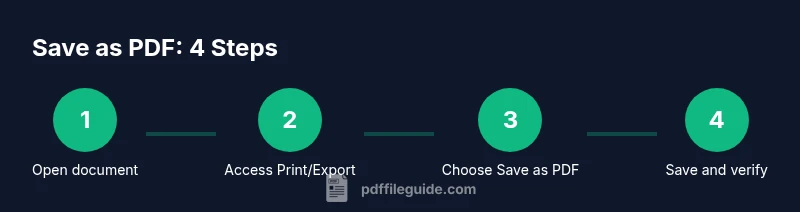
To save any document as a PDF, choose Print or Export and select Save as PDF (or a PDF printer) as your destination. This works on Windows, macOS, and mobile apps with the native dialog. For best results, verify layout, embedded fonts, and image quality before saving. The PDF File Guide recommends using the built-in option to maximize compatibility.
how do you save as a pdf
Saving a document as a PDF is a fundamental skill for anyone who edits, converts, or shares files. When you ask how do you save as a pdf, you’re really choosing a portable, widely supported format that preserves layout, fonts, and images across devices. According to PDF File Guide, saving as PDF is a universal skill across platforms, and most apps provide a built-in option rather than relying on third-party converters. In this guide we’ll explore the core concept, common paths, and how to spot pitfalls before you save. You’ll learn why this matters for collaboration, archiving, and professional workflows. Expect platform-specific paths, best practices for quality and accessibility, and practical tips drawn from real-world use cases. Throughout, we emphasize reliable, built-in options over risky third-party tools to protect your content and keep your files portable.
Across platforms: Windows, macOS, Android, iOS
Across the major platforms, the Save as PDF option lives in familiar places, but the exact menu paths differ. On Windows, you’ll often use the Print dialog and select a PDF printer like Microsoft Print to PDF. On macOS, the Print dialog includes a Save as PDF button at the bottom left. Mobile devices (iOS and Android) typically offer a Share or Print action that can convert to PDF or save via a Print-to-PDF option. Across editors and viewers, the concept is the same: you’re turning the document into a stable, shareable PDF rather than relying on a proprietary format. PDF File Guide notes that most modern apps integrate these options directly into the Print/Export menus, reducing the need for external converters and minimizing layout changes.
The pre-save checklist: ensure quality before saving
Before you save, run through a quick pre-check to minimize surprises: ensure your latest edits are saved, fonts are embedded if required, images are optimized for print or screen, and you know whether you need any security settings (passwords, permissions). Confirm page size and margins match your intended output. If your document contains links or interactive elements, decide whether they should be preserved as clickable links in the PDF. A little setup here pays off with clean, reliable output and fewer round-trips after sharing.
Step-by-step paths by app: Word, Google Docs, and more
Different apps present Save as PDF slightly differently, but the core steps are consistent. In Word, you typically go to File > Save As and choose PDF from the format list. In Google Docs, you select File > Download > PDF Document (.pdf). In macOS applications, use File > Print and then click Save as PDF from the bottom-left corner. For many other editors, look for a Print or Export option and select PDF as the destination. If you’re on a mobile device, use the share/print flow to access a PDF output. The key is to locate the printer or export dialog and choose PDF as the target output.
Accessibility and quality considerations: fonts, colors, and metadata
PDFs are most effective when they are accessible and properly structured. Embed fonts when needed to preserve layout, add document properties (title, author, subject) for searchability, and tag content to aid screen readers. Use high-contrast color schemes for readability and verify that images have descriptive alternative text where appropriate. If your PDF will be distributed publicly, consider adding bookmarks and a logical reading order to improve navigation. These steps help ensure your PDF works well for colleagues and clients with varied devices and assistive technologies.
Troubleshooting common issues: where things go wrong and how to fix
If your saved PDF looks off, first check that you selected the correct page range and did not inadvertently include hidden content. Differences in fonts or image rendering often stem from missing font embeds or color profile mismatches. If the Save as PDF option is missing, try printing to a PDF printer (where available) or use the app’s Export function. Some apps require an update to expose the PDF option, while others offer a dedicated 'Export to PDF' feature that preserves more settings than a generic Print flow. If you encounter blank pages, inspect page size settings and margins, then re-run the save process with adjusted parameters.
The PDF File Guide approach: reliable, universal practices
The PDF File Guide team emphasizes using native Save as PDF options whenever possible, as these deliver the highest compatibility and fidelity across platforms. By sticking to built-in dialogs and avoiding third-party converters, you minimize layout shifts and font substitution. The guide also highlights testing a sample document after saving to confirm that your intended structure and accessibility features survive the conversion. The approach centers on practicality, consistency, and long-term usability for professionals who edit, convert, and optimize PDFs.
Tools & Materials
- Device with print/export to PDF capability(Windows PC, macOS, iPad/iPhone, or Android device)
- Word processor or editor (e.g., Microsoft Word, Google Docs, Apple Pages)(File should be finalized before saving)
- PDF printer or Save as PDF option(Windows: Microsoft Print to PDF; macOS: Save as PDF in Print dialog)
- Quality-check PDF viewer(Verify fonts, images, and layout after saving)
- Optional: password protection tool(If you need to encrypt the PDF)
Steps
Estimated time: 15-25 minutes
- 1
Open the document you want to save as PDF
Launch the file in its native application and ensure the latest edits are visible. This guarantees the saved PDF reflects your current content. Close any extraneous panels that could spill into margins.
Tip: Use Print Preview if available to catch layout issues before saving. - 2
Access the Print or Export menu
Navigate to the app’s Print or Export menu. This is where the Save as PDF option typically resides. If you don’t see it, try a different menu labeled Export, Publish, or Create PDF.
Tip: Keyboard shortcuts like Ctrl/Cmd + P often open the Print dialog quickly. - 3
Choose Save as PDF or a PDF printer as the destination
In the printer dialog, select a PDF option such as Save as PDF or Microsoft Print to PDF. This step converts the current document into a PDF file without changing the original.
Tip: If multiple printers appear, pick the one explicitly labeled PDF to avoid accidental hard copies. - 4
Configure settings before saving
Review page range, orientation, color, and image quality. Set any accessibility options like document structure tags if available. Adjust metadata fields if your app allows them.
Tip: Embedding fonts ensures the text looks identical on other devices. - 5
Choose a file name and save location
Enter a descriptive file name and select a logical folder. Use version-friendly naming to track updates over time (e.g., ProjectName_v2.pdf).
Tip: Avoid spaces and special characters that can complicate sharing. - 6
Save and verify the resulting PDF
Click Save, then open the PDF to verify content, layout, and accessibility features. Check that links, bookmarks, and alt text (where applicable) behave as expected.
Tip: Test on a different device if possible to confirm cross-platform fidelity.
Questions & Answers
What does it mean to save as PDF, and why is it useful?
Saving as PDF creates a portable, fixed-layout document that preserves appearance across devices. It’s widely supported and ideal for sharing finalized content.
Saving as PDF makes your document look the same everywhere, which is great when you share it.
Can I save any file as a PDF?
Most documents and images can be saved as PDF, but some apps may lack a built-in PDF option. In those cases, use Print or Export to PDF if available, or use a trusted printer option.
Most apps let you save as PDF, but some might not. If not, use Print or Export to get a PDF.
Why is the Save as PDF option missing in some apps?
The option may be hidden in menus like Print, Export, or Share. Ensure the app is up to date, or try another method such as a dedicated PDF export feature.
If you don’t see it, check for an Update or try the app’s Print or Export path.
Is there a difference between Save as PDF and Export to PDF?
In practice, both produce a PDF, but Export options may offer more settings like metadata or embedded fonts in some apps.
Export often gives more control, but Save as PDF usually covers the basics reliably.
Does exporting to PDF preserve formatting?
Generally yes, especially when fonts are embedded and images are properly included. Always verify after saving.
If you embed fonts and check the output, formatting stays consistent.
How can I protect a PDF with a password?
Many apps offer password protection during or after saving. Look for security or permissions options in the export or save dialog.
Use the security features in your app to password-protect the PDF.
Watch Video
Key Takeaways
- Use native PDF options for best results.
- Verify fonts, layout, and accessibility after saving.
- Name files clearly and choose logical save locations.
- Test the PDF on multiple devices to ensure fidelity.