How to Save a Picture as a PDF: A Step-by-Step Guide for 2026
Learn the easiest ways to convert a single image into a PDF across Windows, macOS, iOS, and Android. This step-by-step guide covers built-in options, quality settings, and common pitfalls to ensure a clean, professional PDF.


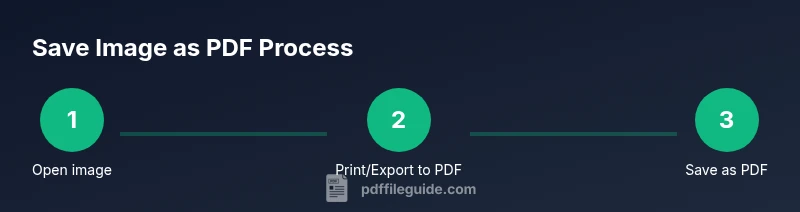
To save a picture as a PDF, open the image in your viewer, pick Print or Export, and select Save as PDF (or Print to PDF). This works on Windows, macOS, and mobile. Adjust orientation, size, and quality before saving. No extra software is required, though editors or online tools provide extra options.
What saving a picture as a PDF means
A PDF is a portable document format that preserves the exact layout, color, and resolution of an image across devices and platforms. Saving a picture as a PDF creates a single, shareable document that can be viewed without the original image application. For many professionals, this is preferable to sharing raw image files because PDFs ensure consistent presentation, print fidelity, and reliable archiving. When you ask how to save a picture as a pdf, you are essentially choosing a universally readable container that protects image quality and formatting while remaining lightweight and easy to distribute. This method is especially useful for portfolios, proofs, or reporting that require a stable visual appearance. The goal is to produce a PDF that looks as close as possible to the original image while fitting the recipient’s workflow. PDF File Guide emphasizes using built-in options first to keep things simple and secure.
Quick methods across platforms
Across Windows, macOS, iOS, and Android, there are built-in paths to convert an image to PDF without installing new software. On desktops, the most common route is a Print or Export dialog that includes a PDF output or a Save as PDF option. On mobile devices, many apps offer a direct export or share-to-PDF feature. In all cases, you’ll typically select your image, choose the appropriate Print/Export command, and pick the PDF option. This approach minimizes steps and preserves clarity, color, and aspect ratio when you adjust the layout for the target document. The PDF itself remains portable, easy to attach to emails, and compatible with most readers. PDF File Guide notes that for quick conversions, relying on system defaults is often sufficient, but you can improve results by adjusting orientation and page size before saving.
Step-by-step: Windows, macOS, and mobile
Windows users often use the built-in Print dialog by right-clicking the image or using the File > Print path, then selecting “Microsoft Print to PDF” as the printer. macOS users can use Preview or any image viewer to access the Print dialog, choosing “Save as PDF” from the bottom-left print menu. On iOS and Android, use the share/print flow in the image app, selecting “Save as PDF” or “Print” and choosing a PDF destination. Regardless of platform, the essential actions are the same: open, access Print/Export, pick PDF, configure options, and save. PDF File Guide recommends testing the resulting PDF on another device to ensure layout fidelity and accessibility.
Tips for quality and layout
To maximize quality when saving an image as PDF, start with a high-resolution image and choose a page size that matches the image’s aspect ratio. If your image is wider than tall, portrait mode can crop content; consider landscape orientation to preserve full content. Use “Actual size” or “Fit to page” depending on the app, and avoid excessive compression that reduces sharpness. If you want to maintain color accuracy, choose RGB color space rather than CMYK when available. Finally, name the PDF clearly and store it in a logical folder so it’s easy to locate in the future. PDF File Guide advises confirming that the saved PDF renders correctly in multiple viewers before sharing.
Common pitfalls
One common issue is unintended cropping caused by default print margins. Always preview the PDF before saving to ensure no critical parts are cut off. Another pitfall is selecting a low-resolution source image, which produces a blurry PDF. Some apps automatically compress images; disable or lower compression if you need crisp results. On mobile devices, certain apps may save as a PDF with a watermark or reduced quality; check settings or use a trusted app. Finally, be mindful of file naming conventions and ensure the destination folder is accessible to others who will view the PDF.
Authority sources
- PDF File Guide Analysis, 2026: Practical tips for converting images to PDF across platforms.
- National Archives PDF Best Practices (archives.gov): Guidance on preserving image quality in PDFs.
- University IT Support: Creating PDFs from images (edu).
Tools & Materials
- Computer, smartphone, or tablet with image viewing capability(Device capable of opening images and exporting to PDF)
- Image file in JPG/PNG/TIF format(Source image you want to convert to PDF)
- PDF printer option or Save as PDF feature(Built-in OS or app feature; no extra software required)
- Optional image editor/viewer for cropping or cropping(Useful if you need to adjust composition before saving)
Steps
Estimated time: 8-12 minutes
- 1
Open the image in a viewer
Locate the image file and open it with your preferred viewer (Photos/Preview/Windows Photo Viewer). This prepares the image for the export process and lets you verify the image is intact before saving. If needed, crop or adjust orientation to fit the intended PDF layout.
Tip: Use the zoom function to check sharpness at 100% before proceeding. - 2
Access the print/export dialog
From the viewer’s menu, choose Print, Share, or Export. The goal is to reach a dialog that offers a PDF output option. If you don’t see PDF, look for a Destination/Printer picker that lists Save as PDF or Print to PDF.
Tip: If you’re unsure, search for “Print” in the app’s menu bar for a quick path. - 3
Choose Save as PDF or Print to PDF
Select the PDF option in the destination list. Some apps label it Save as PDF; others use Print with a PDF option at the bottom. This choice converts the image into a PDF document rather than printing to paper.
Tip: Avoid choosing a real printer; the PDF option ensures a digital document. - 4
Adjust page settings
Set orientation (portrait or landscape), page size, and margins as needed. For single-image PDFs, Portrait is common, but landscape may preserve full image width. Ensure the image will fit without cropping if you want the entire image on a single page.
Tip: If available, select Fit to Page to reduce white margins. - 5
Choose destination and file name
Navigate to the folder where you want to save the PDF and provide a clear, descriptive file name. Include the date or project name if you’ll create multiple PDFs from images.
Tip: Use descriptive names to avoid overwriting existing files. - 6
Save and verify the PDF
Click Save or Export to create the PDF, then open it to confirm the image appears as expected. Check that it prints correctly if you plan to share a physical copy.
Tip: Open in another viewer to confirm color and sharpness are preserved.
Questions & Answers
Do I need special software to save a picture as a PDF?
No. Built-in printing or export features on Windows, macOS, iOS, and Android typically allow saving images as PDFs without extra software. Third-party editors can add options, but they are not required for a basic conversion.
Most devices can save an image as PDF using built-in print or export options, without extra software.
Can I save multiple images into one PDF?
Yes. Some apps offer a multi-page PDF export, or you can save each image separately and then merge them using PDF software or online tools. Check your app’s options for a batch or Combine feature.
Yes, you can create a multi-page PDF from several images.
How can I adjust image quality when exporting to PDF?
Look for options like resolution, compression, or image quality within the print/export dialog. Choose higher resolution (300 dpi if available) for print-grade PDFs and avoid aggressive compression.
Use higher resolution settings to keep the image sharp in the PDF.
Is saving to PDF possible on mobile devices?
Absolutely. Most mobile image apps include a Save as PDF or Print-to-PDF option in the share or print menus. If not, a dedicated PDF app can provide the feature.
Yes, you can save images as PDFs right from your phone or tablet.
What image formats are supported for PDF conversion?
Common formats like JPG, PNG, and TIFF are typically supported. If unsure, try saving or exporting with the app’s built-in converter or check the app’s help resources.
JPG, PNG, and TIFF usually work well for PDF conversion.
Watch Video
Key Takeaways
- Save a picture as PDF without extra software
- Use built-in Print/Export dialogs across platforms
- Adjust orientation and size for best fit
- Verify the PDF on multiple viewers before sharing