How to Edit PDF in Acrobat: A Step-by-Step Guide
Learn to edit PDFs with Acrobat Pro using Edit PDF, OCR for scans, and export options. This educational guide covers practical steps, common issues, and best practices for professionals editing PDFs.


You can edit PDFs in Acrobat by using the Edit PDF tool, converting content when needed, and saving back to PDF. Start by opening the file in Acrobat Pro DC, selecting Edit PDF, and adjusting text, images, and objects. For scanned documents, enable OCR first to make text editable. If you need more control, export to Word or Excel, edit, then re-import.
How Acrobat's Edit PDF tool works
According to PDF File Guide, Acrobat’s Edit PDF tool provides a centralized interface to modify text, replace images, adjust fonts, and rearrange objects within a PDF. This capability is essential for professional document polishing and quick updates without recreating content. In this guide, you’ll learn how to use Edit PDF, when to export to other formats, and how to manage common pitfalls. The Edit PDF tool is most effective on native PDFs where the text is selectable and the layout is built with text frames. For scanned documents, OCR must be applied to turn image-based text into selectable content. PDF File Guide Editorial Team emphasizes that understanding the structure of your PDF—text blocks, images, and vector objects—helps avoid layout surprises after edits.
Next, we’ll discuss how to assess a document’s edit-friendliness, verify permissions, and prepare for edits with practical checks you can perform before you touch a single character. By setting expectations about fonts, colors, and alignment, you reduce the risk of cascading formatting issues later in the workflow.
Preparing your document before editing
Editing in Acrobat works best when the document’s protections allow changes and when the content is structured in editable blocks. If a PDF has restricted permissions, you’ll see a lock icon and will need the author or an allowed password to proceed. PDF File Guide analysis notes that many successful edits begin with a quick audit: confirm you’re using a compatible version (Acrobat Pro DC or newer), verify the fonts embedded in the document, and check whether the PDF is a direct export from a source file (like Word or InDesign) or a scanned image. If the file is scanned, OCR is essential—Acrobat can perform OCR to recognize text before edits. Optional preparatory steps include exporting the document to Word for heavy editing, then re-importing content back to PDF if you want to preserve original layout as a baseline. Finally, consider creating a backup copy to guard against accidental changes. These pre-edit checks save time and prevent frustration during the actual edits.
From a workflow perspective, ensure that any fonts used in the source document are available on your system or embedded in the PDF. This reduces font substitution risks and keeps your final output closer to the original design. PDF File Guide’s guidance is to plan edits with the target audience and the document’s purpose in mind, which helps you decide when to keep edits within Acrobat versus exporting for large-scale formatting changes.
Edit text and graphics: practical steps
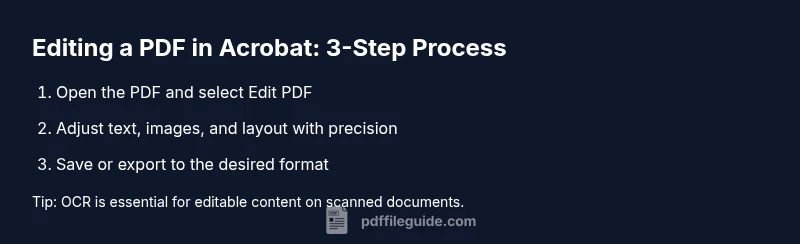
In this section, you’ll learn concrete steps to edit text and graphics with precision. Start by opening the PDF in Acrobat Pro DC and selecting Edit PDF. Click the text you want to modify; a bounding box will appear that lets you adjust font, size, color, and alignment. Remember to keep line breaks and hyphenation consistent with the document’s style. For graphics, select an image to move, resize, or replace; you can also adjust layering and z-order to ensure elements appear in the intended order. When replacing images, prefer vector-friendly formats (SVG or EPS) for better scaling. If the document uses custom fonts, ensure the font is embedded or available on your system to avoid mismatches.
A practical tip is to make small edits in a separate layer or an isolated copy of the page so you can compare with the original. This approach minimizes the risk of unintended changes across multiple pages. PDF File Guide Editorial Team notes that maintaining consistent typography and spacing across pages is critical for a professional look. After edits, re-check the document’s alignment, margins, and any reflow that might have occurred, especially in multi-column layouts.
Working with images, links, and forms
Beyond text, Acrobat Edit PDF also lets you manage images, links, and form fields. To edit an image, click the object and use the handles to resize or rotate; you can also replace the image by right-clicking and choosing Replace Image. For hyperlinks, select the link text or anchor, then modify the destination URL or behavior (open in a new tab, etc.). If your PDF contains fillable form fields, use the Prepare Form tool to add, edit, and align fields, set validation rules, and define actions. Keep accessibility in mind: ensure that form fields have descriptive tooltips and that tab order remains logical.
If you’re updating a form, test it by filling in sample data to verify that calculations and validations work as intended. When inserting new content, preserve the overall design language by using the same font families, colors, and line spacing as the rest of the document. PDF File Guide Editorial Team emphasizes keeping user experience in mind—clear, actionable fields with obvious labels improve usability.
Saving, exporting, and tracking changes
Saving edits is a critical final step. Use Save As to create a new version so the original remains intact. Acrobat allows you to export edited PDFs to Word, Excel, or PowerPoint for further refinement; exporting can help preserve layout when large text rewriting is needed. If you export to Word, review formatting, font substitutions, and image placement after re-importing. When collaboration is involved, consider using a service that supports version history and comments to track changes over time. Finally, validate that the final PDF meets your distribution requirements, such as accessibility standards or print readiness.
A practical recommendation is to enable the “Create Tagged PDF” option if the document will be used with assistive technologies. This helps screen readers interpret the content correctly. PDF File Guide Editorial Team advises documenting the edits in a brief changelog so reviewers understand what changed and why.
Common issues and troubleshooting
Edit failures can stem from restricted permissions, font embedding problems, or non-editable content blocks. If you encounter a password or permission issue, contact the document owner or the sender to obtain editing rights. Font substitution can cause major visual differences; verify that the fonts used are embedded or installed on your system. For scanned PDFs without OCR, apply the OCR function first, then re-run Edit PDF. If images do not align after edits, check the page margins and reflow options, as some PDFs were created with fixed layouts.
When formats look off after export, adjust export settings, try different formats, or perform a selective re-edit on affected pages. Always run a final quality check by comparing the edited PDF with the source document to ensure that critical information, margins, and alignment remain intact. PDF File Guide’s guidance emphasizes a patient, methodical approach to troubleshooting—start with the simplest fix and escalate only as needed.
Advanced tips for consistent PDFs
Achieving consistency across a multi-page document requires a well-defined style system. Create and apply a consistent heading structure, font families, colors, and paragraph spacing. If you frequently edit PDFs, consider using one of Acrobat’s action wizard workflows to automate repetitive steps like font replacement, alignment corrections, or image scaling. When collaborating with others, establish a shared set of guidelines for fonts, images, and color usage to ensure uniform results across edits.
For archival quality, embed fonts and use high-resolution images, and maintain a clean source file so subsequent editors can reproduce changes easily. Finally, review your final document for accessibility: add alt text to images, ensure form labels are read in screen readers, and keep the document navigable with a clear tag structure. PDF File Guide Editorial Team notes that consistent practices save time and reduce errors in ongoing PDF maintenance.
Tools & Materials
- Adobe Acrobat Pro DC(Subscription or permanent license; ensure it's up to date for the Edit PDF feature.)
- Computer with Windows or macOS(A recent OS version helps run Acrobat smoothly.)
- Stylus or mouse with precision(Helpful for precise placement of edits and images.)
- Fonts and image assets (optional)(Embed fonts if possible; bring brand-consistent images.)
- Backup copy of the PDF(Always keep an original before editing.)
- Internet connection (for verification/exports)(Only needed if using cloud features or sending files.)
Steps
Estimated time: 15-30 minutes
- 1
Open the PDF in Acrobat Pro DC
Launch Acrobat Pro DC and open the file you want to edit. Verify you have editing rights and that the document is the correct version before making any changes.
Tip: If the file is large, use Preview to ensure you’re editing the right pages first. - 2
Enable the Edit PDF tool
Go to Tools and click Edit PDF to activate the editing interface. This switches the content to editable text boxes and image handles.
Tip: If Edit PDF isn’t visible, check your license or switch to a compatible device. - 3
Edit text content
Click on the text you want to modify, adjust fonts, sizes, color, and line breaks. Avoid changing layout too aggressively to preserve page flow.
Tip: Edit in small steps and compare with the original to maintain consistency. - 4
Edit images and objects
Select images or objects to move, resize, or replace. Use the alignment guides to maintain uniform margins and spacing.
Tip: Replace images with vector-friendly formats when possible for better scaling. - 5
Add new content or forms
Insert new text blocks, images, or form fields. Align with existing styles and ensure accessibility labels for form fields.
Tip: Name new form fields clearly for easier downstream data collection. - 6
Save and export
Save the edited PDF or export to Word/Excel if you need heavy reformatting. Review fonts, spacing, and image integrity after export.
Tip: Always save a versioned copy before export to avoid data loss.
Questions & Answers
Can I edit PDFs in Acrobat Reader, or do I need Pro DC?
Editing PDFs generally requires Acrobat Pro DC or another paid editor. Reader can view or fill forms but not perform full content edits. If you only need to annotate, Reader may suffice, but for edits to text and images, upgrade to Pro.
Editing PDFs typically requires Acrobat Pro DC; Reader is for viewing and basic annotations.
What if my PDF is password-protected?
You must obtain editing permissions from the document owner or remove restrictions if you’re authorized. In some cases, you may be able to request a non-restricted copy from the source, or use a password you have permission to use.
For password protection, you need authorization to edit.
How do I edit a scanned PDF?
Scanned PDFs aren’t editable until OCR is applied. Use Edit PDF, then run OCR to convert images to text before editing. Check OCR language settings for accuracy.
Apply OCR first, then edit the text.
Can I keep the original formatting after edits?
Yes, by using the same font family, consistent margins, and avoiding large reflow. Exporting to Word first can help preserve layout if you need extensive edits.
Keep fonts and layout consistent to preserve formatting.
Is there a way to revert edits if I change my mind?
Always create a backup copy before editing. In Acrobat, you can revert to the saved version or use Version History on cloud-connected workflows to compare changes.
Backups let you revert edits easily.
Watch Video
Key Takeaways
- Edit PDFs with Acrobat using Edit PDF for most changes
- OCR is essential for editable text on scanned documents
- Export to Word/Excel for large-format edits and reformatting
- Always back up the original before editing
- Check accessibility and font embedding after edits