Can You Edit PDFs in Google Drive? A Practical Guide
Learn how to edit PDFs in Google Drive: native options, conversion to Google Docs, and when to use third-party add-ons. Practical workflows, safety tips, and export strategies for professionals.


Can you edit PDFs directly in Google Drive? Yes, but with caveats. You can edit by converting the PDF to a Google Docs format for text edits, annotating or commenting in Drive, or using third‑party add‑ons from the Google Workspace Marketplace. This guide from PDF File Guide walks through native options, best practices, and when to choose a dedicated PDF editor.
Can You Edit PDFs in Google Drive? Native capabilities and limits
If you’re exploring can you edit pdf google drive, you’re not alone. Google Drive provides a few ways to work with PDFs, but none of them offer the same native, free-form text editing that you’d get in a word processor. The main path most professionals use is to convert the file to Google Docs for text edits, then export back to PDF when the final version is ready. You can also leave the PDF as-is and use comments, highlights, and annotations to propose changes. This section lays out what you can do without leaving Google Drive, what you’ll lose in conversion, and how to choose the best approach for your document type. The goal is to give you practical options that align with a professional workflow and minimize surprises when you share with colleagues or clients. This guidance comes with the perspective of PDF File Guide, a resource for editing, converting, and optimizing PDFs.
Native editing options in Google Drive: annotations, comments, and conversion
Google Drive supports basic PDF annotations in the built-in viewer; you can highlight, add comments, and draw on PDFs when opened with the standard PDF viewer. If you choose to convert a PDF to Google Docs (via Open with > Google Docs), you gain access to editable text, paragraph formatting, and bullet lists. However, the conversion is not perfect; fonts, spacing, and image positions can shift, especially with complex layouts. For quick reviews, you can rely on comments and suggested edits without altering the original file, which is particularly useful in collaborative workflows. PDF File Guide emphasizes testing the workflow on a duplicate and validating critical sections after editing.
When to convert PDFs: choosing Google Docs vs. dedicated editors
Conversion to Google Docs is ideal for text-heavy PDFs where the emphasis is on editing content rather than preserving exact layout. If your document uses intricate tables, multi-column layouts, or embedded fonts, the converted Docs version may require substantial cleanup. For forms, form fields, or heavily formatted pages, it’s often better to edit images or text in a dedicated PDF editor, then reassemble as a PDF. In professional settings, you might use a hybrid approach: perform core edits in Docs, annotate the rest, and finalize with a PDF editor for layout fidelity. PDF File Guide’s framework helps professionals decide which path minimizes rework.
Third-party add-ons and workflows for advanced edits
If the native options aren’t enough, you can integrate third‑party editors or add-ons through Google Workspace Marketplace. Choose tools with strong security profiles, clear permission scopes, and compatibility with your PDF versions. When evaluating add-ons, review user feedback, test on non‑sensitive documents, and consider a sandbox workflow. Remember: any external tool adds a potential data-privacy layer, so align with your organization’s policy and PMI guidelines. PDF File Guide recommends sticking to reputable providers and auditing access periodically.
A practical workflow: editing a PDF in Google Drive from start to finish
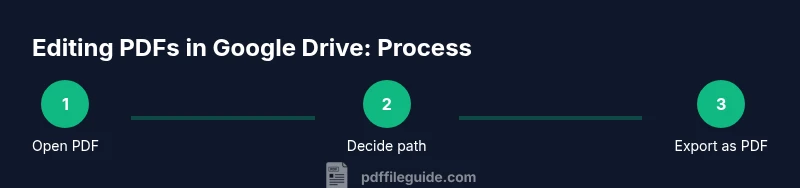
A robust workflow begins with a duplicate copy, followed by a path decision. If text editing is primary, convert to Google Docs, perform edits, and re‑export to PDF. If the document relies on precise formatting or forms, annotate or use a third‑party editor and save changes back to the original PDF container. Always review line breaks, font substitutions, and image placements after any conversion, and compare the final PDF to the source before sharing. This approach keeps you efficient while maintaining professional quality.
Tips for preserving layout and fonts during conversion
When you convert a PDF to Google Docs, test a representative page to gauge layout fidelity. If layout shifts are heavy, consider editing in a dedicated PDF editor for those sections and keeping the rest editable in Docs. Use fonts that closely resemble the original, adjust margins, and verify image crops. After editing, export to PDF with the highest available quality to preserve color and vector clarity. Keeping the original file as a reference helps ensure your edits align with the source material.
Tools & Materials
- Google Account(Active account with Drive access and proper permissions.)
- PDF file(s) to edit(Original document stored in Google Drive.)
- Web browser (latest version)(Keep browser up to date for best compatibility.)
- Optional: PDF editing add-on or app(Choose reputable tools from Google Workspace Marketplace.)
- A duplicate copy of the PDF(Always work on a copy to preserve the original.)
Steps
Estimated time: 25-45 minutes
- 1
Open the PDF in Google Drive
Navigate to the PDF in Drive, right-click, and select Open with > Google Docs to trigger conversion (for text edits) or choose Open with > Preview to annotate.
Tip: Always start with a duplicate file to protect the original. - 2
Decide editing path
Determine whether you’ll edit text by converting to Docs, annotate non-destructively, or use a third‑party editor for heavy formatting.
Tip: Test a sample page to gauge conversion fidelity before committing to edits. - 3
Edit or annotate
If you converted to Docs, edit the text and adjust formatting. If annotating, use comments, highlights, and drawing tools to propose changes.
Tip: Keep edits non-destructive when possible to simplify reviews. - 4
Export or save changes
Export the edited Docs back to PDF or save changes to the original Drive file if you used a non-destructive method.
Tip: Use File > Download > PDF Document to preserve layout as a PDF. - 5
Review and share
Compare the edited PDF with the original, verify fonts and images, and share with teammates with appropriate permissions.
Tip: Document any formatting deviations and plan a second pass if needed.
Questions & Answers
Can you edit a PDF directly in Google Drive?
Google Drive does not support direct in-place text editing of PDFs. You can annotate or convert the file to Google Docs for edits, then export back to PDF as needed.
Drive can't directly edit PDFs; you either convert to Docs for editing or annotate and review.
Do PDFs convert perfectly to Google Docs?
Conversions preserve many elements, but complex layouts, fonts, and tables may shift. Expect some cleanup after conversion.
Conversions can change layout; plan time for cleanup after converting.
Are add-ons safe for editing PDFs?
Choose reputable add-ons with clear permission scopes. Review reviews and limit access to what you need.
Use trusted add-ons and check permissions before installing.
How do I export the edited PDF back to PDF?
If you edited in Google Docs, use File > Download > PDF Document. If you edited annotations, save the document in Drive and export as needed.
Export your edited Doc as PDF to preserve changes.
Can I edit scanned PDFs?
Scanned PDFs require OCR (optical character recognition). Use OCR-aware tools before editing text.
OCR is required for text edits on scanned PDFs.
Is annotating in Drive enough for collaboration?
Annotations are great for review cycles, but final edits often need a proper text edit path to ensure readability.
Annotations aid reviews, but final edits may need a real text edit.
What should I do if formatting is critical?
Treat formatting as a separate phase: edit text in Docs or a PDF editor, then re-check layout in the final PDF.
For exact formatting, use a specialized PDF editor for final polishing.
Watch Video
Key Takeaways
- Understand native vs. convert workflows for PDFs in Drive
- Choose conversion when text edits are primary, use annotations for reviews
- Always edit on duplicates and export back to PDF when finalizing
- Security and accuracy matter when using add-ons